BIOS Gaming Settings & Safe Overclocking Guide
The motherboard BIOS controls memory speed, power limits, PCIe behavior and several settings that quietly decide how fast a gaming PC runs. Many systems leave money on the table because the memory runs at a conservative default, while others become unstable after an overclock that was pushed too far in one step. This guide covers the BIOS settings that matter most for gaming, explains a safe method for any overclock, and shows how to back out of a bad change without losing the system. It is a settings reference that stays valid whichever board and processor you choose. We have not run our own stability tests for this article, so the advice focuses on order, checks and recovery rather than on fixed voltages or clock speeds.


What the BIOS Controls for Gaming
The BIOS, or UEFI firmware, is the layer between the hardware and the operating system. It sets the memory timings and speed, the power limits the processor can draw, how the graphics card is addressed, and how fans respond to temperature. A new build usually starts with the firmware defaults, and those defaults favor compatibility. A tuned BIOS can deliver more performance from the same parts, but it also introduces more ways to make the system unstable.
Before you change anything, update the BIOS to the current stable release from the board maker. Newer releases often include memory compatibility updates and processor microcode fixes. A stable overclock on an old firmware can become unstable after a patch, so keep notes on the version you tested.
Memory Profiles and Real Speed
Memory is the setting most builders change first. Intel boards expose XMP profiles, and AMD boards expose EXPO profiles. Enabling a profile sets the rated speed and timings that the memory maker validated. Confirm the speed in the BIOS and in the operating system afterward, because a board may fall back to a slower setting if the memory is not stable at its rated speed. The DDR5 6000MHz guide explains why that speed is a common target for current platforms.
Resizable BAR and Above 4G Decoding
Resizable BAR, which vendors also call Smart Access Memory or similar names, lets the processor address the graphics card’s memory in larger blocks. It is enabled by Above 4G Decoding in most boards. Many gaming titles can use it, but the gain varies by game, so enable it and test your favorite games rather than assuming a large change.
The Settings That Matter Most
Most gaming BIOS work comes down to a handful of settings. Change them in a fixed order so you can tell which one caused a result.
Power Limits and Boost Behavior
Intel and AMD processors use power limits to decide how long they hold a boost clock. Motherboards can set these limits in ways that exceed the vendor’s specification, which can raise heat and power draw. Check the limits against the cooler’s rating, and keep the defaults if the cooler is modest. Our best CPU for gaming guide covers chips that handle boost behavior well at stock.
Fan Control and Thermal Targets
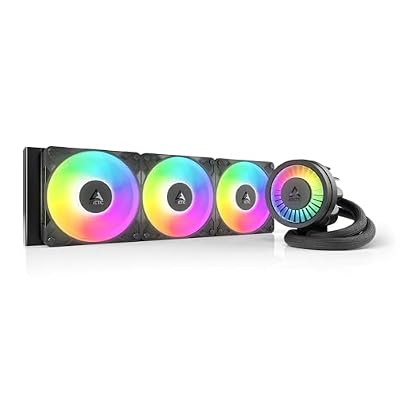
The BIOS also controls the fan headers for the processor and case. Set a curve that responds early to temperature, and check that the pump on a liquid cooler runs at a steady speed. The best CPU cooler for gaming guide helps you match the cooler to the chip before you tune the curve.
Storage and Boot Order
A fast NVMe drive should be set as the first boot device, and the boot order should match the drive you installed the operating system on. A wrong boot order is a common cause of a system that seems to fail after a BIOS change. If you plan a second drive, the best M.2 SSD for gaming guide lists options by speed and price tier.
A Safe Method for Any Overclock
An overclock is a series of small, tested steps. The goal is the highest stable setting that holds under your heaviest real workload with a safety margin for temperature and time. Each step should be followed by a stability test before the next change.
Record the Stock Configuration
Save a BIOS profile with the stock settings, and write down the memory speed, power limits and fan curve. If the system becomes unstable, you can return to a known starting point. Keep a note of the firmware version as well, because a later update can change the behavior of a tuned setting.
Change One Setting at a Time
Adjust one variable, such as the memory speed, and test it before you change another. Changing the memory speed, the processor multiplier and the voltage together makes it hard to tell which change caused a crash. Small steps take longer, but they produce a result you can trust.
Stress Test and Check Temperatures
After each change, run a stability test that loads the processor and memory for a sustained period. Watch the temperature and the power draw. A setting that passes a short test can fail after an hour of real play, so follow the stress test with a long gaming session. Our temperature checking guide explains which readings to watch.
Check Logs for Silent Errors
A system can run without visible crashes and still produce hardware errors in the event log. Check the log after each long test. Any new machine check or memory error means the setting is not final, even if the game still runs.
Know How to Recover
Every board has a way to clear the settings, usually a CMOS reset jumper, a button or a battery removal. Learn the method for your board before you start. If the system fails to boot after a change, clear the settings and load the saved stock profile. Do not keep changing values in a failing state, because that can make the next boot harder to diagnose.
Comparison: Overclocking Approaches
The table below groups common approaches by goal. Price columns use tiers rather than numbers, because prices vary. Check current listings before you buy.
| Approach | Best for | Main trade-off | Price tier |
|---|---|---|---|
| Memory profile only | Most builders, low risk | Gain depends on the memory and platform | No extra cost |
| Stock BIOS with Resizable BAR | Gaming without manual tuning | Gain varies by title | No extra cost |
| Conservative processor tuning | Users who want a small, safe gain | More testing time and heat to manage | Requires adequate cooling |
| Aggressive overclock | Experienced tuners with strong cooling | Higher risk, shorter component life, more troubleshooting | Mid-range to premium cooling |
For most readers, the first two rows are the right starting point. Move down the table only when the cooling and the testing time justify the work.
Troubleshooting BIOS and Overclock Problems
Most failures trace back to an unstable memory setting, a power limit that exceeds the cooler, or a firmware version that does not match the change. Work through these in order.
Boot Failures After a Change
If the system will not boot, clear the settings to stock and try again with the change reverted. Check that the memory is seated in the correct slots, as the board’s guide specifies, and that the profile matches the module’s rating.
Crashes Only Under Heavy Load
Crashes that appear only under heavy load often point to a power or thermal limit. Lower the power limit slightly, improve cooling or back off the most recent change. If the crashes stop, the change was too aggressive for the chip at that temperature.
Memory Errors in Games
Memory errors can cause random crashes, texture corruption or a game that freezes after a long session. Test the memory at the stock profile first, then at the rated profile, and only then at any higher speed. A memory error is a clear sign to back off.
Who Should Tune the BIOS
Enabling the memory profile and checking the Resizable BAR setting suits almost every gaming builder, and it takes little time. Deeper overclocking suits experienced builders with strong cooling and time for stability testing. If you are not sure whether your cooling is sufficient, stay with the stock power limits and a memory profile. The gain from a conservative setup is usually worth more than the risk of an unstable system during a deadline.
The processor and motherboard you choose shape what the BIOS can do. The best Intel CPU for gaming guide and the best AMD CPU for gaming guide list options with different tuning headroom. For a board that suits the platform, the Intel motherboard guide and the AMD motherboard guide cover the options by feature set.

MSI MAG X870E Tomahawk MAX WiFi V1 Motherboard, ATX - Supports AMD Ryzen 9000/8000 / 7000 Processors, AM5-80A SPS VRM, DDR5 Memory Boost 8400+ MT/s (OC), PCIe 5.0 x16, M.2 Gen5, Wi-Fi 7, 5G LAN


As an Amazon Associate we earn from qualifying purchases. Product prices and availability are accurate as of the date/time indicated.
Power delivery matters too. A stable overclock needs a clean supply, and the PSU guide for gaming PCs explains how to size the unit with margin. For the memory side, the DDR5 overclocking safety guide goes deeper on memory testing, and the Core Ultra 7 265K review shows how a current Intel chip handles its power settings.
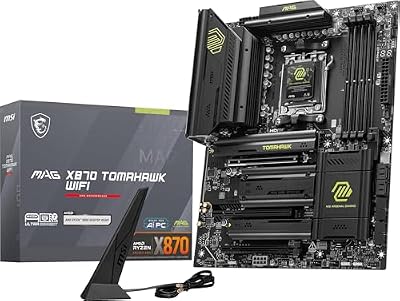
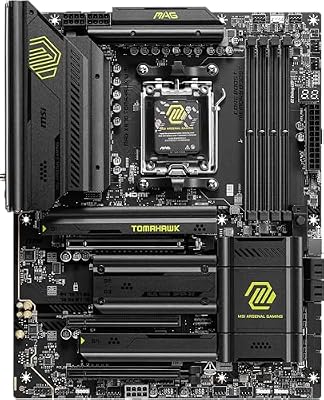
MSI MAG X870 Tomahawk WiFi Gaming Motherboard (AMD Ryzen 9000/8000/7000 Series Processors, AM5, DDR5, PCIe 5.0, M.2 Gen5, SATA 6Gb/s, USB 40Gbps, HDMI/DP, Wi-Fi 7, Bluetooth 5.4, 5Gbps LAN, ATX)


As an Amazon Associate we earn from qualifying purchases. Product prices and availability are accurate as of the date/time indicated.
Finally, a case with good airflow keeps the tuned system within its thermal limits. The gaming PC case guide covers airflow layouts, and the best GPU for gaming guide helps you pick a graphics card whose power draw fits the rest of the build.
Frequently Asked Questions
Should I enable XMP or EXPO?
Yes, for most builds. The profile applies the memory speed and timings the module maker validated. Confirm the speed in the operating system afterward, and run a memory stability test to check that the setting holds.
Is Resizable BAR always worth enabling?
It is generally safe to enable on a modern platform, and many games can use it. The gain varies by title, so test your favorite games rather than assuming a large change. Keep it on if the results are stable and show no regressions.
How do I know an overclock is safe?
An overclock is safe when it passes a sustained stress test, holds within the cooler’s temperature limits, and produces no new errors in the event log across a long gaming session. If any of those checks fail, back off to the last stable setting.
What if my board will not boot after a change?
Clear the CMOS using the board’s method, then load the saved stock profile. Revert the last change, and reapply the others one at a time. Keep the memory in the slots the board manual recommends, because a wrong slot is a common cause of boot problems.