FSR 4 Settings & Optimization for AMD GPUs
FSR 4 is AMD’s machine-learning upscaling technology, and it changes how an AMD graphics card can spend its frame budget. Owners of recent Radeon cards want to know which settings to change, which games expose the new path, and where the image can go wrong. This guide covers those questions in a practical order. It is written as a buying and setup reference, so the advice holds whichever AMD card you choose. We have not run our own benchmark passes for this article, so the guidance focuses on how the options interact rather than on fixed frame-rate figures.


What FSR 4 Changes Compared with Earlier FSR Versions
FSR has existed in several generations, and the naming can confuse buyers. Earlier FSR releases were largely spatial or temporal algorithms that ran on a wide range of hardware. FSR 4 moved to a machine-learning model that AMD designed around its RDNA 4 architecture, which means the best results come from the newest Radeon hardware. The core job is the same as any upscaler: render at a lower internal resolution and reconstruct a sharper image at the resolution on your display.
The change matters for settings. An upscaler with a stronger reconstruction model can justify a lower internal resolution in some scenes, which frees GPU time for other effects. It also means the image quality gap between presets can shift. A preset that looked soft on an older FSR path may look acceptable with the newer model, so re-test your preferred preset rather than trusting a setting you chose years ago.
Where FSR 4 Runs and Why Support Varies
Game support is the first constraint. A title must expose the FSR 4 path, and some games expose it only through the FSR 3.1 interface while the driver handles the rest. AMD’s driver options have changed across releases, so the menu you see may differ from a guide written months earlier. Check the game’s graphics menu and the Adrenalin driver’s per-game settings, and note which version of FSR the title reports.
Frame Generation Is a Separate Decision
FSR upscaling and frame generation are separate features, although they often appear together in the same menu. Upscaling reduces the cost of each rendered frame. Frame generation inserts extra frames between rendered ones. Enable upscaling first and judge the image. Only after that should you consider AMD’s frame generation options, because they add their own input and pacing trade-offs.
Hardware Fit: Choosing the Right Radeon Tier
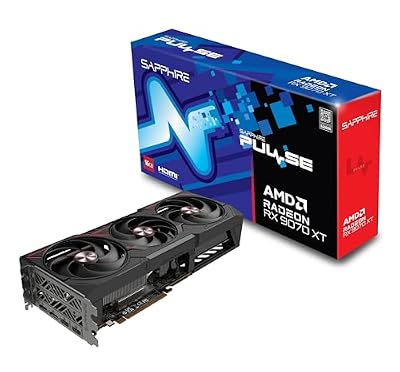
Buyers often ask whether FSR 4 is a reason to pick an AMD card over an NVIDIA one. The honest answer depends on the games you play. FSR 4 is a real improvement for Radeon owners, but it is one feature among several, and your choice should rest on the card’s raster performance, memory and price at your target resolution first. The hero listing above is a representative card in this family. Check the card page for the exact model, memory size and power connector before you buy, because a listing can be a close match to the model named in a review.
Matching the Card to Your Resolution
At 1080p, most modern cards have enough headroom that upscaling is a choice rather than a requirement. At 1440p, upscaling often becomes the difference between a smooth experience and a compromised one in demanding titles. At 4K, a strong upscaler is close to mandatory for high settings, and the model quality matters more. If you play mainly at 1440p, a mid-to-upper tier card with good memory is usually the sensible target.
Comparing the Radeon Option with Its Rivals
If you are weighing a Radeon card against an NVIDIA alternative in the same price band, the comparison should cover more than upscaling. Raster performance in your favorite games, driver stability, and the features you actually use all matter. Our RX 9070 versus RTX 5070 comparison works through that trade-off in detail, and the AMD versus NVIDIA buyers guide covers the broader decision.
Step-by-Step Settings for a Balanced Image
Start with a clean driver install and a known baseline. Set the game to your native display resolution, turn off any fixed render scale you set earlier, and then enable FSR. The order matters because a leftover scale value can hide the effect of the upscaler you are trying to test.
Choose a Quality Preset and Test Motion
FSR presets are usually labeled by quality level. Quality modes favor image stability and fine detail, while balanced and performance modes favor frame rate. Pick the mode you think you need, then play through a scene with fast camera motion, foliage and thin wires or fences. Those are the areas where an upscaler shows its weaknesses. If the image shimmers or smears badly, step up one preset rather than accepting a soft result.
Set Sharpening to Match the Preset
A sharpening slider can recover some detail that the upscaler softens. Too much sharpening creates halos around edges and makes moving objects look harsh. Start at a neutral value, compare a static scene and a moving scene, and adjust in small steps. The goal is an image that looks natural in motion, not one that looks crisp in a still screenshot.
Cap Frame Rate for Stable Pacing
Frame pacing matters as much as average frame rate. A cap a few frames below your display’s refresh rate keeps the GPU from running at its limit all the time, which reduces spikes and heat. Set the cap in the driver or the game, and recheck after any driver update, because default behavior changes between releases.
Comparison: FSR Setup Options at a Glance
The table below groups common setups by goal. The price column uses tiers rather than fixed figures, because prices move and differ by region. Check the current listing before you commit.
| Setup | Best for | Typical GPU tier | Price tier |
|---|---|---|---|
| FSR Quality at native 1440p | Image-first single-player play | Upper mid-range Radeon | Mid-range, check current price |
| FSR Balanced at 1440p | High frame rate with good sharpness | Mid-range Radeon | Mid-range |
| FSR Performance at 4K | Demanding titles on a 4K display | Higher Radeon tier | Premium, check current price |
| Native rendering, no upscaling | Older titles or light workloads | Any tier with spare headroom | Depends on existing hardware |
For most readers, the mid-range row is the starting point. Move to a higher tier only when your target resolution or your display refresh rate demands it.
Common FSR Problems and Fixes
Most FSR complaints fall into three groups: shimmer on fine geometry, ghosting behind moving objects, and uneven frame pacing after a driver change. Each one has a different fix, and changing several settings at once makes it hard to see which one worked.
Shimmer and Fine Detail Loss
Shimmer on fences, hair and distant foliage usually means the preset is too low for the scene. Raise the quality mode one step and recheck. If the shimmer persists, look at the game’s texture filtering and any separate anti-aliasing option, because conflicting settings can make an upscaler look worse than it is.
Ghosting Behind Moving Objects
Ghosting is a trail that follows a moving character or vehicle. It can come from the upscaler’s temporal history or from a sharpening setting that is too strong. Reduce sharpening first, then check whether the artifact remains at a higher quality preset. If it does, report the issue to the game developer, since the fix may arrive in a patch.
Pacing Problems After a Driver Update
A driver update can change how an FSR path behaves. If stutter appears after an update, roll back or test with a clean profile before changing game settings. Keep notes on driver version, preset and sharpening value so you can return to a known good state.
Who Should Use This Setup
FSR 4 is most useful for Radeon owners who play demanding single-player titles and want a smoother frame rate without giving up too much image quality. Competitive players should test each setting in their own game, because the input feel of a generated or upscaled frame can differ from a natively rendered one. If you are still choosing hardware, consider the rest of the build too. A balanced system with a capable power supply, sensible cooling and fast storage gives the GPU room to hold its frame rate.
For cooling and case planning, our mid-tower gaming case guide covers airflow layouts that suit a warm graphics card, and the power supply roundup explains how to size the unit for a current Radeon card. If you play at a higher refresh rate, the 1440p monitor guide helps you match the display to your frame budget.

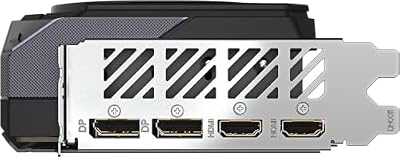
Radeon RX 9070 XT Gaming OC 16G Graphics Card - 16 GB GDDR6, 256 Bit, PCI-E 5.0, 3060 MHz Core Frequency, 2 x DisplayPort, 2 x HDMI, GV-R9070XTGAMING OC-16GD


As an Amazon Associate we earn from qualifying purchases. Product prices and availability are accurate as of the date/time indicated.
Once you have a candidate card, check the card page for memory size, cooling design and the number of display outputs. Those details decide whether the card will hold its frame rate in a warm case over a long session. For a broader look at which GPU tier suits your target resolution, our best GPU for 1440p gaming guide sorts the options by price band.

ASRock Graphics Board Steel Legend RX 9070 XT 16G AMD Radeon RX9070XT RX9070XT SL 16G / AX


As an Amazon Associate we earn from qualifying purchases. Product prices and availability are accurate as of the date/time indicated.
If your current card is an older Radeon, the same settings process still applies. You will get less benefit from the newest model, but the habit of testing presets in motion and capping the frame rate works on any hardware. For a quick check on how hot your card runs under load, our temperature checking guide shows the readings to watch. Pair that with the Cyberpunk 2077 GPU guide if you want a demanding title to test against.
Frequently Asked Questions
Does FSR 4 only work on the newest Radeon cards?
FSR 4 is designed around the newest Radeon architecture, so the best results come from current hardware. Older cards can still use earlier FSR versions in supported games. Check each game’s options and AMD’s current driver notes to see which path your card can use.
Which FSR preset should I choose for 1440p?
Quality or balanced is a sensible starting point at 1440p. Test both in a scene with fast motion and fine detail, then pick the one that keeps the image stable without dropping your frame rate below your target. Revisit the choice after driver updates, because the balance can shift.
Should I use AMD frame generation together with FSR upscaling?
You can, but test upscaling on its own first. Frame generation adds its own pacing and input trade-offs. If the result feels less responsive or shows artifacts, turn it off and keep the upscaler, which is often the better part of the stack.
Is FSR 4 better than NVIDIA DLSS?
Neither upscaler is a universal winner. Results depend on the game, the preset and the hardware. Compare the two in the titles you play most, at the resolution you use, and judge the image in motion rather than in still screenshots.