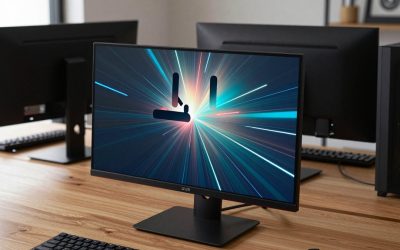
The comparison depends on which ROG Swift you mean, because ASUS sells several OLED monitors under that name, while the Alienware AW3423DWF is one specific 34-inch curved ultrawide. If you want a single answer, the Alienware is the immersive, ultrawide pick with a well-known QD-OLED panel, and a ROG Swift OLED makes sense when you prefer a flat 27-inch or 32-inch screen, a higher refresh rate or a different size. This guide compares them using published specifications and manufacturer documentation, so check current specifications before buying.
- Short verdict
- Know which ROG Swift you are comparing
- Specifications side by side
- Panel type and image quality
- Size, shape and games
- Coatings, brightness and room lighting
- Productivity, text and mixed use
- Burn-in, care and warranty
- Worked example: does your PC have enough GPU for it?
- Connections and extras
- Pre-purchase checklist
- Related guides
- Frequently asked questions
Short verdict
Go for the AW3423DWF if you want a curved 34-inch ultrawide for immersive games and wide productivity layouts. Go for a ROG Swift OLED if you prefer a conventional aspect ratio, a flat screen or a faster refresh rate at a model-specific size. Both categories sit in the premium tier, so neither is a casual buy.
Know which ROG Swift you are comparing
ASUS has used the Swift name across different sizes and panel types. Some ROG Swift OLED models use QD-OLED panels, while others use WOLED panels with a different subpixel structure. They also differ in resolution, refresh rate and coating. That means a general statement such as “Swift is faster” will be wrong for some models.
Before you compare anything, write down the exact model number you are considering and its official page. Then use the table below as a template.
Specifications side by side
| Feature | Alienware AW3423DWF | ROG Swift OLED (model dependent) |
|---|---|---|
| Size and shape | 34-inch curved ultrawide | Varies: 27, 32, 34 or larger; flat or curved |
| Resolution | 3440×1440 | Varies by model, from 1440p to 4K |
| Panel type | QD-OLED | QD-OLED or WOLED depending on model |
| Refresh rate | 165 Hz | Often higher on newer models, check the page |
| Variable refresh rate | FreeSync Premium Pro | Usually G-SYNC compatible or FreeSync, model dependent |
| HDR | DisplayHDR True Black class | Model dependent |
| Ports | DisplayPort and HDMI, check version | Model dependent, check version |
Port versions matter. Some monitors use HDMI 2.0 or older DisplayPort revisions that limit refresh rate at a given resolution, so check the exact version on the product page.
Panel type and image quality
OLED pixels produce their own light, so black areas can switch off entirely. That gives very high contrast, fast pixel response and deep blacks in a dim room. QD-OLED uses quantum dots to convert blue light into red and green, and WOLED uses white subpixels with a color filter. Both can look excellent. QD-OLED is often noted for strong color saturation, while WOLED designs are often noted for brightness in some conditions, but the real result depends on the model and settings.
Text clarity differs by subpixel layout. Some OLED panels show slight color fringing on small text at certain resolutions, especially at lower pixel density. If you spend long hours reading or coding, view the monitor in person or read several reviews of the exact model to see whether the effect would bother you.
Size, shape and games
An ultrawide like the AW3423DWF fills more of your field of view, which suits racing, flight and open-world games, and it gives you room for two windows side by side. Not every game supports a 21:9 aspect ratio correctly, and some competitive titles limit the field of view, so check your favorite games.
A 27-inch 1440p or 32-inch 4K ROG Swift gives you a more conventional layout, a wider range of game support and often higher refresh rate options. Sharpness is higher at 4K on a 32-inch screen, though it demands much more from the graphics card.
Coatings, brightness and room lighting
Screen coating affects how an OLED looks in a bright room. A matte or anti-glare layer can scatter ambient light and make blacks look lifted, while a glossy layer keeps contrast but shows reflections. The AW3423DWF is often discussed for its coating behavior in bright rooms, and ROG Swift models vary in their coatings. If your PC sits near a window, check coating details and consider controlling light.
Peak brightness for HDR highlights is another model-by-model difference. OLEDs also limit full-screen brightness to protect the panel, so a mostly white page may be dimmer than a small bright highlight.
Productivity, text and mixed use
If the monitor will also serve for spreadsheets, coding or web browsing, think about the static elements those tasks leave on screen. White backgrounds are bright and tiring on OLED if you use them for hours, so dark modes help both comfort and panel care. Ultrawides shine for timelines, wide spreadsheets and two documents side by side, while a 32-inch 4K panel offers crisper text and scaling that many people find easier on the eyes.
Check Windows scaling settings, too. A 34-inch 3440×1440 screen usually runs at 100 percent scaling, whereas a 32-inch 4K screen often needs around 125 to 150 percent to keep text readable, and some older apps handle that poorly.
Burn-in, care and warranty
All OLEDs can develop permanent image retention if the same static element stays on screen for very long periods. Sensible habits lower the risk.
- Hide the taskbar and use a dark theme where possible.
- Let the monitor complete its pixel-refresh or compensation cycles, and avoid cutting power during them.
- Set a short screen-off timer for idle periods.
- Avoid using the monitor as a static dashboard for hours.
Warranty terms for burn-in vary by brand, region and sometimes by the retailer, so read the current terms before you buy rather than relying on summaries.
Worked example: does your PC have enough GPU for it?
Assume you want 100 frames per second or more in demanding games. Resolution is the first factor. A 3440×1440 screen has about 5 million pixels, compared with roughly 3.7 million at 2560×1440 and about 8.3 million at 3840×2160. All else equal, more pixels means more GPU work.
- Pick a target: for example, 100 fps at high settings.
- Estimate how your current GPU performs at 1440p in your games, using published benchmarks for that card.
- Scale for pixel count: the ultrawide needs roughly a third more pixels than 2560×1440, so expect a lower frame rate unless you lower settings.
- For 4K, expect an even larger drop, and consider upscaling features if the game supports them.
Our overview of the best ASUS ROG GPU graphics cards is a good place to compare cards, and the best ASUS ROG gaming PCs page covers complete systems if you are upgrading everything at once.
Connections and extras
Look at which ports you actually need. Some of these monitors include a USB hub, speakers or a headphone out, and others leave them out. If you plan to connect a console or laptop, check for HDMI features such as variable refresh support on that port. Mounting is another point: a curved ultrawide can be heavy, so confirm the VESA pattern and weight limits before adding an arm, and keep the original box for returns.
Pre-purchase checklist
- Exact model number and official specifications page.
- Resolution and refresh rate your GPU can realistically drive.
- Port versions, and a certified cable if needed.
- Room lighting and coating type.
- Burn-in habits and the current warranty terms.
- Desk depth and stand adjustments, since curved ultrawides and larger screens need space.
- Return policy, in case the text clarity or coating disappoints.
Related guides
- Wireless Gaming Headsets Under 100 For Pc
- Graphics Card For Esports 1080P 240Hz
- Oled Gaming Monitors For Dark Rooms
Frequently asked questions
Is the Alienware AW3423DWF a QD-OLED monitor?
Yes, the AW3423DWF is widely described as a 34-inch curved ultrawide using a QD-OLED panel at 3440×1440 with a 165 Hz refresh rate. It supports variable refresh rate through FreeSync Premium Pro. Specifications and revisions can change, so confirm the current details on the Dell page before buying, including the port versions and the warranty terms that apply in your region.
Which ROG Swift model should be compared against it?
ROG Swift is a family with several OLED sizes and panel types, including 27-inch, 32-inch and ultrawide models, and the panel technology varies by model. Choose the one matching the size and resolution you actually want, then compare it to the AW3423DWF using the same checks. Check current specifications on the ASUS site.
Is OLED burn-in a real concern?
Static elements shown for very long periods can cause permanent image retention on any OLED, so habits matter. Use dark themes, auto-hide the taskbar, let the monitor run its pixel-refresh cycles, and avoid leaving a static image on screen. Warranty coverage for burn-in differs by brand and region, so read the current terms.
Is an OLED monitor good in a bright room?
OLED excels in dim or controlled lighting, where its black levels stand out. In very bright rooms, a screen coating can lift blacks and reduce contrast, and some coatings are glossier than others. Panel brightness also differs between models. If your room has strong daylight, consider curtains or check coating details before choosing.
What graphics card is needed to drive these monitors?
It depends on resolution and the games you play. A 3440×1440 ultrawide has far more pixels than 1080p, and a 4K model has even more. Check what frame rates you want, then match your GPU to the resolution and refresh rate. Variable refresh rate helps smooth performance below the maximum, but it does not replace GPU power.