Windows 11 24H2 Gaming Optimization Complete Guide
Windows 11 24H2 is the feature update that many gaming PCs now run, and most of its gaming-relevant settings sit in a few places: power mode, Game Mode, graphics scheduling, storage and background activity. This guide walks through those settings in the order that makes sense, so you can remove obvious friction without changing system files or running unverified tweak tools. It covers the checks that matter for a typical gaming PC and points out which changes are safe to revert.
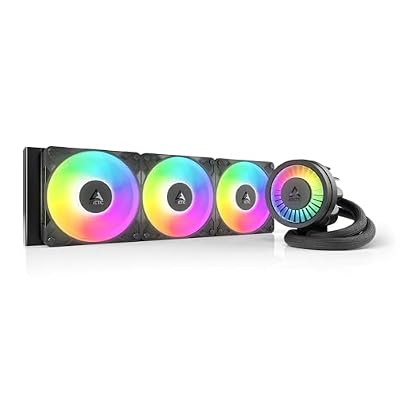
The hero listing above is a Windows-compatible gaming hardware part, selected to match the storage and system side of this guide. It is the closest match rather than a fixed model for every reader. Open the card to confirm the part, its specifications and current price before buying. The alternatives in the same listing serve similar roles, so compare them on capacity, interface and compatibility with your board.

Start With Updates and Drivers
Install the latest Windows updates and the graphics driver from the card maker before changing anything else. Many performance problems come from a stale driver or a pending update that has not finished installing. Restart after each major update, then check that the system is stable under a game load. Changing settings on an unstable system makes it hard to tell which change helped.
For a broader look at operating system choices for gaming, our Linux versus Windows 11 comparison covers the trade-offs, and the Windows 11 Pro versus Home guide explains edition differences that matter for gamers. If you are still installing the system, the Windows 11 install guide walks through a clean setup.
Power Mode and Hardware Graphics Scheduling
Choosing a Power Mode
Windows offers power modes that trade performance against noise and battery life. On a desktop, set the mode that favours performance, and confirm that the processor is not held back by a balanced setting that the game does not need. On a laptop, plug in before a demanding session, since many devices lower their limits on battery. The setting is easy to reverse, so test a full session in each mode and keep the one that gives steady frames.
Hardware-Accelerated GPU Scheduling
Hardware-accelerated GPU scheduling moves some scheduling work from the processor to the graphics card. It helps some systems and makes little difference on others, and driver versions influence the result. Turn it on in the graphics settings section of Windows, restart, then compare frame times in a game you know well. If you see stutter or instability, turn it off and test again. Keep the choice that gives the steadier result on your hardware.
Game Mode, Background Apps and Notifications
Game Mode asks Windows to prioritise the active game for processor and graphics resources. It is on by default on many systems, and it is worth leaving on for most players. Background apps, cloud sync, update checks and browser tabs still compete for resources, so close what you do not need during play. Notifications can also pull attention and interrupt full-screen games, so turn on focus assist during sessions if you use it.
Startup programs add work every time you boot. Review the startup list and disable launchers and utilities you do not use each day. This keeps the system quiet without removing software you need, and you can re-enable anything later.
Storage, Memory and Background Maintenance
A fast drive shortens load times and reduces stutter when a game streams new assets. Keep the game on an SSD with free space, and avoid running the drive close to full, since performance drops as free space shrinks. Storage Sense can clear temporary files on a schedule, and it is worth enabling if you keep many large downloads. Our gaming SSD guide helps with drive choice, and the M.2 gaming SSD guide covers the interface options.
Memory matters too. Sixteen gigabytes is a common baseline, and 32 gigabytes gives more headroom for games, browsers and recording at once. The gaming PC RAM guide explains capacity and speed choices, and the RAM amount guide sets out how much memory a gaming system needs.
Network and Input Checks
Windows network settings affect online games more than most people expect. A wired connection avoids Wi-Fi variability, and a stable router setup reduces packet issues. If your game feels inconsistent online, check the connection type first, then the router. The Ethernet settings guide covers the wired side.
Controller and input settings also differ between platforms. If you use a controller on PC, check the driver and the input mode in each game. Our controller comparison on PC explains how the two families behave on Windows.
Comparison: Windows Settings and Their Effect
| Setting | Best for | Typical effect | Reversible |
|---|---|---|---|
| Power mode set to performance | Desktops and plugged-in laptops | Steadier clocks under load | Yes |
| Hardware-accelerated GPU scheduling | Systems with a recent driver | Varies by system, test it | Yes |
| Game Mode on | Most players | Priority for the active game | Yes |
| Startup and background app review | Any system with many launchers | Less background load | Yes |
| Storage Sense and free space | Systems with full drives | Better drive performance | Yes |
Hardware upgrades are a separate question. Settings improve consistency, but they do not replace a faster drive or more memory when those parts are the limit.
A Test Routine After Changes
Change one setting at a time, restart when the change needs it, and test in the same game scene each time. Use a built-in overlay or a frame time log to compare results. Keep the changes that help and revert the ones that do not. Document the final choices so you can repeat them after a major update.
Frequently Asked Questions
Should I turn on hardware-accelerated GPU scheduling?
Test it on your system. It can help some setups and make little difference on others. Turn it on, restart, compare frame times in a known game, and keep it only if the result is steadier.
Is Game Mode worth leaving on?
For most players, yes. It prioritises the active game, and it is easy to switch off if you see a problem. Judge it by the frame times and stability in your own games.
Does Windows 11 24H2 need special tweaks for gaming?
Not really. Keeping drivers updated, choosing a suitable power mode, closing background software and maintaining free drive space cover most of the gains. Avoid third-party tweak tools that change system files without a clear reason.
Will a faster SSD improve frame rates?
A faster SSD mainly shortens load times and reduces stutter during asset streaming. It rarely raises the average frame rate on its own, so pair it with a balanced system rather than expecting a large frame gain.