DLSS 4 Multi-Frame Generation Complete Setup
DLSS 4 Multi-Frame Generation is the feature that most buyers now ask about before they pick a GeForce card. It promises higher frame rates in games that support it, but the result depends on the card, the resolution, the game and the settings you choose. This guide walks through what the feature does, which hardware it needs, how to set it up in a clean order, and where people usually lose performance or image quality. It is a buying and setup guide, so it stays useful whichever model you end up with. We have not run benchmarks for this article, so the advice below focuses on how the settings interact rather than on fixed numbers.

What DLSS 4 Multi-Frame Generation Actually Does
DLSS is a family of technologies, and it helps to separate the parts before you change anything. Super Resolution renders the game at a lower internal resolution and reconstructs a sharper image at your display resolution. Frame Generation goes further: it inserts extra frames between frames the game has already rendered, so the number of frames shown on screen rises faster than the number of frames the GPU draws from scratch. Multi-Frame Generation is the step beyond the single generated frame used in earlier versions, and NVIDIA’s documentation describes it as generating several additional frames for each rendered frame.
The practical consequence is that a higher frame counter does not always mean a more responsive game. Generated frames add visual smoothness, but the input you feel comes from the frames the engine actually simulates. That is why NVIDIA pairs frame generation with Reflex, which reduces the delay between your input and the render. Treat the on-screen number as one signal, and judge the game by how it feels when you aim or steer.
Super Resolution and Frame Generation Are Separate Switches
Many setup problems come from treating DLSS as one toggle. In most titles the upscaling mode and the frame generation mode are set separately. You can run DLSS Super Resolution on a quality preset and leave frame generation off, which is often the right choice for a competitive shooter, or enable both for a single-player title where smoothness matters more than the last millisecond. Decide the two settings in that order, because a heavy upscaling preset leaves less GPU headroom for frame generation.
Why the Transformer Model Changed the Picture
DLSS 4 introduced a transformer-based model for Super Resolution. NVIDIA positioned it as an upgrade to image stability, ghosting and fine detail, and it applies to supported games on several GeForce generations, not only the newest cards. The model change matters because a cleaner base image makes the generated frames easier to trust. If a title shows shimmer or smearing on distant geometry, check whether the game exposes the newer model and whether your driver version supports it.
Hardware Requirements Before You Touch Settings
The first question is not which setting to pick but whether your card supports the mode you want. Multi-Frame Generation is limited to GeForce RTX 50 series hardware. Earlier RTX cards can still use DLSS Super Resolution and, on supported generations, single-frame generation. The distinction is easy to miss when a product page or a game menu uses similar names for each feature.
The RTX 50 Series Requirement
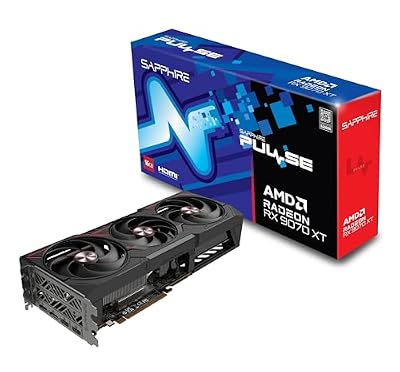
If you are buying a card specifically for multi-frame output, check the model tier against your target resolution and monitor. A higher tier gives more shader and memory headroom, so frame generation has less competition from the rest of the scene. The hero listing in this guide is a representative card in that class. Confirm the exact model, memory size and power connector on the card itself before you order, because the listing may be a close match rather than the precise SKU you saw named in a review.
What Older RTX Cards Keep
Owners of earlier RTX cards do not lose DLSS entirely. Super Resolution remains the most useful part of the stack for most people, because it lowers the cost of a demanding scene without changing the frame logic. If you are deciding whether an upgrade is worth it, compare your current card’s frame rate at your target settings with the frame rate you get after enabling Super Resolution alone. That gap tells you more than any marketing figure.
Step-by-Step Setup for a Clean Result
A reliable setup follows the same order every time. Start with the driver, then the game, then the frame rate limiter, and only then the frame generation mode. Changing everything at once makes it hard to tell which setting caused a stutter.
Update the Driver and Enable Reflex in the Game
Install the current NVIDIA driver through the NVIDIA app or the control panel. Then open the game and find the latency option. NVIDIA Reflex is the companion feature to frame generation, and most titles that offer multi-frame output also list Reflex in the same menu. Turn it on, and if the game offers a separate Boost option, read its description before you enable it, because it can raise power draw on some systems.
Set the Upscaling Preset First
Pick the DLSS Super Resolution preset that matches your target. Quality presets favor sharpness, while performance presets favor frame rate. Run a short walk through the most demanding area of the game and note how the scene looks in motion. Only after the base image looks right should you move on to frame generation.
Choose the Frame Generation Mode
Once the base image is settled, enable Multi-Frame Generation and select the multiplier. Menu names and locations change between driver and game versions, so check the in-game help text rather than relying on an older guide. Start with the lowest multiplier and step up. If stutter appears at the higher setting, the problem is often the frame cap or the power limit rather than the feature itself.
Cap Your Frame Rate Below the Display Limit
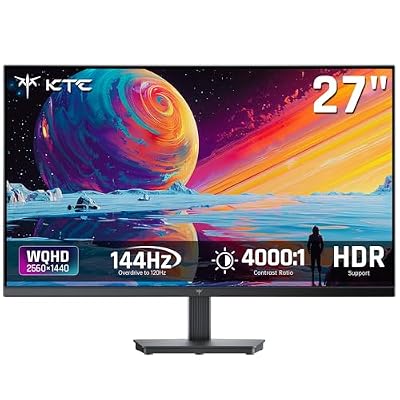
Frame generation works best when the frame rate stays inside a stable window. Set a cap a few frames below your monitor’s refresh rate, either in the game or in the driver. This keeps the display from tearing against a frame pace that is always changing. For a fixed refresh display, a cap that holds steady usually feels better than an uncapped number that spikes and drops.
Comparison: Which Setup Fits Your Goal
The table below groups the common setups by what they are for. The price column uses general tiers rather than figures, because retail prices move quickly and vary by region. Check the current price on the listing before you commit.
| Setup | Best for | Hardware needed | Typical price tier |
|---|---|---|---|
| Super Resolution only | Competitive play where input feel matters most | Any RTX card with DLSS support | Lowest cost, uses existing card |
| Single-frame generation | Smoother single-player titles on mid-range RTX | Supported RTX generations | Mid-range, check current price |
| Multi-Frame Generation at 2x to 3x | High-refresh 1440p and 4K single-player play | RTX 50 series | Upper mid-range to premium |
| Multi-Frame Generation at 4x with high refresh display | Demanding titles where headroom is already strong | Higher RTX 50 tiers and a fast display | Premium, check current price |
If you already own a card that cannot run Multi-Frame Generation, the first row is the realistic starting point. If you are buying new, the last two rows are where the feature earns its cost, and the choice between them depends on your monitor more than on the game.
Common Mistakes and How to Fix Them
Most complaints about DLSS 4 Multi-Frame Generation come from a short list of causes. The first is an uncapped frame rate that pushes the GPU into its power limit, which causes uneven frame pacing. The second is enabling the highest multiplier before the base frame rate is stable. The third is leaving an older driver in place after a game update, which can cause artifacts the new model is supposed to avoid.
Stutter After Enabling the Feature
Stutter that appears only after you turn on frame generation usually points to a frame cap problem or a thermal limit. Check the card temperature and power draw during play. If the card sits at its limit for long periods, lower the multiplier or improve case airflow before you change anything else. Our temperature checking walkthrough explains which readings to watch, and a capable power supply removes one common cause of limit-driven stutter.
Artifacts Around Menus and Overlays
Some users see ghosting around crosshairs, menus or subtitles when generated frames are active. Test whether the artifact remains with frame generation off. If it disappears, the issue is in the generation step, and a lower multiplier often reduces it. If it persists with generation off, look at the upscaling preset and the game’s sharpening option.
Who This Setup Suits
Multi-Frame Generation suits players who run a high refresh display, play single-player or slower-paced titles, and want the visual smoothness of a higher frame counter. It is less useful for players who rely on the fastest possible response in competitive shooters, because the feel of input depends on the rendered frames. For a pure competitive build, a strong base frame rate with Reflex and no generation is often the better target, and our guide to GPUs for Counter-Strike 2 covers that case. Pair the card with a 240Hz gaming monitor only if your game actually reaches that frame rate.
The alternative card in the second slot of this guide is a reasonable reference if your budget sits lower in the same family. Its role is to show that the feature depends on the tier you buy, not only on the brand name on the box.
Before you buy, read the card’s specification page for memory size, power connector and cooling design. Those details affect how long a card can hold a high frame rate in a warm case. For a deeper look at the cards in this family, see our RTX 5090 review, the RTX 5080 review and the RTX 5070 review. Each one covers a different point on the price and performance curve.
If you are still choosing between tiers, the RTX 5070 versus 5070 Ti comparison shows where extra memory and shader count start to matter. For a broader view of how the card class fits into a full build, the best gaming GPU roundup lists the cards that suit different budgets.
Frequently Asked Questions
Does DLSS 4 Multi-Frame Generation work on every GeForce card?
No. Multi-Frame Generation is limited to GeForce RTX 50 series hardware. Other RTX cards can still use DLSS Super Resolution, and some can use single-frame generation depending on generation and game support. Check the game’s settings menu and NVIDIA’s current support list before you assume a mode is available.
Should I always use the highest frame generation multiplier?
No. The highest multiplier is useful only when the base frame rate is stable and the display can show the extra frames smoothly. Start lower, check frame pacing and temperatures, and move up only if the result stays steady over a longer session.
Is DLSS 4 worth it for competitive shooters?
For many competitive players, a strong base frame rate with Reflex and no frame generation gives a better feel. Super Resolution can still help by lowering the cost of a scene. Test both settings in the game you play most and choose the one that makes your aim feel most consistent.
Do I need the newest driver for the feature to work?
Usually yes, because new feature support and fixes arrive through driver updates. Keep the driver current, but check release notes for known issues in the game you play, since a newer driver can occasionally change behavior in an older title.