Gaming Latency Reduction Tips & Optimization 2026
Latency in games is the delay between an action and the moment you see the result on screen. It has several sources: the mouse and its polling behaviour, the display’s processing, the frame pipeline inside the graphics driver, background processes on the operating system, and the network path for online play. Most players only notice latency when something feels wrong, such as a shot that registers late or a camera that trails behind the mouse. Reducing it is less about buying one magic product and more about removing small delays across the chain.
This is a practical optimisation guide. It explains which parts of the chain you can change, what each change realistically does and where a purchase actually helps. It does not promise specific millisecond figures, because those vary widely by game, hardware and settings. Treat every change as something to test on your own system, not a guaranteed gain.
The listing below is the primary pick for this search. It sits in the input-device category that many players start with when they want a more responsive setup. The listing above may not match the exact model you intend to buy, so check the card for the precise product, connection type and price before ordering.
Where Latency Actually Comes From
Input latency is a chain, and the slowest link sets the feel. A wired mouse reports its position at its polling rate, and a higher rate gives the system more frequent updates. The display adds its own processing and pixel response time. The graphics driver may queue frames to keep the GPU busy, which improves throughput but can add delay. The operating system schedules background tasks, and any of them can interrupt a game for a short time. For online titles, the network adds round-trip time that no local change can remove.
Local latency versus network latency
Local latency is what you control at your desk. Network latency, usually measured as ping, is the time a packet takes to reach a game server and return. You can reduce ping by changing your connection, your router and your routing choices, but you cannot make distant servers closer. Keep the two separate when you diagnose a problem. A fast mouse will not fix a slow connection, and a fast connection will not fix a mouse that drops movement.
Frame queueing and driver settings
Graphics drivers offer low-latency modes that limit how many frames the CPU can queue ahead of the GPU. These modes can make a game feel more direct, although they may reduce peak throughput in some titles. Several game engines also include built-in latency reduction options, which are often more effective than a driver-level setting because the engine controls the frame timing directly. Test each option in the same scene, and keep the one that feels right and runs smoothly.
Input Hardware: Mouse, Keyboard and Display Choices
Your mouse is the most direct input device in most shooters and strategy games, so its behaviour matters. Look for a wired or low-latency wireless connection, a sensor that tracks cleanly at your chosen sensitivity and a polling rate your system can sustain. Lift-off distance, button quality and weight affect comfort and consistency more than raw latency for many players. The best FPS gaming mouse guide compares the options that suit competitive shooters.
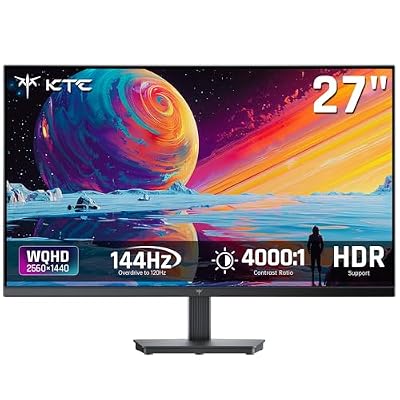
Display choice also changes perceived latency. A high refresh rate gives each frame less time on screen, which makes motion feel smoother and can make small delays easier to spot. Pixel response time and processing inside the monitor add delay as well, so check that the display’s response behaviour matches what you need. The best refresh rate for gaming article explains how refresh rate and frame rate interact.
System Settings That Reduce Delay
Start with the basics. Keep the operating system updated, install the latest stable graphics driver from the vendor, and close background applications that use the CPU or disk during play. Turn on the game mode option in Windows if you have not already, and disable unnecessary startup programs. These steps cost nothing and remove common sources of stutter that feel like latency.
- Install the current stable graphics driver and the motherboard chipset driver.
- Enable the game’s own low-latency or reflex-style option if it has one.
- Set a frame rate cap just below your display’s refresh rate to reduce queued frames.
- Turn on the driver’s low-latency mode and compare it with the default in the same scene.
- Check for background processes that spike the CPU during play and stop them.
- Use a wired connection for the system that runs the game where practical.
Frame caps and vertical sync
Vertical sync prevents tearing but can add delay when the frame rate drops below the refresh rate. Many players use a frame cap slightly below the refresh rate, or a variable refresh option if the monitor supports one, to keep frame delivery steady without the full cost of standard vertical sync. Test both approaches. The effect depends on the game engine and the display.
Temperatures and throttling
A system that throttles under load can feel laggy even when the settings are correct. Monitor the processor and graphics card temperatures during a long session. The guide on how to check GPU and CPU temperature shows how to read those values, and a clean cooling setup often does more for consistency than any single setting.
Network Latency: What You Can Change
For online play, a stable connection often matters more than a small local tweak. A wired Ethernet connection usually has less jitter than Wi-Fi, and jitter, the variation in packet timing, is often what makes online games feel unreliable. If you cannot run a cable, place the router close to the gaming device, use a 5GHz or 6GHz band where available, and avoid crowded channels. The best Ethernet settings for gaming guide covers the adapter options that affect online play.
Run a test against the game server region you use most, and record the ping and any packet loss over several sessions. If the numbers are high only at certain times, the cause may be your household traffic rather than your hardware. Pausing large downloads and cloud backups during play is a simple fix that many players overlook.
Comparison Table: Latency Upgrade Options
The table compares the listings by the part of the chain they address. It avoids specific prices and performance claims, which depend on the game and your system.
| Option | Best for | Price tier | Trade-off to check |
|---|---|---|---|
| Primary pick (hero listing) | Players who want a responsive input device | Check current price | Confirm the connection type and sensor fit your grip and games |
| Alternative 1 | Competitive shooter players on a budget | Entry tier | Fewer features than premium models |
| Alternative 2 | Players who want a wireless option | Mid tier | Check battery life and wireless receiver behaviour |
| Alternative 3 | Players who prioritise a fast, smooth display | Mid tier | Refresh rate gains depend on the GPU keeping up |
| Alternative 4 | Players who want a larger, comfortable desk setup | Check current price | Size and mounting may affect your desk layout |
Testing Your Changes Without Guesswork
Latency changes are easy to imagine and hard to measure by feel alone. Change one setting at a time, play the same scene or practice mode, and note whether the result is clearly better, worse or unchanged. Keep a short log of the driver version, the game version and each setting. If you use a counter or ping monitor in the game, record the values as well. A change that is not clearly better should be reverted, because extra complexity adds maintenance without a benefit.
Be realistic about what a single change can achieve. Most gains come from removing a clear problem, such as a throttling processor, a Wi-Fi connection with heavy jitter or a frame queue that is too deep for the game. Once those are resolved, further adjustments tend to be small. Our general guide to getting higher frame rates in games covers the broader performance side, which often interacts with latency.
For a wider look at the input side, the best wired gaming mouse and the best gaming mouse of 2026 guides compare the options by connection type and shape. The best Hz for gaming article and the best router settings for gaming guide complete the picture on the display and network side.
Frequently Asked Questions
Does a higher polling rate always reduce latency?
A higher polling rate gives the system more frequent position updates, which can make movement feel more precise. It does not guarantee lower total latency, because the display, the game engine and the network still add their own delays. Check that your system can sustain the rate you choose without dropped reports.
Is Wi-Fi bad for gaming?
Wi-Fi can work well for many players, especially on a clean band with a strong signal. It is more prone to jitter and interference than a wired connection, so Ethernet is the safer choice for competitive online play. If you must use Wi-Fi, keep the device close to the router and avoid heavy transfers on the same network.
Will turning off every background program help?
Closing heavy background programs usually helps when they consume CPU, disk or network resources. Shutting down every service is rarely necessary and can cause side effects. Focus on the processes that spike during play, and leave core system services in place.
Do I need the most expensive gear to reduce latency?
No. Most players gain more from a stable connection, a sensible frame cap, current drivers and a system that does not throttle. Premium hardware can help at the margins, but the basic settings usually deliver the most value per hour spent.