Dragon’s Dogma 2 Frame Rate Stability Settings Guide
Dragon’s Dogma 2 is known among players for uneven frame pacing in some locations, especially large towns and crowded areas. A stable frame rate often matters more than a high average, because a long frame on a regular basis is what you feel as a stutter. This guide covers the settings and system checks that help a session feel steadier, and explains why a monitor choice can change what you notice even when the game itself stays the same.
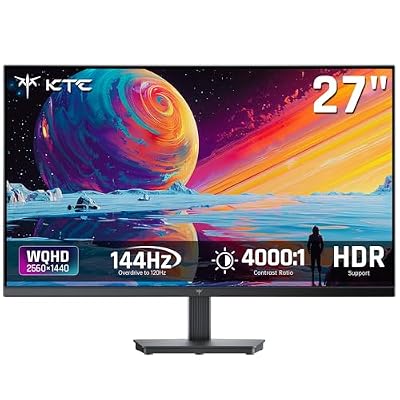
This is a settings and buying guide. We have not published measured frame times for this game in this article, and no figures here come from our own testing. The game’s menus and options can change between builds, so confirm the names and effects in your version. The hero listing above is the closest match to the display class discussed. Check the monitor for the exact model, panel type, refresh rate and price before you buy, because the listing may be a substitute for the model you searched for.

Stability Versus Average Frame Rate
A counter that averages 90 frames per second can still feel rough if the frames arrive unevenly. A few frames that take far longer than the rest cause a hitch, and the eye notices those more than a small drop in the average. This is why a steady cap at a level your system holds comfortably often feels better than an uncapped setting that swings up and down. The first goal is consistency. Peak numbers come second.
To see whether the problem is frame pacing or raw load, watch the frame time graph in an overlay during a town visit. If the graph shows regular spikes, the cause is usually a load spike, such as a streaming hitch or a processor burst. If the graph is steady but low, the system simply cannot keep up with the settings, and the fix is to lower the load.
Settings That Stabilise Frame Pacing
Start with the frame rate cap. Set it to a value your system holds for most of a session, then check whether the stutter reduces. Next, look at the settings that affect crowd density, object density and view distance. These tend to add the most processor work in towns and camps. Lowering them can help more than lowering textures or shadows, which mostly cost graphics memory and rendering time.
Vertical sync can reduce tearing, but it can also add input delay and create a stepped rhythm if the frame rate falls below the refresh rate. Test it both ways. If your monitor supports a variable refresh technology, use it with a cap a few frames below the refresh rate, since that combination usually gives the smoothest result.
Upscaling and Its Effect on Pacing
Upscaling lowers the internal render resolution and rebuilds the image. It can reduce rendering load and steady the frame time in demanding scenes. The image trade-off depends on the mode and your viewing distance, so compare the result in motion. If the game offers a fixed upscaling quality, choose one that keeps distant detail acceptable.
How the Monitor Changes What You See
The display affects how stability feels. A monitor with a high refresh rate shows each frame for less time, which makes changes in pacing easier to notice. A variable refresh display can hide small swings in frame rate, provided the frame rate stays inside its supported range. Response time and panel type also matter, because a slow panel can smear motion in a scene that already moves unevenly.
If you are choosing a monitor for this kind of game, our guide to choosing a gaming monitor in 2026 covers the specifications that matter most, and the 240 Hz monitor guide explains where high refresh rates help and where they stop mattering.
Comparison Table: Display Options for Steady Play
The table compares the hero listing with the four alternatives by use case. It is a shortlist aid, not a ranking, and it does not promise a particular frame rate in any town.
| Option | Role in this guide | Best for | What to confirm | Price range |
|---|---|---|---|---|
| Hero listing | Closest match to the display class discussed | Players who want a balanced refresh rate and clarity | Exact model, panel type and refresh rate | Check current price |
| Alternative 1 | Second listing in the same set | Players who want a similar class at a lower spend | Variable refresh support and input lag figures | Check current price |
| Alternative 2 | Third listing in the same set | Players who prioritise sharp motion | Response time and overdrive modes | Check current price |
| Alternative 3 | Fourth listing in the same set | Larger screens and wider views | Resolution and pixel density | Check current price |
| Alternative 4 | Fifth listing in the same set | Shared desks and smaller rooms | Size, stand and mounting options | Check current price |
Match the row to how you play, then check the specifications on the listing against your graphics card’s output and your desk space.

CRUA 34" WQHD 165Hz Ultrawide Curved Gaming Monitor, 1500R, FreeSync, Black | 21:9 Display With 120%sRGB Color, HDMI 2.0, DP 1.4, 3.5mm Audio Out and 75x75mm Wall Mount For PC Gaming, Editing and Work


As an Amazon Associate we earn from qualifying purchases. Product prices and availability are accurate as of the date/time indicated.
A Simple Test Routine
Pick one town and one camp that you visit often. Play a fixed route through each, and record the frame time graph and the average. Change one setting at a time, rerun the route, and compare. Keep the notes short, because the aim is to find the setting that smooths the spikes you actually see. When the spikes are gone or rare, stop tuning and play.
Frequently Asked Questions
Is a high average frame rate enough for stable play?
No. Frame pacing matters more than the average. Look at the frame time graph and treat regular spikes as the real problem.
Should I cap the frame rate?
In most cases, yes. A cap that your system holds for most of a session usually feels steadier than an uncapped setting that jumps around.
Does a faster graphics card fix stutter in towns?
Not always. Towns often add processor load through crowds and objects. Lower the density settings and check the processor load before you assume the graphics card is the limit.
Do I need variable refresh on my monitor?
It helps when the frame rate varies, because the display can follow the rendered frames more closely. Use it with a cap a few frames below the refresh rate for the smoothest result.
Next Steps
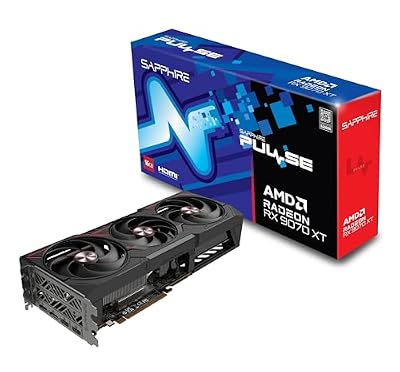
If the stutter persists after you tune the settings, the best CPU for gaming guide helps you judge whether the processor is the limit. For graphics options by budget, see the budget GPU guide. Monitor shopping is covered in the best gaming monitor for 2026 list and the 1440p 240Hz monitor guide. If you want to understand how the resolution changes the load, the best 1440p monitor for gaming and the FPS gaming guide give practical context. For a full system plan, the budget gaming PC build guide shows how to balance the parts.