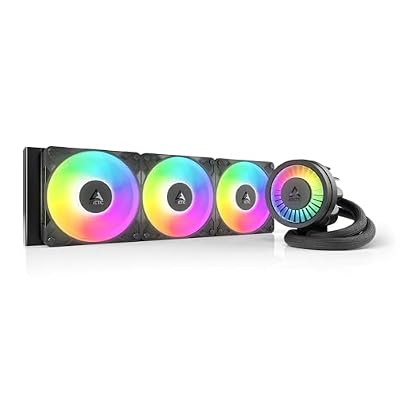
NVIDIA Control Panel 2026 Gaming Settings Explained
NVIDIA’s driver settings let you set how the graphics card behaves in every game, from power management to low latency and image scaling. Many gamers leave these at defaults, which is fine for most titles, but a few options change frame pacing and input delay in a measurable way. This guide explains the settings that matter, what each one does, and how to test a change without guessing. It covers the NVIDIA Control Panel and the newer NVIDIA app, since both appear on current systems.
The hero listing above is a GeForce graphics card class product, chosen to match the NVIDIA-based setup this guide describes. It is the closest match rather than a fixed model for every reader. Open the card to confirm the exact model, memory size, power needs and current price. The alternatives in the same listing cover similar NVIDIA tiers at other prices, so compare them on memory and performance for your target resolution.


Where the Settings Live
Right-click the desktop and open the NVIDIA Control Panel on systems that still include it, or use the NVIDIA app on newer installations. Both expose a global profile that applies to all games, plus a program settings area for per-game overrides. Start with the global profile, since it covers titles you have not configured. Use per-game overrides only for games that need a different behaviour. Keeping overrides few makes the setup easier to maintain after driver updates.
Before you change anything, update the driver and note your current settings. A small screenshot or a written list lets you return to defaults if a change does not help.
Power Management Mode
Power management mode controls how aggressively the card lowers its clock when the load falls. Setting it to prefer maximum performance can hold higher clocks during a demanding scene, which helps frame consistency. The cost is higher idle power and more heat in some systems. Desktops with good cooling usually benefit most, while laptops may need the default to balance battery and temperature. Test the change in a demanding game and check whether the frame times settle.
Low Latency Mode
Low latency mode reduces the queue of frames the processor prepares ahead of the graphics card. Its options usually include off, on and ultra. On can lower delay in many games, while ultra can lower it further but may reduce frame rates when the graphics card is the limit. It helps most in games that are GPU-bound and close to the target frame rate. In games where the processor is the limit, the setting may do little. Test in a real session and keep the option that feels most responsive without causing stutter.
For latency-focused setup across the chain, our FPS gaming guide covers frame caps and sync choices that work alongside this setting.

NVIDIA GeForce RTX™ 5070 Ti OC Triple-Fan Graphics Card | 16GB GDDR7, 256-bit, Boost: 2572 MHz, PCIe® 5.0, HDMI®/DP 2.1, 2.98-Slot, NVIDIA Blackwell Architecture, DLSS 5


As an Amazon Associate we earn from qualifying purchases. Product prices and availability are accurate as of the date/time indicated.
Vertical Sync, Frame Caps and Image Scaling
Vertical Sync
Vertical sync removes tearing but can hold a finished frame until the next refresh, which adds delay. Many players set it to use the application setting, then override it in games where tearing or delay matters. A frame cap that the system holds steadily is often a better choice for responsive play than leaving vertical sync on.
Frame Rate Limiting
A frame cap in the driver or the game limits the work the graphics card does each second. Set it a few frames below your sustained average to smooth out spikes. Check the cap in a busy scene, not only at a quiet menu, since the drops that matter happen under load.
Image Scaling
Image scaling lets the card render at a lower resolution and stretch the result to your monitor. It can raise frame rates on demanding games, but it softens the picture. Use it when your target frame rate needs the extra headroom, and compare it with in-game upscaling options before you commit.
Texture Quality, Shader Cache and Anisotropic Filtering
Texture filtering quality usually works well at the defaults. Anisotropic filtering sharpens textures at angles, and high settings cost little on most modern cards. The shader cache size controls how much compiled shader data the driver stores. A larger cache can reduce stutter the first time you enter a new area, and the default is fine for most users. Keep the storage for the cache on a drive with free space, since the cache grows over time.
Comparison: Settings and Their Trade-Offs
| Setting | Best for | Main trade-off | How to test |
|---|---|---|---|
| Power management: prefer maximum performance | Desktops with good cooling | More idle power and heat | Compare frame times in a demanding scene |
| Low latency mode: on | GPU-bound games near the target frame rate | Small effect when the processor limits | Feel the input in a short test match |
| Low latency mode: ultra | Players who want the least queued delay | Possible frame rate loss under load | Watch for drops in busy fights |
| Vertical sync off with a frame cap | Responsive play | Possible tearing without a stable cap | Check tearing in fast pans |
| Image scaling | Players needing more frames | Softer picture | Compare sharpness in a known scene |
Test one change at a time. Keep a note of what each change does, and revert anything that adds stutter or tearing you do not want.

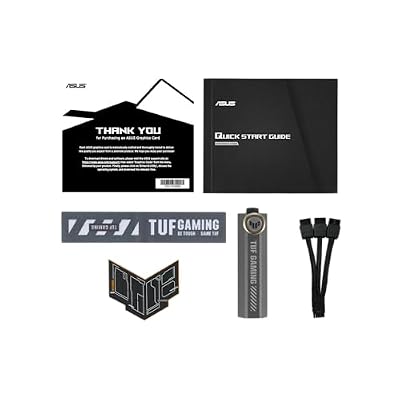
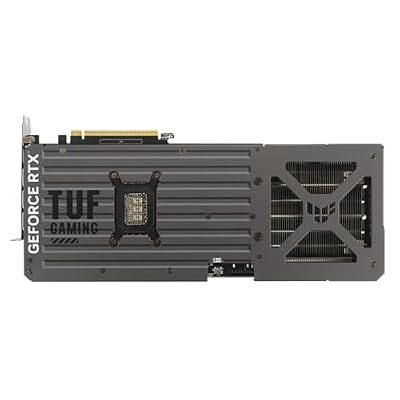
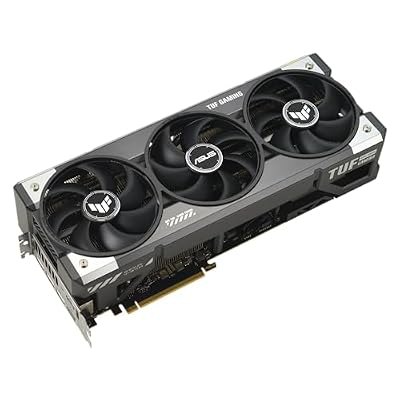
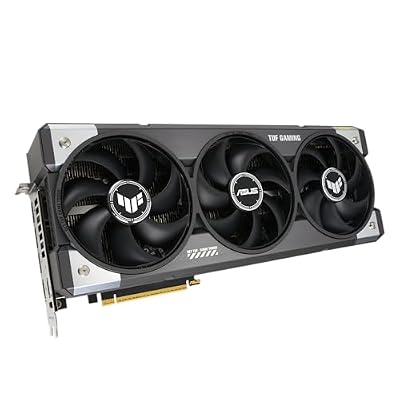
ASUS TUF Gaming GeForce RTX™ 5080 16GB GDDR7 OC Edition Graphics Card | PCIe 5.0, HDMI/DP 2.1, 3.6-slot, Military-grade Components, Protective PCB Coating, Axial-tech Fans









As an Amazon Associate we earn from qualifying purchases. Product prices and availability are accurate as of the date/time indicated.
Per-Game Overrides
Create a per-game profile only when a title misbehaves on the global settings. A competitive shooter may need low latency set on, while a single-player game may need the default. Keep the list short, and note which games use overrides so you can review them after major driver updates. The fewer overrides you keep, the easier your setup is to trust.
Hardware Limits to Keep in Mind
Driver settings cannot fix a card that is too weak for the target resolution or a processor that limits in busy scenes. If the settings give little gain, check whether the card runs at full load or whether the processor is busy. Our graphics card hierarchy helps place a card within the current lineup, and the 1440p graphics card guide covers tiers for a common target. For a mid-range NVIDIA comparison, the RTX 5060 review and the RTX 5070 review show how two neighbouring cards handle the same settings differently. Our gaming GPU guide ranks cards by role, and the RTX 5060 versus RTX 4060 comparison shows what a generation change looks like in practice.
Temperature matters as well. A card that throttles under heat will lose frame consistency regardless of settings. Our temperature checking guide shows how to log the readings, and the RTX 5070 undervolting guide explains one approach to lower heat on a specific card.
Frequently Asked Questions
Should I use the NVIDIA app or the Control Panel?
Use whichever your installation provides and the one that exposes the settings you need. The options overlap, and the important choice is the setting itself, not the window it lives in.
Does low latency mode always reduce input delay?
Not always. It helps most in games where the graphics card is the limit and the frame rate sits close to the target. In processor-limited games, the effect can be small.
Is maximum performance power mode worth it?
On a desktop with good cooling, it can give steadier frame times. Laptops and quiet builds may prefer the default, since the higher power use adds heat and noise.
Should I change the shader cache size?
Usually no. The default works well for most players. Change it only if you see stutter when entering new areas and you have free storage for a larger cache.