AMD Adrenalin Driver Settings for Gaming 2026
AMD’s Adrenalin software puts a lot of gaming controls in one place: frame rate targets, sharpening, upscaling, latency reduction and per-game profiles. Some of those options help a great deal on the right game and do little on another, so the goal is to know what each one changes before you switch it on. This guide sets out a clear route through the Adrenalin options for a Radeon graphics card, with a focus on frame pacing, latency and temperature.
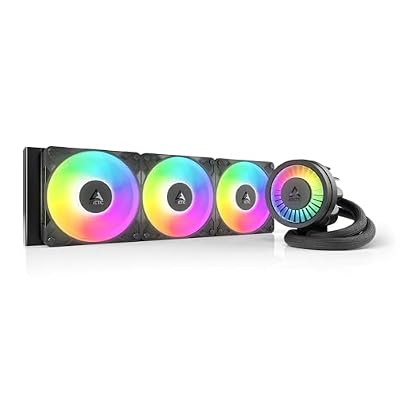
The hero listing above is a Radeon graphics card class product, chosen to match the AMD-based setup this guide describes. It is the closest match rather than a fixed model for every reader. Open the card to confirm the exact model, memory size, power requirements and current price. The alternatives in the same listing cover other Radeon tiers, so compare them on memory and the resolution you play at.



Update First, Then Configure
Install the latest Adrenalin driver before you change any setting, because option names and behaviour shift between releases. Restart after the driver update and confirm the game runs without crashes. Note your current settings, or take a screenshot of each page, so you can return to a known state if a change does not help. Keep changes small and test one at a time.
For a wider view of how the two major GPU brands compare, the AMD versus NVIDIA buyers guide covers the trade-offs that influence which settings you need.
Radeon Anti-Lag and Latency Options
Radeon Anti-Lag aims to reduce the delay between input and display by managing how far the processor works ahead of the graphics card. It can help in games that are GPU-bound and run near the target frame rate. In games where the processor is the limit, the gain may be small. Enable it for a test session, check the feel of mouse and controller input, then watch for frame drops in busy scenes. Keep it on only if the result feels more responsive without added stutter.
Enhanced Sync and Vertical Sync both control tearing, and each adds a different kind of delay. Test them in a fast-panning game, and choose the option that removes tearing without making input feel sluggish.
Frame Rate Target Control and Chill
Frame Rate Target
A frame rate target limits how many frames the card produces each second. Set it a few frames below your sustained average so the card does not spend extra power chasing spikes. Check the target during a busy scene, since the drops that matter happen under load. A steady target often feels smoother than an uncapped number that bounces between high and low values.
Radeon Chill
Radeon Chill raises or lowers the frame rate based on how fast you move in game. It can reduce heat and power use during slow scenes, while keeping full frame rates when you turn quickly. It suits players who want lower temperatures in lighter moments. Competitive players who need a constant frame rate may prefer a flat target instead, so test before keeping it. For a head-to-head against a current NVIDIA card in a similar price range, see the RTX 5070 versus RX 9070 comparison.

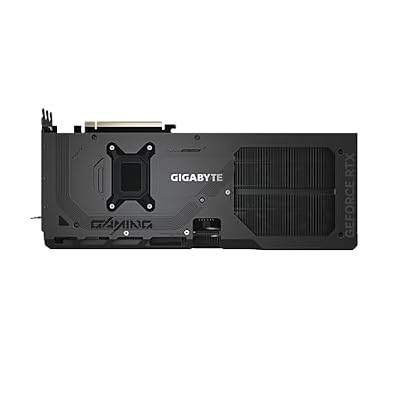
GIGABYTE GeForce RTX 5080 Gaming OC 16G Graphics Card, WINDFORCE Cooling System, 16GB 256-bit GDDR7, GV-N5080GAMING OC-16GD Video Card




As an Amazon Associate we earn from qualifying purchases. Product prices and availability are accurate as of the date/time indicated.
Sharpening, Upscaling and Image Quality
Radeon Image Sharpening adds clarity after the frame is drawn. It can help a softened image at a lower render resolution, but too much sharpening creates halos and noise. Start at a low value and raise it only if text and distant targets look soft. FSR upscaling renders at a lower internal resolution and reconstructs a larger image. It can raise frame rates on demanding titles, and the result depends on the game and the quality preset you choose. Compare FSR against native rendering in the same scene before you settle on one.
Our RDNA 4 versus Blackwell architecture guide covers how the two families approach rendering features, which helps when you compare upscaling options across brands.
Smart Access Memory and Resizable BAR
Smart Access Memory lets the processor access the full graphics memory in supported systems. It can help some games, but the gain varies by title and platform. Enable it in the BIOS and in Adrenalin when your motherboard and processor support it, then test a few games. If a game shows crashes or lower frame rates after the change, turn it off for that title or revert it entirely. The result depends on the full platform, so the processor and motherboard choice matter as much as the driver.
For processors that pair well with Radeon cards and support this feature, see our AMD CPU guide for gaming and the AMD motherboard guide.

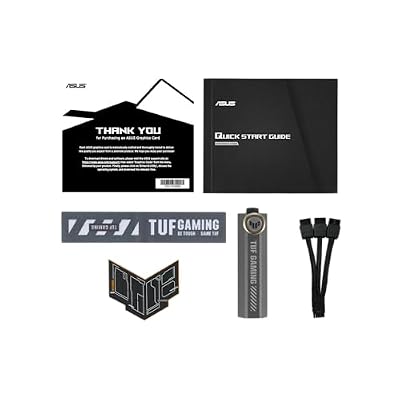
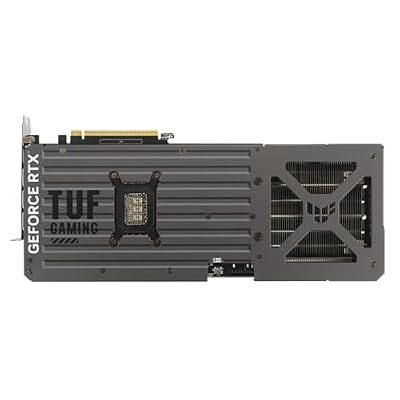
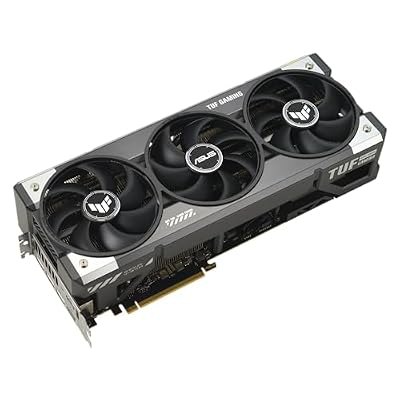
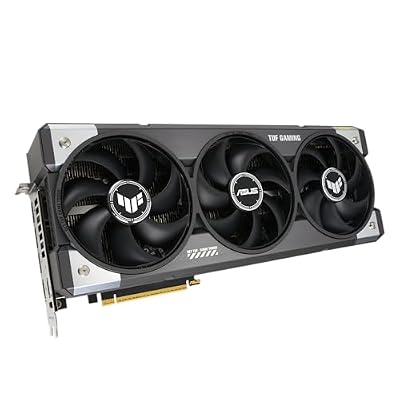
ASUS TUF Gaming GeForce RTX™ 5080 16GB GDDR7 OC Edition Graphics Card | PCIe 5.0, HDMI/DP 2.1, 3.6-slot, Military-grade Components, Protective PCB Coating, Axial-tech Fans









As an Amazon Associate we earn from qualifying purchases. Product prices and availability are accurate as of the date/time indicated.
Per-Game Profiles
Adrenalin lets you set options globally or per game. Use the global profile for everyday settings and add a game profile only when a title needs a different sharpening level, upscaling mode or frame target. Keep the list short, and review it after major driver updates. A simple profile set is easier to maintain than a long list of overrides you forget. Our graphics card hierarchy helps place a Radeon card within the wider lineup before you decide which profile to build.
Comparison: Adrenalin Options and Their Effect
| Option | Best for | Main trade-off | How to test |
|---|---|---|---|
| Radeon Anti-Lag | GPU-bound games near the target frame rate | Small effect in processor-limited games | Feel input in a short match |
| Frame rate target | Players who want steady frame times | Caps peak frames | Check drops in busy scenes |
| Radeon Chill | Lower heat and power in slow scenes | Less constant frame rate | Turn quickly and watch the counter |
| Radeon Image Sharpening | Softened images at lower render scale | Halos at high values | Compare text and distant targets |
| FSR upscaling | Players needing more frames | Image changes by quality preset | Compare against native in one scene |
| Smart Access Memory | Supported platforms with recent drivers | Gain varies by game | Test a few titles for stability |
Change one option at a time and log the result. The table is a starting point, not a verdict, because the effect depends on the game and the platform.
Temperature, Power and Fan Curves
Heat limits sustained performance. A card that throttles under load will lose steady frame rates, whatever the software settings. Check temperatures during a full session, and clean the case filters if readings climb. Adjust power or fan behaviour only with care, and revert the change if the card runs hotter or louder than you want. Our temperature checking guide explains how to log the readings, and the gaming GPU guide helps when you are judging whether a card has enough headroom for your target resolution.
Frequently Asked Questions
Is Radeon Anti-Lag always worth enabling?
Not always. It can help in GPU-bound games and may do little in processor-limited ones. Test it in your own games, and keep it only if the input feels better without added stutter.
Should I use Radeon Chill for competitive games?
Usually a flat frame target is more predictable for competitive play. Chill can reduce heat in slower scenes, but its changing frame rate may not suit players who want a constant number.
Does FSR always improve frame rates?
It raises frame rates by rendering at a lower internal resolution, but the image changes with the quality preset and the game. Compare it against native in the same scene and choose what looks right at the frame rate you need.
Is Smart Access Memory worth turning on?
It depends on the game and the platform. Enable it only if your board and processor support it, then test several titles and disable it for any game that shows problems.