
Windows 11 Game Mode Settings 2026: What to Enable and What to Test
Game Mode is one of the most talked-about Windows 11 gaming features, and one of the least understood. Many players turn it on and assume it will raise frame rates. Others turn it off after reading that it does nothing useful. The truth sits between those views. Game Mode changes how Windows prioritises a running game, but the size of that change depends on your hardware, driver and the game itself.
This guide explains what Game Mode does, which related settings matter alongside it, and how to test whether it helps your system. It also covers the hardware side of a gaming PC, because software settings only go so far when the system is short of memory or cooling. The listing above is a closest-match example of a performance-related component. Check the card for the exact model, specifications and current price before buying.


What Game Mode Actually Does
Game Mode is a Windows feature that tells the operating system to favour the game you are playing. In practice, it can limit background work such as some Windows Update tasks and gives the foreground game a larger share of system resources. Microsoft presents it as a way to make gaming smoother, but it does not promise a fixed frame rate gain.
The effect varies. On a system with plenty of headroom, you may notice little difference. On a system that is short of resources, the change may be more visible. Because results depend on the hardware, treat Game Mode as a setting to test rather than a switch to trust blindly. Windows edition and build can also change which options appear, and the Windows 11 Pro vs Home gaming comparison explains the differences that matter for gamers.
How to Find and Enable Game Mode
The Settings Path
Open Settings, then go to Gaming and select Game Mode. Turn the toggle on, then launch a game and check whether it behaves differently. The menu layout can shift between Windows 11 updates, so search for Game Mode in Settings if you cannot find it in the usual place.
Xbox Game Bar
Game Mode sits alongside the Xbox Game Bar, which you open with Windows key and G. The Game Bar offers capture and performance overlays. If you do not use it, you can disable it to remove one background component. Test the change in your game before deciding whether to keep it.

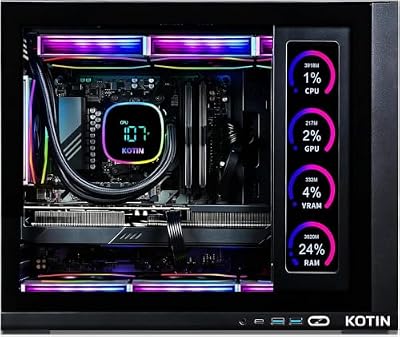
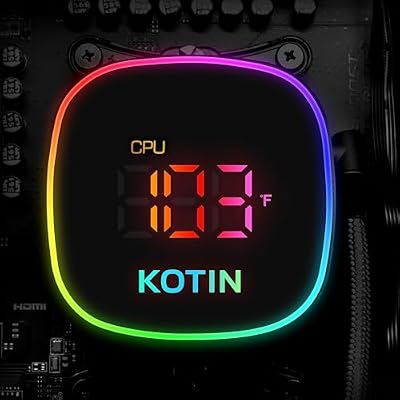
KOTIN Prebuilt Gaming PC RTX 5070 12GB, Ryzen 7 9700X, 32GB DDR5, 1TB SSD | 11.3in Smart Display, 850W 80+ Gold PSU, 360mm Liquid Cooler, WiFi 7, 1440p 4K ARGB Windows 11 Gaming Desktop Computer


As an Amazon Associate we earn from qualifying purchases. Product prices and availability are accurate as of the date/time indicated.
Related Settings That Work Alongside Game Mode
Hardware-Accelerated GPU Scheduling
Hardware-accelerated GPU scheduling moves some scheduling work from the CPU to the graphics card. On supported hardware and drivers, it can improve frame pacing. The setting sits under Display, Graphics and the default graphics settings option in Windows 11. Test it separately from Game Mode so you can see which change made the difference. Higher refresh displays make pacing gains easier to see, so the best refresh rate for gaming article is worth reading first.
Power Mode
Windows offers power modes that shape how aggressively the system manages performance. A balanced mode suits most laptops. Desktops often perform consistently in a high-performance mode. Our guide to the best gaming PC power supply covers the hardware that feeds the system, which matters when you push a gaming desktop hard.
Driver Updates
Graphics drivers often contain game-specific fixes and performance changes. Keep the driver current, and perform a clean install if performance drops after an update. The best gaming PC specs guide helps if a new driver or game changes what your card needs. Do not mix settings from different tools without testing each one.
How to Test Game Mode Properly
Testing is the only way to know whether Game Mode helps your system. Pick a repeatable scene, such as a benchmark run or a fixed route in a game. Record the average frame rate and, if your tools allow it, the one percent low and frame time spikes. Then toggle Game Mode, repeat the run, and compare. Repeat each run at least three times, because background activity can skew single results. If you are testing on a fresh install, our guide to installing Windows 11 on a gaming PC gives a clean starting point, and the best FPS gaming guide helps you pick a target worth measuring against.
Judge the feel as well as the numbers. If the game feels smoother with fewer spikes, the change matters even if the average barely moves. Smooth frame times often matter more than a small gain in average frame rate.
Comparison: Windows 11 Gaming Options
| Setting | What it does | When to test it | Cost |
|---|---|---|---|
| Game Mode | Prioritises the active game | When background load is high | Free |
| Xbox Game Bar | Overlay and capture features | If you see overlay conflicts | Free |
| GPU scheduling | Moves scheduling work to the GPU | On supported hardware and drivers | Free |
| Power mode | Controls performance behaviour | On desktops and laptops under load | Free |
| Memory headroom | Reduces swapping and hitching | When memory is near its limit | Check current price |
Most of these options cost nothing to try. Upgrades only make sense once testing shows the system is short of memory, storage or cooling.
When Settings Will Not Help
If the system is short of memory, Game Mode cannot create more. If the GPU is already at its limit, the setting cannot add frames. Check resource use during play. High memory use or a GPU pinned at full load points to hardware. Our best DDR5 RAM for gaming guide helps when memory is the limit.
KOTIN Gaming PC Desktop, Ryzen 7 9800X3D, RTX 5070 12GB, 32GB DDR5, 1TB SSD | 11.3" Smart Display, 360mm Liquid Cooler, WiFi 7, 850W 80+ Gold PSU, Windows 11 ARGB Lighting Gaming Computer 1440 4K


As an Amazon Associate we earn from qualifying purchases. Product prices and availability are accurate as of the date/time indicated.
Common Mistakes With Game Mode
The first mistake is judging Game Mode from a single run. The second is enabling several optimisation tools at once, which hides which change helped. The third is assuming the feature will fix stutter caused by a full drive or a failing component. Our best gaming SSDs guide covers storage upgrades for that case. Test one setting at a time and keep notes so you can repeat the result later.
Frequently Asked Questions
Should I always leave Game Mode on?
Many players leave it on, but test it on your own system. If a game runs better with it off, keep it off for that title.
Does Game Mode increase FPS?
Sometimes, but not always, and the gain varies. It is more likely to help when the system has competing background load. Measure before and after.
Is Game Mode the same as the Xbox Game Bar?
No. Game Mode is a Windows gaming setting. The Game Bar is an overlay for capture and performance tools. They are separate, though both appear in the gaming area of Settings.
Will Game Mode fix stutter?
It can help if background load causes spikes. It will not fix stutter from a full drive, thermal throttling or a driver fault, so check those causes too.





