
Windows Power Plan Gaming 2026: Choosing the Right Power Settings
Power settings shape how aggressively Windows saves energy, and that choice affects gaming more than many players expect. A plan that cuts power to the processor during light use can add a small delay when a fight suddenly demands full speed. A plan that keeps everything at maximum can run hotter and louder. The right setting depends on whether you are using a desktop or a laptop, and on how much you value steady frame times versus quiet operation.
This guide explains the main Windows power plans, what they change, how to test them and how to combine them with the hardware that keeps a gaming PC stable. The listing above is a closest-match example of a component that supports consistent performance under load. Check the card for the exact model, specifications and current price before buying.

How Windows Power Plans Affect Games
Windows power plans control how the processor scales its speed, how quickly it enters low-power states, and how the system manages devices like PCI Express and USB. When the processor drops to a lower speed between bursts of activity, it may take a moment to ramp back up. In a game, that ramp can show up as uneven frame pacing.
The effect is usually small on a desktop with good cooling and a stable power supply. It matters more on laptops, where the system balances battery life, heat and performance. Expect differences to be subtle, and test before you assume a change is needed.
The Main Power Modes Explained
Balanced
Balanced is the default on most Windows systems. It adjusts processor speed to match demand and aims for a mix of performance and efficiency. For everyday use and light gaming, it is a sensible choice. On laptops, it helps battery life, though it can limit peak performance.
Best Performance
The best performance mode keeps the system more responsive and reduces the time spent ramping between speeds. Many gaming desktops run well in this mode, provided cooling keeps temperatures under control. Check temperatures and fan noise after switching, since sustained high load raises heat output.
Ultimate Performance
Ultimate Performance is a hidden plan on many Windows 11 editions that minimises the power management the system applies. It is designed for workstations and gaming desktops that prioritise responsiveness over efficiency. On some editions the plan is not shown by default, and you may need a command to reveal it. Availability varies, so check your edition and your PC maker’s guidance before changing anything.

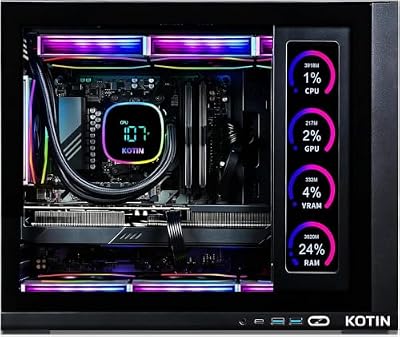
KOTIN Gaming PC Desktop, Ryzen 7 9800X3D, RTX 5070 12GB, 32GB DDR5, 1TB SSD | 11.3" Smart Display, 360mm Liquid Cooler, WiFi 7, 850W 80+ Gold PSU, Windows 11 ARGB Lighting Gaming Computer 1440 4K


As an Amazon Associate we earn from qualifying purchases. Product prices and availability are accurate as of the date/time indicated.
How to Choose a Plan for Your PC
Desktop With Good Cooling
A desktop with strong airflow and a reliable power supply can usually run in best performance or ultimate performance without trouble. Test a long session and watch temperatures. If the PC gets loud or hot without a clear gain, return to balanced.
Laptop on Battery
On battery, balanced is often the better choice. It protects battery life and limits heat. Plug in the charger for demanding games, and check whether the manufacturer’s performance mode gives a useful improvement without too much fan noise. For battery-focused advice, see the best gaming laptop battery life guide, and if heat is the concern, the best cooling pad for gaming laptop roundup covers external cooling.
Mini PC or Compact Build
Compact systems have less cooling room. A high-performance plan can cause heat to build up quickly, so test carefully. Our best ITX and mini gaming cases guide covers the airflow trade-offs in small builds.
Testing Power Plans Fairly
Test one plan at a time, using the same scene or benchmark each time. Run each test more than once, because background activity and temperature changes can affect results. Record frame rate, frame time spikes and temperature. A plan that produces steadier frames without a large heat or noise penalty is the better choice.
Let the system warm up before you judge a result. The best gaming PC specs guide helps you judge whether the system has headroom for a higher plan at all. A cold PC can behave differently from one that has run a game for twenty minutes. Repeat your test after the system reaches a normal operating temperature.
Comparison: Power Plans for Gaming
| Plan | Best for | Main trade-off | Typical noise and heat |
|---|---|---|---|
| Balanced | Laptops and mixed use | Possible ramp delay in bursts | Lower |
| Best performance | Gaming desktops with good cooling | Higher sustained power draw | Moderate to higher |
| Ultimate performance | Desktops that favour responsiveness | Hidden on some editions | Highest |
Start with balanced or best performance, then test the others only if frame pacing still looks uneven. Heat and noise are real costs, so do not accept them without a measurable gain.
Power Hardware Matters Too
Power settings cannot fix an unstable power supply. A supply that is too small or aging can cause crashes under load, and no software plan changes that. Make sure the PSU has headroom for your GPU and CPU. Our best PSU for gaming PC guide explains how to size one. An uninterruptible power supply also protects against outages, and the best UPS for gaming PC article covers that choice. A surge protector also helps, and the best gaming PC surge protector guide covers the options.
KOTIN Prebuilt Gaming PC RTX 5070 12GB, Ryzen 7 9700X, 32GB DDR5, 1TB SSD | 11.3in Smart Display, 850W 80+ Gold PSU, 360mm Liquid Cooler, WiFi 7, 1440p 4K ARGB Windows 11 Gaming Desktop Computer


As an Amazon Associate we earn from qualifying purchases. Product prices and availability are accurate as of the date/time indicated.
Common Mistakes With Power Plans
The first mistake is switching to the highest plan and assuming more power always means more frames. Without a measured gain, you are only adding heat and noise. The second is ignoring laptop battery behaviour. The third is treating a power plan as a cure for stutter caused by storage or memory. Measure, then decide. For a full build checklist, see the gaming PC buying guide.
Frequently Asked Questions
Is best performance mode better for gaming?
It can be, especially on desktops with good cooling. Test it in your own game and watch temperatures. If the gain is small, balanced may be more comfortable.
Why is Ultimate Performance missing on my PC?
The plan is hidden on some Windows 11 editions and may not appear by default. Availability varies, so check your edition before trying a command to reveal it.
Should a laptop use the highest power plan?
Plug in the charger for demanding games, then compare modes. On battery, balanced usually makes more sense for battery life and heat.
Do power plans improve input lag?
They can affect frame pacing, which can make response feel steadier. The effect is usually small, so test it rather than expecting a large change.





