GPU Upscaling Explained 2026: DLSS, FSR, XeSS and Scaling Modes
GPU scaling and upscaling sound similar, but they solve different problems. Scaling changes how the image fits your display. Upscaling renders the game at a lower internal resolution and reconstructs a sharper image, which can raise frame rates a lot. Many players mix the two up, then change the wrong setting and wonder why nothing improved. This guide explains each term, the main upscaling technologies in 2026, and how to choose the right mode for your hardware.
The aim is to help you understand the options before you touch them. Upscaling quality varies by game, version and GPU generation, so the advice here focuses on how to test and judge the result. The graphics card listed above is a closest-match example of the hardware class that benefits from upscaling. Check the card for the exact model, memory size and current price before buying.

Scaling vs Upscaling: The Core Difference
Scaling is about fitting an image to the screen. If a game runs at a resolution that does not match your monitor, the GPU or the monitor stretches or pads the image. Display scaling and GPU scaling are the two places this can happen, and each has different options for aspect ratio and sharpness.
Upscaling is about rendering. The game draws the scene at a lower resolution, then an algorithm rebuilds a higher resolution image from that data. The goal is to keep the picture close to native quality while using less GPU work. Upscaling is therefore a performance tool, while scaling is mostly a display setting.
The Main Upscaling Technologies
NVIDIA DLSS
DLSS is NVIDIA’s upscaling technology, and it runs on GeForce RTX graphics cards. It uses AI-based reconstruction and, in newer generations, can also generate additional frames. Support depends on the game and the GPU generation. If you want the full feature set, check both the game’s supported list and your card’s generation. Our best GPU for gaming guide covers the main card tiers.
AMD FSR
FidelityFX Super Resolution, or FSR, is AMD’s upscaling technology. It is available on a wide range of hardware, and newer versions have added more advanced reconstruction on recent AMD cards. Because it works across vendors in many titles, it is a useful option for players on different GPUs. Our AMD vs NVIDIA buyers guide compares the two brands in more depth.
Intel XeSS
XeSS is Intel’s upscaling technology. It runs on Intel Arc graphics and has a fallback path for other hardware in some titles. Support is growing, but the quality and performance depend on the game. Our Intel Arc B580 review covers one of the cards that uses it.
Choosing a Mode and Setting the Target
Upscaling usually offers quality modes that trade internal resolution for frame rate. A higher quality mode renders more pixels and looks closer to native. A performance mode renders fewer pixels and gives more frames. The best mode depends on your monitor, your target frame rate and how sensitive you are to softness in the image.
Start with the quality mode if your system can hold your target frame rate. Move to a faster mode only when you need more frames. Compare screenshots and motion in the same scene, because still images can hide artefacts that show up when the camera moves.
Comparison: Upscaling Options and Where They Fit
| Technology | Vendor | Best for | Main consideration |
|---|---|---|---|
| DLSS | NVIDIA | RTX owners wanting the widest feature set | Depends on GPU generation and game support |
| FSR | AMD | Broad hardware support across brands | Feature level varies by version and GPU |
| XeSS | Intel | Intel Arc owners and some other hardware | Quality and support vary by title |
| Native rendering | Any | Maximum sharpness when frames are enough | Highest GPU load |
Check the game’s options menu to see which technologies it supports. The menu label is not always the same as the technology name, so read the detailed description when you are unsure.
GPU Scaling Settings Explained
GPU scaling controls how the graphics driver fits a lower resolution image onto a higher resolution display. Options typically include preserving aspect ratio, full-screen stretching and centred display. For most games at native resolution, you do not need this setting. It matters when you run a non-native resolution to gain frames and want the image to look right.
Display scaling is handled by the monitor or the operating system. If both are scaling the image, you may see blur or odd borders. Set one of them to handle scaling and leave the other at its default. Test with a known scene so you can see the difference.
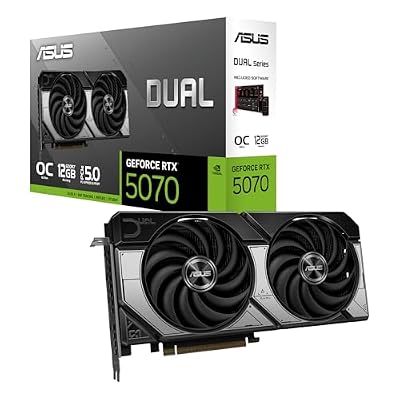
ASUS Dual GeForce RTX 5070 12GB GDDR7 OC Edition Gaming Graphics Card | NVIDIA Blackwell architecture and DLSS 4, 2.5 slot design, SSF, PCIe 5.0, 3x DisplayPort 2.1b, 1x HDMI 2.1b


As an Amazon Associate we earn from qualifying purchases. Product prices and availability are accurate as of the date/time indicated.
How Upscaling Interacts With Your Monitor
Upscaling lets you run a demanding game at a higher frame rate, which can make a high refresh monitor worth using. If you have a fast panel, you may find the combination works better than native resolution at a lower frame rate. Our guide to the best 1440p monitor for gaming and the best 4K gaming monitors cover the display side of that choice.
Pick a resolution your GPU can drive well. Upscaling helps most when the GPU is the limit. If the CPU is the limit, upscaling may add little, because the game is waiting on the processor rather than the graphics card.
How to Test Upscaling Fairly
Use a fixed scene and compare native rendering with each mode. Watch for shimmering on fine details, blur on text and trailing behind moving objects. Record the frame rate in each mode. A good mode gives a clear frame gain without noticeable softness during fast motion.
Test in motion as well as in still shots. Reconstruction artefacts often appear when the camera pans or when a character moves quickly. A setting that looks fine in a screenshot can still feel wrong during play.
Budget and Hardware Considerations
Upscaling helps most on cards where the GPU is the limit. On a budget card, it can turn an unplayable target into a playable one. On a top card, it can raise frames at high resolutions. Our best budget GPU for gaming guide helps if you are working within a tighter budget. For a resolution-focused pick, the best GPU for 1440p gaming guide is the next step. The RTX 5070 review shows how a mid-range card handles modern workloads.
Common Mistakes With Upscaling and Scaling
The most common mistake is enabling both display scaling and GPU scaling, which can produce blur. The second is choosing the fastest mode without checking image quality. The third is blaming upscaling for stutter that comes from storage, memory or thermal throttling. Change one setting at a time and keep notes on the result.
Frequently Asked Questions
Is DLSS better than FSR?
It depends on the game, the GPU and the version being compared. Both can produce good results. Test each in the same scene and judge the image in motion.
Does upscaling reduce image quality?
Quality modes often look close to native, but all upscaling involves some trade-off. Artefacts can appear on fine detail or fast motion, so check that the trade-off suits you.
What is the difference between GPU scaling and upscaling?
GPU scaling fits an image to the display. Upscaling renders at a lower resolution and rebuilds a sharper image to raise frame rates.
Should I use upscaling at native resolution?
You can, and many players do. It is most useful when frame rate is the limit. If your frame rate already meets your target, native rendering may look better.