Background Apps Gaming Performance Optimization: Find and Trim the Load That Steals Frames
Background apps are one of the most common reasons a gaming PC feels worse than its hardware should. A launcher checks for updates, a chat app syncs files, a browser tab plays video and a cloud backup runs in the middle of a match. None of these tasks look heavy alone, but together they compete for CPU time, memory, disk and network bandwidth. The game then stutters or dips at exactly the wrong moment.
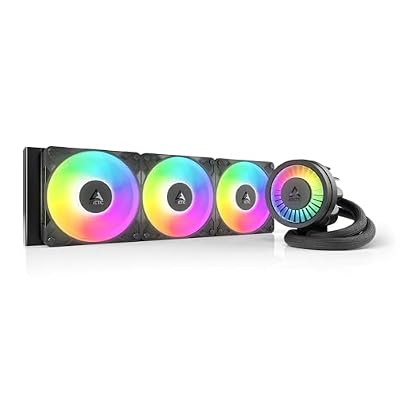
This guide shows how to find background load, decide which apps to trim, and avoid breaking the tools you need. It favours a measured approach over blanket shutdowns. The listing above is a closest-match example of the kind of hardware that absorbs background work well when a PC is short on headroom. Check the card for the exact model, specifications and current price before buying.


Why Background Apps Hurt Game Performance
A game needs its share of the CPU at every frame. When a background task grabs processing time, the game may miss its deadline and produce a late frame. That shows up as a stutter, even if the average frame rate stays high. Disk activity has a similar effect. When an app writes to the same drive the game is reading from, texture loads can slow down.
Memory is the third pressure point. If background apps fill RAM, Windows may move data to the page file, and the game then waits for it to come back. Network activity can also add small delays for online play. The effect depends on how much headroom your system has, so the same app may matter on one PC and not on another.
Find the Real Offenders First
Use Task Manager During Play
Start a game, open Task Manager and watch the Processes tab. Sort by CPU, memory and disk in turn. Note any app that spikes while the game is running. A short check of five or ten minutes is often enough to show the pattern. Look for updaters, sync tools and launchers that run tasks at random times.
Check Resource Monitor for Detail
Resource Monitor gives more detail on disk and network use by process. Use it to confirm whether a background app writes to the drive that holds your games. If it does, moving that app’s data or pausing its sync during play can help. If you keep bulk libraries on mechanical storage, the best hard drive for gaming guide covers those drives.
Trim the Startup List
Many background apps start with Windows and never close. Open Task Manager, go to the Startup tab and review each entry. Disable apps you do not need at boot, especially updaters for tools you rarely use. Keep security software and any drivers your hardware depends on. If you are unsure about an entry, search its name before disabling it. If your install is cluttered with leftover tools, a clean setup can be simpler than tracking each one; our guide to installing Windows 11 on a gaming PC walks through it.
Startup changes are reversible. Disable one or two apps at a time, restart and test a session. If nothing breaks, keep the change. If something stops working, turn that entry back on.
Manage Launchers, Updaters and Sync Tools
Game Launchers
Launchers often check for updates and download content in the background. Set automatic updates to run at a time you choose, or pause downloads while you play. Some launchers have a setting that stops background downloads during a game session. If launcher downloads also slow your online play, the best Ethernet settings for gaming guide covers the wired side.
Cloud Sync and Backup
Cloud sync apps can scan large folders and upload changes while you play. Pause syncing during sessions, or exclude game folders from the sync scope. Schedule the backup for when you are away from the PC, because a scheduled backup is much easier to live with than an unscheduled one. For large libraries, the best gaming SSDs guide covers a second drive that keeps installs away from the sync scope.
Browser Tabs and Media
Browsers can use a lot of memory, and video or live pages can add steady CPU and GPU work. Close tabs you do not need during play. Pause background video, and check the browser’s own task list for tabs that use excessive resources.
Comparison: Background Load Sources and Actions
| Source | Typical impact | Action | Cost |
|---|---|---|---|
| Startup apps | Load at boot and in play | Disable unneeded entries | Free |
| Launcher updates | Disk and network bursts | Schedule updates or pause downloads | Free |
| Cloud sync | Disk and upload activity | Pause or exclude game folders | Free |
| Browser with many tabs | Memory and CPU use | Close tabs during play | Free |
| Memory pressure | Hitching and page file use | Trim apps or add memory | Check current price |
Nearly every row is free to fix. Memory upgrades only make sense when the Task Manager check shows memory close to its limit during play.
Keep the Tools You Need
Do not disable security software, drivers, or anything that controls hardware you depend on, such as a keyboard profile or a cooling controller. Those components protect the system or keep your peripherals working. Trim the optional extras first, then review the rest only if a problem remains. For a broader build checklist, the gaming PC buying guide covers storage and memory together.
When Hardware Is the Better Fix
If your system runs out of memory even after trimming background apps, more memory may be the answer. Our best RAM for gaming PC guide explains what to look for. If disk activity is the issue, a faster drive can help, and the best NVMe SSD for gaming roundup shows options. Make sure the power supply and cooling can handle the load too, since a stressed PC behaves differently under sustained work.
Common Mistakes When Optimising Background Apps
The most common mistake is disabling too much at once, which makes it hard to learn what helped. The second is treating every background process as harmful. Some are necessary for your hardware. The third is measuring only once. Test with and without changes across several play sessions so that one good or bad run does not mislead you. Our best gaming PC specs guide helps you judge whether the system has headroom at all.
Frequently Asked Questions
Should I close all background apps before gaming?
No. Close the heavy and optional ones, and keep security and hardware tools running. A blanket shutdown can cause problems and usually gives little extra gain.
Do background apps lower FPS or cause stutter?
They can do either. Low frame rate usually points to a CPU or GPU limit. Stutter often comes from background tasks that interrupt frame delivery.
Is it safe to disable startup entries?
Usually yes, if you recognise the app and can restart it when needed. Check unknown entries before disabling them, and keep security software enabled.
How do I know if background apps are the problem?
Watch Task Manager during play. If a background process spikes at the same time as stutter, pause or disable it and test again.