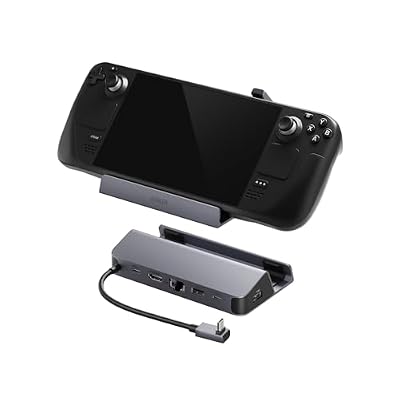
Steam Deck OLED Dock Accessories Review: What Your Dock Must Do
A Steam Deck OLED on its own is a complete handheld, but many owners eventually want a desk setup: a monitor, a keyboard, a wired network connection, and a few extra drives. Dock accessories bridge that gap. The category is crowded with cheap hubs that look similar on a product page but differ sharply in power delivery, video output, and reliability. This guide explains what a dock needs to do for the Steam Deck OLED, and how to check each listing before you buy.
The four alternatives in the comparison table come from the same search as the hero listing. They are not verified as identical products, so check the exact ports and specifications on each page before you compare. Prices and ratings are loaded from live product data when this page renders.
What a Steam Deck OLED Dock Has to Do
The Steam Deck OLED connects to a dock through its USB-C port. A dock that works well with it needs to handle three jobs at the same time: pass power to the handheld so the battery stays charged, send video to an external display, and provide the ports you need for peripherals and storage. Miss one of these and the setup feels unfinished.
Many cheap hubs advertise video output but do not handle power delivery properly. If the dock cannot supply enough power, the Deck may charge slowly or drain while gaming on the desk. Check the charging specification and make sure it matches or exceeds the wattage of the charger that came with your handheld.
Video output: resolution and refresh rate
Video output is where many docks disagree with their listings. Look for the exact video standard the dock supports, such as HDMI version or DisplayPort alternate mode, and the maximum resolution and refresh rate at that standard. A dock that only supports lower refresh rates will limit a high refresh monitor, even if the monitor itself is capable. Confirm the output against your display’s inputs before you buy.
Ethernet and wireless
A wired Ethernet port is useful for online play, large game downloads, and streaming on a stable connection. Not every dock includes Ethernet, and some implement it with a slower controller than the port suggests. If wired networking matters to you, check whether the Ethernet port is listed as gigabit and whether it is built into the dock or added through a separate adapter.
Power Delivery, Heat and Reliability
Power delivery is the most important factor for a desk setup. The Steam Deck draws power during gaming, and a dock that supplies too little will let the battery drain while you play. Check the rated charging wattage on the listing and compare it with the handheld’s bundled charger. A dock with a higher rating than the charger gives you headroom, but it does not add performance on its own.
Heat matters too. Docks that run hot under load can throttle or shorten their own lifespan. Look for reviews that mention temperature under sustained use, and avoid docks that feel very hot after an hour of charging. Thin aluminum shells often dissipate heat better than plastic shells, but the design details vary from model to model.
Build quality and warranty
Dock failures are common, and a short warranty is a red flag. Check the warranty length and the seller’s return policy. A reputable brand with clear support is worth more than a small price difference. Inspect the USB-C connector on the dock and the handheld before you use it, and avoid any cable that feels loose.
Storage and Peripherals on the Dock
Most desk setups use a dock for at least one external drive. A fast external SSD makes a noticeable difference for game installs and transfers, while a slow spinning drive can feel sluggish. Check the USB standard on each port, because a USB 2.0 port will not deliver the speeds you expect from a modern SSD.
If you plan to store a large game library off the Deck, the external SSD guide for gaming covers drive picks. For internal expansion, the gaming SSD guide explains what to look for in the microSD or internal drive upgrade path.
Comparison Table
Use the table below to compare the hero listing with the four alternatives on the same points: video output, charging wattage, Ethernet, USB ports, and warranty. Confirm each detail on the listing. The table lists the purpose of each slot and what to verify, rather than quoting specifications that could drift between listings.
| Slot | ASIN | Best fit | Check before buying |
|---|---|---|---|
| Hero pick | B0DQPS6LHD | Desk dock for Steam Deck OLED with video and USB ports | Video standard, charging wattage, Ethernet |
| Alternative 1 | B0CMX98K6Y | Compact dock for travel and desk use | Port layout and heat under load |
| Alternative 2 | B0CS6BWL4Q | Dock with extra USB ports for peripherals | USB standard on each port |
| Alternative 3 | B0BQJ8JJ2C | Budget option for basic video and charging | Charging wattage versus your charger |
| Alternative 4 | B0GC5VT929 | Option for a wired network and storage setup | Ethernet speed and warranty length |
Who Needs a Dock, and Who Does Not
A dock makes sense if you play at a desk with an external monitor, use a wired keyboard and mouse, or want Ethernet and storage in one place. It is less useful if you mainly play on the go or only use the Deck on a couch. In that case, a simple charger and a good microSD card are enough.
If you also want a larger screen setup, the monitor guide for console and handheld play explains which displays work well with the Deck. Controller choice matters for desk play too, and the controller guide covers options.
How to Choose the Right Dock
Start with your display. Confirm the resolution and refresh rate you want, and check the dock’s video standard against your monitor’s input. Then check charging wattage against your bundled charger. Finally, decide which ports matter: Ethernet, USB-A for older peripherals, or extra USB-C for storage. A dock that does three things well beats one that lists many ports but handles power or video poorly.
If you want the handheld itself to be the centerpiece, our handheld gaming PC guide compares the Deck with other handheld options. For a wider look at handheld choices, the best gaming handhelds roundup is a good companion read.
Frequently Asked Questions
Does every USB-C dock work with the Steam Deck OLED?
No. A USB-C port alone does not guarantee power delivery or video output. Check the dock’s listed charging capability and video standard before you buy. Look for clear compatibility statements rather than a generic USB-C label.
Can a dock charge the Steam Deck while I play?
Yes, if the dock supplies enough power. Check the charging wattage on the listing and compare it with the bundled charger. A dock that supplies less power than the charger may let the battery drain during gaming.
Do I need Ethernet on a Steam Deck dock?
It is not required, but wired networking is more stable than Wi-Fi for large downloads and online play. If you have a router close to your desk, Ethernet is worth the small extra cost on a dock that supports it well.
Can I use a dock with a high refresh monitor?
Only if the dock’s video output supports that refresh rate at your chosen resolution. Confirm the standard and the maximum refresh rate on the listing, and match them to your monitor’s supported input.
For more on building a desk setup around portable hardware, see the minimal gaming setup guide and the dual monitor gaming setup guide. Buyers planning a larger budget can also check the best gaming monitor 2026 roundup.