You put the handheld down mid-game, the screen sleeps, and when you pick it up again the Wi-Fi icon is gone. Your network does not appear in the list, or it appears but refuses to join. Toggling Wi-Fi off and on changes nothing. Airplane mode changes nothing. Only a full restart brings the connection back, every single time.
This is not a weak-signal problem and it is not a password problem. The handheld connected perfectly before it slept, at the same spot, on the same network. What failed happened during the sleep itself: one layer of the connection never woke back up, and it stays dead until a reboot rebuilds it from scratch. That pattern — perfect before sleep, dead after, cured only by restarting — is the fingerprint of this fault, and it points at four specific layers.
As an Amazon Associate, we earn from qualifying purchases.
Quick Answer
When a handheld loses Wi-Fi after every sleep and only a restart revives it, the connection worked before sleep and one layer failed to wake: the radio driver, the power policy, the saved network state, or the router’s lease. Run the wake-up roll call below; the stage that fails names the layer, and each layer has its own fix.
The Wake-Up Roll Call: Four Checks, In Order
Do not restart yet. The restart hides the evidence, and the evidence is the whole diagnosis. Wake the handheld, let it sit in its broken state, and call the roll on the connection, one stage at a time.
Check one: is the radio awake? Open the Wi-Fi settings. If the toggle itself is greyed out, missing, or the settings page hangs when you open it, the radio driver never resumed. The hardware is fine; its software driver is still asleep.
Check two: can it see any networks? If the toggle works but the network list is empty — not just your network, every network — the radio woke but never started scanning. That is a power-state problem: the radio is being held in a low-power mode it cannot leave on its own.
Check three: can it join your network? If networks appear and yours is listed but the join fails, loops, or reports a saved network it will not use, the radio and scanner work. The saved profile or the address negotiation is what sleep corrupted.
Check four: does traffic actually pass? If it joins and shows connected but nothing loads, the link is up and the address is stale — an address the router no longer honors.
Write down which check fails. Each answer routes you to one section below, and the fixes are not interchangeable.
The Radio Driver Never Wakes Up
A greyed-out or frozen Wi-Fi toggle after sleep is a driver resume failure. On waking, the system reloads the wireless driver, and on some firmware builds that reload silently fails, leaving the radio powered but unmanaged. No setting inside the Wi-Fi page can fix it, because the page itself is talking to a driver that is not there. A restart works because a cold boot loads the driver cleanly.
The real fix is firmware. Update the handheld’s firmware or custom firmware to the newest stable build; resume failures are exactly the class of bug point releases quietly patch. If you are already current, check whether the fault arrived with the last update — if it did, the previous build is the fix until the next one lands. On Android handhelds, also remove any battery-saver app that freezes system processes, since a frozen wireless service looks identical to a dead driver. If the toggle freezes only after very long sleeps but works after short ones, that pattern points at the deep-sleep state, which the next section covers.
Power Policy Holds the Radio Down
If the radio wakes but sees no networks, suspect power management. Handhelds aggressively park the wireless chip to save battery, and some builds park it so deeply during sleep that the wake signal never fully restores it. The radio is on, the driver is loaded, and the chip sits in a low-power state, deaf to every network around it.
On Android handhelds, find the setting that keeps Wi-Fi on during sleep and set it to always stay on, then remove the system Wi-Fi service from any battery optimization list. On Linux custom firmwares, look for Wi-Fi power saving in the network or system settings and turn it off; the battery cost is small next to the restart ritual. Also test with the charger plugged in: several models apply their harshest power policy only on battery, so a handheld that wakes perfectly while charging has told you exactly where the fault lives.
The Saved Connection Comes Back Corrupted
When networks list fine but yours will not join after sleep, the saved profile is the problem. Sleep can interrupt the handheld mid-handshake with the router, and the stored state it wakes with no longer matches what the router expects. The handheld insists on resuming a conversation the router has forgotten.
Forget the network completely and join it fresh, re-entering the password. This is not a first-join failure: the password is known-good and the join worked hours ago, so a refusal after sleep means stale state, not wrong credentials. If a fresh join works but the fault returns after the next sleep, set a static address on the handheld inside your router’s range as a test. A handheld that wakes and works on a static address is failing its address renegotiation on wake, which hands the problem to the router side, below.
The Router Refuses the Woken Client
Sometimes the handheld wakes perfectly and the router is the layer that fails. A router can hold a stale lease for a sleeping client, answer the wake-up renegotiation too slowly, or quietly drop a client it believes has left. The handheld then sits connected to nothing, waiting on an address that never arrives, until a restart forces a completely fresh negotiation the router handles correctly.
Restart the router once to clear its client table, then update its firmware if a newer build exists. If the fault follows one handheld and no other device on the network, give the handheld a reserved address in the router settings so its lease never changes hands while it sleeps. If every device in the house occasionally wakes badly, the router itself is aging out of the job. One more test separates the two for good: let the handheld sleep on a different network, such as a phone hotspot. If it wakes fine there, your handheld is healthy and your home router is the layer to fix or replace.
How to Choose
Work the roll call before spending anything. A driver fault is cured by firmware, a power fault by settings, a profile fault by rejoining, and none of those cost money. Replacement gear only enters the picture in two cases. First, the handheld itself: if your model is old enough that its firmware is no longer maintained, its resume bugs will never be patched, and a current handheld with an actively supported system is the honest fix. Second, the network: if the router refuses woken clients across several devices, a modern router, mesh node, or a wired dock connection removes the negotiation from the equation entirely. Match the purchase to the layer your roll call named, not to the symptom alone.
The Gear That Ends the Restart Ritual
AYN Thor Pro

The flagship route out of an unmaintained firmware. An Android handheld on a current, actively updated system, with a dual-screen layout and a modern dual-band radio stack that resumes cleanly from sleep.
Specs
- Platform: Android, actively maintained system builds
- Main screen: 6.31-inch, dual-screen design
- Wi-Fi: dual-band
- Tier: premium
Retroid Pocket 5

A current Android handheld whose recent system builds are exactly where wake and resume bugs get fixed. A sensible replacement when your old device’s firmware has been abandoned by its maker.
Specs
- Platform: Android
- Display: 5.5-inch AMOLED
- Wi-Fi: dual-band
- Tier: mid-range
Anbernic RG556

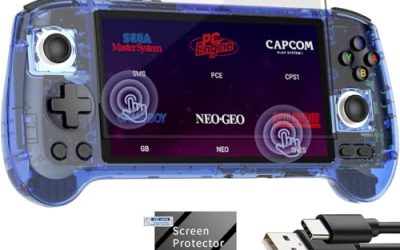
A mid-range Android option in blue with a large AMOLED screen and a maintained stock system. For players whose older Linux handheld wakes badly and who want sleep behavior that behaves like a phone.
Specs
- Platform: Android
- Display: 5.48-inch AMOLED
- Finish: blue
- Wi-Fi: dual-band
- Tier: mid-range
TrimUI Smart Pro

The budget replacement for a handheld whose firmware will never be fixed. A Linux model with Wi-Fi for scraping, updates, and retro achievements, in the white 64 GB variant. It has no touchscreen, which matters for menu navigation but not for this fault.
Specs
- Platform: Linux
- Storage: 64 GB, white variant
- Wi-Fi: built in
- Touchscreen: none
- Tier: budget
TP-Link TL-SG105
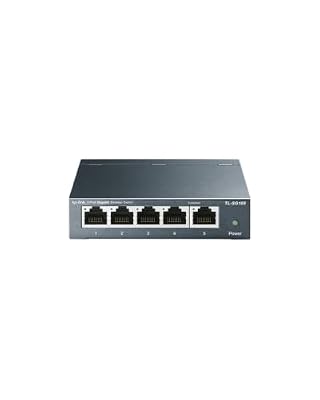
The wired escape hatch. If your roll call convicted the router and a replacement is not on the table, a five-port gigabit switch lets a docked handheld play wired, and a wired connection has no wake-up negotiation to fail.
Specs
- Ports: 5 gigabit Ethernet ports
- Use: wired dock and desk setups
- Tier: budget
Who Should Skip This
Skip this guide if your handheld drops Wi-Fi in the middle of play rather than after sleep; mid-session drops are a signal, band, and placement problem with their own guide on this site. Skip it if your handheld has never connected to your network at all — a first-join failure dies at a handshake stage, and that fault has its own staged guide. Skip it if the handheld will not wake from sleep in the first place, screen black; that is a power fault, not a connection fault. And skip it if the dead-after-sleep device is a PC USB adapter or a PC’s wired port: those are desktop driver problems covered by separate PC guides here.
Frequently Asked Questions
Why does restarting fix it every time?
A restart rebuilds the whole connection stack from nothing: the driver reloads, the radio rescans, and the router sees a brand-new client and negotiates a fresh address. Sleep, by contrast, tries to resume the old state, and whichever layer failed to resume stays failed until the reboot replaces it.
Should I just stop letting the handheld sleep?
You can as a workaround, and disabling sleep entirely does dodge the fault, but it costs battery and screen life. Fixing the named layer is better: a firmware update, a power setting, or a reserved router address removes the fault while keeping sleep, which is half the point of a handheld.
Does this fault mean my handheld is dying?
Almost never. Hardware Wi-Fi failures usually degrade gradually and misbehave while you play, not in a clean pattern tied to sleep. A fault that appears only after sleep, and always clears on restart, is software state, and software state can be fixed or replaced.
Can a router update really break a handheld that used to wake fine?
Yes. A router firmware update can change how leases and client timeouts are handled, and a handheld that renegotiated happily for a year can start failing the morning after. That is why the hotspot test matters: it tells you which side of the connection changed.
Final Verdict
A handheld that loses Wi-Fi after every sleep is not losing the network; it is losing one layer of the wake-up. Run the roll call — radio, scan, join, traffic — and fix the layer that fails: firmware for a dead driver, power settings for a parked radio, a fresh join for a corrupted profile, and the router for a refused renegotiation. Restarting works because it rebuilds all four at once; the roll call lets you rebuild only the broken one.
Product and ASIN Reference
| Product | ASIN |
|---|---|
| AYN Thor Pro | B0FV3HKG9P |
| Retroid Pocket 5 | B0DT4G4PD2 |
| Anbernic RG556 | B0FKHBVGLQ |
| TrimUI Smart Pro | B0DCC1RTNK |
| TP-Link TL-SG105 | B00A128S24 |