You switch your gaming handheld into desktop mode, wiggle the stick or brush the trackpad, and nothing appears. Yet the desktop still responds: icons highlight as you pass over them, a right-click opens its menu exactly where you expected, and a left-click launches whatever was hiding under the pointer you cannot see. Input is alive. Only the picture of the pointer is missing. That split is the whole diagnosis, because a handheld draws its cursor through a different path than the one that moves it, and the drawing path fails in a few repeatable ways: a cursor theme lost in an update, the GPU driver’s hardware cursor plane misrendering, fractional display scaling breaking the sprite, or an input mode switch hiding the pointer because it thinks you are using touch.
As an Amazon Associate, we earn from qualifying purchases.
Quick Answer
An invisible cursor in desktop mode almost never means the pointer is broken: clicks still land because input and drawing are separate jobs. Run the Hover Highlight Test to prove input is alive, then check four causes in order: a cursor theme lost in an update, hardware cursor rendering in the GPU driver, fractional display scaling, and a touch or trackpad mode switch that hides the pointer.
The Hover Highlight Test
Before changing a single setting, prove which half of the system is at fault. Move the pointer slowly across a row of desktop icons, then park it over a button and wait. If icons light up, tooltips appear, and a click lands on the item you were aiming at, the input half is healthy and only the cursor sprite is not being drawn. If nothing highlights and clicks land in the wrong place or not at all, you have an input fault instead, which belongs to the frozen and jumping cursor family, not this guide. A live pointer with no picture is a rendering problem, and rendering problems here come from the theme, the driver, the scaling, or the mode.
Cause One: The Update Took Your Cursor Theme
Desktop environments on handhelds draw the pointer from a cursor theme, a small set of sprite images stored on the system. A firmware or system update can replace, rename, or partially delete that theme, especially on desktops the maker assembled rather than shipped as one piece. The compositor then asks for a cursor image that no longer exists and draws nothing, while movement and clicks carry on.
The signature is timing: the cursor vanished right after an update, and it is missing everywhere, from the moment the desktop loads. Open the pointer settings and look at the cursor theme entry. If it is blank, points at an unfamiliar name, or changing the pointer size has no effect, reselect the default theme, apply it, and restart the desktop session. Pick the plain default rather than a custom pack; custom packs are the ones updates break. If that fails, test a fresh user profile: a cursor that appears there convicts your profile’s settings, not the system.
Cause Two: The Hardware Cursor Plane
Most GPUs draw the pointer on a dedicated hardware cursor plane, a small overlay the display hardware stamps on top of the desktop. It is fast and cheap, but a driver bug can make that plane render the cursor as transparent, or show it over some windows and not others.
The signature is inconsistency: the cursor appears over the desktop and system windows but disappears over a browser, a launcher, or a video app, or it flickers as you cross window borders. The fix is to force software cursor rendering. On Linux desktops this is a compositor or driver setting; on Windows-based handhelds, updating or rolling back the GPU driver is the practical lever, because the hardware cursor path lives in that driver. Switching to a high-contrast pointer scheme also helps some drivers, since it forces a different sprite through the plane. If the cursor becomes reliable with software rendering or a new driver, the hardware plane was the fault.
Cause Three: Fractional Scaling Breaks the Sprite
Handheld screens are small and dense, so desktop modes lean hard on display scaling, and fractional values are where cursor drawing most often falls apart. At a fractional scale the compositor has to resample the cursor sprite, and some combinations of driver, compositor, and scale factor resample it into invisibility, or draw it only inside windows that match the scale.
The signature is a cursor that exists at some scale settings and not others. Test it directly: set display scaling to a whole number, log out and back in, and run the Hover Highlight Test again. If the pointer returns, the choice is practical: live with a whole-number scale, or keep your fractional scale and switch to software cursor rendering, which sidesteps the resampling bug. If you dock the handheld, check per-display settings too; a cursor missing only on an external monitor at a different scale is the same fault.
Cause Four: A Mode Switch Is Hiding the Pointer
Many handhelds hide the cursor whenever they believe a touchscreen is in use, and some hide it when the control mode flips from mouse mode to gamepad mode.
The signature is a cursor that disappears the moment you touch the screen, after waking from sleep, or when you switch between game mode and desktop mode, and reappears after a reboot until the next trigger. Look for a pointer visibility setting phrased as hide when using touch, and turn it off. Check which control mode the handheld thinks it is in, and confirm the setting survives a restart. Clean the screen edges as well, because a case lip or protector edge pressing the digitiser can hold a permanent phantom touch. If the cursor only vanishes after sleep, treat it as a mode state that failed to restore and update the firmware.
How to Choose
Every branch above is a setting, and none of them needs a purchase. Spend money only at two points. The first is the isolation test: an external mouse separates the built-in stick and trackpad from the desktop itself. If an external mouse produces a visible cursor while the built-in controls do not, the fault is in the handheld’s input layer or mode logic; if the external mouse is invisible too, the fault is in the theme, driver, or scaling. The second point is the end of the road: a handheld whose desktop mode stays broken after every setting above has been cleared is a device whose software support has run out, and a current model is the real fix.
Logitech G305 Lightspeed Wireless Mouse

The G305 is the cleanest isolation test you can run. Its own USB receiver bypasses the handheld’s Bluetooth stack, built-in trackpad, and control-mode logic in one move.
Specs
- Connection: Lightspeed wireless over a USB receiver, independent of the handheld’s radios
- Sensor: HERO optical sensor, adjustable up to 12,000 DPI
- Battery: a single AA cell rated for extended desktop use between changes
- Buttons: six programmable buttons, including a DPI switch
- Tier: budget
Logitech G502 HERO Wired Mouse

A wired mouse removes even the receiver from the equation. If the G502 draws a cursor where the built-in controls could not, the problem sits in a wireless or mode layer; if it is just as invisible, the cursor is dying in the theme, driver, or scaling.
Specs
- Connection: wired USB, no battery and no wireless link to complicate the test
- Sensor: HERO sensor, adjustable up to 25,600 DPI
- Weight: adjustable weight system for matching your usual pointer feel
- Buttons: eleven programmable buttons with onboard profile storage
- Tier: mid-range
Anbernic RG406H

If the verdict is that your current handheld’s desktop mode is abandonware, the RG406H is the low-cost way back to a maintained Android desktop with a touchscreen and sticks that double as pointer control.
Specs
- Display: 4.7-inch IPS touchscreen at 960 by 720, a 4:3 panel suited to retro libraries
- Processor: Unisoc T820 with Android 13, current enough for system updates
- Controls: hall-effect sticks and triggers, so pointer control does not drift as the hardware ages
- Battery: 5,000 mAh cell sized for long sessions
- Tier: mid-range
Retroid Pocket 5

The Retroid Pocket 5 pairs a bright AMOLED screen with a fast processor. Cursor work on the 1080p panel is sharp, and its actively maintained software stack handles the fractional scaling that breaks lesser desktops.
Specs
- Display: 5.5-inch AMOLED touchscreen at 1080p, bright enough for a readable desktop
- Processor: Snapdragon 865, comfortably fast for desktop multitasking and streaming
- Controls: hall-effect sticks with active cooling for sustained loads
- Battery: 5,000 mAh cell with fast charging over USB-C
- Tier: premium
AYN Thor Pro

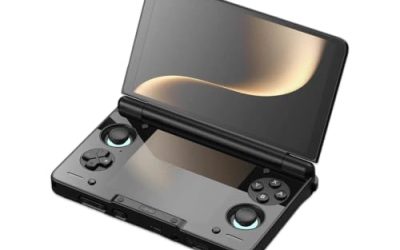
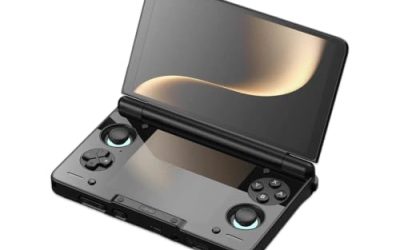
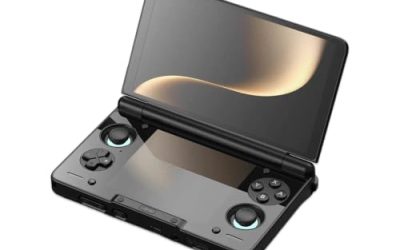
The Thor Pro is the desktop-mode flagship of this list: a dual-screen handheld built for people who work and play in both modes, with polished cursor behaviour across both panels.
Specs
- Display: main 6.31-inch AMOLED panel with a high refresh rate, plus a smaller secondary screen below
- Processor: a flagship Snapdragon chip that treats desktop multitasking as light work
- Controls: hall-effect sticks and triggers around both screens
- Battery: a large cell balanced across the dual-screen design
- Tier: premium
Who Should Skip This Guide
Skip this guide if the Hover Highlight Test shows nothing highlighting and clicks landing nowhere: that is a dead input path, closer to the frozen-cursor family than to a missing sprite. Skip it if your cursor only disappears inside one game; a game hiding its own cursor is a fullscreen setting inside that title. Skip it if the whole screen is misbehaving, flickering, ghosting, or showing touch inputs you never made, because those are display and digitiser faults.
Frequently Asked Questions
Why do clicks still land if the cursor is invisible?
Because moving the pointer and drawing the pointer are two separate jobs. The input system tracks position and delivers clicks regardless of what is on screen, while the cursor image is painted by the theme, compositor, and GPU. When the painting fails, the position is still real.
Did an update really delete my cursor theme?
It happens more often than it should on handheld desktops, where the maker assembles the environment from parts. An update can replace the theme package, rename its folder, or reset the pointer setting to a theme that is no longer installed. Reselecting the default theme and restarting the session is usually the full fix.
Is a hardware cursor better than a software cursor?
A hardware cursor is cheaper and has effectively no lag, which is why handhelds use it, but it depends on the GPU driver drawing one small overlay correctly. A software cursor is drawn with the rest of the desktop, so it survives driver bugs and fractional scaling at a small performance cost.
Will an external mouse fix an invisible cursor?
It will not fix it, but it will locate it. An external mouse that shows a cursor proves the desktop can draw one and points at the built-in input layer or mode logic. An external mouse that is also invisible proves the fault is in the theme, driver, or scaling.
Final Verdict
An invisible cursor in handheld desktop mode is a drawing fault, not a dead pointer. Prove input is alive with the Hover Highlight Test, then work the four causes in order: reselect the cursor theme, force software rendering or change the driver, test a whole-number display scale, and hunt down the mode switch hiding the pointer on purpose. Reinstalling is the last resort, and the cursor usually comes back long before that.
Product and ASIN Reference
| Product | ASIN |
|---|---|
| Logitech G305 Lightspeed Wireless Mouse | B07CMS5Q6P |
| Logitech G502 HERO Wired Mouse | B07GBZ4Q68 |
| Anbernic RG406H | B0DNF3LD4C |
| Retroid Pocket 5 | B0DT4G4PD2 |
| AYN Thor Pro | B0FV3HKG9P |