Every tap registers, but the handheld keeps answering a few millimetres away from where your finger landed. You press the confirm button and the one beside it lights up. You aim for a small icon near the edge and hit the frame instead. Because the screen still responds everywhere, this fault gets misread as clumsiness or a dying panel, and neither is usually true. An offset tap is a mapping problem: the touch layer and the picture underneath disagree about where a point on the glass is. The causes are few — calibration drift, a protector distorting the capacitive field, the frontend scaling touch coordinates differently from the display, or edge-rejection settings eating touches near the bezel — and each leaves a different error pattern. Read the pattern first and the fix is usually free.
As an Amazon Associate, we earn from qualifying purchases.
Quick Answer
Taps that land beside the target are usually a mapping problem, not a dying screen. Run the corner grid test: a shift that is equal everywhere points to calibration, growth toward the edges points to frontend scaling, and error under one area points to the protector. Recalibrate, refit or remove the protector, and match scaling before pricing a panel.
The Corner Grid Test
Before changing any setting, map the error. Open a drawing app, a touch test tool, or the pointer location overlay in developer options, and tap a slow grid: the centre, the middle of each edge, and all four corners, three times each with the same finger and pressure. You are not checking whether taps register — they do — you are measuring where they land relative to where you aimed.
Four patterns cover almost every case. A shift that is the same size and direction everywhere, centre included, is a calibration offset: the whole touch map has slid. An error that is tiny in the centre and grows toward the edges is a scaling mismatch. An error that lives in one region only, especially under a corner of the protector, is physical — something between finger and panel is bending the field there. An error that changes when you rotate the device, or appears in one frontend only, is software mapping, not glass. Note your pattern before touching a setting, because each has a different fix and the wrong one just moves the error around.
Cause One: Calibration Drift
Touch controllers translate raw sensor readings into screen coordinates using a calibration profile, and that profile can drift. A firmware update that resets the touch driver, a factory reset that restores a generic profile, or a repair that paired the panel with a different controller board can leave the map slid by a few millimetres. The signature is the uniform shift: every tap lands the same distance off, in the same direction, centre included.
Run whatever calibration or touch test tool your firmware offers and tap each marker dead centre. On Android handhelds without a built-in tool, a full shutdown and restart reloads the touch driver and sometimes restores the stored profile. Recheck the grid afterwards. If the shift survives recalibration and a driver reload, the profile is not the problem — move to the physical and scaling checks rather than repeating the routine.
Cause Two: The Protector Is Bending the Field
A capacitive panel measures the electrical field at the glass surface, and anything layered on top becomes part of that measurement. A thick protector, one cut for a slightly different model and sitting a fraction off-centre, or one lifting at a corner with grit underneath can pull the sensed position away from the real contact point, worst where the layer is thickest or lifted.
The test costs nothing: peel the protector off and rerun the corner grid on the bare screen. If the offset vanishes or shrinks dramatically, the protector was the fault, and the fix is a thinner, model-correct replacement fitted on a clean screen in one aligned pass — not pressing the old one back down. If the grid error is identical on the bare screen, the protector is innocent and a new one will change nothing.
Cause Three: The Frontend Scales Touch Differently
Emulation frontends and some launchers render the interface at one resolution while the touch layer reports coordinates at another, and when the two ranges do not line up, the error matches the grid test’s second pattern: accurate in the centre, increasingly wrong toward the edges, because the mismatch multiplies with distance from the middle. A non-native resolution, a stretched aspect setting, or a per-app scaling override can all produce it.
The giveaway is scope. If taps are accurate on the home screen and in system settings but drift inside one frontend or emulator, the panel and its calibration are fine and the mapping inside that app is wrong. Set the display to native resolution, turn off any stretch or scaling override in the frontend, and retest the grid inside the same app — that is where the fault lives. An offset that follows one app is never a reason to replace hardware.
Cause Four: Edge Rejection and Palm Settings
Many touch controllers deliberately shrink touches that land close to the bezel, on the theory that they are a gripping palm rather than a deliberate tap. Aggressive edge rejection, a palm-rejection mode, or a touch-sensitivity setting in the wrong state can pull edge taps inward, so the registered point lands a few millimetres inside where your finger touched. The centre stays perfect, and only small targets near the edges — where menus park their buttons — keep missing.
Look in the display and accessibility settings for edge suppression, palm rejection, touch sensitivity, and glove mode, and return them to defaults one at a time, rerunning the corner taps after each change. A case or grip shell whose lip crowds the glass edge can feed the same behaviour, so run one grid pass with the case removed. If the edge error disappears, you have the cause and no part needs replacing.
How to Choose the Right Fix
Match the remedy to the pattern. A uniform shift gets recalibration first. A bare-screen improvement convicts the protector, and the purchase is a thin, model-matched replacement. An app-only error is a scaling setting, and it is free. Edge-only error is rejection settings or a crowding case. Products enter at three points: a precision stylus, which diagnoses and works around small-target misses; a correct protector, when the old one is convicted; and a replacement handheld, justified only when the offset survives every free fix.
MEKO Universal Stylus, 2 in 1 Precision Series

The disc tip makes the contact point visible through the clear disc, turning this stylus into a measuring tool as well as an input device: run the corner grid with it and finger size and angle leave the experiment, so any remaining offset is the device’s, not yours. If the fault is a mild shift you decide to live with, the same precision keeps small targets hittable. It needs no pairing or charging and works on any capacitive panel.
Specs
- Type: passive capacitive stylus, disc tip and fibre tip
- Pack: 2 pens with 6 replacement tips
- Length: 5.5 inches
- Compatibility: all capacitive touchscreens
- Power: none required
Tier: budget
amFilm Tempered Glass Screen Protector for Steam Deck, 3 Pack

When the grid test convicts the protector, the replacement has to be thin and cut for the exact model, and this amFilm pack is the reference example: tempered glass at a slim profile, sized precisely for the Steam Deck screen rather than trimmed from a universal sheet, with alignment tabs that keep it centred so it cannot sit a fraction off and skew the field at one side.
Specs
- Type: tempered glass screen protector
- Model: SD7-GLSX3
- Fit: Steam Deck LCD and Steam Deck OLED, 7 inch
- Pack: 3 protectors with installation tools
- Surface: scratch resistant with oleophobic coating
Tier: budget
Anbernic RG406H

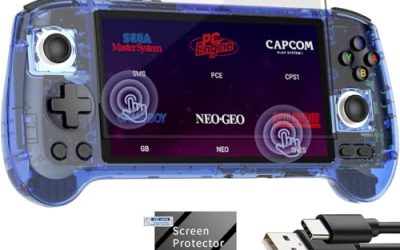
If the offset survives every free fix and a replacement is genuinely on the table, the RG406H is the sensible mid-range landing spot: its fully laminated multi-touch display bonds the touch layer directly to the panel, removing the air-gap and alignment variables that plague cheaper separate-digitizer designs, and it covers the same emulation ground as most units it would replace.
Specs
- Display: 4 inch IPS, full lamination, multi-touch
- Resolution: 960 by 720
- System: Android-based
- Input: dual analog sticks, Hall triggers, touchscreen
- Use case: retro emulation with touch menus
Tier: mid-range
Retroid Pocket 5

The Pocket 5 is the premium step for players who use touch constantly — frontend browsing, DS and 3DS libraries, Android games. Its AMOLED panel is bright and sharp, and the Android build exposes the developer pointer overlay used in the grid test, so you can verify the new unit’s mapping in minutes.
Specs
- Display: 5.5 inch AMOLED touchscreen
- System: Android-based
- Input: Hall sticks and triggers, touchscreen
- Form: single-screen handheld
- Use case: emulation plus native Android gaming
Tier: premium
AYN Thor Pro

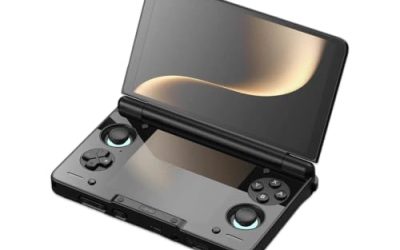
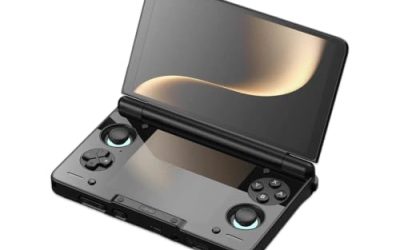
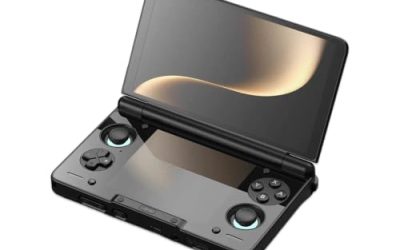
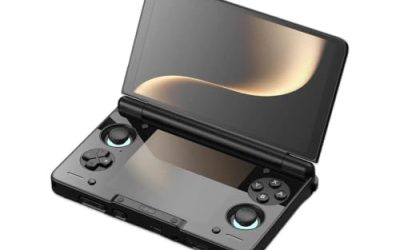
The Thor Pro is the top-end answer when touch is central to how you play, particularly dual-screen systems where the lower panel is a touch surface in constant use. Two screens mean two touch maps to keep honest, and a current flagship handles calibration and scaling cleanly across both.
Specs
- Main display: 6.31 inch touchscreen
- Layout: dual-screen clamshell
- System: Android-based
- Input: full gamepad controls plus touch on both panels
- Use case: DS and 3DS libraries, Android gaming
Tier: premium
Who Should Skip This Guide
If your handheld taps itself with nobody touching it, that is ghost touches — a different fault with its own diagnosis. If a strip or corner ignores taps entirely, that is a dead zone, not an offset, and belongs to the not-responding diagnosis. A mouse cursor drifting in desktop mode is a pointer issue, not a touch map issue. And a button-only handheld with no touchscreen cannot misplace a tap at all.
Frequently Asked Questions
Why are my taps accurate in the centre but wrong near the edges?
That pattern means the error scales with distance, which points away from calibration. Check frontend or display scaling first — a non-native resolution or stretched aspect setting multiplies the mismatch toward the edges — then edge rejection settings, which deliberately pull edge touches inward.
Can a screen protector really shift where a tap lands?
Yes. The panel senses an electrical field through whatever is layered on the glass, so a thick protector, one cut slightly off-centre, or one lifting with grit underneath can pull the sensed position away from the real contact point. Proof: rerun your tap grid on the bare screen and compare.
How do I tell a calibration problem from a failing digitizer?
Recalibrate, test on the bare screen, set native resolution, and restore default touch settings. A software fault yields to at least one of those. An offset that survives all four, same place and size, is the digitizer’s own mapping failing — where repair or replacement is the honest answer.
Does this affect handhelds without touchscreens?
No. Models with no touch layer, such as the Miyoo Mini Plus, the TrimUI Smart Pro, and the RG35XX Plus, take input from buttons and sticks only, so there is no touch map to drift.
Final Verdict
Offset taps feel like a dying screen but are usually a disagreement between the touch layer and the picture, and disagreements can be measured. The corner grid test separates the four causes: recalibrate a uniform shift, convict or clear the protector on the bare screen, fix scaling where one app misbehaves, restore edge settings when only the borders miss. Replace hardware only when the error survives all of it.
Product and ASIN Reference
| Product | ASIN |
|---|---|
| MEKO Universal Stylus, 2 in 1 Precision Series (2 pack) | B00N1BRWLA |
| amFilm Tempered Glass Screen Protector for Steam Deck (3 pack) | B09TPF6NQ8 |
| Anbernic RG406H | B0DNF3LD4C |
| Retroid Pocket 5 | B0DT4G4PD2 |
| AYN Thor Pro | B0FV3HKG9P |