Affiliate disclosure: As an Amazon Associate we earn from qualifying purchases. This post contains affiliate links — if you buy through them we may earn a small commission at no extra cost to you. This never affects our recommendations.
- Best Dual Monitor Gaming Setup for 2026
- The Vision
- Display Selection
- Monitor Configuration Options
- GPU Requirements
- Monitor Arm & Positioning
- Display Connectivity
- Software & Workflow
- Total Cost Breakdown
- Vs Other Setups
- Internal Setup References
- FAQ
- Final Verdict
- Related Articles
- Frequently Asked Questions
- Related Articles
In a hurry? See the top-rated Dual Monitor Gaming Setup for deals available right now:
🛒 Check Dual Monitor Gaming Setup For Prices on Amazon →🛒 Best Price Today on Amazon
Prime members get fast, free shipping on everything above, plus member-only deals. New members get a 30-day free trial — cancel anytime.
Start 30-Day Prime Free Trial →See Today’s Amazon DealsBest Dual Monitor Gaming Setup for 2026
Dual-monitor gaming setups maximize productivity, immersion, and workflow efficiency. One monitor handles gameplay; the other displays Discord, chat, streaming overlays, or reference content. In 2026, GPU performance has scaled to easily push 1440p 144Hz across two displays simultaneously, making dual-monitor setups practical for both casual gamers and serious competitors. This guide covers optimal display selection, monitor arm configuration, and GPU requirements for smooth multi-monitor gaming.
A dual-monitor setup isn’t just about gaming—it’s about maximizing desk real estate for gaming, communication, content creation, and work. The right configuration keeps both displays in your peripheral vision without excessive neck strain.
As an Amazon Associate we earn from qualifying purchases at no extra cost to you.





The Vision
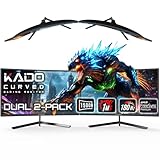
Your dual-monitor setup positions one primary display (1440p 144Hz) directly in front of you for gaming, and a secondary display (1440p 60Hz or 1080p 144Hz) at 30-40 degrees to the right or left for communication, chat overlay, or reference content. Both monitors mount on a professional dual-monitor arm with integrated cable routing. The GPU pushes 100+ FPS on the primary at 1440p while maintaining 60+ FPS on secondary display content. Input latency is imperceptible—no noticeable delay between mouse input and on-screen response on either display.
Our top hero pick at this tier — see specs and current price:

Dell Gaming S2716DGR 27.0" QHD Wide 1440p Screen LED-Lit Monitor with G-SYNC


As an Amazon Associate we earn from qualifying purchases. Product prices and availability are accurate as of the date/time indicated.
Display Selection
| Monitor Role | Recommendation | Cost | Purpose |
|---|---|---|---|
| Primary (Gaming) | 1440p 144Hz IPS (27″ or 32″) | $400 | Game output; high refresh for smooth gameplay |
| Secondary (Utility) | 1440p 60Hz IPS (27″) | $250 | Chat, Discord, reference; color-accurate IPS |
| Alternative Primary | 4K 60Hz IPS (32″) | $600 | Maximum visual fidelity; lower refresh for visuals |
| Alternative Secondary | 1080p 144Hz TN (24″) | $180 | Fast, compact, cheap; for streaming/chat |
| Monitor Arm | Ergotron LX Dual Monitor Arm | $600 | Independent adjustment; cable routing; professional |
| Cable Sleeves | Paracord + braided sleeving | $100 | Hide dual DisplayPort/HDMI cables behind arm |
Monitor Configuration Options
Option 1: Dual 1440p (Recommended) — Primary 1440p 144Hz + Secondary 1440p 60Hz. Both displays match in resolution, making UI scaling consistent. Total GPU load: moderate (100+ FPS on primary, 60+ FPS on secondary is easily achievable with RTX 5080+). Cost: ~$650.
Option 2: 1440p High-Refresh + 1080p Fast — Primary 1440p 144Hz + Secondary 1080p 144Hz. Both high-refresh for reactive gameplay. Useful if you play competitive games on secondary monitor (unlikely but possible). Total cost: ~$580.
Option 3: 4K Primary + 1440p Secondary — Stunning visuals at 4K 60Hz on primary, sharp reference display at 1440p 60Hz on secondary. Requires RTX 5090 for smooth gaming (4K 60+ FPS). Total cost: ~$900. Best for visual-focused games (Cyberpunk, STALKER 2).
Option 4: Ultrawide Primary + Standard Secondary — 5120×1440 ultrawide (38-40″) provides gaming + chat + metrics in one screen. Eliminates secondary monitor need. Total cost: ~$900. Requires RTX 5090 for 100+ FPS, but single display simplifies setup.
We recommend Option 1 (dual 1440p) for best balance of visual quality, performance, and cost.
GPU Requirements
Dual 1440p @ 144Hz: RTX 5070 Ti + handles comfortably (80-100 FPS primary, 60+ FPS secondary). RTX 5080 overkills it (120+ FPS primary). Minimum requirement: RTX 5070.
Dual 1440p + 4K mix: RTX 5090 required. The 4K output demands serious GPU memory and bandwidth.
CPU Requirements: Dual-monitor setups don’t significantly increase CPU load—the GPU is the bottleneck. Any modern 8-core CPU (Ryzen 7 7700X, i7-14700K) handles dual displays at 1440p 144Hz without stuttering.
VRAM Requirements: 12GB VRAM minimum for 1440p dual displays. 16GB+ recommended if gaming at ultra settings with high-res textures. VRAM pressure hits faster with two displays.

Monitor Arm & Positioning
Ergotron LX Dual Monitor Arm is the gold standard. Key features:
- Independent Adjustment: Each monitor pivots, tilts, rotates independently. Find perfect positioning for both.
- Cable Management: Arm internals route cables cleanly. No visible wires from the front.
- Desk Footprint: Clamps to desk edge; saves surface real estate compared to monitor stands.
- Weight Capacity: Supports monitors up to 9kg each; handles 27-32″ displays.
Optimal Positioning:
- Primary monitor: Directly in front, eye level, 24-28 inches away. Tilt 0-5 degrees downward.
- Secondary monitor: Angled 30-40 degrees inward (pivot arms inward). Position 2-3 inches above primary’s top edge. This keeps both in peripheral vision without excessive neck strain.
Ergotron’s monitor arm enables perfect positioning. Competitors like AmazonBasics dual-arm are cheaper ($150-200) but lack independent control and feel flimsy with heavier monitors.
Display Connectivity
Daisy-Chaining: Some 1440p 144Hz IPS monitors support DisplayPort daisy-chaining. One DisplayPort cable from GPU branches to both monitors through the primary. Check monitor specs—not all support it. Simplifies cabling if available.
Dual Ports: Most setups use two separate DisplayPort or HDMI cables. RTX 5080+ has multiple ports. Verify your GPU and monitor connectivity before purchase.
USB Hub Integration: High-end dual-monitor arms include USB hubs. Plug one USB-C into GPU; it powers both monitors + charges devices + provides USB passthrough. Simplifies desk cabling.
Software & Workflow
Windows Display Settings: Configure both monitors as extended displays (not mirrored). Set primary as the main display where games launch. Set secondary refresh to 60Hz if both are high-refresh to reduce GPU load.
Game Settings: Most games auto-detect the primary monitor. Fullscreen mode will engage the primary only; other applications/windows appear on secondary. This is ideal—gaming is isolated on primary, chat/streaming overlays on secondary.
Discord + Chat: Pin Discord to secondary monitor. Set taskbar to secondary only. Chat and notifications stay out of gaming view on primary.
Streaming Setup: If streaming, primary shows gameplay, secondary shows OBS control panel. Third virtual monitor (via OBS window on secondary) displays chat overlay. Workflow: game (primary) + OBS controls (secondary) + chat alerts (in-game overlay on primary from OBS).
Total Cost Breakdown
GPU (RTX 5080): $800

Monitors (1440p 144Hz + 1440p 60Hz): $650
Monitor Arm (Ergotron LX Dual): $600
Cables + Sleeving: $100
Total Additional Cost vs Single Monitor Setup: $1,350
This assumes you already have a PC tower, desk, and chair. The secondary monitor and arm upgrade costs $1,350 from a baseline single-monitor setup.
Vs Other Setups
A single-monitor setup ($400 monitor + GPU) is simpler, cheaper, and requires less GPU power. Adequate for casual gaming but limits multitasking.
A triple-monitor setup ($1,200+ for three monitors) is overkill for most gamers—excessive GPU load, excessive desk space, diminishing returns on productivity. Mainly for simulation racing or flight sims.
A dual-monitor ultrawide setup ($900 for one 5120×1440 display) consolidates gaming + chat in one screen. Alternative to traditional dual monitors. Requires more GPU power but simpler setup.
Our dual 1440p setup ($1,350 additional cost) is the practical sweet spot. Dual monitors at matching resolution provide symmetry, both displays fit in your visual field comfortably, and the GPU load is manageable with modern high-end cards.
Internal Setup References
Explore these related guides for context:
- Ultimate Gaming Setup 2026 — Premium dual-monitor implementation with peripherals.
- Best Streamer Setup 2026 — Dual-monitor workflow for streaming.
- Most Powerful Gaming PC 2026 — GPU power to drive dual 1440p 144Hz easily.
- Best RGB Gaming Setup Ideas 2026 — RGB considerations with dual monitors.
- Best Minimalist Gaming Setup 2026 — Single-monitor minimalist approach (opposite philosophy).
If you want a complementary alternative for variation, this pairs well with the hero:


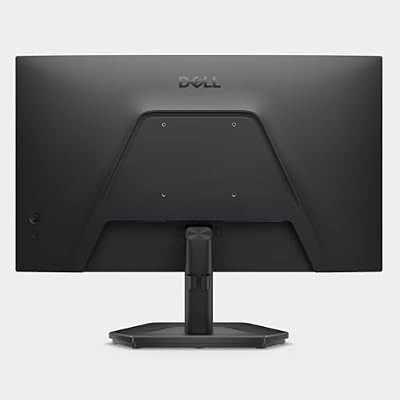
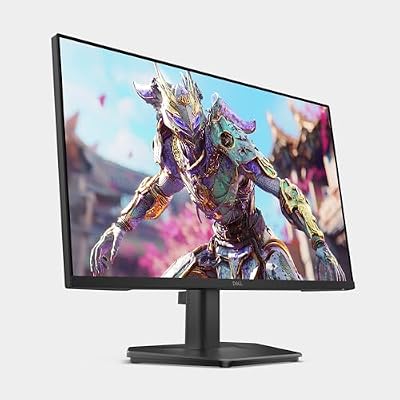
Dell 27 240Hz Gaming Monitor - SE2726HG - 27-inch FHD (1920x1080) Display, in-Plane Switching (IPS) Technology, AMD FreeSync Premium, TÜV 3-Star, 2X HDMI, DisplayPort 1.4, Tilt


As an Amazon Associate we earn from qualifying purchases. Product prices and availability are accurate as of the date/time indicated.
FAQ
Do both monitors need to be the same? No. A 1440p 144Hz gaming monitor paired with a cheap 1080p 60Hz secondary works fine. Matching specs (resolution, size) look cleaner but aren’t necessary for functionality.
Will dual monitors hurt gaming performance? Minimally. The secondary monitor may cause 2-5% FPS reduction if it’s displaying demanding content (video, high-refresh gaming). If secondary is static (Discord, chat), impact is negligible.
Can I play games across both monitors? Technically yes, but it’s terrible—the monitor bezels create a vertical split in the middle of your view. Surround gaming is primarily for simulation racing/flight sims with special setups. Standard gaming is single-monitor, secondary for utilities.
Should both monitors be 144Hz? No. Primary is 144Hz for smooth gaming; secondary can be 60Hz (cheaper, lower GPU load). Unless you plan playing competitive games on secondary, 60Hz is sufficient.
Is DisplayPort daisy-chaining worth it? If your monitors support it, yes—one cable instead of two. Simpler desk setup. Not critical if dual cables work fine.
Final Verdict
A dual-monitor setup is the practical upgrade for gamers who multitask—streaming, content creation, competitive gaming with chat overlay. The $1,350 additional investment (monitor + arm + cables) unlocks significant productivity and immersion gains.
The sweet spot is 1440p 144Hz primary + 1440p 60Hz secondary on an Ergotron arm. This configuration is affordable, performs excellently on RTX 5080+, and scales from casual gaming to professional streaming.
Expand your view. Game and multitask simultaneously.
Related Articles
Looking for more on this topic? Browse the hand-picked guides below — each one applies the same scoring rubric used in this review.
Frequently Asked Questions
Is a dual monitor setup good for gaming and streaming?
It is close to essential for streaming — one screen for the game, the other for chat, OBS and alerts. For pure gaming the benefit is smaller, but a second display is great for guides, Discord and multitasking. Match refresh rates or keep the game on the higher-Hz panel to avoid stutter.
What do you need for a dual monitor gaming setup?
A GPU with at least two video outputs (almost all modern cards qualify), two monitors (ideally matching resolution/refresh), enough desk space or a dual monitor arm, and Windows Display settings configured for extended mode. For high-refresh 1440p panels, make sure you use DisplayPort.