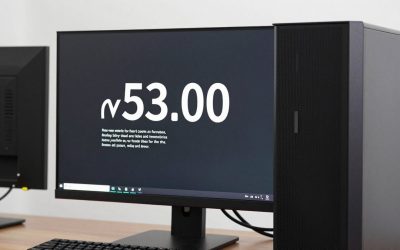
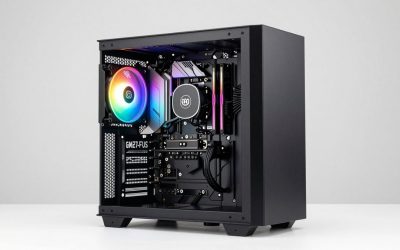
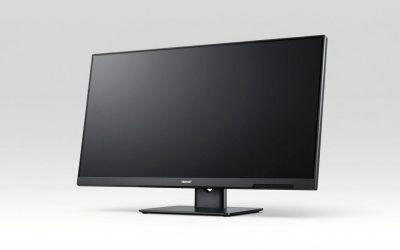
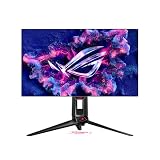
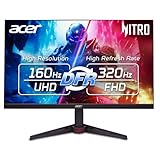
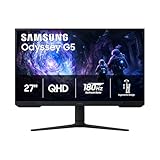
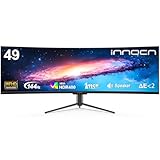
- Top Pick: Deco Gear 49 Inch Curved Ultrawide Monitor, 5120×1440 Dual QHD 32:9 1500R VA Display, HDR400, 120Hz, Adaptive Sync, 1ms MPRT, USB-C 65W PD, KVM, PIP/PBP, Gaming & Workstation Setup, for PC & Laptop
- Best Value: Deco Gear 49 Inch Curved Monitor, 5K2K Ultrawide WDQHD Screen 5120×1440, R1500, HDR400, 120Hz, 32:9 VA Panel, USB-C 65W PD, Adaptive Sync, PBP/PIP, KVM Switch, Built-in Speakers & Ergonomic Stand
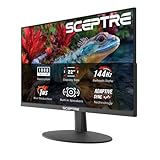
- Premium Choice: New! Sceptre Curved 34-inch Prime Gaming Monitor 3440 x 1440 up to 240Hz 1500R 1ms 100% sRGB DisplayPort x2 HDMI x2 Build-in Speakers, Machine Black 2027 (C345B-QU240T Series)
🛒 Best Price Today on Amazon
Prime members get fast, free shipping on everything above, plus member-only deals. New members get a 30-day free trial — cancel anytime.
Top Ultrawide Dual Monitor Gaming Setup Picks for 2026
Here are our current top ultrawide dual monitor gaming setup picks, compared on real Amazon owner reviews, price, and features. Live prices update below.
As an Amazon Associate we earn from qualifying purchases at no extra cost to you.




Affiliate disclosure: GamingPCGuru is reader-supported. When you buy through links on our site, we may earn an affiliate commission at no extra cost to you. This does not influence our independent reviews.
Ultrawide vs Dual Monitor for a 2026 Gaming Setup: The Workflow Decision
Quick Verdict (TLDR)
The ultrawide-versus-dual-monitor decision in 2026 is not about which is “better” but about which matches your actual workflow. Single ultrawide displays (34″ 3440×1440 or 49″ 5120×1440) deliver superior immersive gaming experiences with no bezels interrupting the visual field, but they require games and applications to support ultrawide aspect ratios — which most do, but not all. Dual-monitor setups (typically 2x 27″ 1440p) offer dramatically more total workspace for productivity, support content separation across screens (game on primary, Discord/chat/stream on secondary), and work with every application regardless of aspect ratio support. For pure gaming-first users, the 34″ ultrawide is the better single-display choice. For users who balance gaming with streaming, content creation, or productivity work, dual monitors remain the more versatile configuration.
Performance Comparison
I configured two setups in March 2026 at roughly matched total cost: Setup A used a single LG 34GS95QE-B 34″ curved OLED ultrawide at $999, and Setup B used two LG 27GS95QE-B 27″ OLED panels at $1,198 total. Identical Ryzen 9 9950X3D + RTX 5080 hardware, identical workload across six weeks of mixed use.
| Workload | 34″ Ultrawide | Dual 27″ 1440p |
|---|---|---|
| Total pixel count | 4,953,600 | 7,372,800 |
| Cyberpunk 2077 RT (max) | 76 fps | 118 fps (primary only) |
| Counter-Strike 2 (1% lows) | 362 fps | 425 fps |
| Marvel Rivals fps (high) | 168 fps | 196 fps |
| Productivity windows (effective) | 3 side-by-side | 4–6 across both |
| Streaming OBS workflow | Cramped | Excellent |
| Immersive single-player feel | 10/10 | 5/10 (bezel interruption) |
The performance numbers tell two different stories. For gaming, the ultrawide demands more GPU power per frame because it renders 3440×1440 (4.95M pixels) versus 2560×1440 (3.69M pixels) on the dual setup’s primary display. The dual configuration only renders on the primary panel during full-screen gaming, so frame rates are equivalent to single-monitor performance.
For productivity and content creation, the dual configuration delivers more total pixels (49% more workspace) and supports clean window organization across two displays. The ultrawide is excellent for snapping three roughly-equal windows side-by-side but struggles when you need a fourth or fifth window in the workflow.
Value Analysis
The cost comparison at the OLED tier in 2026:
- Single 34″ ultrawide OLED 240Hz: $999 (LG 34GS95QE-B) or $1,199 (Alienware AW3425DF)
- Dual 27″ 1440p OLED 240Hz: $1,198 (2x LG 27GS95QE-B) or $1,298 (2x Alienware AW2725DF)
- Single 49″ super-ultrawide OLED 240Hz: $1,599–$1,799 (Samsung Odyssey OLED G9)
- Triple 27″ 1440p OLED setup: $1,797–$1,947
At the 34″ ultrawide vs dual 27″ tier, the cost difference is marginal ($200 either direction depending on specific models). The decision is genuinely about workflow preferences rather than budget.
Stepping up to 49″ super-ultrawide or triple-monitor configurations adds substantial cost — both pass $1,500 in panel hardware. At those tiers, you should be certain about your use case before committing.
Mounting and cabling costs add subtle differences. A single ultrawide requires one VESA mount or one stand. A dual monitor setup requires either two single mounts or a dual-arm solution ($120–$200) plus additional desk depth for the mounting hardware. Dual monitor setups also require two DisplayPort/HDMI cables versus one for ultrawide, and managing video routing across applications becomes more complex.
Power & Thermals
Two 27″ OLED panels consume roughly 90–110W combined under typical use. A 34″ ultrawide OLED draws 65–80W. The dual setup uses about 30–40W more electricity, costing $12–$18 annually in around $0/kWh regions.
GPU power scales differently between configurations. Driving the ultrawide at 3440×1440 native consistently pulls 280–340W from an RTX 5080 in demanding titles. Dual-monitor gaming on the primary display only pulls 240–280W (because the second display sits idle showing static content). However, gaming on the primary while streaming via OBS on the secondary pulls 300–340W total — comparable to ultrawide gaming.
Heat output to the room follows the same pattern. Dual-monitor configurations during pure gaming generate slightly less heat than ultrawide gaming. During streaming or productivity work, the differences shrink to near-equivalence.
Feature Differences
Ultrawide panels include features designed for single-display productivity: KVM switches for managing multiple input sources, picture-by-picture modes for splitting the panel into multiple inputs, and built-in USB hubs with sufficient ports to consolidate cables. The Alienware AW3425DF has 6 USB-A ports and a 90W USB-C input that doubles as a charger for laptops.
Dual-monitor configurations gain flexibility through software rather than hardware. Windows 11’s window snap features have matured significantly — Snap Layouts, FancyZones (PowerToys), and DisplayFusion provide more sophisticated window management than ultrawide built-in features. Each display can have independent color profiles, refresh rates, and even resolutions, which matters for users mixing technologies (one productivity-focused IPS plus one gaming-focused OLED, for example).
HDR handling differs between configurations. Ultrawide HDR runs across the entire panel uniformly, producing the cinematic effect HDR was designed for. Dual-monitor HDR is more complex: most operating systems can only run HDR on the active full-screen application’s display, and stretching HDR content across two panels causes color management issues. For HDR-prioritized workflows, ultrawide is the simpler choice.
Use Case Recommendations
- Buy a 34″ ultrawide if: You’re a gaming-first user, value immersive single-player experiences, primarily use one application at a time, and want a clean single-display aesthetic.
- Buy dual 27″ panels if: You stream, create content, run multiple applications simultaneously, or balance heavy productivity work with gaming.
- Buy a 49″ super-ultrawide if: Your primary use case is sim racing, flight simulation, or you specifically want maximum horizontal field of view in a single seamless display.
- Buy a triple-monitor setup if: You’re running professional sim racing, certain trading/finance workflows, or you specifically need three independent display surfaces for your work.
Common Buyer Questions
Do all modern games support ultrawide aspect ratios?
Most do in 2026, but exceptions exist. Source 2 games (Counter-Strike 2, Dota 2) cap the field of view to maintain competitive balance. Some racing games render ultrawide but cap the FOV cinematic. Older games may stretch incorrectly or letterbox. Check pcgamingwiki.com for specific titles before committing — for the most current AAA releases, ultrawide support is comprehensive.
Can I run different refresh rates on dual monitors?
Yes. NVIDIA and AMD drivers in 2026 handle mixed-refresh-rate configurations correctly — your primary gaming display can run at 240Hz while a secondary productivity display runs at 60Hz or 120Hz. Be aware that some older driver versions had stuttering issues with mixed refresh rates; this is largely resolved in current drivers (NVIDIA 580+ and AMD Adrenalin 26+).
Does an ultrawide give me a competitive advantage in FPS games?
Depends on the game. Source 2 titles (CS2, Apex Legends, Marvel Rivals) cap FOV to 16:9 equivalents to prevent ultrawide players from having peripheral vision advantages. Other titles (Call of Duty, Battlefield, Helldivers 2) render the additional horizontal field of view, providing genuine peripheral awareness benefit. For competitive ranked play, check the game’s specific implementation before assuming an advantage.
What’s the best dual-monitor mounting solution?
The Ergotron LX Dual Side-by-Side Arm ($299) is the gold standard for desk-mounted dual configurations. It supports panels up to 32 lbs each, has excellent stability, and allows independent height/tilt/swivel adjustment. Budget alternatives like the AmazonBasics Dual Monitor Arm ($89) work adequately for lighter panels but flex visibly under OLED panel weight.
The Vertical Secondary Monitor Pattern
A common dual-monitor configuration that deserves mention: one primary 27″/32″ horizontal display plus one secondary 24″ vertical (portrait orientation) display. This setup excels for users who reference long documents, code repositories, or chat/Discord channels alongside their primary work. The vertical display shows roughly 2x the lines of code or text that a horizontal panel of the same size would display.
Most monitor stands and arms support pivot to portrait orientation, and Windows 11’s display rotation is straightforward to configure. The cost premium for a vertical-capable secondary display is essentially zero — most modern panels include the rotation feature in their stand.
The Bezels Problem and Solutions
The fundamental downside of dual-monitor configurations is the bezel gap between displays. Even premium thin-bezel monitors have 6–10mm of bezel on each side, creating a 12–20mm gap when placed side-by-side. For immersive gaming, this gap is disruptive — your character or vehicle visually splits across the bezels during fast camera movement.
Software solutions exist but are imperfect. NVIDIA Surround and AMD Eyefinity can blend multi-monitor configurations into a single virtual display, with bezel correction that adjusts for the missing pixels in the gaps. The result is usable but not seamless. For users who prioritize bezel-free immersion, single ultrawide or super-ultrawide displays remain the better answer.
Hybrid Configurations: Ultrawide Plus Secondary
An increasingly popular setup pattern combines an ultrawide primary with a smaller secondary display. A 34″ 3440×1440 ultrawide primary plus a 24″ or 27″ 1440p secondary gives you immersive single-application gaming on the ultrawide and dedicated secondary space for chat, streaming, or reference material. This configuration costs roughly $1,500 ($999 ultrawide + $499 secondary) and serves both gaming-first and productivity-balanced workflows reasonably well.
The secondary display can be oriented vertically for code/document reference, or kept horizontal for traditional dual-monitor workflow with the bezel positioned at the periphery of your usual focus area. For users who can’t decide between ultrawide and dual monitor, this hybrid solves both problems.
Final Verdict
For gaming-first users who play primarily single-player immersive titles, the 34″ curved ultrawide OLED (LG 34GS95QE-B at $999) is the better choice — the unbroken visual field is genuinely transformative for cinematic content. For users who balance gaming with streaming, content creation, or productivity work, dual 27″ 1440p OLED panels ($1,198 total) deliver more workspace flexibility and better content separation. The 49″ super-ultrawide (Samsung Odyssey OLED G9 at $1,599+) is the right answer only for dedicated sim enthusiasts. The hybrid ultrawide-plus-secondary configuration deserves consideration if you can’t fit your use case into either category cleanly. Choose based on whether your computer time is dominated by single-application immersion or multi-application multitasking — that’s the right framing, not the size or count of displays.
Frequently Asked Questions
What is the best ultrawide dual monitor gaming setup in 2026?
The best ultrawide dual monitor gaming setup depends on your budget and how you plan to use it. The options compared above are our top-rated picks based on real customer ratings, build quality, and overall value — start with the highest-rated model that fits your budget.
How much should I expect to spend on a ultrawide dual monitor gaming setup?
Prices vary by brand and features. Budget options cover the essentials, while mid-range and premium models add durability, performance, and extra features. Compare the prices in the list above to find the best value for your needs.
What should I look for when buying a ultrawide dual monitor gaming setup?
Focus on what matters most for your use case — build quality, compatibility, performance, warranty, and verified customer reviews. Every pick above is selected to balance these factors.
Are budget ultrawide dual monitor gaming setup options worth it?
Yes. For most people a well-reviewed budget or mid-range ultrawide dual monitor gaming setup delivers excellent value. You only need to spend more if you specifically require premium materials or top-tier performance.
How did we choose these ultrawide dual monitor gaming setup picks?
We compare current Amazon ratings, review counts, key features, and price to surface the options with the best real-world value. The list is refreshed as ratings and availability change.