

⚡ Key Takeaways
- What Temperatures Are Actually Safe?
- Step-by-Step: From Easiest to Most Advanced
- GPU-Specific Cooling Tips
- CPU-Specific Cooling Tips
- Monitoring Tools You Should Use
- Understanding Thermal Throttling
- Don’t Forget the Power Supply’s Role
- Choosing the Right Cooler for Your CPU
- Top-Rated Picks
- Related Guides
- Frequently Asked Questions
- The Bottom Line
- Related Articles
- Related Guides
- Before fixing anything, know your targets.
- Undervolting is the most effective fix—modern GPUs ship with aggressive factory voltages, so trimming them yields big thermal wins.
- Ryzen 9000 X3D and high-core Intel chips can spike hot quickly.
- You can't improve what you don't measure, so set up proper monitoring before and after each change.
If your GPU sounds like a jet engine and your CPU is flirting with 95°C, you’re losing performance to heat—and learning how to lower GPU temperature (and CPU temperature) is the cheapest upgrade you’ll ever make. High temps trigger thermal throttling, which silently caps your clock speeds and steals frame rates. This complete guide covers everything from free airflow tweaks to thermal paste, fan curves, and undervolting, ordered from easiest to most advanced so you can stop when you’ve hit your target.
As an Amazon Associate we earn from qualifying purchases at no extra cost to you.



Related: best gaming PC desk accessories.
Related: best ARGB case fans.
Related: best portable SSDs for gaming.
Related: best X3D gaming CPUs.
Related: best GPU support brackets.
Related: best budget gaming monitors.
Related: best Ryzen 5 CPUs for gaming.
Related: best L-shaped gaming desks.
Related: best gaming SSDs with heatsink.
🛒 Best Price Today on Amazon
Prime members get fast, free shipping on everything above, plus member-only deals. New members get a 30-day free trial — cancel anytime.
Quick answer: Our top pick in 2026 is the CPU (gaming load) — our #1 rated choice. See the full ranked comparison, alternatives and buying advice below.
What Temperatures Are Actually Safe?
Before fixing anything, know your targets. Modern parts are designed to run warm, but throttling and longevity concerns kick in past certain points.
| Component | Ideal Load Temp | Throttle Point |
|---|---|---|
| CPU (gaming load) | 65–80°C | 95–100°C |
| GPU core (gaming load) | 60–75°C | ~83–88°C |
| GPU memory junction | Under 90°C | ~95–105°C |
Brief spikes are normal. The goal is to keep sustained gaming temps comfortably below the throttle point. Monitor with HWiNFO64 or your GPU software while gaming to get real numbers before and after each change.
Step-by-Step: From Easiest to Most Advanced
- Clean out the dust. The single most common cause of rising temps over time. Power down, open the case, and blow out dust from fans, heatsinks, and filters with compressed air. Do this every few months.
- Improve case airflow. Ensure you have intake fans (front/bottom) pulling cool air in and exhaust fans (rear/top) pushing hot air out. A common rookie error is fans fighting each other or all pointing the same way. Aim for balanced or slightly positive pressure to reduce dust.
- Fix cable management. A nest of cables blocking the front intake chokes airflow. Route cables behind the motherboard tray so the path from intake to components is clear.
- Tune your fan curves. Default fan curves often prioritize silence over cooling. In your motherboard or GPU software, set a more aggressive curve so fans ramp up sooner under load. A few more decibels can buy you 5–10°C.
- Improve the room and case placement. A PC crammed under a desk against a wall recirculates its own hot air. Give it breathing room and a cooler ambient temperature—every degree of room temp roughly transfers to your components.
- Repaste the CPU (and GPU if comfortable). Thermal paste dries out over 3–5 years. Clean off the old paste with isopropyl alcohol and apply a fresh pea-sized dot. This alone can drop a hot CPU by 5–15°C. Premium pastes or liquid metal go further for advanced users.
- Upgrade the cooler. If your CPU still runs hot under load, the stock or budget cooler may be undersized. A quality air tower or a 240/360mm AIO transforms thermals. See our best CPU cooler roundup for options that match your CPU’s heat output.
- Undervolt the GPU and CPU. This is the power move. Undervolting reduces the voltage your chip uses without lowering clock speed, cutting heat and power draw with little or no performance loss—often a 10–20°C drop. Use MSI Afterburner’s curve editor for the GPU, or Curve Optimizer in BIOS for Ryzen CPUs. Test stability carefully.
GPU-Specific Cooling Tips
If only your GPU runs hot, focus there. Undervolting is the most effective fix—modern GPUs ship with aggressive factory voltages, so trimming them yields big thermal wins. You can also set a custom fan curve and, in software, slightly reduce the power limit; dropping the power target to 90% often costs just 1–2% performance for a noticeable temperature drop. If your GPU’s memory junction temperature is the problem (common on high-end cards), improving overall case airflow helps most, since hot VRAM is usually a case-ventilation issue. If your current card runs persistently hot even after these steps, a more efficient model from our mid-range GPU roundup may simply run cooler at the same performance.
CPU-Specific Cooling Tips
Ryzen 9000 X3D and high-core Intel chips can spike hot quickly. Beyond a good cooler and fresh paste, enabling a sensible power limit (like AMD’s Eco Mode or PBO tuning) can dramatically cut heat for a tiny performance trade. Make sure your cooler is actually making good contact—an unevenly mounted cooler is a frequent cause of mysteriously high CPU temps.
Monitoring Tools You Should Use
You can’t improve what you don’t measure, so set up proper monitoring before and after each change. HWiNFO64 is the gold standard for detailed sensor data, showing CPU package temperature, individual core temps, GPU core temperature, and—crucially—GPU memory junction temperature, which the basic overlays often hide. Pair it with an in-game overlay so you can watch temperatures climb in real time during a demanding scene rather than checking after the fact.
When you test, use a consistent, repeatable load: a five-to-ten-minute run of the same demanding game scene or a stress tool, with the same ambient room temperature. Record the steady-state temperature once it stops climbing, not the peak of a momentary spike. This discipline lets you attribute a 7°C drop to the new thermal paste rather than to a cooler afternoon, and it keeps you from chasing phantom improvements.
Understanding Thermal Throttling
Throttling isn’t a defect—it’s a protection mechanism. When a chip approaches its thermal limit, it automatically reduces clock speed and voltage to shed heat and avoid damage. The problem is that throttling caps the performance you paid for: a GPU that should boost to high clocks instead bounces off its temperature ceiling, costing you frames and causing the lurching, inconsistent feel many players mistake for a different problem. Keeping sustained temperatures a comfortable margin below the throttle point means your hardware holds its boost clocks longer, delivering the smooth, consistent frame rates it’s capable of.
There’s also a longevity angle. While modern silicon tolerates high temperatures far better than older generations, consistently running near the limit stresses components, dries out thermal paste faster, and shortens fan life. Good cooling isn’t just about peak performance today—it’s about keeping the whole system reliable and quiet over the years you’ll own it.
Don’t Forget the Power Supply’s Role
An efficient power supply produces less waste heat inside your case, and a quality unit with a good fan curve won’t dump extra warmth into the system. If you’re rebuilding for better thermals, pairing good cooling with a quality power supply keeps the whole case cooler and quieter.
Choosing the Right Cooler for Your CPU
If you reach the cooler-upgrade rung of the ladder, match the cooler to your CPU’s heat output rather than buying the biggest or flashiest option. Mid-range chips with modest power draw are perfectly happy on a quality single-tower air cooler, which is reliable, quiet, and has no pump to fail. High-core-count or high-wattage CPUs that dump a lot of heat benefit from a large dual-tower air cooler or a 240–360mm AIO liquid cooler, which has more surface area to dissipate the load.
Air versus liquid is less about raw capability than about fit and preference: a top air cooler often matches a 240mm AIO in performance while being more dependable, whereas an AIO frees up space around the socket and moves heat directly to a radiator at the case edge. Either way, ensure the cooler physically fits your case and clears your RAM, and that its mounting hardware supports your socket.
Top-Rated Picks

Prime
Best Seller
Noctua NH-D15, Premium CPU Cooler with 2X NF-A15 PWM 140mm Fans (Brown)

Prime
Editor's Pick
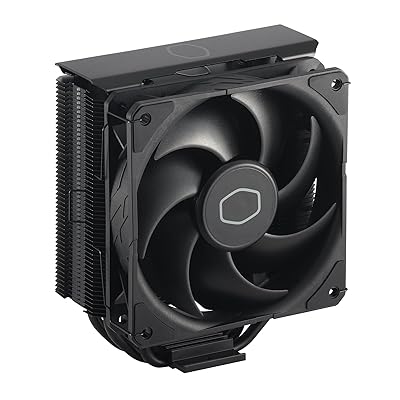
Noctua NH-U12S chromax.Black, 120mm Single-Tower CPU Cooler (Black)


Frequently Asked Questions
What is a safe GPU temperature for gaming?
60–75°C under load is ideal, and anything sustained below the low 80s is fine. Modern GPUs only start throttling around 83–88°C, so don’t panic at 75°C—that’s normal and healthy.
Does undervolting reduce performance?
Usually not, and sometimes it improves performance by avoiding thermal throttling. You lower voltage while keeping clocks, so the chip runs cooler and quieter with the same speed—just test for stability.
How often should I replace thermal paste?
Every 3–5 years for most users, or whenever you remove the cooler. If your CPU temps have crept up over years of use, old, dried paste is a likely culprit.
Will more case fans always lower temps?
Up to a point. Two good intakes and one or two exhausts cover most builds. Beyond that you get diminishing returns and more noise—fan placement and unobstructed airflow matter more than sheer fan count.
Is liquid cooling necessary?
No. A good air cooler handles all but the hottest CPUs. AIO liquid coolers help with high-wattage chips and look clean, but a quality tower cooler is often just as effective and more reliable.
The Bottom Line
Lowering GPU and CPU temperatures is a ladder you climb only as far as you need: start free with dust removal, airflow, and fan curves, then move to fresh thermal paste, a better cooler, and finally undervolting for the biggest gains. Aim for sustained gaming temps below the throttle points, and you’ll unlock quieter operation, higher sustained clocks, and a longer component lifespan—all without spending much.
Ready to decide? Our #1 pick for 2026 is the CPU (gaming load).
Live price & availability on Amazon.









