⚡ Key Takeaways
- Why Cable Management Actually Matters
- Tools and Supplies You Will Need
- Plan Before You Plug Anything In
- Routing the Major Power Cables
- Hiding the Small Stuff
- Routing Around the GPU and Cooler
- Using a Fan Hub or Splitter
- The Back of the Tray: Where the Magic Happens
- Final Inspection Checklist
- Related Guides
- Frequently Asked Questions
- Wrapping Up
- Related Articles
- Related Guides



- People often assume cable management is purely cosmetic.
- You do not need much, and most of it ships with quality cases and power supplies.
- The single most effective cable management technique is planning your routing before you start connecting components.
- Three cables carry the most current and are the thickest to manage: the 24-pin ATX, the 8-pin EPS for the CPU, and the GPU power cables.
Good pc cable management is one of those upgrades that costs almost nothing yet transforms how your build looks and runs. A clean interior is not just for show: tidy cables improve airflow, make future upgrades painless, and prevent stray wires from snagging your CPU cooler or GPU fans. Whether you just finished your first build or you are revisiting a rat’s nest you assembled years ago, this guide walks you through cable management from planning to the final zip tie.
As an Amazon Associate we earn from qualifying purchases at no extra cost to you.



Related: best gaming PC desk accessories.
Related: best ARGB case fans.
Related: best L-shaped gaming desks.
Related: best gaming SSDs with heatsink.
Related: best PC gaming controllers.
🛒 Best Price Today on Amazon
Prime members get fast, free shipping on everything above, plus member-only deals. New members get a 30-day free trial — cancel anytime.
Quick answer: Our top pick in 2026 is the Velcro straps — our #1 rated choice. See the full ranked comparison, alternatives and buying advice below.
Why Cable Management Actually Matters
People often assume cable management is purely cosmetic. It is not. Loose cables draped across the motherboard tray disrupt the path of air moving from your front intake fans to the exhaust, creating turbulence and warm pockets near components. A messy interior also makes it harder to spot a disconnected fan header or a loose power connector when something goes wrong.
There are practical benefits too:
- Better airflow: Clear pathways let intake and exhaust fans do their job, often dropping component temperatures by a few degrees.
- Easier upgrades: When you swap a GPU or add an SSD, you will not have to fight a tangle of wires.
- Reduced dust traps: Bundled cables collect less dust than a sprawling web of wires.
- Safer operation: No risk of a cable drifting into a spinning fan blade.
Tools and Supplies You Will Need
You do not need much, and most of it ships with quality cases and power supplies.
| Item | Purpose | Notes |
|---|---|---|
| Velcro straps | Bundling cables | Reusable, gentler than zip ties |
| Zip ties | Permanent anchoring | Trim the tails flush |
| Cable combs | Aligning sleeved cables | Optional, for show builds |
| Side cutters | Trimming zip ties | Avoid scissors that leave sharp edges |
| Extension cables | Reaching distant headers | Useful in large cases |
Plan Before You Plug Anything In
The single most effective cable management technique is planning your routing before you start connecting components. A few minutes of thought saves an hour of rework later.
- Study your case. Identify the rubber grommets, the routing channels behind the motherboard tray, and the tie-down points. Modern cases provide a generous gap behind the tray for exactly this reason.
- Install the power supply first. Route the 24-pin motherboard cable, the 8-pin EPS CPU cable, and the PCIe power cables before mounting the motherboard if your case layout makes that easier.
- Group cables by destination. Power cables go to one set of grommets, front-panel and USB headers to another.
- Leave slack where you need it. Give yourself enough length to seat a connector firmly, but no more.
Routing the Major Power Cables
Three cables carry the most current and are the thickest to manage: the 24-pin ATX, the 8-pin EPS for the CPU, and the GPU power cables. If you are choosing a unit, a quality modular supply makes this dramatically easier because you only attach the cables you use. Our guide to the best gaming power supply for 2026 covers modular options that ship with flat, flexible cables.
Run the 8-pin EPS cable up the back of the tray and out the top grommet near the CPU socket. The 24-pin typically exits a mid-height grommet. For the GPU, route PCIe cables through the grommet closest to the card and leave a gentle curve rather than a sharp bend.
Dealing With the 12V-2×6 Connector
RTX 50-series cards and many current high-end GPUs use the 12V-2×6 power connector. This connector must be fully seated; a partial connection can overheat. Plug it in straight, confirm the latch clicks, and avoid tight bends within the first 35 mm of the connector. Give it room to breathe.
Hiding the Small Stuff
Front-panel connectors, USB headers, fan cables, and RGB wires are thin but numerous, and they create the most visual clutter. Bundle them with small Velcro straps and tuck them behind the motherboard tray. SATA data cables for any 2.5-inch drives should follow the same channels. If you are still running a mechanical drive, our comparison of value components is worth a look when planning a storage upgrade.
Routing Around the GPU and Cooler
The graphics card and CPU cooler are the two largest obstacles inside any case, and cables tend to collect around them. Keep PCIe power cables clear of the GPU fans by routing them up and over rather than letting them droop into the blades. For air coolers, make sure no fan or RGB wires drape across the top of the heatsink, where they can block airflow or rub against a spinning fan. If you run an AIO, secure the pump cables and route the radiator fan wires along the case edge so they reach a single fan hub or the motherboard headers cleanly. A little forethought here keeps both your airflow and your sightlines clean.
Using a Fan Hub or Splitter
Modern builds often have six or more fans, and running each one to a separate motherboard header creates a tangle and may exceed the available connectors. A fan hub or PWM splitter consolidates all of those cables into a single point, which you can hide behind the motherboard tray or in a drive bay. This dramatically reduces the number of thin wires snaking across the board. Many cases include a built-in hub for exactly this purpose. The same logic applies to RGB: a dedicated controller or hub turns a dozen lighting cables into one tidy connection, and it gives you unified control over your lighting effects.
The Back of the Tray: Where the Magic Happens
The space behind the motherboard tray is your cable management workspace. This is where you bundle, anchor, and hide everything you do not want visible through the side panel.
- Use the factory tie-down loops to anchor bundles every few inches.
- Keep the area near the side panel screws clear so the panel closes flush.
- Do not over-stuff. If the panel bulges, redistribute cables rather than forcing it shut.
Final Inspection Checklist
- Confirm every power connector is fully seated, especially the GPU and EPS.
- Verify no cable touches a fan blade or the CPU cooler.
- Check that intake airflow has a clear path to the components.
- Make sure both side panels close without forcing.
- Power on and confirm all fans spin and RGB lights up as expected.
A well-organized build also pairs nicely with a thoughtful setup. If you spend long sessions at your desk, a supportive seat from our roundup of the best gaming chairs for 2026 rounds out the experience.
Frequently Asked Questions
Does cable management really lower temperatures?
It can, modestly. Tidy cables remove obstructions in the airflow path, which typically lowers component temperatures by two to five degrees Celsius depending on the case and the severity of the original mess. The bigger win is consistency and easier maintenance.
Should I use zip ties or Velcro straps?
Velcro straps are better for most builders because they are reusable and let you adjust bundles when you upgrade. Zip ties are fine for permanent anchor points, but always trim the tails flush so the sharp edge does not catch a cable or your hand.
Is a non-modular power supply hard to cable manage?
It is more challenging because you cannot remove unused cables, but it is far from impossible. Bundle the extra cables neatly and tuck them into an empty drive bay or the back of the case. A modular or semi-modular unit simply makes the job cleaner.
How tight should I make my cable bends?
Avoid sharp bends, especially within the first inch of any connector. Tight bends near the 12V-2×6 GPU connector can stress the pins and create heat. Gentle, sweeping curves are always safer than hard angles.
Do I need cable extensions?
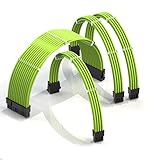
Only if your power supply cables cannot reach their destinations cleanly, which can happen in very large cases. Extensions also let you show off sleeved, color-coordinated cables in a windowed build, but they are optional for function.
Wrapping Up
Cable management rewards patience more than skill. Plan your routes, separate power from signal cables, use the space behind the motherboard tray, and inspect every connection before you button up the case. The result is a build that runs cooler, looks cleaner, and is a pleasure to upgrade for years to come.
Ready to decide? Our #1 pick for 2026 is the Velcro straps.
Live price & availability on Amazon.