⚡ Key Takeaways
- Why Cleaning Your PC Matters
- What You Will Need
- Before You Start: Safety First
- Step-by-Step Cleaning Process
- Do Not Forget the Peripherals
- Tackling the GPU and Its Fans
- Improving Airflow While You Are In There
- How Often Should You Clean?
- When to Reapply Thermal Paste
- Common Cleaning Mistakes to Avoid
- Top-Rated Picks
- Related Guides
- Frequently Asked Questions
- Final Word
- Related Articles
- Related Guides
- Over months of use, your case fans pull in air loaded with dust, pet hair, and debris.
- Avoid using a household vacuum directly on components, as it can generate static electricity that damages sensitive parts.
- Your keyboard, mouse, and monitor collect grime too.
- The graphics card deserves special attention because it is usually the dustiest and hottest component in the system.
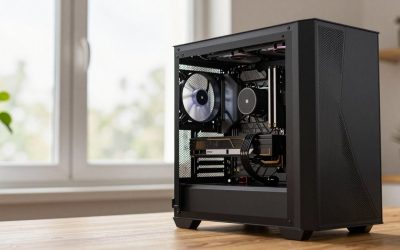
Knowing how to clean your pc safely is one of the most valuable maintenance skills a gamer can have. Dust is the silent enemy of any gaming rig: it clogs heatsinks, chokes fans, and traps heat, slowly raising your temperatures and shortening component life. The good news is that a thorough cleaning takes less than an hour, needs only a few cheap tools, and can drop your temperatures noticeably. This guide walks you through doing it the right way without damaging anything.
As an Amazon Associate we earn from qualifying purchases at no extra cost to you.


Related: best silent wireless combos.
Related: best Redragon keyboards and mice.
Related: best gaming SSDs with heatsink.
Related: best gaming mice and keyboards.
🛒 Best Price Today on Amazon
Prime members get fast, free shipping on everything above, plus member-only deals. New members get a 30-day free trial — cancel anytime.
Why Cleaning Your PC Matters
Over months of use, your case fans pull in air loaded with dust, pet hair, and debris. That dust settles on cooler fins, fan blades, and filters, acting like an insulating blanket that prevents heat from escaping. The result is higher temperatures, louder fans working harder to compensate, and in severe cases thermal throttling that reduces performance. A clean PC runs cooler, quieter, and longer.
What You Will Need
| Tool | Use | Notes |
|---|---|---|
| Compressed air or electric duster | Blowing out dust | Electric dusters avoid moisture; canned air is fine if used upright |
| Microfiber cloth | Wiping surfaces | Lint-free and gentle |
| Soft brush | Loosening stubborn dust | Anti-static brush is ideal |
| Isopropyl alcohol (90%+) | Cleaning contacts and grime | Only on powered-off, unplugged hardware |
| Cotton swabs | Tight spaces | For detailed cleaning |
Avoid using a household vacuum directly on components, as it can generate static electricity that damages sensitive parts.
Before You Start: Safety First
- Shut down and unplug the PC completely from the wall.
- Press the power button for a few seconds to discharge residual electricity.
- Work in a clean, well-lit area and ideally somewhere you do not mind dust scattering, like a garage or outdoors.
- Ground yourself by touching the metal case or wearing an anti-static strap to avoid static discharge.
- Hold fans still while blowing them with air so they do not spin too fast and generate damaging voltage.
Step-by-Step Cleaning Process
- Open the case. Remove both side panels to access the interior and the back of the motherboard tray.
- Remove dust filters. Most modern cases have removable filters at the intakes; rinse them under water, let them fully dry, or blow them clean.
- Blow out the interior. Use short bursts of compressed air to clear dust from the motherboard, expansion slots, and case corners. Work from top to bottom.
- Clean the CPU cooler. Blow air through the heatsink fins, holding the fan still. This is often where the most heat-trapping dust accumulates.
- Clean the GPU. Carefully blow dust from the graphics card’s fans and fins, holding the fans steady. The GPU is a major dust magnet.
- Clean the power supply. Blow air through its vents from the outside; do not open the PSU itself.
- Wipe surfaces. Use a microfiber cloth to wipe the case interior, glass panel, and any smooth surfaces.
- Reinstall filters and panels once everything is dust-free and dry.
Do Not Forget the Peripherals
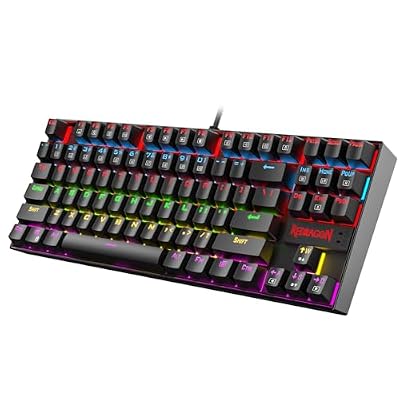
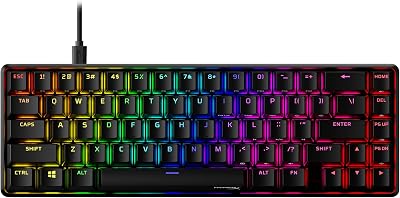
Your keyboard, mouse, and monitor collect grime too. Turn the keyboard upside down and shake out debris, then blow between the keys. Wipe the mouse with a slightly damp microfiber cloth. Clean the monitor with a dry or barely damp microfiber cloth, avoiding harsh chemicals on the screen coating. A clean setup is more pleasant, and pairing it with a supportive seat from our roundup of the best gaming chairs for 2026 completes the experience.
Tackling the GPU and Its Fans
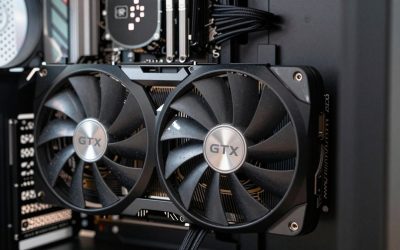
The graphics card deserves special attention because it is usually the dustiest and hottest component in the system. Its fans face downward in most cases, pulling dust straight into the cooler, where it packs into the fin stack and chokes airflow. Hold each GPU fan still with a finger and blow short bursts of air through the fins from multiple angles to dislodge trapped dust. Pay attention to the shroud edges and the backplate vents, which also accumulate buildup. If your card runs noticeably hotter than it used to or its fans spin up aggressively in games, a clogged heatsink is a likely culprit. A clean GPU not only runs cooler but also runs quieter, since its fans no longer have to spin fast to compensate for blocked airflow. If a thorough cleaning still does not tame your temperatures, the card itself may be due for an upgrade; our roundup of the best mid-range GPUs for 2026 is a good place to start.
Improving Airflow While You Are In There
A cleaning session is the perfect time to evaluate your case airflow, since the panels are already off. Check that your intake and exhaust fans are oriented correctly, with intakes drawing cool air in at the front or bottom and exhausts pushing warm air out the rear and top. Make sure no cables are obstructing the path air takes across your components. If your system has always run warm, consider whether adding a fan or two would help establish a clearer front-to-back airflow channel. Small improvements here compound with regular cleaning to keep temperatures consistently low, extending the life of every component and reducing the noise your system makes under load.
How Often Should You Clean?
A light dusting every three to six months keeps most systems in good shape. If you have pets, smoke indoors, or place your PC on carpet or the floor, clean it more often, perhaps every two to three months, since these conditions accelerate dust buildup. Check your intake filters monthly and clear them whenever they look gray.
When to Reapply Thermal Paste
Cleaning is also a good time to consider thermal paste. If your build is several years old and CPU temperatures have crept up despite a clean cooler, the thermal paste between the CPU and cooler may have dried out. Reapplying fresh paste can restore lost cooling performance. If your temperatures are fine, leave it alone; there is no need to disturb a well-functioning mount. For more on cooling performance, see our guide to the best CPU coolers for gaming in 2026.
Common Cleaning Mistakes to Avoid
- Letting fans spin freely while blowing them, which can damage the bearings or generate harmful voltage.
- Using a vacuum directly on parts, risking static discharge.
- Spraying liquid cleaners onto components instead of applying alcohol to a cloth or swab.
- Tilting canned air so it sprays freezing liquid propellant onto parts.
- Reinstalling damp filters, which invites dust to stick and can introduce moisture.
Top-Rated Picks



Frequently Asked Questions
How often should I clean my gaming PC?
Every three to six months is a good baseline for most systems. Clean more frequently, every two to three months, if you have pets, smoke indoors, or keep your PC on the floor or carpet, since those conditions cause faster dust accumulation.
Can I use a vacuum to clean my PC?
It is best to avoid using a household vacuum directly on internal components, as the airflow can generate static electricity that damages sensitive parts. Use compressed air or an electric duster instead, and only vacuum loose dust from the surrounding area.
Should I clean the inside while the PC is on?
No. Always shut down, unplug the system, and discharge residual power before cleaning. Working on a powered system risks electric shock, short circuits, and component damage. Safety first, every time.
Do I need to remove the CPU cooler to clean it?
Usually not. You can blow dust out of the heatsink fins with the cooler in place. Only remove it if you are reapplying thermal paste or the dust is so packed that air alone cannot clear it.
Is canned air safe for electronics?
Yes, when used correctly. Hold the can upright and use short bursts to avoid spraying freezing liquid propellant onto components. Keep the nozzle a few inches away and hold fans still so they do not spin too fast.
Final Word
Cleaning your PC is cheap insurance against rising temperatures and premature wear. Power down, ground yourself, blow out the dust with the fans held still, rinse your filters, and wipe everything down. Do this a few times a year and your gaming rig will run cooler, quieter, and reliably for many years to come.