- Top Pick: Bestier Gaming LED TV Stand with Storage, 65 Inch, Carbon Fiber Black
- Best Value: Govee Smart Light Bar, RGBICWW TV Lights for Living Room, Gaming, Black
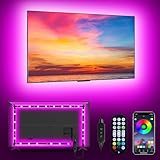
- Premium Choice: MATICOD LED Lights for TV Led Backlight, 9.84ft RGB Led Strip Lights USB TV Lights Behind 32-43in, APP Remote Control Music Sync TV Led Light for Bedroom Gaming Home Décor
A great gaming session isn’t just about frame rates and reflexes—it’s about the environment you’re playing in. The right TV setup can reduce eye strain during marathon sessions, sharpen your reaction times with lower input lag, and make every explosion or sunrise on screen feel more immersive. Yet most gamers overlook the physical setup itself: how the TV is mounted or supported, how the room is lit, and how cable clutter is managed all have a real impact on comfort and performance.
- Watch: Best TV Setup For Gaming — Video Review
- Choose a Stand Built for Gaming, Not Just Display
- Get Ambient Lighting Right
- Reduce Glare and Reflections
- Prioritize Low Input Lag Over Extra Features
- Plan Cable and Component Placement
- Tips
- Related Guides
- Related Guides
- Frequently Asked Questions
- Conclusion
- Related Articles
In this guide, you’ll learn how to choose the right stand or furniture for your TV, why ambient lighting matters more than you think for both immersion and eye comfort, how to reduce input lag and glare, and practical tips for keeping your setup clean and future-proof. We’ll also highlight a few products that consistently deliver value for gaming-focused setups.



As an Amazon Associate we earn from qualifying purchases at no extra cost to you.



Check Price on Amazon →


Check Price on Amazon →
🎮 Get More From Your Setup — Free
Prime Gaming gives you free PC games every month, in-game loot, and a free Twitch channel sub — plus fast free shipping on all the gear above. New members get a 30-day free trial.
Watch: Best TV Setup For Gaming — Video Review
Choose a Stand Built for Gaming, Not Just Display
A dedicated TV stand does more than hold your screen—it organizes your consoles, routes cables, and often adds ambient lighting for atmosphere. The Bestier Gaming LED TV Stand with Storage (65 Inch, Carbon Fiber Black) is a solid example: its storage cubbies keep consoles, routers, and cable boxes ventilated and out of sight, while integrated LED accents add a gaming-lounge feel without extra wiring. When shopping for a stand, prioritize weight capacity, cable management cutouts, and ventilation over aesthetics alone—overheating consoles are a common, avoidable performance killer.
Get Ambient Lighting Right
Ambient TV lighting isn’t just decorative—it reduces eye strain by softening the contrast between a bright screen and a dark room, a phenomenon called simultaneous contrast. It also reduces perceived motion blur in fast-paced games. Look for lights with:
- Music or screen sync for reactive effects during gameplay
- App or remote control so you’re not fumbling for a switch mid-match
- Enough length or coverage for your specific screen size
Options like the Govee Smart Light Bar mount beside or behind the TV for bias lighting, while backlight strips such as the MATICOD LED TV Backlight (32-43in), the TK99SW TV LED Lights (32-65in), and the KSIPZE TV LED Backlight (45-75in) wrap around the rear of the panel for a full color-glow effect. Match the strip length to your TV size—an undersized strip will leave gaps, while an oversized one wastes adhesive and can look messy.
Reduce Glare and Reflections
Even the best OLED or QLED panel loses contrast when glare washes out dark scenes. Position your TV perpendicular to windows, use blackout curtains for daytime sessions, and add soft ambient lighting behind the screen rather than harsh overhead lighting. Bias lighting (like the light bars and strips above) does double duty here: it fills the room with enough soft light to prevent your eyes from over-adjusting to darkness without creating glare on the panel itself.
Prioritize Low Input Lag Over Extra Features
For competitive or fast-paced games, input lag matters more than most picture-quality settings. Enable your TV’s “Game Mode” or equivalent, which disables post-processing that adds latency. If your TV supports HDMI 2.1 features like VRR (Variable Refresh Rate) and ALLM (Auto Low Latency Mode), make sure they’re switched on in the settings menu rather than assuming they’re active by default.
Plan Cable and Component Placement
A cluttered setup isn’t just unsightly—tangled cables and blocked vents contribute to overheating and accidental disconnects mid-game. A stand with built-in cable routing, like the Bestier unit mentioned above, or simple add-ons like the Ledagic IC+RGBW Light Bar (2 Pack) positioned to highlight your setup rather than obstruct it, can keep things both functional and visually clean.
Tips
- Measure your TV’s width and depth before buying a stand—don’t rely on “fits up to X inches” claims alone.
- Use warm white or neutral tones for lighting during long sessions to reduce eye fatigue; save saturated RGB colors for casual or party sessions.
- Peel-and-stick LED strips adhere best to clean, dust-free, and slightly warmed surfaces (a hairdryer on low helps in cold rooms).
- Set a lighting scene or preset via the companion app so your setup automatically dims for gaming and brightens for cleaning or maintenance.
Related Guides
- How Many Watts Does a Gaming PC Use?
- How to Update Your GPU Drivers the Right Way
- Air vs Liquid CPU Cooling: Which Is Better?
- 12 Mistakes to Avoid When Building Your First PC
- What Is DLSS, FSR, and XeSS? Upscaling Explained
Frequently Asked Questions
Do LED backlights actually improve gaming performance?
Not directly—they don’t affect input lag or frame rates. However, by reducing eye strain and improving perceived contrast, they can make long sessions more comfortable, which indirectly supports better focus and reaction time.
What size LED strip do I need for my TV?
As a general rule, measure the perimeter of your TV’s back panel and choose a strip slightly longer than that measurement to account for corners and trimming. Most kits list a supported screen-size range (for example, 32-43 inches or 45-75 inches) to simplify the choice.
Is a TV stand necessary, or can I just wall-mount my TV?
Wall-mounting saves floor space and can improve viewing angles, but a stand offers easier access to ports, better airflow for consoles, and simpler cable management—especially useful if you frequently swap or upgrade gaming hardware.
Will music-sync lighting be distracting during gameplay?
It depends on the game and your settings. Most music-sync lights include adjustable sensitivity and brightness, and many users disable sync mode during precision-heavy games while keeping it on for casual or rhythm-based titles.
Conclusion
A well-planned TV setup—one with proper support furniture, thoughtful ambient lighting, minimized glare, and reduced input lag—turns a good gaming session into a great one. Small investments in the right stand and lighting pay off in comfort, immersion, and fewer distractions, letting you focus on what actually matters: the game.