
HDR Gaming Monitor Benefits Guide 2026
HDR, short for high dynamic range, is one of the most heavily advertised features on gaming monitors and one of the most often disappointing in practice. Done well, it lets bright highlights such as sunlight, muzzle flashes and neon signs look brighter than the rest of the scene while shadows keep their detail. Done poorly, it turns the whole picture grey, washes out colour and makes the screen look worse than it did in standard mode. The gap between those two outcomes is mostly about hardware, not the label on the box.
This guide explains what HDR does on a gaming monitor, which specifications matter, and how to decide whether the feature is worth paying for. It is a buying guide, not a test report. We have not measured the monitors in this article, so the advice relies on the product class, the common ways HDR is specified and the general behaviour of different panel types. The hero listing above is the closest match for the query “HDR gaming monitor”, and the four cards in the list cover related options. Confirm the exact model, HDR certification and current price on each card before buying.

What HDR Changes on a Gaming Monitor
Standard dynamic range content is mastered for a limited range of brightness and colour. HDR content carries information for a much wider range, from deep shadows to very bright highlights. A monitor that supports HDR can show that wider range, but only if its hardware is capable enough. The visible benefit is contrast: highlights look punchier and dark areas retain detail instead of crushing to black. In a game with a night scene or a bright sky, the difference can be striking.
The feature also depends on the game. Not every title ships with HDR support, and implementations vary in quality. Some games offer a calibration screen that asks you to match the brightness of a reference image, and those calibration steps matter. A game that does not offer calibration may look oversaturated or too dark on some panels, so test each title rather than assuming HDR will improve it.
Peak Brightness and Local Dimming
Peak brightness is the most important HDR figure on a monitor. A panel with low peak brightness cannot make highlights stand out, and the HDR effect becomes weak. Local dimming controls the backlight in zones, which lets dark areas stay dark while bright areas stay bright. The number of zones and the quality of the dimming system both affect how much the picture can separate highlights from shadows. A monitor with few zones can show halos around bright objects against a dark background.

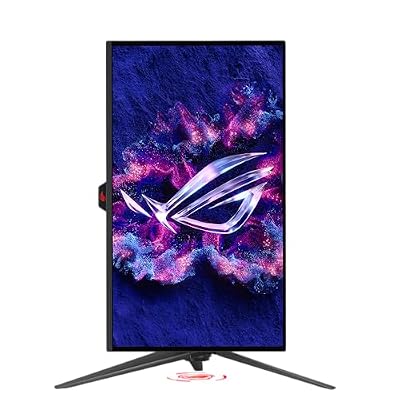
ASUS ROG PG27UCDM 27 Inch 4K 240Hz OLED Gaming Monitor QD-OLED | OLED Care Pro, Neo Proximity Sensor, Custom Heatsink, DisplayPort 2.1, G-SYNC Compatible, True 10-bit, for PS5 and Xbox




As an Amazon Associate we earn from qualifying purchases. Product prices and availability are accurate as of the date/time indicated.
Understanding HDR Certification Tiers
VESA publishes DisplayHDR certification tiers that set minimum requirements for brightness, colour and black levels. Common tiers include DisplayHDR 400, 600, 1000 and 1400, with higher numbers generally meaning higher peak brightness. A DisplayHDR 400 label indicates a basic level of HDR capability, which many reviewers consider too limited to deliver a strong effect. Higher tiers usually imply better local dimming and brighter highlights, though the exact result still depends on the panel.
Some monitors use OLED panels, which switch each pixel on and off individually. OLED can show very deep blacks and strong contrast without a backlight, and it often looks striking in HDR content. However, OLED peak brightness can be lower in full-screen scenes, and burn-in is a concern for static elements such as taskbars. Our overview of the best OLED gaming monitor explains the trade-offs, and the best 4K OLED gaming monitors guide covers higher-resolution options.
Which HDR Specs to Compare
Start with the certification tier and the peak brightness figure. Then look at the local dimming zone count if the monitor uses a backlight. Check the colour coverage and whether the listing mentions wide colour support, since HDR content often uses a wider gamut than standard content. Finally, confirm the input and cable. HDR at high resolution and refresh rate needs enough bandwidth, so check that the port on the monitor and the output on the graphics card support the mode you want.
Do not rely on the word “HDR” in a product title. Some monitors accept an HDR signal but cannot display it meaningfully, and some sell mainly on the logo. The spec table is a better guide than the marketing name. Read reviews that show the monitor in an HDR scene, and check whether the reviewer found the feature useful or only technically available.
Gaming Monitor HDR Options Compared
The table compares common HDR options by what they deliver. Price ranges are broad and depend on size, resolution and panel type. Use the table to decide which level of HDR is worth the extra spending for your setup.
| Option | HDR strength | Trade-off | Best for | Typical price range |
|---|---|---|---|---|
| Basic HDR (DisplayHDR 400 class) | Limited highlight difference | Often close to standard mode | Budget buyers who want the logo | Lower cost; check current price |
| Mid-tier HDR (DisplayHDR 600 class) | Noticeable highlights with some dimming | Local dimming quality varies | Mixed gaming and media | Mid-range; check current price |
| High-tier HDR (DisplayHDR 1000 class and up) | Strong highlights and better dimming | Higher cost and possible blooming | HDR-focused gaming | Upper range; check current price |
| OLED HDR | Very deep blacks and strong contrast | Brightness limits and burn-in risk | Dark games and cinematic content | Premium; check current price |
Each row describes a typical profile. The best choice depends on whether the HDR effect is a priority or a bonus for your games.
Setting Up HDR Without Frustration
Enable HDR in the operating system first, then in the game. Many people switch HDR on in Windows and find the desktop looks washed out, which is common because standard content does not always map well to HDR. Use the brightness and calibration controls in both the operating system and the game to align the picture with your room. Calibrate in a dim room if you can, because the perceived brightness changes a lot with ambient light.
If the picture looks worse than standard mode after calibration, consider turning HDR off for desktop work and enabling it only for games that support it well. Some users run a dedicated profile or a shortcut to switch quickly. Keep expectations realistic. HDR adds the most value in games with strong lighting design and a monitor that can actually produce the brightness the content asks for.
Is HDR Worth Paying For?
For most buyers, HDR is a secondary feature. Panel quality, refresh rate, size and resolution usually matter more to everyday use. HDR becomes a priority when you play story-driven or cinematic games with dramatic lighting, or when you watch HDR video on the same screen. If you mainly play competitive shooters at low settings, HDR may add little, and the money can go to refresh rate or panel quality instead.
Treat the feature as a bonus that must earn its place on the spec sheet. A monitor with a strong panel, good uniformity and a respectable HDR tier will serve more games well. A monitor that depends on HDR for its appeal but has low peak brightness may disappoint. Our TV vs monitor for gaming comparison covers how HDR is handled on large screens, and the best gaming TV settings guide explains the calibration steps that carry over to monitors.
If HDR is a priority, compare the broader lineup first. The best gaming monitor 2026 roundup places HDR models beside refresh and panel picks, and the best 4K gaming monitors guide covers the high-resolution options that often carry stronger HDR tiers. OLED buyers can read the best OLED monitor for gaming page next, and TV owners considering a larger screen can check the best OLED TV for gaming guide. For how the display fits the rest of the system, the complete gaming PC buying guide is the next stop.

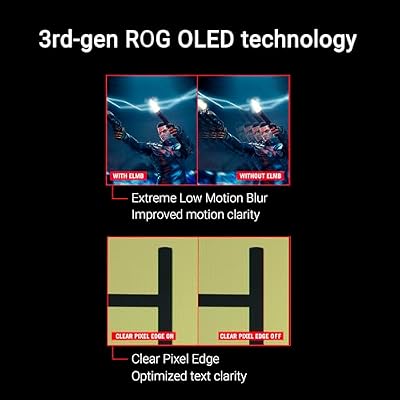
ASUS ROG XG27AQDMGR 27 Inch 1440p 240Hz Glossy OLED HDR Gaming Monitor | 0.03ms, OLED Care Pro, TrueBlack Glossy, Neo Proximity Sensor, ELMB Sync, DisplayHDR 400, DCI-P3 99%, for PS5 and Xbox




As an Amazon Associate we earn from qualifying purchases. Product prices and availability are accurate as of the date/time indicated.
Frequently Asked Questions
Is HDR400 worth it on a gaming monitor?
HDR400 is a basic certification, and many reviewers find the difference from standard mode limited. It can still be useful as a label for basic HDR support, but if the HDR effect matters to you, look for a higher tier or a model with strong independent HDR results.
Does HDR reduce frame rate?
HDR itself does not usually reduce frame rate much, but the content may require more processing in some games. The bigger issue is bandwidth. High resolution, high refresh rate and HDR together can need a stronger connection, so check the cable and port capabilities before relying on all three.
Why does my desktop look washed out with HDR on?
Many standard applications were not designed for HDR, so the operating system may stretch their colours and brightness. Adjust the SDR brightness setting in your operating system, or turn HDR off for desktop work and enable it only for games and video that benefit from it.
Is OLED better than LCD for HDR gaming?
OLED usually delivers deeper blacks and stronger contrast, which suits HDR content well. LCD monitors with good local dimming can reach higher peak brightness in some scenes. Both can work well, so choose based on your room, your games and how much you worry about burn-in.


