Gaming Laptop 144Hz vs 165Hz in 2026: Which Refresh Rate to Pick
Refresh rate is one of the most visible specifications on a gaming laptop, and one of the easiest to misread. A panel rated at 165Hz looks like a clear step up from 120Hz, but the benefit only appears when your graphics card can produce enough frames to fill that refresh rate. This guide explains what 120Hz, 144Hz and 165Hz actually offer, how to match them to your games and how to avoid paying for smoothness your laptop cannot deliver.
This is a buying guide. We do not quote frame rates for specific games, because those depend on settings, the graphics chip, the processor and the power profile of each machine. Where we describe a benefit, we describe how refresh rate works and the patterns that independent reviewers commonly report. Check current reviews for the titles you play most.
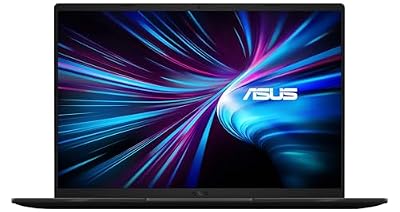
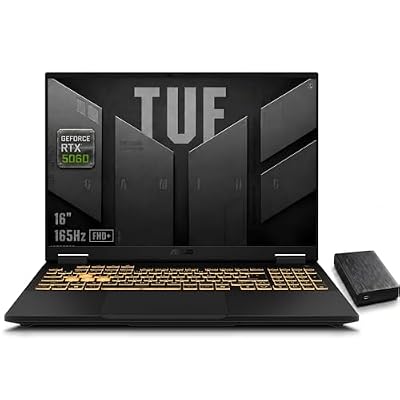
The listings below were returned for this search. The first is the primary pick and the others are close alternatives. The listing above may not match the exact model you had in mind, so confirm the refresh rate, panel type, resolution and price on the card before you order.
What Refresh Rate Actually Changes
Refresh rate is the number of times per second the panel can redraw the image. A 120Hz panel can show up to 120 new frames each second, and a 165Hz panel can show up to 165. The higher figure makes motion look smoother and can reduce the sense of lag in fast games. It does not make the game run faster, and it does not improve image detail. It changes how often the screen can update.
The Frame Rate Match
A higher refresh rate only helps when the graphics card produces enough frames to use it. If your GPU delivers 70 frames per second in a demanding game, a 144Hz or 165Hz panel will show those 70 frames smoothly, but it will not show extra frames. For that reason, the right refresh rate depends on what your laptop achieves in the games you play, not on the highest number on the spec sheet.
Variable Refresh Rate
Variable refresh rate technologies, usually branded as adaptive sync, allow the panel to change its refresh rate to match the frame rate. This reduces tearing and stutter when frame rates move up and down. Confirm that the laptop supports adaptive sync, because not every panel in this class has it.

HP Victus Gaming 15 Laptop: 15.6" FHD 144Hz Display • Intel 8-Core i5-13420H • NVIDIA GeForce RTX 3050 • 8 GB DDR4 SDRAM • 512 GB NVMe SSD • Win11 Home • Wi-Fi 6 • Backlit Keyboard


As an Amazon Associate we earn from qualifying purchases. Product prices and availability are accurate as of the date/time indicated.
120Hz, 144Hz or 165Hz: Choosing the Right Tier
120Hz: A Strong Baseline
A 120Hz panel is a clear step up from a standard 60Hz screen and is a sensible target for most players. It suits single-player games and mid-paced titles, and it often leaves more power headroom for the graphics chip. For many buyers, 120Hz with good colour and brightness is a better purchase than a faster panel with weaker quality.
144Hz: The Common Middle Ground
144Hz is widely used in gaming hardware and matches the refresh rate of many desktop monitors. It is a good fit for players who can reach around 100 to 140 frames per second in their main games. The 1440p 144Hz build guide shows the same tier on the desktop side, which helps you judge whether the target is realistic.
165Hz and Above: For Competitive Players
A 165Hz panel gives more room for fast competitive titles, where a high and steady frame rate matters. The benefit depends on the GPU and processor keeping up. If you do not regularly reach the high frame rates needed to fill the panel, the extra refresh rate will add cost and may reduce battery life without a clear visual gain.
Comparison Table: Refresh Rate Listings at a Glance
The table matches the five listings returned for this search to the type of player each suits. It uses qualitative guidance rather than exact prices, because prices change often and differ by seller.
| Option | ASIN | Best for | Price guidance | What to check |
|---|---|---|---|---|
| Primary pick (hero) | B0H1KZT6FZ | Balanced gaming at high refresh | Check current price | Exact refresh rate, panel type, adaptive sync |
| Alternative 1 | B0FJL1VJY2 | Competitive players who want 165Hz class | Check current price | GPU class and sustained frame rate in reviews |
| Alternative 2 | B0FH9P1XJV | Single-player gamers who value image quality | Check current price | Brightness, colour coverage, response time notes |
| Alternative 3 | B0HJLXQDV2 | Players who want a smooth 120Hz baseline | Check current price | Power draw and battery runtime reviews |
| Alternative 4 | B0HJTXYSK3 | Buyers who split time between gaming and work | Check current price | Resolution and scaling for work tasks |
Treat the table as a set of questions for each listing. The best row depends on your frame rate target and the games you play most.
Refresh Rate and Resolution Work Together
A high refresh rate at a high resolution asks a lot of the graphics chip. A 1440p panel at 165Hz can be harder to fill than a 1080p panel at the same rate. If you want high refresh and sharp detail, you may need to accept lower settings in demanding games. The 1440p high refresh monitor guide explains the same trade-off for desktop displays, and the best refresh rate for gaming guide shows how refresh targets map to frame rates.
What to Check on the Listing
- The exact refresh rate and whether it is fixed or variable.
- Adaptive sync support and whether it works with your graphics setup.
- Panel type and response time notes in independent reviews.
- Brightness and colour in your typical lighting conditions.
- Battery and power impact, because high refresh draws more power.
If you are comparing panels across desktop and laptop, the 240Hz gaming monitor guide and the IPS gaming monitor guide give a wider view of the panel options.
Mistakes to Avoid
Buying the Highest Number Without a Matching GPU
A 165Hz panel behind a graphics chip that rarely exceeds 80 frames per second gives little benefit in practice. Match the panel to the frame rate you actually reach. Reviews that report frame rates in your target games are the best guide here.
Sacrificing Panel Quality for Speed
A fast panel with poor brightness or weak colour can look worse than a well-tuned 120Hz panel. Weigh refresh rate against image quality, and do not assume that higher always means better in every respect.
For desktop panels with the same refresh tiers, the 1440p monitors, the best gaming monitors in 2026, the how to choose a gaming monitor, the gaming laptop battery life, and the best gaming laptop 2026 are useful next steps.
Frequently Asked Questions
Is 144Hz noticeably better than 120Hz on a gaming laptop?
The difference is real but depends on your frame rate. If your GPU reaches the higher frame rates regularly, 144Hz can look smoother than 120Hz. If your frame rate stays lower, the gap is much smaller. Judge the panel against the games you play.
Do I need a 165Hz laptop screen for competitive games?
It can help competitive players who regularly reach high frame rates. Many competitive titles are also playable on lower-refresh panels, and reaction speed depends on more than the panel. Choose based on the frame rate you can sustain.
Does a higher refresh rate use more battery?
Yes. Higher refresh rates require more work from the GPU and the display, which reduces battery life when unplugged. Lowering the refresh rate on battery is one of the simplest ways to extend runtime.
Final Verdict
For most buyers, 120Hz or 144Hz offers the best balance of smoothness, image quality and battery life. Choose 165Hz when you regularly reach high frame rates in fast games and when the rest of the laptop supports it. Check for adaptive sync, read reviews of brightness and colour, and confirm the refresh rate and panel details on the listing. Match the panel to your real frame rate rather than the biggest number on the spec sheet.