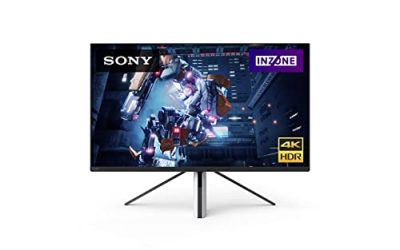
Remote work turns a monitor into infrastructure. The decision that matters is whether the screen can replace the tangle around your laptop: one cable that carries the picture and the charge, a network connection that does not drop mid-sentence, and enough resolution that a shared document stays readable on the other side of the call. A 27-inch panel at 1080p wastes that opportunity, while QHD gives a remote worker a believable second room to work in.
This roundup is for laptop-first employees who dock and undock daily, digital nomads settling into a longer stay, and remote workers whose employer shipped a computer but left the desk to them. Each model was chosen from the name and specifications on its Amazon product page. Docking monitors with Ethernet lead the list on purpose, followed by speaker and eye-comfort picks for people whose setup travels less often.
Quick Picks
As an Amazon Associate we earn from qualifying purchases
| Product | Best for | Key spec from title |
|---|---|---|
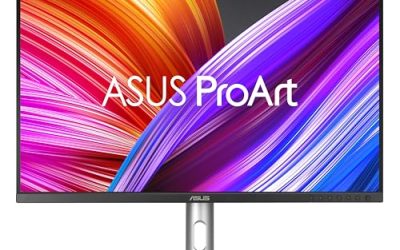
| ASUS BE27ACGN | One-cable docking with wired Ethernet | 27-inch QHD IPS, 120Hz, USB-C docking, RJ45, daisy chain |
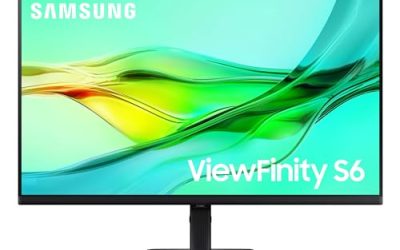
| Samsung ViewFinity S6 (S60UD) | Two computers sharing one desk setup | 27-inch QHD, 100Hz, HDR10, USB-C, built-in LAN, daisy chain |
| ASUS VA27UCPS | A 4K single-cable desk with a USB hub | 27-inch 4K IPS, USB-C PD 65W, USB hub, speakers, ergonomic |
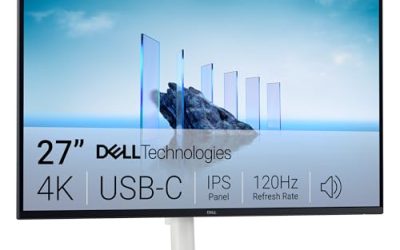
| Dell 27 Plus QHD (S2725DS) | Back-to-back calls without a speaker bar | 27-inch QHD, 100Hz, integrated 2x5W speakers, height adjustable |
| BenQ GW2790Q | Long screen days on a fixed home base | 27-inch QHD 100Hz IPS, HDMI, DisplayPort, eye-care modes |
How to Choose
Make one cable the whole connection ritual
Every remote day starts with plugging in, so count what that involves. A docking monitor with USB-C video, data, and charging collapses the routine to a single lead: sit down, connect, and the keyboard, mouse, and screen wake together. The wattage in the listing decides whether the laptop also charges properly, from the 65W stated in the ASUS VA27UCPS title to the 90W Samsung lists on its product page. If a monitor lacks USB-C entirely, you will keep the laptop charger and a second cable in daily service.
Protect your calls with wired networking and decent sound
Video meetings expose weak home setups faster than any other task. A monitor with a built-in LAN or RJ45 port, like both docking picks below, lets your laptop use wired Ethernet through the screen, which steadies calls when household Wi-Fi gets busy. Sound is the other half of the call: integrated speakers, ideally stronger than the usual token pair, keep voices clear without a headset for every meeting. Check for speakers in the title before assuming a professional-looking monitor can actually be heard.
Choose QHD unless your remote work is visual
Remote work is mostly text, tables, tickets, and shared screens, and QHD at 2560 x 1440 is sized exactly for that diet. Two windows share the panel, shared documents stay legible, and your laptop is not taxed the way 4K taxes it during screen sharing. The 4K option in this list exists for remote designers, editors, and analysts whose deliverables are visual. Everyone else gets a smoother day, and often smoother calls, from the QHD models that dominate this roundup.
Plan for the desk you have, including the next move
Remote workers change desks more often than office staff: a flat this year, a house share or a month abroad the next. A height adjustable stand and VESA mounting give a monitor two lives, on its own base today and on an arm later. Daisy chain support on the Samsung and ASUS docking models also matters for the worker who expects a second screen. Where simpler models save money is precisely here, in fixed stands and missing docks, so buy for the move you can already see coming.
The 5 Best Options
ASUS BE27ACGN

The BE27ACGN is the closest thing here to a company-issued dock and display in one box. ASUS lists USB-C docking with an RJ45 Ethernet port, DisplayPort daisy-chain output, ASUS Power Sync for coordinating a connected laptop, stereo speakers, and a height adjustable ergonomic stand around a QHD IPS panel running at 120Hz. For a remote worker, that reads as: one cable at the desk, wired networking for the morning standup, and a second screen whenever the workload justifies it, with no separate dock purchase in between.
Specs
- Screen size: 27 inches
- Resolution: QHD 2560 x 1440
- Refresh rate: 120Hz
- Panel: IPS, frameless
- Docking: USB-C docking, RJ45 Ethernet
- Extra display support: DisplayPort daisy chain
- Audio: stereo speakers
- Features: ASUS Power Sync, Eye Care, low blue light, flicker free
- Stand: height adjustable, ergonomic design
- Mounting: wall mountable
Best for: Remote employees who want employer-grade docking and networking from the monitor itself.
Watch out for: The Amazon title does not state the USB-C charging wattage, so confirm it on the product page against your laptop’s adapter before retiring that adapter.
Samsung ViewFinity S6 (S60UD)

Samsung’s entry suits the remote worker who splits time between a work laptop and a personal machine. Beyond the QHD 100Hz panel with HDR10, the title lists USB-C, a built-in LAN port, and daisy chain support, and the product page adds 90W USB-C charging plus a built-in KVM switch, so one keyboard and mouse can drive both computers through the same screen. The height adjustable Easy Setup stand assembles without tools, a small mercy for anyone building a desk in a rented room.
Specs
- Screen size: 27 inches
- Resolution: QHD 2560 x 1440
- Refresh rate: 100Hz
- HDR: HDR10
- Connection: USB-C with 90W charging listed on the product page
- Networking: built-in LAN port
- Extra display support: daisy chain
- Stand: height adjustable, Easy Setup design
- Model: LS27D606UANXGO
Best for: Hybrid workers juggling two computers who want wired networking and one shared set of peripherals.
Watch out for: The KVM and LAN benefits only appear when your keyboard, mouse, and network cable actually route through the monitor, so plan the cabling once, properly, at setup.
ASUS VA27UCPS

This ASUS is the single-cable option for remote workers whose output is visual. The title is unusually complete: a 27-inch 4K IPS panel with 99 percent sRGB and HDR-10, USB-C with 65W power delivery, a USB hub for peripherals, speakers for calls, an ergonomic stand, and VESA wall mounting. Sixty-five watts covers most thin work laptops, the hub keeps a webcam and headset dongle off the laptop’s own ports, and 4K density makes shared design work and dense dashboards look crisp at home.
Specs
- Screen size: 27 inches
- Resolution: UHD 3840 x 2160
- Panel: IPS
- Colour: 99 percent sRGB
- HDR: HDR-10
- Connection: USB-C PD 65W, USB hub
- Audio: speakers
- Features: Eye Care
- Stand: ergonomic
- Mounting: VESA wall mountable
Best for: Remote designers, analysts, and detail workers who want 4K and docking in one purchase.
Watch out for: There is no Ethernet port in the title, so call stability still depends on your Wi-Fi or a separate adapter, and 65W may not sustain a large workstation laptop at full load.
Dell 27 Plus QHD (S2725DS)

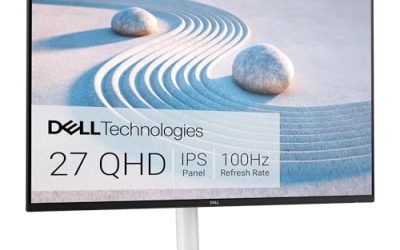
Dell built this one for the sound of remote work. The integrated dual 5W speakers are the strongest built-in audio in this roundup, which matters when half your day is other people’s voices. Behind them sits a QHD IPS panel at 100Hz with a 1500:1 contrast ratio, 99 percent sRGB coverage on the product page, and a TÜV Rheinland eye comfort certification. The stand adjusts for height, tilt, swivel, and pivot, so a borrowed desk or a kitchen-table setup can still reach a sane posture.
Specs
- Screen size: 27 inches
- Resolution: QHD 2560 x 1440
- Refresh rate: 100Hz
- Panel: IPS
- Contrast ratio: 1500:1
- Colour: 99 percent sRGB listed on the product page
- Speakers: integrated 2x5W
- Eye comfort: TÜV Rheinland eye comfort certification, ComfortView Plus
- Stand: height, tilt, swivel, pivot
- Colour: Ash White
Best for: Remote workers in near-constant meetings who want to skip the headset and the speaker bar.
Watch out for: With HDMI and DisplayPort in the title and no USB-C input, your laptop keeps its own charger and cable; this is a display upgrade, not a dock.
BenQ GW2790Q

The GW2790Q is the stay-at-home pick for remote workers whose desk never moves and whose laptop already has a dock or a desktop beside it. BenQ’s QHD IPS panel runs at 100Hz, and the title concentrates on endurance: Eyesafe certification, Brightness Intelligence Gen2 adapting to the room, Low Blue Light Plus, and Eye-CareU tools, with Coding Mode and ePaper Mode on the product page for text-heavy roles. It connects by HDMI or DisplayPort and mounts on VESA hardware when you are ready.
Specs
- Screen size: 27 inches
- Resolution: 2K QHD 2560 x 1440
- Refresh rate: 100Hz
- Panel: IPS
- Ports: HDMI, DisplayPort
- Eye comfort: Eyesafe, Brightness Intelligence Gen2, Low Blue Light Plus, Eye-CareU
- Design: ultra slim bezel
- Mounting: VESA MediaSync
Best for: Writers, support staff, and developers on fixed desks who feel eye strain before they feel cable clutter.
Watch out for: No USB-C, no hub, and no height adjustment appear in the title, so a laptop-first worker should choose a docking model above instead.
Which One Fits Your Situation
You dock a work laptop every morning and undock every night
The ASUS BE27ACGN was designed for your routine. One USB-C connection brings the screen, peripherals, and wired Ethernet with it, Power Sync coordinates the laptop, and daisy chaining leaves the second-screen question open. Your laptop charger can finally live in your travel bag instead of migrating around the house every single day.
You split the desk between a job and your own projects
Pick the Samsung ViewFinity S6 and use its KVM switch as intended. Work laptop on USB-C during the day, personal machine after hours, same keyboard, mouse, screen, and wired network for both. The 90W charging listed on the product page keeps a typical work laptop fed without a second brick on the floor.
Your work is visual and your calls are constant
The ASUS VA27UCPS balances both pressures: 4K detail for the work itself, a USB hub and speakers for the meetings about the work, and 65W single-cable charging for the laptop. Workers whose deliverables are documents rather than images will be just as happy, and less taxed on calls, with the QHD Dell below.
You are on calls all day from a small, shared space
Choose the Dell S2725DS. Its dual 5W speakers mean you can drop the headset between meetings without losing the thread of a call, the QHD panel keeps shared work readable, and the fully adjustable stand adapts to whatever furniture the space offers. In shared homes, that flexibility is a feature, not a footnote.
Common Mistakes
- Buying a beautiful monitor with no USB-C, then discovering the daily two-cable routine you wanted to escape.
- Trusting household Wi-Fi for client calls when a docking monitor with Ethernet could have wired the connection.
- Choosing 4K for document work and then fighting scaling settings during screen shares with colleagues.
- Forgetting to compare the monitor’s USB-C wattage with the laptop’s charger, and watching the battery drift down at work.
- Ignoring VESA support, then being unable to mount the screen when the desk or the city changes.
Frequently Asked Questions
What wattage should a remote worker look for in a USB-C monitor?
Match the monitor to the charger your laptop shipped with. Most thin work laptops draw between 45W and 65W, so a 65W monitor covers them, while larger machines may need the 90W that Samsung lists for the ViewFinity S6 on its product page. If the title gives no wattage, as with the ASUS BE27ACGN, check the product page before ordering.
Is Ethernet through a monitor reliable for video calls?
Yes, because the connection is an ordinary wired network link that simply reaches your laptop through the monitor’s dock and the USB-C cable. It avoids Wi-Fi congestion from other people and devices in the home, which is where most frozen calls begin. You still need a network cable run to the desk, so plan that route when you set the monitor up.
Can one monitor serve both a work laptop and a personal PC?
It can, and a built-in KVM switch makes it graceful. The Samsung ViewFinity S6 lists KVM support on its product page, letting one keyboard and mouse control whichever computer is active. Without a KVM, you can still connect two machines to different inputs and switch sources in the menu, but peripherals will need their own swapping arrangement.
Should remote workers choose a 27-inch screen or two smaller ones?
Choose the single 27-inch QHD screen when your work centres on one document at a time with references beside it, and when the desk or budget is limited. Two smaller screens suit workers who keep one application permanently visible, such as a chat client or dashboard. Docking models with daisy chain support let you start with one screen and add the second later.