
RAM Not Running Rated Speed Fix Guide
You bought a memory kit rated for 6000 MT/s, installed it, and Windows reports a noticeably lower speed. That gap is one of the most common PC build questions, and it is usually fixable without buying anything. The rated speed on the box is a profile the memory is validated to run, but it only applies when the BIOS enables that profile, the motherboard and CPU support it, and the modules are seated in the right slots. This guide explains how to find the cause and get closer to the rated speed safely.
This is a troubleshooting guide built around the product class. We have not tested the memory in the listing below for this article. The hero listing was chosen for the query “RAM speed fix”, and the alternatives came from the same search. Check the card for the exact model, capacity, speed and current price, and confirm that your motherboard lists that speed as supported before buying.


Why RAM Runs Below Its Rated Speed
Several separate things set the real memory speed, and each one can cap it. The first is the memory profile. Modern kits ship with an Intel XMP or AMD EXPO profile that sets the rated speed and timings. If the profile is disabled, the system falls back to the JEDEC default, which is much slower. The second is the CPU and motherboard. Each processor has a memory controller with a maximum supported speed, and each board has its own memory trace design and BIOS limits. The third is population. Some boards run lower speeds when all four DIMM slots are filled, especially on platforms with two memory channels and high-density modules.
Knowing which of these applies is the key to fixing the problem. A kit rated at a high speed will not run at that speed on a platform that does not support it, no matter how many settings you change. In that case the right answer is a lower speed that stays stable, not a forced overclock.
Step-by-Step Fix Order
Step 1: Check the Current Speed in Windows
Open Task Manager, select the Performance tab and then Memory. The speed shown there is the current operating speed. Compare it with the rated speed printed on the kit. If the number is close to the JEDEC default, the profile is almost certainly not enabled. If it is only a little below the rating, the cause is more likely population or a platform limit.
Step 2: Enable the XMP or EXPO Profile
Restart and enter the BIOS. On Intel boards, look for the XMP setting, and on AMD boards look for EXPO or the memory profile option. Choose the profile that matches the rated speed, save and exit, then check Task Manager again. Boot problems after enabling a profile are usually fixed by clearing CMOS or choosing a lower profile, and you should not raise voltages by hand to chase a higher number.
Step 3: Check the Slots and the Manual
Most boards with four DIMM slots arrange them in two channels, and the manual shows which pair of slots to use for two sticks. Using the correct pair often restores the full speed. On many AM5 boards, running all four slots forces a lower speed, so a two-stick configuration in the correct slots may be faster and more stable than four sticks. Check the memory qualified vendor list, or the board’s support page, for the speeds validated with four modules.

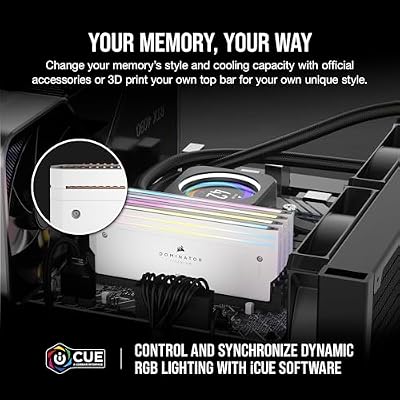
CORSAIR Dominator Titanium RGB DDR5 RAM 32GB (2x16GB) DDR5 6000MHz CL30 Intel XMP iCUE Compatible Computer Memory - White (CMP32GX5M2B6000C30W)




As an Amazon Associate we earn from qualifying purchases. Product prices and availability are accurate as of the date/time indicated.
Step 4: Update the BIOS
Memory compatibility often improves with BIOS updates, since board makers refine memory training and add support for newer kits. Download the latest BIOS for your exact motherboard model from the manufacturer’s site, follow its update instructions, and then re-enable the profile. Do not update a BIOS if you are unsure of the process, and keep the current version file in case you need to roll back.
Step 5: Find a Stable Speed
If the system will not hold the rated speed, step down one speed bin at a time rather than adjusting many settings together. Test for stability with a repeatable workload, and watch for crashes, freezes or memory errors. A slightly lower speed that is stable is more useful than a faster profile that causes random game crashes. Lowering the speed also gives you a clearer baseline if you later decide to tune the memory manually.

G.Skill Trident Z5 RGB DDR5 64GB (2x32GB) 6000MHz CL30 DIMM Desktop Memory


As an Amazon Associate we earn from qualifying purchases. Product prices and availability are accurate as of the date/time indicated.
Comparison Table: Speed Options by Situation
The table below shows which approach usually fits each situation. The right speed depends on the platform, the number of modules and how stable the system is, so treat these as starting points.
| Situation | Best approach | Risk | Typical cost |
|---|---|---|---|
| Running at JEDEC default | Enable XMP or EXPO in the BIOS | Low | Free |
| Four DIMMs and lower speed | Try two sticks in the correct slots | Low | Free |
| Platform limit reached | Accept the supported speed for the CPU and board | Low | Free |
| Outdated memory training | Update the motherboard BIOS | Medium | Free |
| Profile unstable | Step down one speed bin | Low | Free |
| Kit not supported by the board | Check the board’s memory list before buying | High if ignored | Check current price |
Speed Versus Stability for Gaming
Does Faster RAM Matter in Games?
For many games, the gain from moving from a default profile to a properly enabled rated speed is modest, and the gain from a small CPU or GPU upgrade is often larger. Some titles and CPU platforms respond more strongly to memory speed, so the benefit depends on the games you play. The safe approach is to run the rated profile when it is stable and accept the supported speed when it is not.
If you are still choosing a kit, the best DDR5 6000MHz RAM 2026 guide explains why 6000 MT/s became a common target, and the best RAM for gaming roundup compares capacities and speeds for different builds.
Overclocking Versus Running the Profile
Running an XMP or EXPO profile is a validated configuration. Manual overclocking is a different job, with more risk and more time spent on testing. If you want to go beyond the profile, read our guide on how to overclock DDR5 RAM safely before changing any voltage. For most builds, a stable profile gets you the most value for the least work.
Choosing the Right Amount and Kit
Speed is only one part of the decision. Capacity affects how much the system can cache and how many applications you can run at once. The best amount of RAM for gaming article explains the common tiers, and the best 32GB DDR5 RAM 2026 guide shows the popular middle option. Builders with a larger budget can compare the best 64GB DDR5 RAM 2026 picks if they run heavy creative workloads alongside games.
Budget-minded buyers should also check the best RAM under 50 list and the best DDR4 RAM for gaming guide if the platform is older and does not support DDR5. A kit that matches the motherboard generation is always the first requirement.
Frequently Asked Questions
Why is my RAM running at 4800 instead of 6000?
The most common reason is that the XMP or EXPO profile is disabled in the BIOS. Enable the profile, save, and check the speed in Task Manager. If it still shows a lower value, check the slot population and the board’s supported speed list.
Will four sticks of RAM always run slower?
Not always, but many platforms run lower speeds with four modules installed, especially high-density kits. Test two sticks in the correct slots and compare. A stable lower speed with four sticks may still be the right choice if you need the capacity.
Is it safe to raise the voltage to hit the rated speed?
Only within the limits the kit and board maker specify, and only after confirming the profile is enabled. Raising voltage by hand without a clear reason can shorten component life and cause instability, so step down the speed first if the system will not boot or stay stable.
Do I need a BIOS update for new RAM?
Sometimes. If the board is older than the memory kit, a BIOS update can add better memory compatibility. Check the board’s support page for the memory notes in the latest release before updating.
Final Recommendation
Enable the rated profile first, then confirm the speed in Task Manager and the slot population in the manual. If the system is still below the rating, accept a stable speed that the CPU and board support rather than forcing a faster setting. Check the card above for the exact kit, and confirm the board supports it before you buy.





