
GPU Memory Error Fix Gaming Guide
A game stops with a message about running out of video memory, the screen flickers to black, or the driver resets and the game closes. These GPU memory errors are common on modern titles, especially at high resolutions with ray tracing and large textures. The fix is usually less dramatic than it looks. Video memory is a fixed pool on the graphics card, and most errors come from settings that ask for more than the pool can hold, plus a few driver and overclock issues that make it worse. This guide shows how to confirm the cause and reduce the load step by step.
This is a troubleshooting guide built around the product class. We have not run the hardware in the listing below through these steps for this article. The hero listing was chosen for the query “GPU memory fix”, and the alternatives came from the same search. Check the card for the exact graphics card or accessory, its video memory size and current price. Do not buy a new card because of one error until you have tested the settings below.

What the Error Usually Means
Video memory, often called VRAM, holds textures, geometry buffers and frame data that the GPU needs right away. When a game requests more than the card can supply, the result can be a warning, a stutter, a crash or a driver reset. Error text varies by game and by driver, so do not rely on the exact wording. What matters is whether the error appears when the scene is heavy, after you change a setting, or after a long session.
Three situations explain most cases. The first is a settings mismatch, where the texture quality or resolution is above what the card’s memory can hold. The second is a background load, where a browser, a recording tool or another app uses VRAM alongside the game. The third is an unstable configuration, such as an aggressive overclock or an incomplete driver install, which can produce errors that look like memory problems but are really stability problems.
Step-by-Step Fix Order
Step 1: Check Video Memory Use
Open Task Manager, go to the Performance tab, select the GPU and watch the dedicated GPU memory figure during a heavy scene. If it sits at or near the full capacity of the card, the settings are too high for that scene. Monitoring tools such as MSI Afterburner can show the same figure with an on-screen overlay, which is handy for comparing settings over several runs.
Step 2: Lower Texture Quality First
Texture quality is usually the biggest single consumer of VRAM. Reduce it one step, run the same scene, and compare the memory figure and the stability. Texture quality often has less visible effect than resolution, so it is a good first change. Keep the lower setting if the errors stop and the scene still looks acceptable.

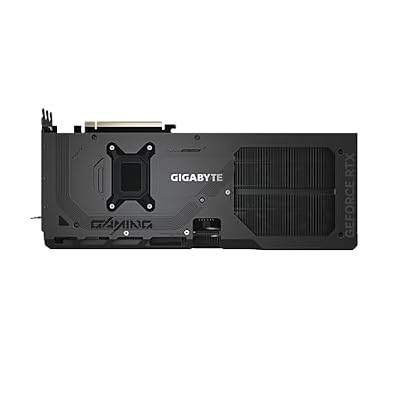
GIGABYTE GeForce RTX 5080 Gaming OC 16G Graphics Card, WINDFORCE Cooling System, 16GB 256-bit GDDR7, GV-N5080GAMING OC-16GD Video Card




As an Amazon Associate we earn from qualifying purchases. Product prices and availability are accurate as of the date/time indicated.
Step 3: Adjust Resolution, Ray Tracing and Upscaling
Ray tracing, high resolutions and frame generation all add memory load. Turn off ray tracing or reduce its quality if the error appears in reflections-heavy scenes. Use the game’s upscaling option, such as DLSS, FSR or XeSS where your card supports it, to render at a lower internal resolution while keeping the output sharp. Upscaling can reduce the pressure on memory and improve frame rate at the same time.
Step 4: Close Background Memory Users
Close browser tabs that use hardware acceleration, video chat apps and any screen recording that runs during play. Recording tools can reserve memory for buffers, so disable instant replay or background capture while testing. If the error stops once the background is clean, the answer is a settings change or a background change, not a new card.
Step 5: Revert Overclocks and Clean the Driver
Return the card to stock clocks and remove any memory overclock, then test again. Unstable memory clocks can cause errors that look exactly like VRAM shortage. If the problem began after a driver change, a clean reinstall often helps. A display driver uninstaller utility removes old driver files in Safe Mode before you install the current driver from the GPU maker, which avoids leftover conflicts.

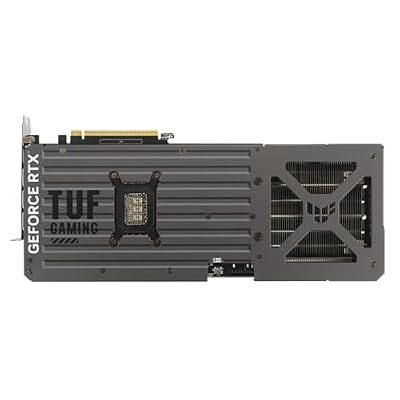
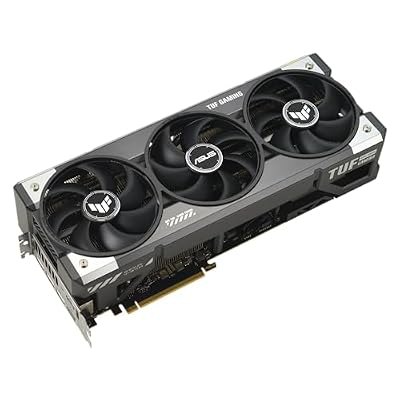
ASUS TUF Gaming GeForce RTX™ 5080 16GB GDDR7 OC Edition Graphics Card | PCIe 5.0, HDMI/DP 2.1, 3.6-slot, Military-grade Components, Protective PCB Coating, Axial-tech Fans








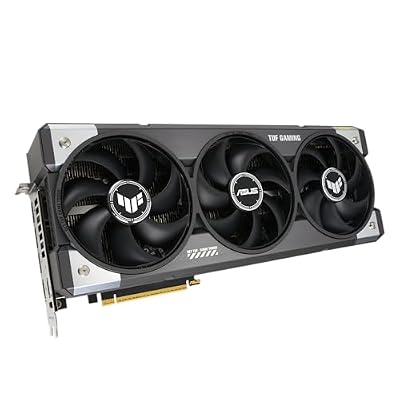

As an Amazon Associate we earn from qualifying purchases. Product prices and availability are accurate as of the date/time indicated.
Comparison Table: Fix Options by Cause
The table below matches each cause to the fix that usually addresses it. Work down the list in order, and stop when the error is gone, so you know which setting made the difference.
| Cause | Best fix | Effort | Typical cost |
|---|---|---|---|
| Textures above VRAM capacity | Lower texture quality one step | Low | Free |
| Ray tracing and high resolution | Reduce ray tracing and use upscaling | Low | Free |
| Background apps using VRAM | Close apps and disable background capture | Low | Free |
| Unstable overclock | Return to stock clocks | Low | Free |
| Driver conflict | Clean driver reinstall | Medium | Free |
| Card too small for the target resolution | Upgrade the graphics card | High | Check current price |
Checking Temperatures and Power Too
Heat and power problems can cause crashes that look like memory errors. A card running hot may throttle or become unstable, and an undersized power supply can cause resets under load. Watch core and memory temperatures during the same session where the error appears. Our guide to checking GPU and CPU temperature explains the readings to watch. If temperatures are the issue, cooling options such as the best CPU cooler for gaming guide help the whole system, and the undervolt guide for RTX 5070 cooler temps shows one example of reducing heat on a specific card.
Power matters too. An unstable supply can reset a card under load, so if you see black screens with no clear memory message, check the supply. The best gaming power supply unit roundup explains the wattage and quality to look for in a gaming build.
Choosing a Card Based on Your Resolution
If the errors persist at the resolution you actually play, the card may be the limit. Memory needs depend on the game and the resolution, so compare the card against your target. The best GPUs for 1440p gaming guide covers the middle tier, and the best gaming GPU 2025 roundup shows broader options. For a specific title with heavy memory demands, the best GPU for Black Myth Wukong article shows how demanding settings translate into card choice.
Video editing and streaming can also push VRAM use, so if the errors happen during recording as well as play, read the best GPU for video editing and gaming guide before deciding on an upgrade.
Frequently Asked Questions
What does an out of video memory error mean?
It means the game requested more VRAM than the card could provide for the current scene and settings. The usual fix is to lower texture quality, resolution or ray tracing and then test again.
Can a driver cause a GPU memory error?
Yes. A damaged or mixed driver install can produce errors that look like memory problems. A clean reinstall of the current driver from the GPU maker often clears them.
Does overclocking increase the chance of these errors?
It can. Memory overclocks that are not stable may cause crashes and resets that look like VRAM shortage. Return to stock clocks while testing so you know the real cause.
Should I buy a new card right away?
Not until you have checked settings, background apps, overclocks and the driver. Many errors disappear with those steps, and only persistent shortage at your target resolution points to a real upgrade.
Final Recommendation
Confirm the memory figure during a heavy scene, then lower texture quality, reduce ray tracing and use upscaling. Close background memory users, return overclocks to stock and do a clean driver install if needed. Upgrade the card only when the error persists at the resolution you play. Check the card above for the exact model, memory size and current pricing before any purchase.





