
Audio Crackling Gaming PC Fix Solution
Crackling audio on a gaming PC is one of the most irritating faults to chase, because it can appear in one game and vanish in another, or disappear for an hour and then return. It sounds like a short burst of static, a clipped word or a stutter in music that has no obvious cause. The usual culprits are a mismatch between sample rates, a buffer that runs dry when the processor is busy, a power-saving setting on a USB device, or a driver that holds the processor too long. This article sorts those causes and gives a practical test order. It is a troubleshooting guide. We have not tested the audio hardware in the listing, and the steps describe how to find the cause on your own setup.
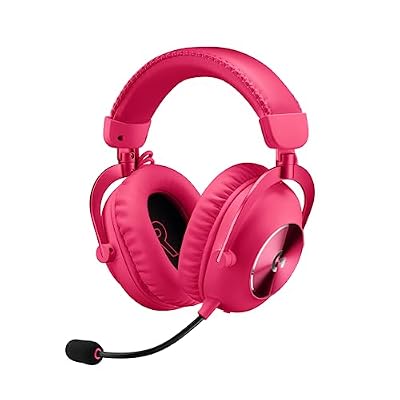
The hero listing above is the first pick for the query “audio crackling fix”, with four alternatives in the same group. The card is a closest-match listing for the product class. Check the exact model, connection type and driver support before buying, since a device that fixes one kind of crackle may do nothing for a fault that comes from software.

Locate the Source Before You Change Settings
Start by deciding whether the crackle is in the game, in the system or in the device. Play a game with the sound on, then play a plain system sound or a music file through the same output. If the crackle appears in both, the fault is system-wide. If it appears only in the game, the game’s audio settings or its audio library are more likely. If it appears only when a specific device is connected, the device or its cable is the suspect.
Next, note what else is happening. Crackle that begins when the processor is busy, such as during a large download or a heavy scene, points toward buffer underruns. Crackle that happens at a regular interval often points toward a driver or power issue. Crackle that changes when you move the cable or touch the device points toward the connection itself.
Sample Rate and Format Mismatch
Windows and the audio device must agree on a sample rate, usually 44.1 kHz or 48 kHz. When one program requests a different rate, the system resamples the audio, and that work can produce crackle on a busy system. Open the sound settings for the output device, check the format in the advanced properties, and set the same rate in your audio software. Restart the game after the change, because some titles keep the old setting until they start again.
Buffers, Drivers and Background Load
Buffer Underruns
Audio runs on a buffer. When the processor cannot refill that buffer in time, the sound stops for a moment, and the result is a crackle. A larger buffer gives more margin and can remove the crackle, but it adds delay. For game audio, a moderate buffer usually suits most players. For recording or live monitoring, match the buffer to the interface maker’s guidance and keep it as small as the system allows without dropouts.
Driver and DPC Latency
A driver that holds the processor for too long can interrupt the audio thread. Network and Wi-Fi adapters, storage drivers and graphics drivers are common sources. If the crackle matches a download or an online session, run a latency checker during the same activity and read the driver names in the report. The complete gaming PC buying guide is a useful companion when you are weighing whether the platform itself needs changes.
Background Programs and Enhancements
Screen recording tools, voice chat apps and audio enhancement suites can all compete for the same device. Close them one by one and listen after each change. In the sound properties, check the enhancement settings for the device, and turn off any effects you do not need. Exclusive-mode control can also cause trouble when two programs fight over one output, so set it only where a program requires it.
Connection and Hardware Checks
USB Power and Ports
A USB headset or microphone that draws power from a shared hub can crackle when another device on that hub starts drawing current. Plug the device directly into a rear port on the motherboard, and avoid front-panel extension cables for the first test. In Device Manager, look at the power management options for the USB root hubs and turn off the option that lets Windows switch the device off to save power.

Logitech G PRO X 2 Lightspeed Wireless Gaming Headset: Detachable Boom Mic, 50mm Graphene Drivers, DTS:X Headphone 2.0—7.1 Surround, Bluetooth/USB/3.5mm Aux, for PC, PS5, PS4 - White (Renewed)


As an Amazon Associate we earn from qualifying purchases. Product prices and availability are accurate as of the date/time indicated.
Cables, Connectors and Interference
A damaged cable or a loose connector can produce crackle that changes when the cable moves. Try a different cable if you have one, and check the plug for dirt or bent pins. Wireless headsets can also crackle when the transmitter sits close to a router or a busy wireless adapter. Move the transmitter a short distance away and test again. If the crackle stops, the radio environment was the cause.
Comparing the Audio Options in This Group
If the cause is the device itself, the table compares the hero listing and the four alternatives by role. It does not list prices. Check the card for current pricing and the exact connection type before you buy.
| Option | Role in this guide | Best for | What to confirm | Price |
|---|---|---|---|---|
| Hero listing | Closest match for the query | A first candidate for a crackle replacement | Connection type and driver support | Check current price |
| Alternative 1 | Same class, first alternative | Buyers comparing value within the group | Warranty and included cable | Check current price |
| Alternative 2 | Same class, second alternative | Players who need a wired connection | Plug type and cable length | Check current price |
| Alternative 3 | Same class, third alternative | Wireless use with a stable link | Range and dongle requirements | Check current price |
| Alternative 4 | Same class, fourth alternative | Budget-focused setups | Return policy and review count | Check current price |
Practical Test Order
- Confirm whether the crackle appears in system sounds as well as in the game.
- Set the same sample rate for the device and the audio software, then restart the game.
- Close background audio and recording programs, and test again.
- Move the device to a direct motherboard port and turn off USB power saving on its hub.
- Adjust the buffer size in your audio software, one step at a time.
- Check for a driver that appears in a latency report during the same activity.
- Try a different cable or move a wireless transmitter away from interference sources.
Keep notes on each change. Audio faults often seem to fix themselves for a while, which makes a single good test unreliable. Repeat the same session two or three times before you decide a change worked.
If the test points to the device, compare replacements by connection and price tier. The best gaming headset of 2026 roundup is a good starting list, and the wireless gaming headsets and wired gaming headsets pages split the field by connection. Budget buyers can check the budget gaming headset page. If the microphone is the source of the fault, the USB microphone for gaming and microphone for gaming guides cover the options, and the PC gaming headphones and earbuds with mic for gaming pages cover the rest of the range.
Frequently Asked Questions
Why does my audio crackle only when I game?
Gaming raises the processor and graphics load, which can starve the audio buffer or expose a driver that delays audio work. Test whether the crackle appears with a heavy non-game task. If it does, the cause is system load rather than the game itself.
Does a bigger buffer always fix crackling?
It often helps, because it gives the system more time to refill the buffer. The trade-off is added delay, which matters for live play and recording. Choose the smallest buffer that stays stable.
Can a headset cause crackling by itself?
Yes. A damaged cable, a poor connection or a wireless transmitter in an interference-heavy spot can produce crackle without any software fault. Test with a different cable or port before blaming the software.
Will the hero listing fix my crackling?
Only if the cause is in the device or its connection. The listing is a closest match for the query and does not promise a result, so confirm the source with the tests above before buying.





