
Escape from Tarkov Stuttering Fix & GPU Driver Checklist
Stutter in Escape from Tarkov is one of the most common complaints from players who otherwise have capable hardware. A frame rate that holds at 100 fps and then drops for a fraction of a second is much more annoying than a steady 70 fps, and the fix is rarely a single setting. This guide walks through the checks that usually matter: the graphics driver, the shader cache, the Windows setup, and the hardware limits that a driver update cannot solve.
This is a troubleshooting and buying guide. We have not run controlled tests on every patch of the game, and no frame rate numbers in this article are measured results. Game builds change, and the exact menu names and cache folder paths can differ between versions, so treat the steps below as a checklist to verify against the current client. The hero listing above is the closest match to the graphics hardware this guide has in mind. Confirm the exact model, memory size and price on the card, because the listing may be a substitute for the part you searched for.



What Usually Causes Tarkov Stutter
Stutter is a frame time problem, not a frame rate problem. The average number on a counter can look fine while a few frames take much longer than the rest. In a shooter, those long frames feel like lag even when the connection is good. Common causes include shader compilation during play, a graphics driver that has not been installed cleanly, background processes that take processor time at the wrong moment, and a graphics card or system memory that is close to its limit.
Start by separating these causes. If the stutter happens the first time you enter a new area and then disappears, shader compilation is the likely cause. If it happens at random during fights with many effects on screen, look at the graphics load and the video memory budget. If the whole system slows down when you alt-tab or open a browser, background load is the suspect. Our guide on checking GPU and CPU temperature shows how to log the hardware while you play, which helps you tell thermal throttling from a software problem.
Step 1: Clean Install the Graphics Driver
A driver update on top of an old installation can leave behind old settings and files. For a clean result, use the graphics vendor’s own installer, choose the custom or clean install option where it is offered, and restart after the install. Avoid installing a driver that is older than the one you already run unless a specific fix requires it. Keep a note of the driver version before you change anything, so you can roll back if the new version causes problems.
Check the Driver Version First
Open the vendor control panel or the Windows device manager and note the driver version and date. Compare it with the vendor’s current release notes. A newer driver is not automatically better for every title, so update when the notes mention a fix for the game or for a problem you are actually seeing.
Step 2: Clear the Shader Cache
Many stutters fade after the first few minutes of play because the system has built the shader data it needs. If the cache becomes corrupt or is built for an old driver, the stutter can return. Clearing the shader cache for the game and for the graphics driver forces a clean rebuild. Expect a short period of heavier load after the rebuild. The rebuild is worth doing once after a driver change, and it does not need to be repeated after every session.
Where to Look for the Cache
Driver caches are stored in the user profile, and the exact folder depends on the vendor and the Windows version. Check the vendor’s documentation for the current location before you delete anything, and only remove files that belong to the game or the driver cache.
Step 3: Windows and Background Settings
Close launchers, browser tabs and recording software that you do not need during a session. Set the Windows power plan to a balanced or high performance mode. Turn off overlays that you do not use, since each one can add a small amount of work to every frame. On laptops, keep the machine on mains power, because battery modes can reduce the processor and graphics clocks and cause stutter that looks like a game problem.
For a full walk through the system side, see our guide on installing and tuning Windows 11 for gaming. It covers the basic setup steps that make the rest of this checklist easier to follow.

NVIDIA GeForce RTX™ 5070 Ti OC Triple-Fan Graphics Card | 16GB GDDR7, 256-bit, Boost: 2572 MHz, PCIe® 5.0, HDMI®/DP 2.1, 2.98-Slot, NVIDIA Blackwell Architecture, DLSS 5


As an Amazon Associate we earn from qualifying purchases. Product prices and availability are accurate as of the date/time indicated.
Step 4: Check Memory and Storage
A game that loads assets from a slow drive will hitch when it streams new areas. Installing Tarkov on a fast NVMe drive with enough free space helps, and the decision is easier when you compare the drive options in our NVMe SSD guide for 2026. System memory also matters. Running with too little RAM forces the system to swap data to disk, and that shows up as hitching. Sixteen gigabytes is a workable minimum for this kind of game, and more helps when you keep a browser or stream open alongside it.

GIGABYTE GeForce RTX 5080 Gaming OC 16G Graphics Card, WINDFORCE Cooling System, 16GB 256-bit GDDR7, GV-N5080GAMING OC-16GD Video Card


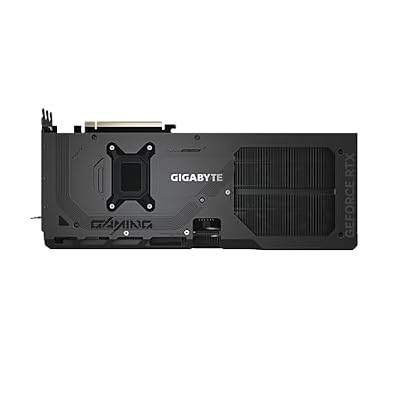


As an Amazon Associate we earn from qualifying purchases. Product prices and availability are accurate as of the date/time indicated.
Hardware Comparison: Where the Listings Fit
The table below compares the hero listing with the four alternatives by use case. It is a checklist for matching hardware to the problem you are solving, not a ranking. Prices change often, so use the live listing for current numbers.
| Option | Role in this guide | Best for | What to confirm | Price range |
|---|---|---|---|---|
| Hero listing | Closest match to the graphics hardware discussed | Players who want headroom for stutter-free play | Exact model, memory size and driver support | Check current price |
| Alternative 1 | Second listing in the same set | Players with a similar system and a smaller budget | Power connectors and case clearance | Check current price |
| Alternative 2 | Third listing in the same set | Players who want more video memory | Video memory size and warranty terms | Check current price |
| Alternative 3 | Fourth listing in the same set | Balanced play at higher settings | Power supply requirement | Check current price |
| Alternative 4 | Fifth listing in the same set | Builds that need a quieter, cooler card | Cooler design and length in your case | Check current price |
A part that matches the table on paper still has to fit your system. Check the card length, the power connectors and the supply wattage before you order anything.
When a Driver Fix Will Not Solve It
If the graphics card is already at its maximum under the settings you use, no driver will remove the stutter. Lower the most expensive settings first, such as shadows, volumetric effects and view distance, and then test again. Heat is another limit. A card that throttles because of poor airflow will drop clocks in long sessions, so check temperatures during play. If the problem persists after a clean driver install, a shader rebuild, a clean Windows setup and sensible settings, the hardware is probably the limit, and an upgrade is the honest answer.
Frequently Asked Questions
Will a new driver fix Tarkov stutter?
It can, if the stutter is caused by a driver issue that the vendor has addressed. A clean install is more useful than a simple update, because it removes old settings that can conflict with the new version.
Should I clear the shader cache after every update?
Clear it after a major driver change or when the stutter returns without an obvious cause. You do not need to clear it after every session, because the rebuilt cache is what keeps the game smooth.
How much RAM do I need to avoid hitching?
Sixteen gigabytes is a practical minimum. If you run a browser, voice chat or a stream at the same time, more memory reduces the chance that the system swaps data to disk during a fight.
Is my CPU causing the stutter?
It can, especially if the processor is busy with background tasks. Watch processor load during play. If one or more cores sit near full while the graphics card has headroom, the processor is the limit and the fixes are in the background load and the choice of CPU.
Next Steps
Work through the checklist in order, because the cheapest fixes come first. If the stutter remains after a clean system, the best CPU for Escape from Tarkov guide explains which processors handle the game’s load well. For a broader look at graphics cards by budget, see the best GPU for gaming list, and the budget GPU guide if you are trying to fix stutter without a large spend. Storage and memory choices are covered in the gaming PC SSD guide and the RAM buying guide, and the operating system guide explains how the Windows version affects gaming performance.


