
How to Update GPU Drivers to the Latest Version Safely
Updating a graphics driver is one of the simplest maintenance tasks on a gaming PC, and one of the most useful. New driver releases often bring game-specific optimisations, fixes for crashes in recent titles and support for new display features. The risk is also familiar: a bad driver install can cause black screens, crashes or display problems. The safe approach is to download from the card maker, confirm what you are installing, and keep the previous version available if something goes wrong. This guide explains each step.
This page is a buying and maintenance guide. It does not rely on hands-on driver testing. The hero listing above is the primary pick for the query “GPU driver update”, with four alternatives in the same class. Check the card listing for the exact graphics card model and revision, because driver support is tied to the specific chip. The card maker’s support page always takes priority over the general steps below, and driver version numbers change too often for this guide to list them.


Find Out Which Driver You Have Now
Before you update, note the current driver version and the graphics card model. Windows shows the driver version in Device Manager under Display adapters, and the card maker’s software usually shows it too. Write it down. If the new driver causes a problem, the old version number tells you what to reinstall. You can also check the driver date and the card name, which help confirm you are looking at the right component.
If you are not sure which card you have, check the system information in Windows or the sticker on the card. Do not rely on a generic name such as “NVIDIA graphics” or “AMD graphics”, because the exact model decides which driver is correct.
Choose the Right Source for the Driver
Card Maker Driver Software
The card maker’s own driver software or website is the best source for most gaming PCs. Both major GPU makers offer a utility that detects the card and checks for a newer driver. This route is usually the most reliable, because the driver matches your exact hardware and the release notes describe the changes.
Windows Update
Windows Update can install a driver automatically. These drivers are often older than the newest package from the card maker, but they can be stable and are a reasonable choice for a system that is working well. If you have a specific game problem or a new card, the vendor package is usually the better option.
Board Partner and Laptop Drivers
Some desktop cards are sold by board partners who publish their own driver pages, and laptops usually need drivers from the laptop maker. In those cases, check the support page for your exact model before installing a generic driver from the chip maker. Laptop drivers in particular can be tuned for the specific machine.
Step by Step: Update Without Breaking Your System
Step 1: Create a Restore Point
Create a system restore point before a major driver change. It takes a few minutes and gives you a fallback if the update goes wrong. Keep a copy of the current driver installer if you have one, so you can reinstall the previous version quickly.
Step 2: Download the Driver From the Maker
Open the card maker’s driver page or its software, select your exact card model and operating system version, and download the newest recommended driver. If you prefer a beta driver for a specific game, keep it separate from your main setup until you have reviewed it, because beta releases can carry more bugs.
Step 3: Choose Clean Installation When Needed
Most driver installers offer a standard install and a clean or custom install option. A standard update works for most users. Choose a clean install if you have had repeated crashes, if you are switching between card brands, or if the new driver reports an error. A clean install removes older profile settings, so note any custom settings before you continue.
Step 4: Restart and Test
Restart the PC after the installation finishes, even if the installer does not ask you to. Open a game you know well, play for a while, and check for crashes, flicker or stutter. Monitor temperatures during the first session, and compare them with what you saw before the update.
Driver Problems and What to Do
Black Screen After Install
If the screen goes black after the driver installs, wait a little longer, then restart. Windows can take a moment to recover the display. If the problem continues, boot into Safe Mode and use the driver uninstaller from the card maker, then reinstall the previous version.
Game Crashes After the Update
Check whether the crash happens in one game or several. A single-game issue may be fixed by the game’s own update or by a driver setting. Several games failing together points to the driver. Roll back to the previous version if the problem is persistent, and report the issue to the card maker with details of the game and the system.
Rolling Back a Driver
Windows lets you roll back a driver in Device Manager if the option is available for your installed version. Use it when the previous driver is the only change. If the rollback option is missing, reinstall the older driver package you saved.

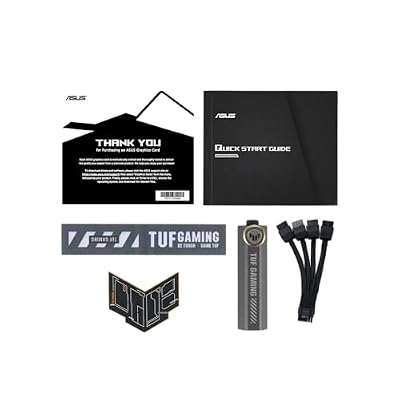
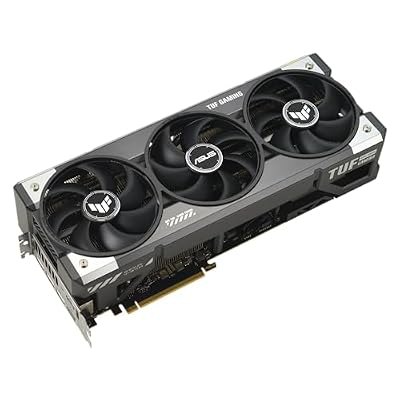
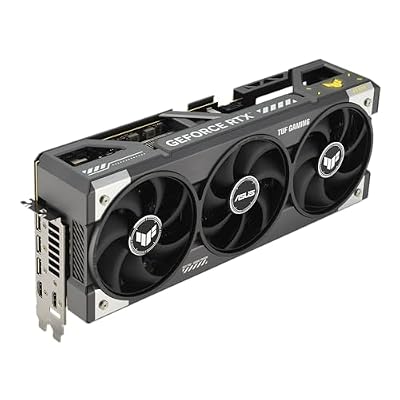
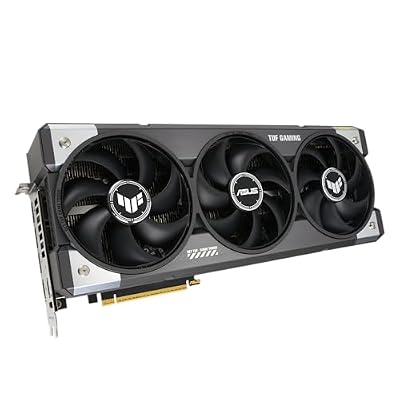
ASUS TUF Gaming GeForce RTX 5090 32GB GDDR7 OC Edition Gaming Graphics Card | PCIe 5.0, HDMI/DP 2.1, 3.6-slot, Military-grade Components, Protective PCB Coating, Axial-tech Fans











As an Amazon Associate we earn from qualifying purchases. Product prices and availability are accurate as of the date/time indicated.
Keep Temperatures and Power in View
A driver update can change how the card boosts and how the fans respond. Watch the temperature and fan behaviour during the first sessions after the update. Our guide to checking GPU and CPU temperature explains the readings to watch, and the RTX 5070 undervolting guide shows how a card’s behaviour can change with power settings if you want to tune it later.
Choosing a Card for Driver Support
Driver support matters more over the life of a card than many buyers expect. A card from a maker with regular driver updates and a clear support history is easier to live with. If you are still choosing a card, our AMD vs NVIDIA buyer guide compares the two brands across the areas that matter to gamers. For a budget choice, the budget GPU guide lists options in that tier, and the 1440p GPU guide covers cards for higher resolutions.
Common Mistakes When Updating Drivers
Installing Drivers From Unknown Sites
Download drivers only from the card maker, the board partner or the laptop maker. Third-party driver sites can bundle unwanted software or outdated files.
Updating in the Middle of an Important Session
Driver installs require a restart and can interrupt a long game or a render. Schedule the update for a quiet time.
Ignoring the Release Notes
Release notes list known issues and the games the driver targets. Reading them takes a minute and helps you decide whether to install now or wait.
Comparing the Options in This Guide
The table compares the hero listing with the four alternatives by role. Prices change often, so use the live listing for current numbers.
| Option | Role in this guide | Best for | What to confirm | Price |
|---|---|---|---|---|
| Hero listing | Primary pick for the query | Primary graphics card for the query | Exact card model and driver support | Check current price |
| Alternative 1 | Same class, different brand | Same class, different brand option | Brand and warranty terms | Check current price |
| Alternative 2 | Same class, different tier | Higher-tier card that benefits from new drivers | Power and driver support | Check current price |
| Alternative 3 | Same class, compact-friendly layout | Compact card for smaller cases | Card length against case limit | Check current price |
| Alternative 4 | Same class, value-focused | Value-focused card that stays supported | Driver support and warranty | Check current price |
For the surrounding decisions, see the GPU picks for gaming and the RTX 5070 vs RX 9070 comparison, along with the GPUs for 1440p gaming. Each page covers a different step of the same plan.
Frequently Asked Questions
How often should I update my GPU driver?
Check monthly or when a game you play needs a fix. Updating every release is not necessary for most players, but staying reasonably current helps with bug fixes and new game support.
Is it better to use Windows Update or the card maker’s driver?
For gaming, the card maker’s driver is usually the better choice because it is newer and matches the hardware closely. Windows Update is fine for a stable system that is already working well.
Do I need to uninstall the old driver before updating?
A standard update installs over the old driver. A clean install is useful after repeated problems or when changing brands, because it removes older files and settings.
Can a driver update improve FPS?
It can, especially for newly released games, but the change depends on the game and the hardware. Do not expect a large, guaranteed improvement from every release.


