
How to Migrate to an NVMe SSD from a SATA Drive Without Reinstalling Windows
Moving Windows and your games from an older SATA solid state drive to a faster NVMe drive is a common upgrade, and it is usually faster than a clean reinstall. The process is called cloning: a tool copies the entire drive, including the operating system, boot files and installed programs, onto the new drive. The main work happens before the copy starts. You need to confirm your motherboard has a free M.2 slot that supports NVMe, check the boot mode, and make a backup. This guide covers those steps in order.
This page is a buying and upgrade guide. It does not rely on detailed research of a specific drive. The hero listing above is the primary pick for the query “NVMe SSD migration”, with four alternatives in the same product class. Check the listing for the exact capacity, interface and warranty, because drives in the same family can use different controllers or memory. The motherboard manual always takes priority over the general steps below.

Confirm the Hardware Before You Buy or Clone
Start by checking the motherboard. Look for an M.2 slot in the manual or on the board, and confirm it is wired for NVMe rather than only SATA. Many M.2 slots support both, but some share bandwidth with SATA ports, and that can disable a SATA connection when the slot is in use. The manual lists these sharing rules. Note which M.2 slot the processor connects to directly, because that slot is usually the fastest and the best choice for the operating system drive.
Check the drive too. An M.2 drive can be SATA or NVMe, and a SATA M.2 drive does not give the speed gain you are looking for. Confirm the listing says NVMe and that the form factor matches the slot, usually 2280 for most gaming boards. Our M.2 SSD guide for gaming covers how to read the listings.
Check Boot Mode and Partition Style
Cloning works best when the old drive and the new one use the same boot setup. Modern Windows systems use UEFI firmware and a GPT partition style. Older systems may use legacy BIOS and an MBR partition style. If your PC uses UEFI with GPT, cloning is straightforward. If it uses legacy boot with MBR, you may need to convert the disk first, which Windows includes a tool for. Check the boot mode in the BIOS and the partition style in Disk Management before you start.
Keep the BIOS in the same mode after the migration. Switching between UEFI and legacy after cloning can stop the system from booting, so make the change only if you know the steps and have a backup.
Back Up Before You Clone
Create a backup of important files before any disk work. A clone is reliable in most cases, but a disk error, a power loss or an incorrect target selection can cause data loss. Copy documents, saves and any files you cannot replace to an external drive or cloud storage. Game installs can be reinstalled, but save files and personal data cannot always be recovered, so back those up first.
Step by Step: Clone the SATA Drive to the NVMe Drive
Step 1: Install the NVMe Drive
Power off the PC, unplug it and touch the metal case to discharge static. Remove any heatsink or cover on the M.2 slot, insert the NVMe drive at a shallow angle, press it down, and secure it with the screw. Replace the heatsink if the board uses one. Connect the old SATA drive as normal, because you need both drives connected during the clone.
Step 2: Install Cloning Software
Use a reputable cloning tool. Many drive makers offer their own migration software, which is designed for their drives and usually includes clear steps. Third-party cloning utilities are also widely used. Download the tool from its official site, and avoid installers bundled with unknown downloads.
Step 3: Clone the Drive
Start the cloning tool and select the old SATA drive as the source. Select the new NVMe drive as the target. Check the target carefully, because cloning overwrites everything on the target. Choose the option that copies the whole disk or the Windows partitions, and let the process finish without interruption. The time depends on the amount of data and the drive speeds.
Step 4: Set the New Drive as the Boot Drive
Power off the PC after the clone completes, and disconnect the old SATA drive or move it to a lower priority in the BIOS boot order. Enter the BIOS and set the NVMe drive as the first boot device. Save and restart. The system should start from the new drive and look the same as before.
Step 5: Verify and Keep the Old Drive
Once Windows runs from the NVMe drive, check that your games launch, your files are present and the drive shows the expected speed. Keep the old SATA drive as a backup for a few weeks before you wipe or reuse it. Do not delete the old partitions until you are sure the new setup is stable.

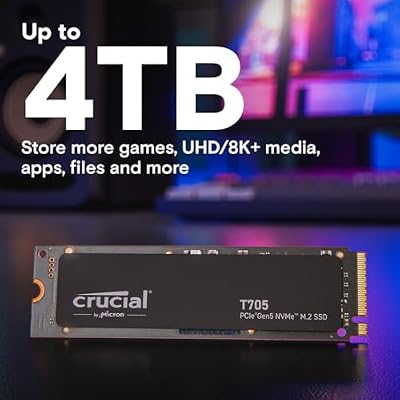
Crucial T705 PCIe Gen5 NVMe 1TB SSD, Up to 13,600MB/s, TLC NAND, Intel & Ryzen Compatible, for Hardcore Gaming & High-Speed Storage, Solid State Drive, Includes 1Mo Adobe CC – CT1000T705SSD3


As an Amazon Associate we earn from qualifying purchases. Product prices and availability are accurate as of the date/time indicated.
Why the NVMe Upgrade Matters for Gaming
An NVMe drive usually loads the operating system and games faster than a SATA drive, which shortens level loads and boot times. It does not raise the frame rate in the same way a better graphics card does. For most gamers the benefit is faster loading and smoother asset streaming in games that read data quickly. Our PCIe Gen5 vs Gen4 SSD comparison explains where the faster generations help and where the gain is small.
Choosing a Drive for the Upgrade
For most gaming PCs, a PCIe Gen4 NVMe drive with a good sustained write speed and a reliable warranty is a strong choice. Gen5 drives are faster on paper, but they often run hotter and cost more, and a motherboard may not support their full speed. Check the heatsink and the slot before buying a high-speed drive. The NVMe SSD roundup for gaming and the PCIe 5 NVMe SSD guide compare the options in each tier. For larger libraries, the 2TB gaming SSD roundup shows the capacity choices.
Common Migration Mistakes
Cloning to the Wrong Drive
Confirm the source and target before starting. Cloning to the wrong drive erases its contents. Check the drive size and model name in the cloning tool.
Forgetting the Boot Order
If the PC boots the old drive after cloning, check the BIOS boot order. Disconnect the old drive if the boot order does not hold.
Assuming Every M.2 Slot Is the Same
Slots differ in speed and in whether they share bandwidth with SATA ports. Read the manual and use the slot it recommends for the operating system drive.
Comparing the Options in This Guide
The table compares the hero listing with the four alternatives by role. Prices change often, so use the live listing for current numbers.
| Option | Role in this guide | Best for | What to confirm | Price |
|---|---|---|---|---|
| Hero listing | Primary pick for the query | Primary NVMe drive for the query | Interface, capacity and warranty | Check current price |
| Alternative 1 | Same class, different brand | Same class, different capacity | Capacity and controller family | Check current price |
| Alternative 2 | Same class, different tier | Higher-speed Gen5-class drive | Heatsink and board support | Check current price |
| Alternative 3 | Same class, compact-friendly layout | Compact-friendly drive for a small board | Form factor 2280 and slot support | Check current price |
| Alternative 4 | Same class, value-focused | Value-focused drive for games and files | Warranty and endurance rating | Check current price |
For the surrounding decisions, see the gaming SSD roundup and the SSD picks for a gaming PC, along with the 4TB NVMe drives. Each page covers a different step of the same plan.
Frequently Asked Questions
Do I need to reinstall Windows when moving to an NVMe drive?
No, if you clone the drive. Cloning copies Windows and installed programs to the new drive. A clean reinstall is an option if you want a fresh system, but it is not required for the upgrade.
Will an NVMe drive make my games run at a higher FPS?
Usually not. NVMe mainly improves loading times and asset streaming. Frame rate is driven more by the graphics card, processor and settings.
Can I use the old SATA drive for storage after the migration?
Yes. Keep it as secondary storage for games or files, once you have confirmed the new drive works correctly and your data is backed up.
What if the new drive does not appear in the BIOS?
Check that the drive is seated correctly, that the slot is enabled in the BIOS and that the drive is NVMe rather than SATA. Consult the motherboard manual for the slot that supports the drive.


