
BSOD VIDEO_TDR_FAILURE Fix Guide: Causes and Step-by-Step Solutions
The VIDEO_TDR_FAILURE blue screen is one of the most frustrating crashes a gamer can see. It appears during play or when a graphics-heavy app is running, and the message points to the graphics driver rather than to a clear hardware fault. The name comes from Timeout Detection and Recovery, the Windows mechanism that resets the graphics driver when the GPU stops responding for too long. The reset protects the system, but when it happens repeatedly the cause still needs to be found. This guide walks through the likely causes in order of how often they turn out to be the problem.
This page is a troubleshooting guide. It does not rely on a test of a specific system. The hero listing above is the primary pick for the query “GPU driver crash fix”, with four alternatives that cover the parts most often involved in this class of crash. A listing cannot diagnose your system, so treat the listed items as examples of the category rather than a guaranteed fix. Work through the checks below before you buy any replacement part.


What the VIDEO_TDR_FAILURE Error Means
Windows monitors the graphics processor. If the GPU stops responding to the driver within a set time, Windows attempts to reset the driver instead of freezing the whole system. If the reset succeeds, you may see a brief flicker or a game restart. If the reset fails, or if it repeats often, the system shows the blue screen with the VIDEO_TDR_FAILURE code. The error therefore describes a symptom: the GPU did not respond in time. The reason behind that can be the driver, the power delivery, heat, memory instability or in rare cases a failing card.
Note the exact circumstances. Does the crash happen only in one game, only under heavy load, after a driver update, after an overclock, or at random? Those details narrow the cause quickly. Write them down before you start changing settings.

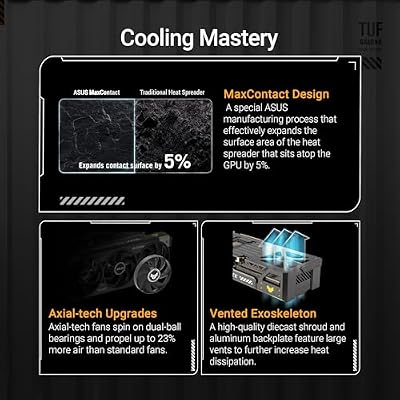
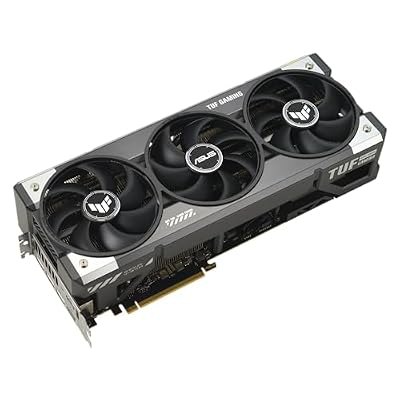
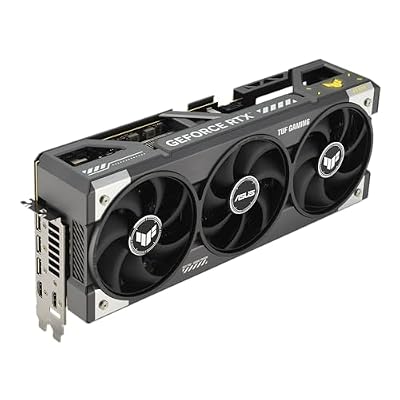
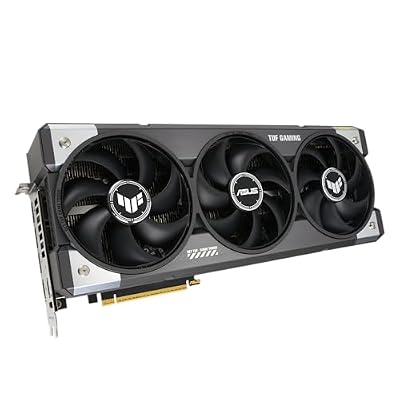
ASUS TUF Gaming GeForce RTX 5090 32GB GDDR7 OC Edition Gaming Graphics Card | PCIe 5.0, HDMI/DP 2.1, 3.6-slot, Military-grade Components, Protective PCB Coating, Axial-tech Fans










As an Amazon Associate we earn from qualifying purchases. Product prices and availability are accurate as of the date/time indicated.
Most Likely Causes, in Order
Unstable Driver or a Bad Driver Install
A corrupted or incompatible driver is the most common cause. It can follow a driver update, a Windows update or an install that was interrupted. The fix is to remove the current driver cleanly and install the version from the card maker. Some users use a dedicated display driver removal tool in Safe Mode for a thorough clean. Whatever method you use, restart after the clean removal and before the new install.
Overclocking or Undervolting That Is Too Aggressive
A graphics overclock or an undervolt that works in one game can fail in another. Reset the card to its default clocks and voltages, then test the system. If the crashes stop, the setting was the cause. If you want to tune the card later, make one change at a time and test each one with a demanding game.
Power Delivery Problems
A power supply that is too weak, an old unit with aging capacitors, or a power connector that is not fully seated can all cause the GPU to fall out of step during a load spike. Check the power cables first. Make sure every connector is pushed fully home, and that a 12V-2×6 connector sits flush with its locking clip engaged. Confirm the power supply has enough rated capacity for the card, and avoid daisy-chained adapters. Our 850W PSU guide and the PSU picks for gaming page explain what a suitable unit looks like.
Overheating
High temperatures can cause the GPU to throttle, and in some cases the driver resets before a stable state is reached. Check the temperature during a game, and look at fan speed and case airflow. Dust in the heatsink, a blocked intake or a fan that has stopped can all raise temperatures quickly. The guide to checking GPU and CPU temperature explains which readings to watch and how to interpret them.
Unstable System Memory
Unstable RAM, especially with an aggressive memory profile, can cause crashes that look like graphics errors. If the crash started after a memory change, return the memory to its default profile and test again. Our guide to overclocking DDR5 RAM safely explains how to test memory stability.
A Failing Graphics Card
A card that crashes on stock settings, in several games, with clean drivers and good power and temperature, may have a hardware fault. This is the least common cause, but it does happen. If you reach this stage, check whether the card is still under warranty and contact the maker’s support with your test results.
Step-by-Step Troubleshooting Order
Step 1: Reset Overclocks and Profiles
Return the graphics card to default clocks and voltages in its software. Return the memory to its validated profile or to default settings. Restart and test a game known to crash. This single step rules out the most common self-inflicted cause.
Step 2: Check Power Connections
Power down, unplug, and reseat the graphics card power cables at both ends. Confirm each connector is fully inserted. Check the power supply for any unusual noise or smell, and confirm it is rated for your card.
Step 3: Clean Reinstall the Driver
Download the latest stable driver from the card maker, remove the current driver cleanly, restart, and install the new one. If you are changing between brands, complete the clean removal of the old driver before you install the new card’s driver.
Step 4: Check Temperatures and Airflow
Clean dust from the card heatsink and the case intake filters. Run a game for a while and watch the temperature readings. A card that climbs quickly or throttles should be checked for airflow and fan operation before any other change.
Step 5: Test Memory Stability
Run a memory test for several passes. If memory errors appear, reduce the speed or return to a validated profile, and test again.
Step 6: Check Windows and Event Logs
Look at the Windows Event Viewer for repeated display or driver errors near the crash times. The logs will not always name the cause, but they can show whether the errors match a particular game, a driver change or a time of heavy load. Keep Windows updated, because some display problems are fixed in system updates.
If the problem persists after these steps, it is worth checking how your card and its power behave on the bench before buying a replacement. Our RTX 5070 undervolting guide shows how card power settings affect stability and temperature, which is useful background for this kind of fault.
Registry Timeout Workarounds: Use Carefully
Some guides suggest raising the Windows timeout that triggers the driver reset. That change can hide the symptom without fixing the cause, and it can make a real hardware or power fault harder to spot. Treat it only as a short diagnostic step, and reverse it once you have found the root problem. The steps above are a better use of time.

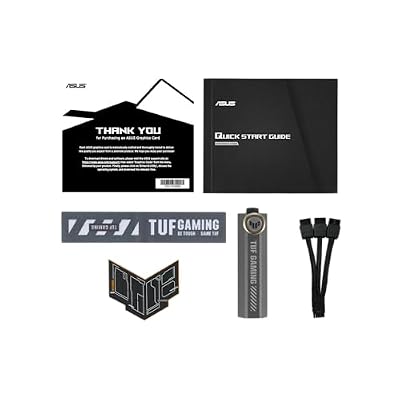
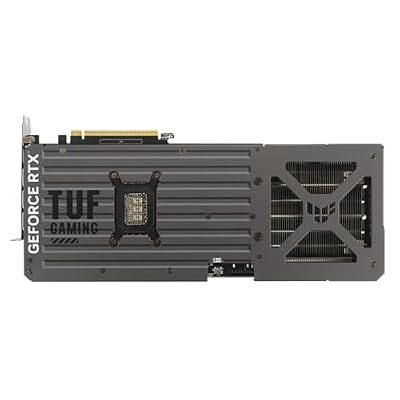
ASUS TUF Gaming GeForce RTX™ 5080 16GB GDDR7 OC Edition Graphics Card | PCIe 5.0, HDMI/DP 2.1, 3.6-slot, Military-grade Components, Protective PCB Coating, Axial-tech Fans






As an Amazon Associate we earn from qualifying purchases. Product prices and availability are accurate as of the date/time indicated.
When to Consider Hardware Replacement
Replace a part only after the software, power and temperature checks have been completed and recorded. A new card will not fix a power supply problem, and a new power supply will not fix a driver conflict. If the card fails on stock settings with clean drivers, good power and normal temperatures, contact the maker’s support and check the warranty. For a new purchase, our guide to graphics cards for gaming helps you compare options once you are sure of the fault.
Comparison: Likely Causes and Fixes
The table below summarises the common causes, how to identify them and the first fix to try. It is a quick reference, not a diagnosis.
| Likely cause | Typical sign | First fix to try | Best for | Price |
|---|---|---|---|---|
| Bad or mixed driver | Crash after a driver or Windows update | Clean driver reinstall | Software-first troubleshooting | No cost |
| Aggressive overclock or undervolt | Crashes under load, fine at idle | Reset to default clocks and voltages | Tuned systems | No cost |
| Power delivery issue | Crashes during load spikes | Reseat cables, check PSU rating | Builds with a tight PSU margin | Check current price for a PSU |
| Overheating | Temperature climbs fast, fans loud | Clean dust, check airflow | Compact or dusty cases | Check current price for fans |
| Unstable memory | Errors after a memory profile change | Return to validated profile | Systems with overclocked RAM | No cost |
| Failing graphics card | Crashes on stock settings after all checks | Warranty claim with test results | Last-stage diagnosis | Check warranty terms |
For the surrounding decisions, see the power supply unit roundup and the PSU options for gaming PCs. Each page covers a different step of the same plan.
Frequently Asked Questions
What does VIDEO_TDR_FAILURE mean?
It means Windows detected that the graphics processor stopped responding and could not recover within the timeout. The error points to the GPU or its driver, but the underlying cause can be software, power, heat or memory.
Can a driver update fix VIDEO_TDR_FAILURE?
Sometimes. A clean reinstall of the latest stable driver fixes many cases, especially after a bad update. If the crash began after a change in power or memory settings, a driver change alone may not help.
Is VIDEO_TDR_FAILURE always a sign of a dying GPU?
No. Most cases are caused by drivers, overclocks, power delivery or heat. A hardware fault is much less common, and it should be considered only after the other causes have been ruled out.
Should I change the Windows timeout setting to stop the crashes?
That change can hide the symptom without fixing the cause, so use it only as a short test. Find and fix the underlying problem instead.





