
GPU Crash to Desktop Fix Driver Update
A crash to desktop is one of the most frustrating faults on a gaming PC. The game closes without warning, the screen returns to Windows and sometimes the monitor flickers or goes black for a second. The driver is the first suspect because the graphics card is the component that loses control of the display. But drivers are rarely the whole story. Power delivery, memory stability, heat and an overclock that was never tested can all trigger the same symptom. This guide sets out a driver-first path, then the checks that catch the causes a driver update cannot fix. It is a troubleshooting guide, not a bench report, and we have not run stress tests on the hardware in the listing.
The hero listing above is the first pick for the query “GPU crash fix driver”, and the four alternatives come from the same product group. The card is a closest-match listing for the class of product, so confirm the exact model, compatibility and included parts before you spend money. Treat the listing as one option among several, and let the event log tell you which part of the system needs attention.


Read the Event Log Before Changing Anything
Windows records display driver recovery in the event log. Open Event Viewer, go to the System log and look for entries from the display driver around the time of the crash. An event that reads that the display driver stopped responding and recovered is the common signature of a driver timeout. Several of these in one session point to a driver or power issue. A single crash with no display event points more toward the game, memory or the power supply.
Write down the time of each crash and what you were doing. A crash that always happens during a load screen behaves differently from one that happens in a fight with heavy effects. Note whether the crash follows a Windows update, a driver install, a new game patch or a change to the overclock. This short log will save you hours later.
Driver Timeouts Versus Full Crashes
A driver timeout usually shows a brief flicker, then the game continues or closes. A full crash closes the game and may leave the desktop unstable. The first kind is closer to a driver or thermal problem. The second often points to power or memory. Keep both in mind as you work through the steps below.
Driver Steps That Actually Help
Clean Install the Current Stable Driver
Download the latest stable driver from the graphics card maker rather than a third-party site. Before installing, consider removing the old driver completely with a display driver removal tool, then install the new one. A clean install avoids mixed files and leftover profile settings. Avoid beta drivers unless a known fix you need is listed in the release notes. If the crash started after an update, rolling back to the previous version is a valid test.
Turn Off Overclocks and Custom Curves
A factory-stable card can still crash after a manual overclock, a custom voltage curve or an aggressive fan profile from a tuning tool. Reset the card to default settings, then test the game for an hour. If the crashes stop, reintroduce any change one step at a time. This test is also the fastest way to decide whether the driver or the tuning is at fault.
Power and Connector Checks
A graphics card that draws more power than the supply can deliver during a spike will shut down or restart the system, or drop the display driver. Check that the power supply is rated for your full system under load, with headroom. Our guides on choosing a power supply for gaming and the 850W buying guide explain how to size the unit for a current card.
Seat and Inspect the Power Connector
Modern high-power cards use a single large connector. A connector that is not fully seated, or that uses an adapter under strain, can heat up and cause unstable power. Power down, reseat the connector until it clicks, and check the cable for heat marks or bent pins. Do not bend the cable sharply at the connector. Use the cable set that matches your power supply and card.
Check Power Supply Quality and Rating
A unit with a weak rail or a low-quality design can fail under a sudden load spike even when its label wattage looks sufficient. If the crash appears only in the most demanding scenes, test with a known-good supply if you can borrow one. The 1000W PSU guide for high-end cards lists units sized for the largest cards, which helps when you need extra headroom. For smaller budgets, the gaming power supply guide and the gaming PC power supply roundup compare the rest of the range.
Memory, Heat and Other Causes
Unstable Memory Profiles
An XMP or EXPO memory profile that is slightly unstable can produce crashes that look like graphics faults. Set memory to its default speed, run the game and see whether the crashes stop. If they do, the memory profile is the cause. The guide to overclocking DDR5 safely explains how to step memory speeds back carefully instead of disabling them all at once.
Heat and Fan Behaviour
A card that overheats will reduce its clock speed or shut down. Watch the temperature and fan speed during a long session. If the card reaches its limit, clean the filters, check the case airflow and consider a moderate undervolt. The RTX 5070 undervolt guide shows the approach on one card, and the principles carry over to other models with care. If heat keeps returning after the airflow work, the best GPU for gaming page helps you judge whether the card itself is at the edge of its class, and the DDR5 6000 MHz memory guide covers the memory side of a stable profile.

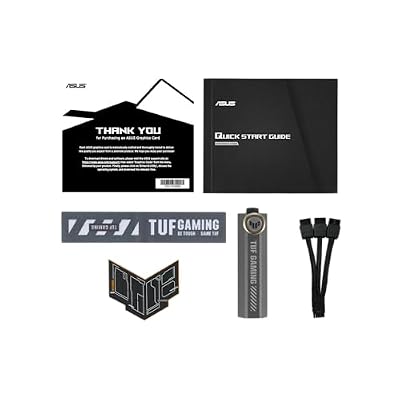
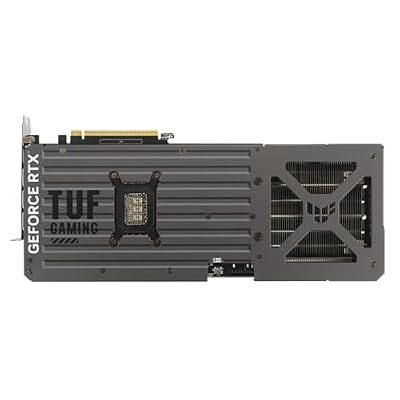
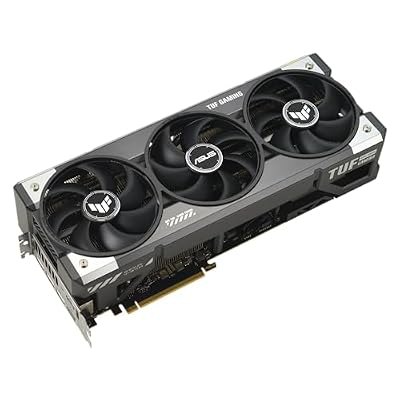
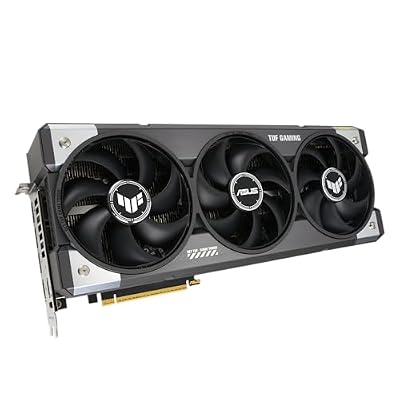
ASUS TUF Gaming GeForce RTX™ 5080 16GB GDDR7 OC Edition Graphics Card | PCIe 5.0, HDMI/DP 2.1, 3.6-slot, Military-grade Components, Protective PCB Coating, Axial-tech Fans









As an Amazon Associate we earn from qualifying purchases. Product prices and availability are accurate as of the date/time indicated.
Comparing Options by Symptom
The table below maps each likely cause to the type of fix that addresses it, along with the hardware option in this group that fits. It does not list prices, because they vary by seller. Check the card for current pricing and exact specifications.
| Option | Role in this guide | Best for | What to confirm | Price |
|---|---|---|---|---|
| Hero listing | Closest match for the query | A starting point when the cause is unclear | Exact model and compatibility | Check current price |
| Alternative 1 | Same class, first alternative | Buyers who compare value within the group | Included parts and warranty | Check current price |
| Alternative 2 | Same class, second alternative | Systems with tight space or cable routing | Physical size and clearance | Check current price |
| Alternative 3 | Same class, third alternative | Builds that need extra headroom | Rated capacity and connector set | Check current price |
| Alternative 4 | Same class, fourth alternative | Players who prefer a different brand | Return policy and review count | Check current price |
A Practical Fix Order
- Log the crash times and read the matching display driver events in Event Viewer.
- Reset any overclock, custom curve or undervolt to default and retest for an hour.
- Install a clean copy of the latest stable driver, or roll back if the crashes began with an update.
- Set memory to its default profile and retest, then reintroduce the profile slowly.
- Power down and reseat the power connector, checking for heat marks.
- Confirm the power supply rating and headroom for your full system.
- Review temperatures during a long session and clean the airflow path.
The reason for this order is simple. The steps at the top cost nothing and rule out the most common causes. Hardware purchases come last, after the logs and tests have pointed to a specific part.
Frequently Asked Questions
Will a driver update always stop GPU crashes?
No. A new driver fixes some issues and can introduce others. A clean install of the latest stable release is a good first step, but if the crash continues, the cause is likely in the power, memory or thermal chain.
Can a weak power supply cause a crash to desktop?
Yes. A supply that cannot handle sudden load spikes can cause the system or the display driver to fail. Check the rating, the connector seating and the quality of the unit before you assume the card is faulty.
Is an overclock safe if it passes a short test?
Not always. A short benchmark may pass while a long gaming session triggers instability. Run the game for an extended period at the same settings before you trust an overclock.
Does the hero listing fix the crash?
It depends on the cause. The listing is a closest match for the query and does not promise a result. Use the log and the steps above to identify the cause, then choose the part that addresses it.


