
Memory Leak Gaming Fix Windows 11 2026
Your game starts fine, then slowly gets worse. After an hour, the frame rate stutters, the system pauses while loading textures, and Task Manager shows memory use climbing far above where it began. That pattern is often called a memory leak, and it is a frustrating problem because the fix depends on what is actually growing. Some cases are real leaks in a game, a driver or a background tool. Others are normal caching that looks alarming. This guide shows how to tell the difference on Windows 11 and what to try in order.
This is a troubleshooting guide built around the product class. We have not run the hardware in the listing below through these steps for this article. The hero listing was chosen for the query “RAM memory leak fix”, and the alternatives came from the same search. Check the card for the exact model, capacity and current price. More RAM may help some systems, but it does not fix a leak, so diagnose first.


Leak or Normal Memory Use?
Windows uses free memory to cache data, and a game can use a lot of it on purpose. Shader caches, loaded world data and streaming textures all take space. Seeing high usage is not the same as a leak. A true leak is memory that a process keeps allocating and never releases, so its use rises steadily even when the game is idle or the scene is the same. The useful test is whether the number keeps climbing over time, not whether it is high at one moment.
Two symptoms help separate the cases. If usage rises in the same scene and stays up after you pause, a process may be holding memory. If usage drops when you leave the game and returns to the same pattern each session, the cause is more likely a driver, an overlay or a background app. Gaming machines also have many background processes, so the cause can be outside the game entirely.
Step-by-Step Diagnosis on Windows 11
Step 1: Watch Memory Use Over Time
Open Task Manager, select the Processes tab, and sort by memory. Note which processes are at the top before you start a session, then play for 20 to 30 minutes. Return to Task Manager and check which processes grew. If the game grows steadily, it is a candidate. If a browser, a chat app or a recording tool grew, start there. Repeat the test after each change so you can compare results.
Step 2: Use Resource Monitor for Detail
Open Resource Monitor from Task Manager, then the Memory tab. It shows the commit charge, hard faults and the standby list in more detail. Heavy hard faults during play point to memory pressure or a slow drive, not necessarily a leak. Pay attention to whether the commit charge keeps rising while the game is running in the same scene.
Step 3: Run the Windows Memory Diagnostic
If you see random crashes, freezes or error messages that point to memory, run the built-in Windows Memory Diagnostic. Search for Windows Memory Diagnostic, choose the option to restart and check for problems, and let the tool complete its scan. A failing module is rare, but it is worth ruling out before you blame the game. If the test reports errors, stop using the affected stick and check the memory configuration in the BIOS.

G.Skill Trident Z5 RGB DDR5 64GB (2x32GB) 6000MHz CL30 DIMM Desktop Memory


As an Amazon Associate we earn from qualifying purchases. Product prices and availability are accurate as of the date/time indicated.
Step 4: Update the Game, Drivers and Overlays
Install the latest game patch and the latest graphics driver from the GPU maker’s site. Many memory growth reports are fixed in later patches, and driver updates often change how memory is handled. Then check overlays. Recording tools, chat overlays and performance monitors all use memory and sometimes hook into the game, so disable them one at a time and compare the growth over the same test session.
Step 5: Trim Startup and Background Apps
Open the Startup tab in Task Manager and disable programs you do not need at boot. Background launchers, cloud sync tools and update helpers can keep memory in use all day. Closing browser tabs that play video or run web games also reduces pressure, since browsers are common sources of growth on gaming PCs.
Comparison Table: What to Try and When
The table below lists the usual fixes, the symptom each one targets and the effort involved. Start with the free steps before buying any hardware.
| Fix | Best for | Effort | Typical cost |
|---|---|---|---|
| Monitor growth in Task Manager | Finding which process is growing | Low | Free |
| Windows Memory Diagnostic | Crashes that look like a bad stick | Low | Free |
| Game patch and GPU driver update | Known growth bugs in a game or driver | Low | Free |
| Disable overlays one at a time | Growth tied to recording or chat tools | Medium | Free |
| Trim startup apps | Systems with many background programs | Low | Free |
| More RAM capacity | Systems that run out of memory with normal use | Medium | Check current price |

CORSAIR Dominator Titanium RGB DDR5 RAM 32GB (2x16GB) DDR5 6000MHz CL30 Intel XMP iCUE Compatible Computer Memory - White (CMP32GX5M2B6000C30W)


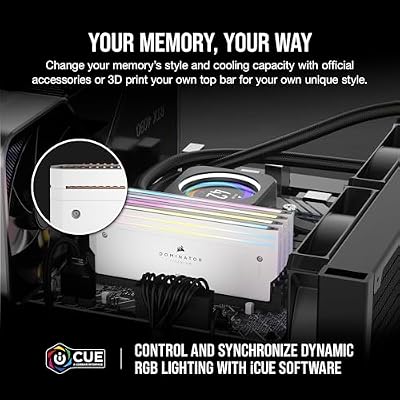


As an Amazon Associate we earn from qualifying purchases. Product prices and availability are accurate as of the date/time indicated.
Pagefile and Storage Settings
Keep the Pagefile Managed by Windows
Windows uses a pagefile on the system drive to extend memory when physical RAM runs short. For most gaming PCs, leaving the pagefile on System managed size is the safest setting. Disabling it can cause crashes when memory fills, and setting an unusually small fixed size can cause the same problem sooner. Changing this setting is rarely the fix for a leak, but it matters when a system is under real pressure.
Use a Fast Drive for the System and Games
Memory pressure becomes more painful when the drive is slow, because the system has to swap pages in and out. A fast NVMe drive for Windows and the main games makes paging less disruptive. Our best gaming SSDs roundup and the best SSD for gaming PC guide show how to choose a drive that fits the job.
Windows 11 Setup Choices That Affect Memory
The edition and setup of Windows also shape background load. Some users choose between editions based on management features and privacy controls, and the Windows 11 Pro vs Home for gaming comparison explains the differences that matter for a gaming desktop. If you are rebuilding a clean system to remove background clutter, our guide to installing Windows 11 on a gaming PC covers the clean install steps. For players who want to compare platforms entirely, the Linux vs Windows 11 for gaming article shows the trade-offs.
Buying More Memory Without Guessing
If the diagnosis shows that normal use really does exhaust memory, a capacity upgrade is reasonable. Match the new kit to the platform first, then to the amount your games and background apps need. The best gaming computer memory guide and the best RAM for gaming PC roundup compare kits by capacity and speed, while the best DDR5 RAM for gaming article explains which generation suits a current board.
Frequently Asked Questions
Is my game leaking memory or just using cache?
Watch the same scene over time. If the game’s memory keeps rising while the scene is unchanged and does not drop after you pause, it may be a leak. If memory rises during new areas and levels off, it is probably caching.
Will adding more RAM fix a memory leak?
It can delay the problem, but it does not remove a leak. If the process keeps growing, more capacity only gives it more room before the system struggles. Diagnose the process first, then decide whether capacity is also needed.
Should I turn off the pagefile to stop memory problems?
No. Disabling the pagefile often causes crashes when memory fills. Leave it on System managed size unless you have a specific reason to change it.
Does a driver update help with memory growth?
It can. Graphics drivers manage a large share of game memory, so updating to the current stable version is worth trying. Use a clean install if the problem began after a driver change.
Final Recommendation
Work from free to costly. Track which process grows in Task Manager, update the game and driver, disable overlays one at a time, and trim startup apps. Run the Windows Memory Diagnostic if crashes point to hardware. Add RAM only when normal use runs out of memory, and check the card above for the exact kit and current pricing before you buy.





