
OS Drive SSD Gen4 Gaming 2026: How Much Boot Storage Your PC Really Needs
An OS drive is the NVMe SSD that holds Windows, your drivers and the apps you open every day. For gamers, it does not need to be the biggest or fastest drive in the case. Most of the performance benefit comes from a quality Gen4 drive with enough free space for the operating system and updates, while games can live on a second drive. This OS drive SSD Gen4 guide explains how much space to plan for, which specs matter for boot storage and how to split your storage so the system stays responsive.
This is a buying guide built around the product class. We have not benchmarked the drives in the listing below for this article. The hero listing was chosen for the query “OS drive SSD Gen4”, and the alternatives came from the same search. Confirm the exact capacity, model and current price on the card, and check that the drive fits your motherboard’s M.2 slot before ordering.

How Much Space an OS Drive Needs
Windows itself, along with drivers, system apps and updates, occupies a meaningful share of storage even on a fresh install. Installing one or two common applications and a launcher adds more. A 500GB drive can handle a lean OS setup, but it gets tight fast once you start keeping several apps and updates on it. For most gamers, 1TB is the comfortable minimum for an OS drive that also holds a few frequently used programs.
If your OS drive is also your only game drive, plan for more. Large modern games can take far more space than the operating system does, and a 1TB drive will fill quickly. A common setup is a 1TB Gen4 OS drive paired with a 2TB or larger game drive. That split keeps the system drive uncluttered and gives games room to grow.
What Actually Matters on a Boot Drive
Responsiveness Over Peak Speed
The biggest gains on an OS drive come from fast random reads and consistent response, not from the highest sequential rating. Windows boots, opens apps and loads small files in a pattern that rewards good latency. A quality Gen4 drive delivers that responsiveness, and it outperforms SATA by a wide margin. A Gen5 drive will not make Windows feel dramatically faster in daily use.
Free Space and Performance
Keep at least 15 to 20 percent of the drive free where possible. A boot drive that is nearly full can slow down during updates and when Windows writes temporary files. This is one more reason a 1TB OS drive is more comfortable than a 500GB drive for a gaming PC.
Endurance and Warranty
An OS drive receives more small writes than a game drive, since Windows logs activity and updates constantly. Check the drive’s endurance rating and warranty. A longer warranty and a reputable brand are more useful for a boot drive than a few extra megabytes per second.
Comparison Table: OS Drive Options
The table below compares the common ways to set up boot and game storage. Ranges are broad and not tied to exact prices. Check the live listing before buying.
| Setup | Best for | Drive focus | Typical price range |
|---|---|---|---|
| 500GB Gen4 OS drive | Lean system with few installed programs | Responsive boot and apps | Check current price |
| 1TB Gen4 OS drive | Most gamers, comfortable headroom for updates | Balanced capacity and speed | Check current price |
| 1TB OS drive plus 2TB game drive | Large libraries with a clean system drive | Split storage roles | Check current price |
| Single large drive for everything | Simple builds with a modest library | All-in-one storage | Check current price |
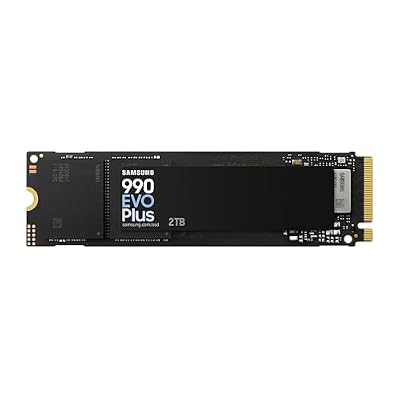
Samsung SSD 990 EVO Plus 2TB, PCIe Gen 4x4 | 5x2 M.2 2280, Up to 7,250 MB/s | NVMe Internal Solid State Drive, Upgrade Storage for PC/Laptops, HMB Technology & Intelligent Turbowrite 2.0 (MZ-V9S2T0B/AM)


As an Amazon Associate we earn from qualifying purchases. Product prices and availability are accurate as of the date/time indicated.
For a broader set of drive recommendations, see our best gaming PC SSD guide, which explains how to choose between primary and secondary drives. If you are weighing a Gen4 drive against a faster option, the best NVMe SSD for gaming 2026 list compares the field.
Setting Up Windows on a New Gen4 Drive
Update your motherboard BIOS before installing Windows, and make sure the drive sits in an M.2 slot connected to the CPU if your board has one. Install Windows onto the drive, then install your chipset drivers and GPU drivers. Keep the game drive as a separate volume, so reinstalling Windows later does not require moving your entire library. This split also makes it easier to troubleshoot if a game or update misbehaves.
Enable the drive’s firmware updates through the manufacturer’s tool when available, and check that Windows reports the drive at PCIe Gen4 speed. Avoid running heavy disk utilities on the system drive while you are gaming, since background scans can briefly affect responsiveness.
Moving an Existing System to a New OS Drive
When upgrading from an older drive, cloning is the fastest route, but it needs care. Use a reliable cloning tool, confirm the clone boots, and keep the old drive intact until you have confirmed everything works. Check that the new drive is the boot device in the BIOS, and remove the old drive from the boot order if you plan to keep it as a backup.
Clean installs take longer but give you a fresh system without leftover drivers or software. For many gamers, a clean install is a good moment to reconsider which apps really belong on the boot drive.
Who Should Pick Which Size
A 500GB Gen4 drive suits a lean system with few programs and a separate large game drive. A 1TB Gen4 drive is the better default for most users, since it leaves room for updates and a few apps. A single large drive can work for builds where simplicity matters more than separating roles, but it makes the system drive harder to keep clean over time.
Further reading on related storage decisions: best gaming PC operating system, best gaming PC specs, $1000 gaming PC build guide 2026, Samsung 980 Pro 1TB review, best gaming M.2 SSDs.
More options for this setup include best gaming pc ssd, best ssd for gaming pc.
Frequently Asked Questions
Is 500GB enough for a Windows gaming PC?
It can work for a lean system, but it fills quickly once you add updates and apps. Most gamers do better with 1TB for the OS drive, plus a separate drive for games.
Does an OS drive need to be the fastest drive I own?
No. A quality Gen4 drive gives Windows excellent responsiveness. The gain from Gen5 on an OS drive is small in daily use, so spend the budget on capacity for games if needed.
Should games go on the same drive as Windows?
It is simpler to keep them separate. A dedicated game drive makes reinstalling Windows easier and keeps the system drive from filling with large installs.
How much free space should I keep on an OS drive?
Aim for at least 15 to 20 percent free. More free space helps with updates and temporary files, and it keeps performance steady over time.
Final Recommendation
For most gaming PCs, a 1TB Gen4 drive makes a solid OS drive, with games stored on a separate and larger drive. Check the hero listing and the alternatives on the card, confirm the capacity, the M.2 length and the current price, and install the drive in a CPU-connected slot if your board has one. That split gives you a fast, uncluttered system drive and room to grow your library without overspending on speed you will not notice.


