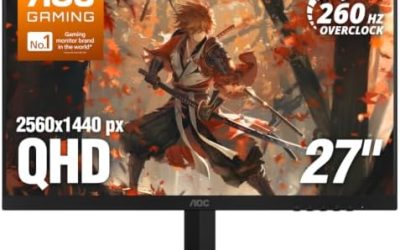
Updated November 2026 – Is a 60Hz, 75Hz, 100Hz, 120Hz or 165Hz monitor good for gaming? Yes for all of them, with different limits: 60Hz is the minimum for casual play, 75Hz and 100Hz are modest upgrades, 120Hz suits consoles and 4K, and 144Hz to 165Hz is the practical sweet spot for PC shooters, as long as your graphics card can actually push those frame rates.
Refresh rate is how many times per second the screen redraws. A higher number gives smoother motion and a lower gap between a frame being drawn and appearing on screen, but only when the game delivers matching frame rates. This guide sorts the tiers, explains what each needs from your GPU, shows how to enable the rate in Windows and the monitor menu, and covers cable and console limits.
Is 60Hz, 75Hz, 100Hz, 120Hz or 165Hz Monitor Good for Gaming? Tier Table
| Refresh rate | Time per refresh | Verdict | Best suited to |
|---|---|---|---|
| 60Hz | about 16.7 ms | Fine for casual, story and strategy games | Entry-level builds, older GPUs |
| 75Hz | about 13.3 ms | Small, cheap step up from 60Hz | Office-and-game monitors |
| 100Hz | 10 ms | Noticeably smoother than 60Hz | Ultrawide screens and mid-range GPUs |
| 120Hz | about 8.3 ms | Good all-rounder; the console target | PlayStation 5, Xbox Series, 4K screens |
| 144Hz to 165Hz | about 6.9 ms to 6.1 ms | Sweet spot for PC shooters | 1080p and 1440p competitive play |
| 240Hz to 360Hz | about 4.2 ms to 2.8 ms | Esports territory, needs a strong CPU and GPU | Competitive 1080p and 1440p players |
Is a 60Hz Monitor Good for Gaming?
Yes, a 60Hz monitor is good enough for slower games, and it is the standard for 4K at the entry level. It is the weakest choice for fast shooters and racing games, where extra refreshes show up as less blur and quicker feedback. If a PC cannot render much above 60 frames per second in a game anyway, a faster monitor will not help that title.
Best 1080p 60Hz and Best 1440p 60Hz Gaming Monitor: What to Look For
At these tiers the important specs are not the refresh rate. Look for an IPS or VA panel with the native resolution you want, an adaptive sync mode listed by the maker, and a stand that adjusts height. Because 60Hz is slow, check that the panel does not add ghosting from slow response times. At 1080p keep the size to about 24 inches, and at 1440p about 27 inches.
Is a 75Hz or 100Hz Monitor Worth It?
A 75Hz panel is a small upgrade over 60Hz, and many budget monitors offer it. A 100Hz panel is common on ultrawide displays and gives a clearly smoother desktop and game feel than 60Hz without needing a flagship GPU. Neither rivals 144Hz in fast action, but both cost the GPU less work, so they suit mid-range or older cards.
Is a 120Hz Monitor Good for Gaming?
Yes. 120Hz divides evenly into 24 and 60 frame-per-second content, matches the maximum output of PlayStation 5 and Xbox Series consoles at 4K, and is common on 4K PC monitors where 144Hz is harder to reach. A best 1080p 120Hz gaming monitor is a reasonable middle option for a mid-range PC, and the same rate on a TV also works for consoles.
Is a 165Hz or 144Hz Monitor Good for Gaming?
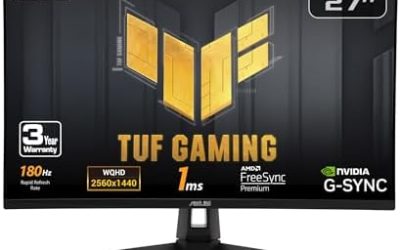
Yes. 144Hz and 165Hz are the common PC gaming rates, and they sit well above the point where most players notice the jump from 60Hz. A search for a best 144Hz 1ms gaming monitor mostly finds fast IPS panels. Be careful with the 1ms figure, since response-time numbers are the maker’s own claim and depend on the overdrive mode. A good panel at 165Hz with variable refresh rate often feels better than a faster panel with poor motion handling.
Best Gaming Monitor 4K 360Hz and Best 1440p 360Hz: Is It Worth It?
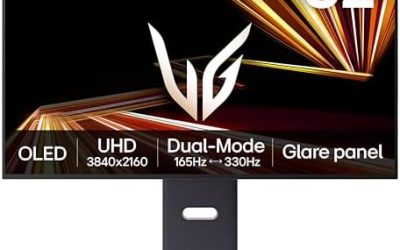
360Hz is a niche choice for competitive players. A 360Hz refresh gap is about 2.8 ms, so benefit requires consistently high frame rates, which means a fast CPU, a strong GPU and lowered graphics settings. A best 1440p 360Hz gaming monitor appeals to players who want sharpness plus speed. For 4K at that rate, the GPU burden is extreme, and many makers pair the high refresh with a lower-resolution mode. Treat the high number as a ceiling, not a promise, and read the maker’s specification page for what resolution each refresh rate applies to.
What Your GPU Needs for Each Refresh Rate
- 60Hz to 75Hz: almost any current graphics card at 1080p or 1440p.
- 100Hz to 120Hz: a mid-range card at 1440p, or an upper-mid card at 4K with upscaling.
- 144Hz to 165Hz: a mid-range to upper-mid card at 1440p in most titles, and nearly any current card at 1080p in esports titles.
- 240Hz to 360Hz: a high-end CPU and GPU, plus competitive-game settings.
An FPS counter in the game or driver overlay shows what you actually get. If the number stays well below the monitor’s rate, the monitor is not the bottleneck.
How to Enable the Refresh Rate in Windows and the Monitor Menu
New monitors often start at 60Hz, and this is the most common reason people think a monitor is underperforming. Microsoft’s support page describes the steps.
- Open Start, then Settings, then System, then Display, then Advanced display.
- If you have several screens, pick the right one under Choose Display.
- Select the highest rate under Choose a refresh rate and click Keep changes.
- Turn on the monitor’s on-screen display option for adaptive sync, which may be named FreeSync, G-Sync Compatible or Adaptive-Sync, and enable the same in the GPU driver.
- Use the same page to confirm the current rate under Display information.
Microsoft notes that if a rate the monitor supports does not appear, the cause is almost always the cable, the port or an outdated graphics driver. Menu names inside the monitor differ by maker, so use its manual for the exact wording.
Cable and Port Limits
| Connection | What reviewers and makers say |
|---|---|
| HDMI 2.1 | Up to 48 Gbps. Carries 4K at 120Hz uncompressed and is the console standard. |
| HDMI 2.0 | Limits 4K to 60Hz. Fine for 1080p and 1440p at higher rates on many monitors. |
| DisplayPort 1.4 | 32.4 Gbps raw. Reaches 4K at 120Hz to 144Hz with Display Stream Compression. |
| DisplayPort 2.1 | Up to 80 Gbps raw, which suits very high refresh rates and high resolutions on supported hardware. |
Use the cable that came with the monitor when possible, and plug it into the graphics card rather than the motherboard output, because motherboard ports do not drive the discrete GPU.
Is a 60Hz TV Good for Gaming, and What About a 4K 120Hz Projector?
A 60Hz TV is fine for slower console games but limits fast ones, since neither console nor PC can send more than 60 frames to it. Look for a TV or projector with HDMI 2.1 and a stated 4K 120Hz mode if you want smooth action. Projectors listing 4K 120Hz often do so with input lag or reduced resolution modes, so read the maker’s specification for the exact combination and check input lag figures from reviewers.
Consoles and Refresh Rate
PlayStation 5 and Xbox Series consoles cap output at 120Hz at 4K, so a faster monitor adds nothing at that resolution. The PS5 needs HDMI 2.1 for variable refresh rate, while Xbox consoles can use it over older ports. Enable 120Hz output and VRR in the console’s video settings, then turn on the matching mode in the screen menu.
Variable Refresh Rate: Why It Matters More Than a Few Extra Hertz
Variable refresh rate, sold as FreeSync, G-Sync Compatible or the open Adaptive-Sync standard, lets the monitor refresh when the graphics card finishes a frame instead of on a fixed clock. That removes tearing without the delay of older sync methods. Guides describe FreeSync Premium as requiring at least 120Hz at Full HD plus low framerate compensation, which repeats frames when the game drops below the monitor’s minimum range so motion stays tidy. G-Sync Compatible monitors are certified through software, and native G-Sync modules usually cover a wider range from very low rates up to the panel maximum.
The practical advice from buyer guides is to look at the monitor’s actual variable refresh range, not only the badge. A narrow range, such as 90 to 144Hz, cannot multiply frames, so dips below 90 can bring tearing back. Many players also cap the frame rate a few frames under the maximum refresh rate so the sync stays active.
Which Refresh Rate Should You Buy: Decision Table
| If you … | Pick | Why |
|---|---|---|
| Play story and strategy games on an older GPU | 60Hz or 75Hz | The GPU will rarely exceed those frame rates anyway |
| Use an ultrawide and a mid-range card | 100Hz | Smoother than 60Hz without huge GPU load |
| Play on PlayStation 5, Xbox Series or at 4K | 120Hz | Matches the console output ceiling at 4K |
| Play shooters on a mid-range to upper-mid PC | 144Hz to 165Hz | Large smoothness gain that the GPU can feed |
| Chase every advantage in esports titles | 240Hz or 360Hz | Smaller gains, needs strong hardware and lowered settings |
Common Mistakes With High Refresh Monitors
- Leaving the rate at 60Hz. New monitors often start there, so open Advanced display settings after plugging in.
- Using the wrong cable. An older HDMI cable or a port limited to HDMI 2.0 can cap the rate, particularly at 4K.
- Plugging into the motherboard output. On a PC with a graphics card, the monitor belongs on the card’s ports.
- Buying on the response-time number. A one-millisecond claim is the maker’s figure for a chosen mode, and motion quality depends on overdrive tuning too.
- Ignoring the CPU. At 240Hz and above, the processor often limits frame rates in esports games, not the graphics card.
Input Lag, Motion Clarity and Frame Time in Plain Words
Each step up in refresh rate shortens the gap between screen updates, and the gains shrink as the numbers rise. Going from 60Hz to 144Hz saves about ten milliseconds per refresh, while going from 144Hz to 240Hz saves only about three. That is why most guides call 144Hz to 165Hz the point where the improvement per dollar is largest, and why 360Hz is described as a niche choice. Motion clarity also depends on the panel’s pixel response, so a good 165Hz screen can beat a poorly tuned 240Hz one.
Frequently Asked Questions
Is 144Hz or 165Hz much better than 60Hz?
Most players notice the jump, especially in fast shooters and when moving the camera. The benefit requires the game to run at a similar frame rate.
Do I need a powerful GPU for 165Hz?
At 1080p in esports games, many current cards can reach it. At 1440p in demanding games, an upper-mid-range card is more realistic.
Why does my new monitor show only 60Hz?
The refresh rate often defaults to 60Hz. Set the higher rate in Advanced display settings, and check the cable, port and driver if it is not listed.
Is 75Hz worth paying extra for?
It is a small improvement over 60Hz and often costs little. It helps with smoothness, but it will not feel like 144Hz.
Does a higher refresh rate matter on consoles?
Only up to 120Hz, which is the maximum console output at 4K. Games must also support a 120Hz mode.
Is 360Hz worth it?
Only for competitive players with powerful hardware and games that reach very high frame rates. For most people, 144Hz to 240Hz is plenty.