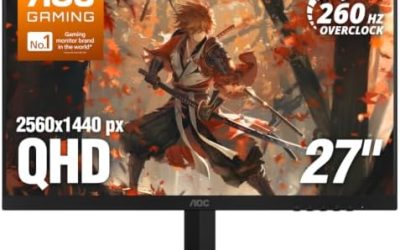
Updated November 2026 – Is a dual monitor setup worth it for gaming? Yes if you want chat, a guide, streaming controls or a browser open beside the game, because a second screen adds convenience at little GPU cost; no if you only play, since the game runs on one screen and a second display adds nothing to frame rates.
The second monitor does not make games faster. It changes how comfortably you play, stream and multitask. This guide covers who benefits, the real performance effects, how to size and match the two screens, how to use dual monitors while gaming in Windows, and what to consider as an alternative such as an ultrawide.
Is a Dual Monitor Setup Worth It for Gaming? Verdict Table
| Player | Verdict | Best second-screen use |
|---|---|---|
| Streamer or content creator | Worth it | Chat, alerts, streaming software, capture preview |
| Single-player and MMO player | Often worth it | Guides, maps, wikis, builds |
| Competitive shooter player | Optional | Voice chat, stats, music |
| Player who also works or studies at the desk | Worth it | Work on one screen, game on the other |
| Small desk, game only | Not needed | Spend on a better main screen instead |
Should I Get a Dual Monitor Setup? Who Benefits
If you often alt-tab out of a game to answer messages, read a guide or watch a stream, a second screen removes that friction and prevents the game from minimizing. Streamers use it for chat and scene controls. For players who only launch a game and play, a second monitor is mostly desk clutter.
Performance: Does a Second Monitor Lower FPS?
A second monitor has a small direct effect on gaming frame rates when the game runs only on the main screen, because the GPU renders the game on one display and only lightly draws the desktop on the other. Guides report that the bigger effects come from what the second screen is doing, such as playing video or running a browser with hardware acceleration, which uses a little GPU capacity. Using borderless windowed mode makes the game pass through the Windows compositor, so it can be somewhat more exposed to multi-monitor overhead than exclusive fullscreen, though sources disagree on how much that matters on current Windows.
Idle Power and Mismatched Refresh Rates
One thing readers notice is GPU idle power. Reports from XDA Developers and VoltGround describe cases where mismatched refresh rates or resolutions stop the card’s video memory from dropping to its low-power clock, so a card that normally idles near ten watts can sit at around 40 watts or more with a 144Hz screen beside a 60Hz one. In the XDA case, matching the refresh rates let the memory clock fall and cut the power draw substantially. If you see high idle power or fan noise on the desktop:
- Set both monitors to the same refresh rate where possible, such as both at 120Hz, even if one could go higher.
- Update the GPU driver and Windows.
- Test with one monitor connected to see if the behavior changes.
Matching Refresh Rates and Panels
The two monitors do not need to be identical. Make the better one, with the higher refresh rate and adaptive sync, the main display and run the game on it. A second screen at 60Hz is perfectly fine for chat and guides. Sources disagree on mixed refresh rates: some say Windows 11 handles them cleanly in current builds, while others report frame-pacing stutter on some systems, so test your own pair and adjust if needed. For best consistency, use DisplayPort on both monitors where possible.
| Item | Advice |
|---|---|
| Size | Same size looks tidy; a smaller second screen is fine for chat |
| Resolution | Different resolutions work; Windows scales each screen separately |
| Refresh rate | Match if idle power or stutter appears |
| Panel type | IPS beside VA works, but colours will differ |
| Ports | Check your GPU has enough outputs for both |
Best Dual Monitor Setup Ideas
- Main plus portrait: a 27-inch 1440p gaming screen beside a smaller screen rotated vertically for chat and guides.
- Two equal 24-inch screens: a simple, budget-friendly pair for gaming and work.
- Ultrawide plus small side monitor: an ultrawide for the game and a compact display for stream controls.
- Stacked screens on an arm: a small monitor above or beside the main one to save desk depth.
VESA Arms and Desk Space
Many monitors support VESA mounts, which let you attach them to a desk arm. A dual arm clamps to the desk edge, frees stand space, and lets you set height and distance for each screen. Check the VESA pattern and weight limit in the monitor’s specification and the arm’s rated capacity, and follow the arm maker’s instructions when installing. A dual setup needs space: two 27-inch screens span roughly 48 inches, so measure the desk before buying.
How to Use Dual Monitors While Gaming in Windows
- Open Settings, System, Display and use Identify to see which number is which screen.
- Drag the screen boxes to match the physical layout, and choose Make this my main display for the gaming monitor.
- Use Advanced display to set the refresh rate for each screen separately.
- Run games in borderless windowed mode if you want to click on the second screen without the game minimizing; use fullscreen if you want the lowest overhead.
- In the NVIDIA driver, if you use G-Sync, some sources suggest setting it to fullscreen mode only to avoid issues with the second screen.
Dual Monitor Alternative: Ultrawide or One Big Screen
An ultrawide is the usual alternative, with a single 34-inch panel giving a wide field of view in supported games and room for windows side by side. It avoids the bezel gap and runs one refresh rate, but it asks the GPU to draw more pixels in the game, while a second monitor does not. A single large 32-inch 4K screen offers snapping windows without a second cable, though it is more demanding in games than a 1440p pair. Picture-in-picture on a monitor or a spare tablet for chat is a cheap minimal option.
Streaming and Content Creation With Two Screens
Streamers have the clearest case for a second monitor. The game takes the main display, and the second hosts the chat window, alert boxes, streaming software and a preview of the outgoing scene. That keeps chat readable without covering the game and lets you adjust audio or scenes without leaving the match. Capture and encoding use some GPU and CPU capacity, so frame rates may drop slightly while streaming, and that is separate from the monitor itself. Many streamers use a hardware encoder on the graphics card to keep the load low. Check the encoder settings in your streaming software and the maker’s guidance for your GPU.
Ergonomics: Placing Two Screens Comfortably
- Put the gaming monitor straight ahead, and angle the second screen slightly inward, so your neck does not twist for long sessions.
- Match the tops of the screens at roughly eye level, using a monitor arm if the stands differ in height.
- Place the screen you look at less, such as chat, to the side, and keep the one you look at most directly in front.
- Leave enough desk depth for a comfortable viewing distance, usually an arm’s length for 24 to 27 inch screens.
- Take regular breaks, and see an eye-care professional if you have persistent discomfort.
What a Dual Setup Means for the GPU and Cables
Most current graphics cards have several outputs, usually DisplayPort and HDMI, so two monitors are rarely a limit. The more important question is bandwidth. If the main monitor is a 4K screen at a high refresh rate, give it the connector that supports that mode, such as DisplayPort 1.4 with compression or HDMI 2.1, and use the other output for the second screen. Do not connect either screen to the motherboard output, because that path does not use the discrete graphics card. A third monitor is also possible on many cards, but each extra screen adds more desktop work and a bit more power at idle.
Quick Setup Checklist
- Connect both monitors to the graphics card and power them on.
- Update the GPU driver and Windows.
- Set the main display, arrange the layout and set each refresh rate.
- Check idle power and fan behavior on the desktop, and match refresh rates if they look high.
- Launch the game, choose borderless windowed or fullscreen, and test whether the second screen stays usable.
When a Second Monitor Is Not Worth It
If you have a shallow desk, a limited budget or a GPU already struggling at your main screen’s resolution, skip the second display and put the money toward the main monitor, the graphics card or a monitor with built-in picture-in-picture. A phone or tablet on a stand can show chat or a guide for free. If you rarely alt-tab and mostly play fullscreen, a single good monitor gives a cleaner, quieter setup, with fewer cables and no mismatched refresh-rate issues to chase.
Think about electricity and heat too. A second panel adds its own power draw, and a mismatched pair can raise GPU idle power as described above, so the extra screen has a running cost beyond the purchase.
Frequently Asked Questions
Does a second monitor reduce gaming FPS?
Only slightly in most reports, and mostly if the second screen plays video or runs heavy apps. The game itself renders on one display.
Can I use two monitors with different refresh rates?
Yes. Results vary by system, so set each rate in Windows and match them if you see stutter or high idle power.
Why is my GPU idle power high with two monitors?
Mismatched refresh rates or resolutions can keep the memory clock high. Matching the rates often fixes it, as reported by XDA Developers.
Should the second monitor be the same size?
Not required. A smaller or lower-spec second screen works well for chat, guides and streaming tools.
Is an ultrawide better than two monitors?
It depends. An ultrawide is better for immersion with one cable and no gap, while two monitors give more total desktop and are lighter on the GPU in games.
How do I stop a game minimizing on the second monitor?
Switch the game to borderless windowed mode, or keep the cursor on the main screen. Exclusive fullscreen may minimize when you click away.