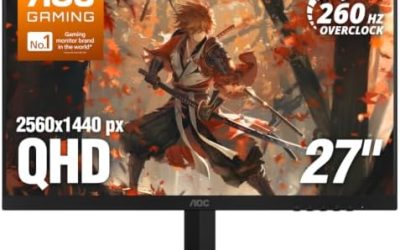
Updated November 2026 – Which HDMI or DisplayPort port is best for gaming on a PC? Use DisplayPort when your monitor and graphics card both have it, use HDMI 2.1 for consoles and TVs, and use DisplayPort 2.1 only when you want very high refresh rates at 4K without compression.
For most PC players the answer is simpler than the version numbers suggest: the best port is the one that carries your resolution and refresh rate at the monitor’s maximum, with variable refresh rate (VRR) on, using the right cable. This guide gives the bandwidth limits, explains DSC, and answers whether monitors have HDMI outputs, what 27 inch HDMI 2.1 monitors need and which port suits each setup.
Which HDMI or DisplayPort Port Is Best for Gaming? Quick Reference
| Standard | Raw bandwidth | Typical use | Notes |
|---|---|---|---|
| HDMI 2.1 | 48 Gbps | Consoles, TVs, 4K 120Hz and up | Not every HDMI 2.1 port supports the full rate |
| DisplayPort 1.4 | 32.4 Gbps | 1440p 240Hz, 4K 120Hz uncompressed, higher with DSC | DSC reaches 4K 144Hz and beyond |
| DisplayPort 2.1 UHBR 10 | 40 Gbps | Mid-level DP 2.1 monitors | Needs DP 2.1 certified cable |
| DisplayPort 2.1 UHBR 13.5 | 54 Gbps | High refresh 4K | Some AMD Radeon RX 7000 cards top out here |
| DisplayPort 2.1 UHBR 20 | 80 Gbps | 4K 240Hz native, 360Hz and above | Supported on newer Nvidia and AMD cards |
Bandwidth figures are raw link rates. Usable bandwidth is lower because of encoding overhead; one source puts HDMI 2.1 at about 42 Gbps usable and DP 1.4 at about 26 Gbps. HDMI 2.2 raises the ceiling to 96 Gbps, so the 48 Gbps figure applies to HDMI 2.1 only.
Is HDMI or DisplayPort Better for Gaming?
For PC gaming, DisplayPort is the safer default. It supports high refresh rates, VRR such as G-Sync Compatible and FreeSync, and is the port most gaming monitors implement most completely. HDMI 2.1 has more raw bandwidth than DP 1.4, so it can be better on paper at 4K 144Hz, but in practice DP 1.4 with Display Stream Compression (DSC) reaches the same targets. One summary notes that 4K 240Hz over DP 1.4 is routine with DSC.
HDMI wins when the device only has HDMI: consoles, many TVs and some laptops. The PlayStation 5 and Xbox Series X use HDMI 2.1, which is why a console monitor needs an HDMI 2.1 port to hit 4K 120Hz or 1440p 120Hz where supported.
What Is DSC and Does It Hurt Image Quality?
DSC compresses the video signal so a link with limited bandwidth can carry more. Reviewers describe it as visually lossless and note it adds no perceptible latency. Downsides are occasional quirks: DSC can interfere with some multi-monitor setups and Nvidia’s DSR options, and some monitors disable certain features when it is active. If your monitor lists its maximum resolution and refresh rate over DP 1.4, it may already rely on DSC and that is normal.
Bandwidth Limits by Resolution and Refresh Rate
Sources that estimate uncompressed limits list typical maximums as follows: HDMI 2.1 handles 1440p 360Hz and 4K 144Hz, DP 1.4 handles 1440p 240Hz and 4K 120Hz, and DP 2.1 handles 4K 240Hz and above. Colour depth, HDR and chroma format change these figures, so treat them as guides, not guarantees. The monitor maker’s spec page lists which port supports the maximum refresh rate. Sometimes only one of the ports does.
- 1080p at 144 to 240Hz: any modern port works. Use DisplayPort or HDMI 2.0 or newer.
- 1440p at 144 to 240Hz: DP 1.4 or HDMI 2.1, depending on what the monitor offers.
- 4K at 120 to 144Hz: HDMI 2.1 or DP 1.4 with DSC.
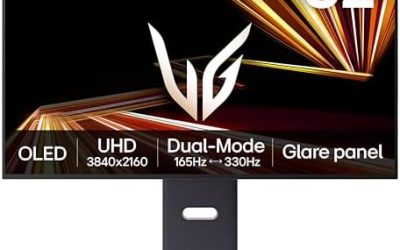
- 4K at 240Hz and higher: DP 2.1 UHBR 13.5 or 20, or DSC on a capable link.
Do Monitors Have HDMI Outputs?
Most monitors have HDMI inputs, not outputs. An input receives a signal from your PC or console. Some monitors have an HDMI or DisplayPort out for daisy-chaining or passing a signal to another display, but that is uncommon and depends on the model. If you want to connect a second screen to your PC, plug it into another output on the graphics card.
What Gaming Monitors Support HDMI 2.1, and the Best 27 Inch Options
Many 27 inch gaming monitors advertise HDMI 2.1, and the label alone is not enough. Look at the spec page for the maximum resolution and refresh rate over HDMI, the bandwidth class (some list a lower rate than 48 Gbps), and VRR support. For a console, check for 4K or 1440p at 120Hz over HDMI. For a PC, check that the DisplayPort side runs the monitor’s top refresh rate. A 27 inch 1440p screen is a common balance for PC players, while 27 inch 4K favours sharpness.
Cables Matter More Than People Expect
- HDMI 2.1 needs an Ultra High Speed certified cable.
- DisplayPort 2.1 rates need DP40 or DP80 certified cables; use a certified cable at long lengths.
- If the screen flickers or drops out at high refresh rates, swap to a shorter or certified cable before blaming the monitor.
- Do not assume a cable that came with an old device handles new speeds.
GPU Support for DisplayPort 2.1 and HDMI 2.1
Recent graphics cards offer both HDMI 2.1 and DisplayPort 1.4 or 2.1. One source says the Nvidia RTX 50-series supports UHBR 20, the Radeon RX 7000 series tops out at UHBR 13.5, and the Radeon RX 9000 series lists DisplayPort 2.1a. Older cards may only offer DP 1.4 and HDMI 2.0 or 2.1 depending on the model. Check the card maker’s spec sheet for the port versions, and make sure the monitor is plugged into a port on the graphics card, not the motherboard.
Settings That Often Fix Problems
- Enable the monitor’s highest refresh rate in Windows display settings.
- Turn on VRR in the graphics driver and in the monitor menu.
- Pick the correct HDMI mode in the monitor menu, since some ports need an “enhanced” or “2.1” option enabled.
- Update the monitor firmware if the maker offers it.
- Try a different port or cable if HDR or high refresh rates drop out.
Real-World Pairings: What to Plug In
A PC with a mainstream monitor at 1080p or 1440p and up to 240Hz should use DisplayPort. A PC connected to a living-room TV should use HDMI 2.1, because TVs seldom include DisplayPort. A PlayStation 5 or Xbox Series X should use HDMI 2.1 on the monitor, with the console’s included cable or a certified replacement. A laptop with a USB-C port that supports DisplayPort Alt Mode can drive a monitor through a USB-C to DisplayPort cable, though not every USB-C port supports video, so read the laptop’s manual.
VRR, HDR and Port Differences
Variable refresh rate keeps the screen in step with the graphics card to reduce tearing. Over DisplayPort, G-Sync Compatible and FreeSync work on most gaming monitors. Over HDMI 2.1, VRR is supported on consoles and many graphics cards, but the feature may need to be switched on in the monitor menu. HDR needs enough bandwidth for the extra colour data, which is another reason high resolution and refresh rates can fall back to compression or a lower mode. If HDR looks washed out, review the Windows HDR setting and the monitor’s HDR mode before changing cables.
Adapters and Converters
A DisplayPort to HDMI adapter can work, but full HDMI 2.1 features usually need an active adapter that the maker explicitly lists, and results vary. When possible, use a native connection. A passive adapter generally limits you to lower HDMI bandwidth. The reverse direction, HDMI to DisplayPort, is less common and often needs powered converters. For a high refresh rate setup, native ports remove a common source of problems.
What to Look For on a Monitor Spec Page
- The maximum refresh rate listed for each input, because HDMI and DisplayPort may differ.
- The HDMI version and whether it is the full 48 Gbps class.
- The DisplayPort version and whether DSC is used to reach the headline refresh rate.
- VRR support on each port.
- Included cables, which may only cover the lower modes.
Future-Proofing: HDMI 2.2 and DisplayPort 2.1
New standards appear on spec sheets before they matter. HDMI 2.2 raises the ceiling to 96 Gbps, but it only helps when both the display and the source support it and a matching cable is used. DisplayPort 2.1 is already on current graphics cards, yet monitors that use its top UHBR 20 rate are still a minority. For most buyers, matching the monitor’s best port to the graphics card’s best port, and buying a certified cable, delivers the real-world benefit now.
Frequently Asked Questions
Which port is best for 144Hz gaming?
DisplayPort is the safest choice for PC. HDMI 2.0 or 2.1 can also carry 144Hz at 1080p and 1440p depending on the monitor. Check the spec page.
Is HDMI 2.1 better than DisplayPort 1.4?
It has more raw bandwidth, 48 Gbps against 32.4 Gbps. DP 1.4 with DSC still reaches most targets, so it depends on the monitor and the GPU.
Do I need HDMI 2.1 for a console?
Yes, for 4K 120Hz on PS5 and Xbox Series X. Plug into the monitor’s HDMI 2.1 port with a certified cable.
Do I need DisplayPort 2.1?
Only for very high refresh rates at 4K, such as 240Hz and above, or if you want to avoid DSC. Many players are fine with DP 1.4.
Can I use HDMI and DisplayPort at the same time?
Yes. Multi-monitor setups often use both outputs on a graphics card. Mixed standards can affect features like VRR on one screen, so check each monitor’s settings.
Why is my monitor stuck at 60Hz?
Common causes are the wrong port, an old cable or the wrong Windows setting. Use a certified cable and set the refresh rate in display settings.
Sources Consulted
Bandwidth and DSC comparisons from several 2026 hardware guides (Sunbeam, Respawno, Tier1Settings, Box and others), covering HDMI 2.1, DisplayPort 1.4, DisplayPort 2.1 and HDMI 2.2. GPU port support claims come from a single source and are weakly sourced.