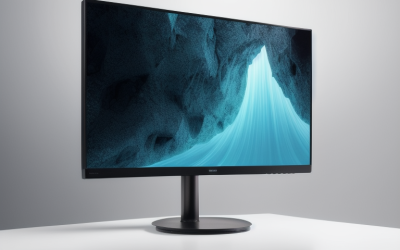
Updated November 2026 – Is a 240Hz monitor good for gaming? Yes, for competitive shooter players whose PC already pushes well over 200 frames per second, and mostly no for everyone else; a 144Hz or 165Hz 1440p panel such as an LG UltraGear or ASUS TUF Gaming model is the better value for most builders.
Is a 240Hz Monitor Good for Gaming? The Short Answer
A 240Hz monitor refreshes the image 240 times every second, so each frame stays on screen for about 4.2 milliseconds, compared with about 6.9 milliseconds at 144Hz. That shorter frame time means less motion blur and a slightly fresher picture when your PC can actually deliver matching frame rates. If your games run at 120 frames per second, a 240Hz panel cannot show more than that, and you gain very little over a 144Hz screen.
The key question is therefore not “is 240Hz good” but “can my computer feed it”. Esports titles such as Counter-Strike 2, Valorant, Overwatch 2, Rainbow Six Siege and Fortnite in performance mode are the usual candidates. Big single-player games with heavy lighting rarely come close to 240 frames per second at 1440p, even on a high-end graphics card, so the extra refresh rate sits mostly unused.
Quick Reference: Who Should Buy What
| Use case | Verdict | What to pair it with |
|---|---|---|
| Competitive FPS at 1080p | Worth it | Fast mid-range GPU plus a strong gaming CPU, low-detail settings |
| Competitive FPS at 1440p | Worth it with a strong GPU | Upper mid-range or high-end GPU, recent 6- to 8-core CPU or better |
| Open-world and story games | Rarely needed | 144Hz to 165Hz 1440p panel with adaptive sync |
| Mixed play, work and media | Not needed | 1440p IPS at 144Hz to 180Hz |
| Console play | Limited benefit | PlayStation 5 and Xbox Series X cap most output at 120Hz |
| 4K gaming | Only for very powerful GPUs | Top-tier GPU, upscaling such as DLSS or FSR |
240Hz vs 144Hz: How Big Is the Real Difference?
Reviewers consistently describe the step from 60Hz to 144Hz as large and the step from 144Hz to 240Hz as noticeable but much smaller. Outlets that measure motion clarity, such as Rtings and Monitors Unboxed, report that the benefit shows up mainly in fast camera pans and tracking moving targets, and that response time quality (how quickly pixels change) often matters as much as the headline refresh rate. A poorly tuned 240Hz panel with slow pixel transitions can look blurrier in motion than a well-tuned 165Hz one.
This is the diminishing returns problem. Going from 60Hz to 144Hz cuts frame time by roughly 9.7 milliseconds. Going from 144Hz to 240Hz cuts it by only about 2.7 milliseconds. Many players cannot reliably tell the two apart in casual play, while dedicated competitive players often can.
What your PC must deliver
To use 240Hz, you want frame rates that average near or above 200 and rarely dip below 144. That puts load on both processor and graphics card. At 1080p in esports titles, the processor is often the limit, so a modern gaming CPU such as a Ryzen 7 9800X3D or an Intel Core Ultra 200S chip helps. At 1440p, the graphics card becomes the bigger factor, and reviewers typically point to the upper half of the GeForce RTX 50-series or Radeon RX 9000 range for competitive titles at high settings.
Adaptive sync matters too. G-Sync, FreeSync and the vendor-neutral VESA Adaptive-Sync standard let the monitor match the frame rate your PC produces, which hides the stutter you would otherwise see when frame rate wanders between 150 and 230.
Is 1440p Gaming Better Than 1080p?
Is 1440p gaming better than 1080p? For most players with a mid-range or better GPU, yes: 1440p has about 78 percent more pixels than 1080p, so text, distant targets and textures look noticeably sharper on screens from 27 inches upward. The price of that sharpness is a heavier load on the graphics card, which usually lowers frame rates compared with 1080p at the same settings.
| Factor | 1080p | 1440p |
|---|---|---|
| Pixel count | About 2.1 million | About 3.7 million |
| Best screen size | 24 inch | 24 to 34 inch |
| GPU demand | Lower, easier to hit 240 fps | Higher, needs a stronger card |
| Sharpness | Fine at 24 inch, soft above 27 inch | Crisp at 27 inch |
| Best for | Pure competitive speed, tight budgets | All-round gaming and desktop use |
The sweet spot for many builders in 2026 is 1440p at 144Hz to 240Hz. If your GPU can hold 144 frames per second in the games you play, 1440p is the better pick. If you only play fast shooters on competitive settings and want the highest frame rate, 1080p at 240Hz or 360Hz remains valid.
Best 24 Inch 1440p Gaming Monitor: Does It Make Sense?
A 24 inch 1440p screen packs very high pixel density, roughly 122 pixels per inch, which makes text and edges look very sharp. Few makers sell this combination, because many competitive players prefer 24 to 25 inch 1080p panels for their small size, which let your eyes see the whole screen without moving. If you find a 24 inch 1440p model, check that the maker lists a fast IPS panel and adaptive sync, and note that Windows scaling may be needed for small interface text.
For most people, 27 inch at 1440p is the standard choice because pixel density lands near 109 pixels per inch, a comfortable balance between sharpness and size at normal desk distance.
Best 34 Inch 1440p Gaming Monitor: Ultrawide Trade-Offs
A 34 inch ultrawide at 3440 x 1440 offers an immersive wider field of view in racing, flight and open-world games. It has about 4.9 million pixels, so the GPU needs to work harder than on a standard 16:9 1440p panel, roughly 33 percent more. Refresh rates on these screens often run from 144Hz to 240Hz depending on the model. Check the game: some competitive shooters do not support ultrawide aspect ratios properly or restrict the extra field of view.
Best 240Hz IPS Gaming Monitor: Panel Types Explained
When people search for the best 240Hz IPS gaming monitor, they usually want fast response with good colour. Fast IPS (sometimes sold as Nano IPS) is widely used on LG UltraGear models and many others, with the maker typically listing a 1 millisecond grey-to-grey response time. Here is how the main panel types compare:
| Panel | Strengths | Weaknesses |
|---|---|---|
| Fast IPS | Wide viewing angles, good colour, quick response | Lower contrast, some backlight bleed and glow |
| VA | High contrast, deep blacks | Slower dark transitions, smearing on some models |
| TN | Very fast, cheap | Weaker colour and viewing angles, now uncommon |
| OLED (QD-OLED and WOLED) | Near-instant pixel response, excellent contrast | Burn-in care, lower full-screen brightness |
Reviewers report that OLED panels at 240Hz and above produce the cleanest motion because their pixels switch almost instantly, but the technology costs more and needs some care around static images. IPS remains the safe all-rounder.
Best LG 1440p Gaming Monitor: What the Maker Offers
LG sells its gaming monitors under the UltraGear name, covering fast IPS 1440p models at 144Hz to 240Hz and OLED models at higher refresh rates. When comparing LG UltraGear monitors, read the maker’s specification page for three details: refresh rate at native resolution, the adaptive sync support list, and whether the stated response time applies in the default mode or a faster overdrive mode that can introduce overshoot. Reviewers commonly note that the fastest overdrive setting is not always the cleanest.
Best 240Hz G-Sync Gaming Monitor: What the Labels Mean
NVIDIA uses three terms. G-Sync Ultimate and G-Sync models carry a dedicated module or a certified implementation, while “G-Sync Compatible” means the monitor is a FreeSync-style screen NVIDIA has validated. For a GeForce card, any of these will give variable refresh rate. Dedicated-module monitors may add features such as variable overdrive, but they are less common than compatible ones. If you own a Radeon card, FreeSync support is the label to look for, and many monitors carry both.
Setup Tips So You Actually Get 240Hz
- Use the DisplayPort cable that came with the monitor, or one rated for the bandwidth; some HDMI ports on older monitors cap refresh rates.
- Open Windows display settings, then Advanced display, and select 240Hz explicitly; monitors often default to 60Hz.
- Turn on adaptive sync in the GPU control panel and keep the in-game frame cap a few frames under the refresh rate.
- Check the overdrive setting in the monitor menu, since menu names vary by maker; start with the middle option.
- Update graphics drivers and monitor firmware only using the maker’s own instructions.
Pick 240Hz If / Pick 144Hz to 165Hz If
| Pick this | If |
|---|---|
| 240Hz 1080p or 1440p | You mainly play competitive shooters and already hit 200+ frames per second |
| 144Hz to 180Hz 1440p IPS | You play a mix of genres and want sharp visuals without a huge GPU bill |
| 34 inch ultrawide 1440p | You prefer immersive single-player and racing games and have a strong GPU |
| 240Hz OLED | You value motion clarity and contrast, and accept burn-in precautions |
Frequently Asked Questions
Is 240Hz good for gaming if I only have a mid-range PC?
Not usually. A mid-range PC rarely holds 200+ frames in modern titles at 1440p, so a 144Hz to 165Hz panel gives nearly the same experience for less. Spend the difference on a better graphics card.
Can the human eye see the difference between 144Hz and 240Hz?
Many players can notice smoother motion, mainly in fast tracking and camera pans, but the gap is much smaller than from 60Hz to 144Hz. Reviewers report that the benefit depends heavily on frame rate and panel response time.
Is 1440p better than 1080p for competitive gaming?
It depends. 1440p gives a sharper image and clearer distant targets, while 1080p gives higher frame rates on the same hardware. Many competitive players still use 1080p at very high refresh rates, though 1440p at 240Hz is increasingly common on strong systems.
Do I need G-Sync for a 240Hz monitor?
No. Any adaptive sync support, whether G-Sync Compatible, FreeSync or VESA Adaptive-Sync, removes tearing for most players. A dedicated G-Sync module is a bonus for a few users, not a requirement.
What size should a 1440p gaming monitor be?
27 inch is the common sweet spot for sharpness and comfort. Choose 24 inch for a compact competitive setup and 32 to 34 inch if you want a larger or ultrawide view and have the desk depth.
Will a 240Hz monitor work with a console?
Yes, it will work, but PlayStation 5 and Xbox Series X mainly output up to 120Hz, so you will not use the full refresh rate. A 120Hz or 144Hz screen with HDMI 2.1 support is the more sensible match.