- Top Pick: Sceptre New 22-Inch Gaming Monitor, FHD 1080p, Up to 144Hz, HDMI, DisplayPort, Built-in Speakers, Machine Black (E225W-FW144 Series, 2026)
- Best Value: Sceptre 27-inch Prime Gaming Monitor 100Hz 1ms DisplayPort HDMI x2 100% sRGB AMD FreeSync Build-in Speakers, Eye Care Frameless Machine Black 2025 (E275W-FW100T Series)
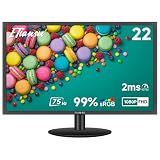
- Premium Choice: ETiansu 22 Inch Computer Monitor FHD 1080p IPS 75Hz FreeSync HDMI Gaming | 75Hz FHD IPS LED Gaming Monitor, 2ms Response, AMD FreeSync, HDMI VGA VESA, sRGB 99%, Eye Care, PC Home Office Display Screen
A 75Hz monitor sits in an awkward but useful spot. It refreshes 25 percent more often than the 60Hz panels that fill most office desks, yet it asks for far less from your graphics card than a 144Hz screen does. If you play older shooters, indie titles, strategy games, or esports classics on a modest PC or an built-in-graphics laptop, that small bump removes some of the choppiness you notice when you whip the mouse around, without forcing a GPU upgrade just to feed the panel.
The decision in this guide is therefore about fit, not raw speed. Every screen below is listed at 75Hz, so the real questions are size, resolution, panel type, and which cables the back of the monitor accepts. A 19-inch secondary display for a cramped desk and a 32-inch centerpiece are very different purchases. Read the table, work through the buying checklist, and match the listing to your desk, your graphics output, and the games you actually play in 2026.
Quick Picks
As an Amazon Associate we earn from qualifying purchases at no extra cost to you.




| Product | Best for | Key spec from the title |
|---|---|---|
| ETiansu 22-Inch IPS | Compact IPS gaming desk | 1080p IPS, 75Hz, 2ms, FreeSync |
| Samsung 32-Inch Flat | Big-screen main display | 32 inches, 75Hz, HDMI and DisplayPort |
| Sceptre 22-Inch E225W | Simple budget second screen | 1080p, 75Hz, HDMI and VGA |
| YOTETION 19-Inch | Tiny desks and laptop docks | 19 inches, 75Hz, VGA/HDMI |
| Acer K202Qbi 19.5-Inch | Office-first with light gaming | 1600×900, 75Hz, 5ms |
| Basics 24-Inch IPS | Do-it-all 24-inch panel | Full HD IPS, 75Hz, DisplayPort |
| Sceptre 27-Inch Gaming | Larger budget screen | 27 inches, 75Hz, 2x HDMI |
How to Choose
Match Size to Resolution
Resolution and diagonal size together decide how sharp text and game scenes look. At 22 to 24 inches, 1920×1080 is the comfortable standard. At 27 inches and above, a 1080p panel starts to look soft up close, so sit a little farther back or accept the trade. Sub-1080p options such as 1600×900 or 1440×900 only make sense at 19 to 20 inches, where pixel density stays reasonable and the screen plays a supporting role.
Check That Your PC Can Output the Signal
A monitor only reaches 75Hz if the cable and port allow it. HDMI and DisplayPort both handle 1080p at 75Hz without trouble, while VGA is an analog leftover that can cap sharpness and sometimes refresh options. Look at what your graphics card or laptop actually offers, and favor a screen with HDMI or DisplayPort as the main input. Treat VGA as a fallback for older hardware, not the plan. If you use a laptop, check whether its HDMI port supports 75Hz in the display settings, since some older laptop outputs default to 60Hz and need a manual change.
Panel Type and Adaptive Sync
IPS panels usually hold their colors better from the side and suit shared desks and photo work. Listings that mention AMD FreeSync are aiming at tear-free play on compatible graphics hardware, which matters more at 75Hz when frame rates wobble. Response-time claims such as 2ms or 5ms are marketing figures measured under favorable conditions, so use them to compare listings, not to promise real-world motion clarity. A good rule is to ignore anything under a few milliseconds as a differentiator at 75Hz, because the refresh rate itself limits how quickly new frames appear.
Where Budget Models Cut Corners
Expect basic stands with tilt only, built-in speakers that sound thin, and limited height adjustment. If the title lists VESA support, you can add an arm later and fix the stand problem later with a separate arm. Ignore long strings of buzzwords like eye care or game mode unless the underlying feature, such as a low blue light setting or flicker-free backlight, is spelled out. Also look at the connector list, because a screen with only one HDMI port gets awkward the moment you add a second device.
The 7 Best Options
ETiansu 22-Inch 75Hz IPS Monitor
This 22-inch model packs the most gaming-flavored feature list of the smaller screens: a 1080p IPS panel, 75Hz refresh, a 2ms response claim, AMD FreeSync, and 99 percent sRGB coverage. It is aimed at someone building a first desk setup who wants IPS color without moving up in size. The listing also names Eye Care, but gives no detail on what that covers, so treat it as a bonus rather than a deciding factor.
- IPS panel with a stated 99 percent sRGB, handy for mixed gaming and photo work
- HDMI, VGA, and VESA support give flexible mounting and older-PC compatibility, so it can ride along when you upgrade the rest of the desk
- Trade-off: the brand is less established, so buyers wanting long support histories may hesitate
Skip it if you want a DisplayPort input, since the title lists only HDMI and VGA.
Samsung 32-Inch Flat 75Hz Monitor
The LS32B304N is the large-format entry here, with a borderless design, 75Hz refresh, AMD FreeSync, a Game Mode preset, and both HDMI and DisplayPort. It suits someone who wants a big, uncluttered screen for a media-plus-gaming desk, especially when the PC will also drive spreadsheets, video, and a browser with several windows side by side.
- 32 inches of flat screen area with a thin-bezel look
- DisplayPort alongside HDMI keeps connection options open, which helps if a laptop and a tower share the screen
- Trade-off: the title does not state a resolution, so confirm it before assuming sharpness at this size
Skip it if your desk is shallow, because a 32-inch screen needs real viewing distance.
Sceptre 22-Inch 75Hz E225W-19203S
A plain, no-frills 22-inch 1080p screen with 75Hz, HDMI, VGA, and built-in speakers in a brushed black finish. It targets buyers who need a spare display for a kitchen PC, a second monitor, or a first gaming rig, and who care more about simplicity than extra features. It is the oldest design in the group, so expect a basic feature set.
- 1080p at 75Hz keeps things straightforward
- Built-in speakers mean no extra audio gear for casual use, handy on a bedroom or office desk
- Trade-off: no DisplayPort and no adaptive sync mentioned in the title
Skip it if you plan to run variable frame rates and want FreeSync support.
YOTETION 19-Inch 75Hz Slim Monitor
This 19-inch screen is the smallest in the group, with an anti-glare LED display and both VGA and HDMI. It fits cramped desks, dorm rooms, or a laptop companion setup where footprint matters more than screen size. Think of it as a utility display for chat windows, documents, or a game guide rather than a main gaming canvas.
- Thin body and anti-glare surface suit tight or bright rooms
- HDMI and VGA cover newer and older machines
- Trade-off: the title mentions both Full HD and a 1440×900 resolution, so verify the true figure before ordering
Skip it if you want an immersive gaming display, since 19 inches is a small canvas.
Acer K202Qbi 19.5-Inch 75Hz Monitor
Acer positions this as a professional office monitor, with a 1600×900 resolution, 5ms response, and bluelight filter plus flicker-free technology. It suits a work-from-home desk that doubles as a casual gaming spot in the evening, where comfort features matter as much as refresh rate. Acer also lists VisionCare technology, though the title does not explain what it includes.
- Flicker-free and bluelight features help during long sitting sessions
- VESA mounting lets you move it onto an arm or wall bracket
- Trade-off: 5ms response and 1600×900 resolution are modest for fast action games
Skip it if gaming is the primary job, because the specs lean toward office comfort.
Basics 24-Inch Full HD IPS Monitor
This retailer-brand 24-inch model offers a wider spread of inputs than most: HDMI, DisplayPort, and VGA, plus an adjustable stand, VESA compatibility, and built-in speakers. It is the practical choice for a single-monitor PC used for both work and play, and the size works for two windows tiled side by side. Having three connection types also makes it easy to reuse when you swap computers.
- Full HD IPS at 24 inches is a balanced size and sharpness pairing
- The adjustable stand and VESA support allow ergonomic positioning
- Trade-off: the title mentions no adaptive sync or response-time figure
Skip it if tear-free gaming features are a priority.
Sceptre 27-Inch 75Hz Gaming Monitor
The 27-inch Sceptre adds a second HDMI port, VGA, built-in speakers, and a slim metal-black body. It speaks to buyers who want more screen than 24 inches and plan to plug in a PC and a console together, or a PC and a streaming stick, without swapping cables every evening.
- Two HDMI inputs make switching between devices easy
- 27-inch size gives a roomier view than the 22-inch models, which helps with open-world games and multitasking
- Trade-off: 1080p stretched across 27 inches looks less crisp, and no DisplayPort is listed
Skip it if you sit very close to the screen or need DisplayPort.
Which One Fits Your Situation
Tight Desk, Light Gaming
Start with the YOTETION 19-inch for the smallest footprint, or step up to the Acer K202Qbi if bluelight and flicker-free features matter for long work sessions.
One Monitor for Work and Play
The Basics 24-inch gives you the most balanced mix of Full HD IPS, three input types, and a stand that adjusts. It is the easy default for a single-screen setup, and the stand lets you raise the panel to eye level without extra gear.
You Want a Large Screen
Pick the Samsung 32-inch for DisplayPort and a clean borderless look, or the Sceptre 27-inch if you need two HDMI inputs for a console and PC.
Gaming-First on a Small Screen
The ETiansu 22-inch is the one to pick, because its listing combines IPS, FreeSync, and a 2ms response claim in a compact size. Pair it with a mid-range graphics card and cap frame rates at 75 for smooth play.
Common Mistakes
- Assuming the monitor will run at 75Hz automatically; you often need to select it in your operating system display settings.
- Buying a 27-inch or larger screen without checking that the resolution is sharp enough for your viewing distance.
- Relying on a VGA cable when HDMI or DisplayPort is available on both ends.
- Reading response-time numbers as a guarantee of smooth motion rather than a rough comparison tool.
- Ignoring VESA support and then struggling with a low, fixed stand.
Related guides
- Combination Smoke And Carbon Monoxide Detectors
- Aio Liquid Coolers For High Performance Gaming
- Hardwired Smoke And Carbon Monoxide Detectors
Frequently Asked Questions
Is 75Hz noticeably better than 60Hz?
Most people can see a slight smoothness gain when moving the mouse or scrolling, though it is subtle compared with the jump to 144Hz. It is a gentle step up for older hardware, since the graphics card does not need to push many more frames than it already does at 60Hz, and the difference is easy to see on a desktop in everyday scrolling.
Do I need FreeSync at 75Hz?
It is not required, but it helps reduce tearing when your frame rate drifts below the refresh rate. It needs compatible graphics hardware to work.
Can a 75Hz monitor handle console gaming?
Consoles typically output at 60Hz in most games, so the extra refresh will not matter there. Choose a model with HDMI and enough ports for your console and PC.
Which size makes sense for 1080p?
Between 22 and 24 inches is the comfortable range. Past 27 inches, pixels become more visible, so consider a higher resolution if you sit close.