- Top Pick: SAMSUNG 49-inch Odyssey G9 (G91F) DQHD, 144Hz, Curved Gaming Monitor, Ultra-Wide 32:9 Screen, DisplayHDR 600, AMD FreeSync™ Premium Pro, Ergonomic Stand, LS49FG910ENXZA, 2025
- Best Value: INNOCN 49" Curved Monitor Ultrawide Gaming 5K2K 120Hz 32:9 QHD 5120 x 1440P Computer Monitor, R1800, 99% sRGB, HDR400, USB Type C, DisplayPort, HDMI, Built-in Speakers, Height/Tilt Adjustable – 49C1R
- Premium Choice: INNOCN 49" Curved Gaming Monitor 144Hz Ultrawide 32:9 WDFHD 3840 x 1080P, R1800, 99% sRGB, HDR400, USB Type C, DisplayPort, HDMI, Built-in Speakers, Height/Tilt Adjustable – 49C1G
The best 49-inch gaming monitors in November 2026 are the Samsung Odyssey OLED G9 (G93SC) for the fastest OLED at 240Hz, the ASUS ROG Swift OLED PG49WCD for OLED with strong USB-C and a heatsink design, and the Samsung Odyssey G9 (G95C) for a VA panel with no burn-in concern. The MSI MPG 491CQP QD-OLED, Gigabyte AORUS CO49DQ, LG UltraGear 49GR85DC and Samsung Odyssey Neo G9 round out the field. Before you pick, check your desk and your graphics card: a 49-inch screen is two 27-inch monitors wide and needs twice the rendering work of a 1440p panel.
As an Amazon Associate we earn from qualifying purchases at no extra cost to you.


What a 49-inch gaming monitor really is
Almost every 49-inch gaming monitor is a 32:9 panel with a resolution of 5120 x 1440, which is two 2560 x 1440 screens side by side. The physical width is about 47 inches and the height about 13.3 inches, almost exactly two 27-inch monitors with no bezel between them. Pixel density is about 108 PPI, the same as a 27-inch 1440p screen, so sharpness is familiar. What changes is immersion, field of view in racing, flight and open-world games, and the amount of desktop space for multitasking.
How we chose
This is a research-based guide based on manufacturer specification sheets and current buying guides. We kept 49-inch super-ultrawide monitors on sale in 2026 with at least 120Hz at the native 5120 x 1440 resolution. We weighed:
- Panel type: QD-OLED, VA, VA Mini LED and the burn-in or blooming trade-offs of each.
- Maximum refresh rate: 144Hz or 240Hz.
- Curvature: tighter curves such as 1000R and 1800R are different experiences at close range.
- Ports and bandwidth: the HDMI and DisplayPort version needed to reach the maximum refresh rate.
- Desk and system fit: width of the desk, viewing distance and graphics card strength.
We give cost as entry-level, mid-range or premium tiers only. Every 49-inch model is above mid-range for monitors in general.
Worked example: does it fit your desk and your graphics card?
Run these three checks before buying.
- Desk width: a 49-inch 32:9 monitor is about 47.2 inches wide. Add the stand feet, and you need a desk at least 55 inches wide, with 60 inches being more comfortable. Depth should be at least 28 to 30 inches so you sit about 30 inches away.
- Graphics load: 5120 x 1440 is 7.37 million pixels, twice a 2560 x 1440 screen and about 89 percent of a 4K screen. If your graphics card averages 140 frames per second in a game at 1440p, expect roughly 70 frames per second on the 49-inch panel in a similar scene. For 240Hz use, you need a card that clears 240 frames per second at 1440p in your games, or you lower settings.
- Cable bandwidth: 5120 x 1440 at 120Hz with 8-bit color needs about 21 gigabits per second, which fits HDMI 2.1 but not HDMI 2.0. At 240Hz with 10-bit color, the signal needs about 53 gigabits per second and relies on DisplayPort 1.4 with Display Stream Compression. Use DisplayPort on a PC, and confirm your graphics card supports it.
Supported games matter as well. Most current games offer a 32:9 field of view, but some older or console-first titles stretch, crop or letterbox the image. Check the games you play at a widescreen-fixing resource before buying.
Quick comparison
| Monitor | Resolution | Panel | Refresh | Curve | Best for |
|---|---|---|---|---|---|
| Samsung Odyssey OLED G9 (G93SC) | 5120 x 1440 | QD-OLED | 240Hz | 1800R | Highest-speed OLED |
| ASUS ROG Swift OLED PG49WCD | 5120 x 1440 | QD-OLED | 144Hz | 1800R | Gaming plus work, USB-C |
| MSI MPG 491CQP QD-OLED | 5120 x 1440 | QD-OLED | 144Hz | 1800R | OLED alternative |
| Gigabyte AORUS CO49DQ | 5120 x 1440 | QD-OLED | 144Hz | 1800R | OLED with KVM-style features |
| Samsung Odyssey G9 (G95C) | 5120 x 1440 | VA | 240Hz | 1000R | No-burn-in high refresh |
| LG UltraGear 49GR85DC | 5120 x 1440 | VA | 240Hz | 1000R | Value high refresh |
| Samsung Odyssey Neo G9 (49-inch) | 5120 x 1440 | VA Mini LED | 240Hz | 1000R | HDR brightness |
Best 49-inch OLED gaming monitors
Samsung Odyssey OLED G9 (G93SC)
Spec line: 49 in · 5120 x 1440 · QD-OLED · 240Hz · 0.03 ms response · 1800R curve · DisplayPort 1.4 · HDMI 2.1 · adaptive sync
Best for: Players who want the fastest super-ultrawide and have a graphics card that can approach 240 frames per second at this resolution.
Skip if: You use the monitor for long static work sessions in a bright room. OLED needs a burn-in care routine, and brightness drops in large white scenes.
- Pros: 240Hz, very fast response, deep blacks, strong color, HDMI 2.1 for a second source.
- Cons: premium tier, burn-in care needed, glossy or semi-gloss reflections, some units show text fringing on OLED subpixels.
ASUS ROG Swift OLED PG49WCD
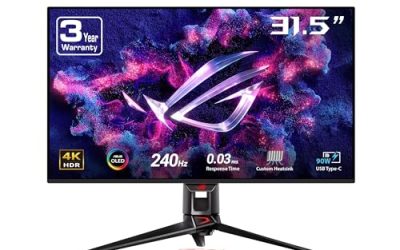
Spec line: 49 in · 5120 x 1440 · QD-OLED · 144Hz · 0.03 ms response · 1800R curve · DisplayPort · HDMI 2.1 · USB-C · KVM · adaptive sync
Best for: A single desk that serves both games and work. USB-C connectivity and a KVM switch let you connect a laptop and a desktop to one screen.
Skip if: You want a refresh rate above 144Hz. This model tops out at 144Hz.
- Pros: OLED image quality, heatsink design meant to manage panel temperature, USB-C input, KVM switch.
- Cons: premium tier, 144Hz ceiling, OLED care required.
MSI MPG 491CQP QD-OLED
Spec line: 49 in · 5120 x 1440 · QD-OLED · 144Hz · 1800R curve · DisplayPort · HDMI 2.1 · adaptive sync
Best for: Buyers who want QD-OLED color at 49 inches and prefer a different brand ecosystem or warranty from Samsung and ASUS.
Skip if: You need the lowest possible refresh-rate ceiling above 144Hz.
- Pros: QD-OLED picture, wide color, 144Hz.
- Cons: premium tier, OLED care, port set varies by revision.
Gigabyte AORUS CO49DQ
Spec line: 49 in · 5120 x 1440 · QD-OLED · 144Hz · curved · DisplayPort · HDMI · adaptive sync
Best for: Buyers who want another QD-OLED option with productivity features such as a KVM function.
Skip if: You need confirmed port details. We could not verify the full port list, so check the manufacturer page for HDMI version and USB-C support before buying.
- Pros: OLED image, 144Hz, competitive tier among OLEDs.
- Cons: unverified port details, OLED care, premium tier.
Best 49-inch non-OLED gaming monitors
Samsung Odyssey G9 (G95C)
Spec line: 49 in · 5120 x 1440 · VA · 240Hz · 1ms · 1000R curve · DisplayPort 1.4 · HDMI 2.1 · adaptive sync
Best for: Players who want a high refresh rate and a tight curve without any burn-in worry, and who play with some ambient light.
Skip if: You play in a dark room and dislike VA black smear or want OLED contrast. VA panels can show ghosting in dark scenes at high speed.
- Pros: 240Hz, immersive 1000R curve, no burn-in worry, lower tier than OLED.
- Cons: VA smear, contrast below OLED, tight curve makes off-center viewing harder.
LG UltraGear 49GR85DC
Spec line: 49 in · 5120 x 1440 · VA · 240Hz · 1000R curve · DisplayPort · HDMI · adaptive sync
Best for: A value path to a 240Hz super-ultrawide. Specification details such as HDR level and HDMI version should be checked against the current revision.
Skip if: You expect OLED-class contrast.
- Pros: 240Hz, value tier among 49-inch models, no burn-in worry.
- Cons: VA response limits, basic HDR, revision-dependent specifications.
Samsung Odyssey Neo G9 (49-inch)
Spec line: 49 in · 5120 x 1440 · VA with Mini LED local dimming · 240Hz · 1000R curve · DisplayPort · HDMI 2.1
Best for: HDR fans who want bright highlights and no burn-in risk.
Skip if: You are sensitive to blooming in dark scenes or want the newest design. This model is older than the OLED G9.
- Pros: high peak brightness, local dimming, 240Hz.
- Cons: blooming, VA smear, older platform.
Decision matrix: choose by room and use
| Your situation | Best fit | Why |
|---|---|---|
| Dark room, high-end graphics card, mostly games | Odyssey OLED G9 (G93SC) | 240Hz, OLED contrast and speed |
| Work and games on one desk, laptop plus desktop | ROG Swift OLED PG49WCD | USB-C and KVM |
| Bright room, long static sessions | Odyssey G9 (G95C) or Neo G9 | No burn-in worry, bright image |
| Strict budget but want 49 inches | LG UltraGear 49GR85DC | Lowest tier among 240Hz models |
| Mid-range graphics card | Reconsider 49 inches | A 34-inch ultrawide is easier to drive |
Buyer criteria with concrete thresholds
Desk and distance
You need a desk 55 inches wide or more and about 30 inches of viewing distance. Closer than 26 inches, the edges are hard to see without turning your head.
Graphics card
A 49-inch 32:9 screen requires about twice the rendering work of a 1440p monitor. For 100 or more frames per second in modern games, aim for a high-end card, or use upscaling and frame generation.
Panel and room
Dark rooms favor OLED. Bright rooms and long daily static content favor VA or Mini LED.
Game support
Check that your favorite games support 32:9. Racing, flight, strategy and open-world titles generally do. Some competitive shooters limit field of view and some cutscenes show black bars.
Setting up a 49-inch super-ultrawide without surprises
A 49-inch monitor is heavy and wide, and a few early choices save frustration.
- Mounting: most 49-inch monitors weigh roughly 20 to 30 pounds. Check that your desk surface is stable, and consider a VESA arm rated above the monitor weight so you can pull the screen back to a comfortable distance.
- Windows scaling: at 5120 x 1440 and 108 PPI, 100 percent scaling is correct. Do not scale up unless text is too small for you.
- Window management: use the manufacturer’s picture-by-picture mode if you want two sources side by side, or Windows snap layouts and a free window-tiling tool to split the screen into thirds.
- Game settings: look for a 32:9 option in the video menu. If it is missing, check the community fixes for that game, and cap the field of view so that edges do not distort.
- Frame pacing: cap the frame rate a few frames under the refresh rate so adaptive sync stays active.
OLED care on a large panel
A 49-inch OLED has a large area of static desktop elements such as a taskbar and window titles. Hide the taskbar, rotate the wallpaper, use a dark theme and enable the panel’s pixel refresh routines, which usually run when the monitor is in standby. Do not interrupt the routine by cutting power. If you work in a spreadsheet or code editor for eight hours a day, an OLED is the wrong tool and a VA or IPS ultrawide is a better choice.
Who should skip a 49-inch monitor
- Anyone with a desk narrower than 55 inches or shallower than 28 inches.
- Players who mostly play competitive shooters that lock the field of view to 16:9.
- Console-first players. Consoles output 16:9, so you would see black bars on the sides.
- Buyers on a mid-range graphics card who want to run the latest games above 100 frames per second.
A short checklist before you order
Confirm the exact model number and revision, measure your desk width and depth, and check the weight against your desk or arm. Make sure your graphics card has a DisplayPort 1.4 output, and read the support pages for the games you play most to confirm 32:9 support. Finally, plan the room: a 49-inch screen reflects light across a wide area, so position it away from windows and bright lamps, especially if you choose a glossy OLED panel.
Frequently asked questions
Is a 49-inch monitor too big for gaming?
Not if your desk is at least 55 inches wide and you sit about 30 inches away. It then works like two 27-inch screens without a bezel.
On a smaller desk, a 34-inch ultrawide is a better fit.
What resolution is a 49-inch gaming monitor?
Almost always 5120 x 1440, called dual QHD, with a 32:9 aspect ratio. Pixel density is about 108 PPI.
A few older models use 3840 x 1080 with a lower pixel density.
Do I need a high-end graphics card for a 49-inch monitor?
For 100 frames per second or more in demanding games, yes. The resolution has twice the pixels of 1440p.
A mid-range card can still run it with lowered settings or upscaling in many titles.
Is OLED or VA better at 49 inches?
OLED has better contrast and faster response, while VA has no burn-in risk and is brighter in large scenes. Choose OLED for dark-room gaming and VA for bright rooms and mixed use.
Mini LED VA adds HDR highlights but can show blooming.
Can I use a 49-inch monitor for work?
Yes. It replaces two monitors, and the wide space suits spreadsheets, timelines and coding. USB-C and KVM features, as on the ASUS model, make it easier to switch between devices.
For long static work, a VA or IPS panel is safer than OLED.
Will every game support 32:9?
No. Many modern games do, and some older or console-first titles stretch, crop or add black bars. Check support for your favorites before you buy.
Community fixes exist for many titles but are not guaranteed.
Is a 1000R curve better than 1800R?
A 1000R curve is tighter and more immersive but harder to view off-center. An 1800R curve is gentler and easier for mixed use.
If you sit directly in front of the screen, 1000R is fine for gaming.
What cable do I need?
Use DisplayPort 1.4 for a PC to reach high refresh rates at this resolution. HDMI 2.1 is useful for a second device such as a console.
Use the cable that came with the monitor, because poor cables can limit refresh rate.