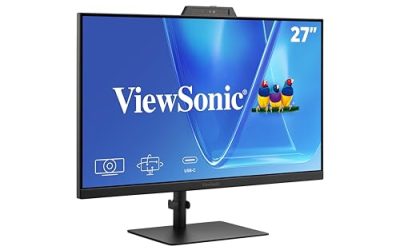
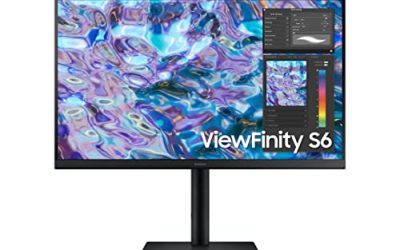
- Top Pick: KVM Switch 2 Monitors 2 Computers 4K@60Hz HDMI DisplayPort Dual Monitor | KVM Switches with 4 USB 3.0 Ports, Support Extended/Copy Mode, Perfect for Work, Entertainment & Home Office
- Best Value: 8K@60Hz HDMI Displayport KVM Switch 3 Monitors 2 Computers | 4K@120Hz Triple Monitor for 2 PC Share 4 USB 3.0 Ports Support Extended & Copy Mode Desktop Controller 12V Adapter Included
- Premium Choice: HDMI+Displayport KVM Switch 2 Monitors 2 Computers 4K@60Hz KVM Switcher for Two PC Share Dual Monitors and 4 USB 3.0 Ports Support Extended/Copy Mode with Desktop Controller&2 USB Cables
The best monitors for the Nintendo Switch 2 are the Dell SE2726HG for a 27-inch 1080p 240Hz desk screen, the LG UltraGear 27GR93U for a 4K 144Hz panel that also serves a gaming PC, and the ASUS ROG Strix XG16AHP-W when you want a portable screen with an HDMI input. For a cheap second display, a 24-inch 1080p 144Hz model such as the KOORUI 24-inch does the job. Because the Switch 2 dock outputs over HDMI, almost any monitor with an HDMI input works, and the real decision is about resolution, refresh rate and where you play.
As an Amazon Associate we earn from qualifying purchases at no extra cost to you.


Quick answer: pick by how you play
- Everyday desk, one HDMI cable: Dell SE2726HG (27-inch, 1080p, 240Hz) or a 24-inch 1080p 144Hz Dell or KOORUI model.
- Switch 2 and a gaming PC on one screen: LG UltraGear 27GR93U (27-inch, 4K, 144Hz) or Alienware AW2725Q (27-inch 4K OLED).
- Travel, dorm or couch: ASUS ROG Strix XG16AHP-W, UPERFECT GR156BF, ZSCMALLS 17.3-inch or InnoView 16-inch portable monitors.
- Cheapest 27-inch: Acer KB272.
How we chose
This is a research-based list. We compared Nintendo’s published output modes for the console with manufacturer specifications and the models that recur in 2026 guides for Switch 2 owners. We did not run our own measurements, so we do not claim input lag numbers. Where a spec could not be confirmed, the spec line stays at class level.
What the console needs from a monitor, in priority order:
- An HDMI input. The Switch 2 dock outputs through HDMI. HDMI 2.0 is enough for 1080p at 120Hz, so HDMI 2.1 is not required.
- 1080p at 120Hz support, or 4K at 60Hz. Docked, the console can output 720p, 1080p or 1440p at up to 120Hz, or 4K at 60Hz. A monitor that accepts these signals matches the console.
- Variable refresh rate where available. The console supports VRR in docked mode, so a monitor with adaptive sync over HDMI can smooth frame dips.
- HDR10 support. The console can output HDR10. Only a monitor with good local dimming or OLED makes it worthwhile.
- Size and pixel density. At couch distance, big is fine. At desk distance, 24 to 27 inches at 1080p is the comfortable range.
Switch 2 output modes versus monitor specs
| Console mode | Needs from the monitor | Good fit |
|---|---|---|
| Docked 1080p, up to 120Hz | HDMI input, 1080p at 120Hz or higher | Dell SE2726HG, 24-inch 1080p 144Hz models |
| Docked 1440p, up to 120Hz | HDMI input accepting 1440p at 120Hz | 1440p monitors with HDMI 2.0 or newer |
| Docked 4K at 60Hz | HDMI input accepting 4K at 60Hz | LG UltraGear 27GR93U, Alienware AW2725Q |
| HDR10 output | HDR10 input with usable HDR | OLED or mini-LED monitors |
| Variable refresh rate | Adaptive sync over HDMI | FreeSync-capable HDMI inputs |
The handheld screen of the console is 7.9 inches at 1080p, so the games are designed around 1080p as the main target. That is why a high-resolution monitor adds less than a high refresh rate and a clean image path.
Worked example: pixel density and the right size
Pixel density in pixels per inch is the diagonal pixel count divided by the screen size. For 1920×1080, the diagonal is the square root of (1920 squared plus 1080 squared), about 2,203 pixels.
- 24-inch 1080p: 2,203 / 24 = about 92 pixels per inch.
- 27-inch 1080p: 2,203 / 27 = about 82 pixels per inch.
- 17.3-inch 1080p: 2,203 / 17.3 = about 127 pixels per inch.
- 15.6-inch 1080p: 2,203 / 15.6 = about 141 pixels per inch.
- 27-inch 4K: 4,406 / 27 = about 163 pixels per inch.
The takeaway: a 27-inch 1080p screen is about 82 pixels per inch, which looks soft at arm’s length but is fine at 1.2 to 1.5 meters. If you sit at a desk, a 24-inch 1080p screen looks sharper, or you can step up to 4K at 27 inches. Switch 2 games running at 1080p on a 4K monitor are scaled up, so the sharpness gain is smaller than the pixel count suggests, but menus and 4K-capable games benefit.
The picks
1. Dell SE2726HG: best big-screen 1080p value
Spec line: 27-inch · 1920×1080 · 240Hz · HDMI input with VRR support
Best for: players who want a large, fast 1080p screen that matches the console’s native target and leaves room to grow if you add a gaming PC.
Skip if: you sit within an arm’s length of the screen. At 82 pixels per inch, pixel structure is visible up close.
- Pros: 240Hz is more than the console needs, so it will also serve a PC, and it is large for a low entry price.
- Cons: 1080p on 27 inches is lower density, and 240Hz goes unused on the console.
2. LG UltraGear 27GR93U: best for Switch 2 plus a gaming PC
Spec line: 27-inch · 3840×2160 · 144Hz · IPS · HDMI 2.1 and DisplayPort
Best for: households that share one monitor between a Switch 2 in 4K 60Hz mode and a gaming PC or another console.
Skip if: you only play at 1080p on the Switch 2 and want to save money. Most of the extra pixels will not be used.
- Pros: high pixel density at 163 pixels per inch, high refresh for the PC, and a good HDMI input for consoles.
- Cons: mid-range to premium price, and the HDR performance of an LCD panel is modest.
3. Alienware AW2725Q: best for OLED picture quality
Spec line: 27-inch · 3840×2160 · 240Hz · QD-OLED
Best for: players who want the best possible picture for colorful Nintendo games and HDR10 output, in a dim room.
Skip if: you play on a tight budget or leave a static image such as a game menu on screen for hours.
- Pros: OLED contrast and color, HDR10 benefits, and 4K 60Hz works with the console.
- Cons: premium price, OLED care applies, and the Switch 2 rarely uses the panel’s top specs.
4. ASUS ROG Strix XG16AHP-W: best portable monitor for the dock
Spec line: 16-inch · 1920×1080 · 144Hz · HDMI input for the dock
Best for: trips, dorm rooms and shared spaces where you need a screen that takes the dock’s HDMI signal and runs at 120Hz.
Skip if: you play at a fixed desk. A normal 24-inch monitor costs far less for the same use.
- Pros: 144Hz covers the console’s 120Hz mode, and the size packs easily.
- Cons: premium price for a portable, and the dock still needs a power outlet.
5. UPERFECT GR156BF: best battery-powered portable
Spec line: 15.6-inch · 1920×1080 · 120Hz · built-in battery
Best for: sessions away from a wall socket, with a screen powered by its own battery. 120Hz matches the console’s maximum.
Skip if: you want a high-end panel. A mid-range portable monitor has modest brightness and speakers.
- Pros: own battery, 120Hz and a portable size.
- Cons: the console and dock still need power, and battery life figures should be confirmed on the product page.
6. ZSCMALLS 17.3-inch portable: best low-cost large portable
Spec line: 17.3-inch · 1920×1080 · 144Hz · HDMI input
Best for: budget buyers who want a larger portable screen with a standard HDMI port.
Skip if: build quality and long-term support matter. Low-cost portables vary in finish.
- Pros: big for a portable, 144Hz, and a standard HDMI port for the dock cable.
- Cons: basic stand and speakers, and less brand support.
7. InnoView 16-inch travel monitor: best USB-C plus HDMI portable
Spec line: 16-inch · 1920×1080 · 144Hz over USB-C · 120Hz over HDMI
Best for: people who also have a laptop and want one portable screen for both. Over HDMI, 120Hz matches the Switch 2 limit.
Skip if: you want a larger screen than 16 inches.
- Pros: both USB-C and HDMI inputs, and the HDMI 120Hz mode suits the console.
- Cons: the 144Hz mode applies only to USB-C, and brightness is typical for a portable.
8. Acer KB272: best low-cost 27-inch
Spec line: 27-inch · 1920×1080 · 120Hz class · single HDMI input
Best for: buyers who want a 27-inch screen for the lowest outlay and only ever connect the one console.
Skip if: you need several HDMI ports, or higher refresh for a PC. Confirm the exact refresh rate and ports on the product page.
- Pros: very low price for 27 inches, and it meets the console’s top mode.
- Cons: one HDMI port and basic features.
9. KOORUI 24-inch 1080p 144Hz: best budget desk monitor
Spec line: 24-inch · 1920×1080 · 144Hz · IPS class
Best for: students and kids’ rooms. A 24-inch 1080p screen is about 92 pixels per inch, which looks sharper than a 27-inch 1080p panel.
Skip if: you want HDR or a large screen.
- Pros: lowest entry price, 144Hz and good pixel density for the size.
- Cons: basic build, minimal ports and little support.
Decision matrix
| Situation | Best choice | Why |
|---|---|---|
| Single desk, console only, lowest price | KOORUI 24-inch or Acer KB272 | Meets the 1080p 120Hz target |
| Larger screen, still 1080p | Dell SE2726HG | 240Hz and VRR for future PC use |
| One monitor for console and PC | LG UltraGear 27GR93U | 4K 144Hz and HDMI 2.1 |
| Best picture, dim room | Alienware AW2725Q | OLED contrast for HDR10 |
| Travel or dorm | ASUS ROG Strix XG16AHP-W or UPERFECT GR156BF | HDMI input, portable size |
| Own battery needed | UPERFECT GR156BF | Battery-powered screen |
Setup steps for the best image
- Connect the dock’s HDMI cable to a monitor input that supports the mode you want. If the monitor has several HDMI ports, use the one labeled for high refresh or HDMI 2.1.
- Open the console’s TV settings and set the output resolution to match the monitor’s native resolution.
- Enable 120Hz output if the monitor supports it, and enable VRR if both the console and monitor support it.
- Turn on the monitor’s game mode to reduce processing delay.
- Turn on HDR only if the monitor has real HDR performance. On a basic LCD, leave it off.
- Use the cable included with the monitor or a certified high-speed HDMI cable, and keep it short to avoid signal drop-outs.
Things to avoid
- Buying a 4K monitor only for the Switch 2. Most games render at 1080p or similar, so you pay for pixels the console rarely uses.
- Assuming USB-C works for a portable monitor. Use the dock’s HDMI output to be safe, and check the console’s own support before relying on a USB-C video link.
- Ignoring audio. Many monitors have weak speakers. Use headphones through the controller or the monitor’s audio jack.
- Forgetting the stand. A fixed-height stand on a desk can sit too low. Look for height adjustment or a VESA mount.
Switch 2 monitor shopping checklist
- Confirm the monitor lists an HDMI input, and note whether it is HDMI 2.0 or 2.1.
- Confirm the maximum refresh rate at the resolution you plan to use, because some monitors limit high refresh at higher resolutions.
- Check for adaptive sync over HDMI if you want variable refresh rate.
- Look for a height-adjustable stand or a VESA mount so the screen sits at eye level.
- Check for a headphone jack if you want to plug in a headset without going through the controller.
- Read the warranty, especially for portable monitors, where build quality varies.
Room and desk fit for console play
Console players often sit farther from the screen than PC players, so size and sharpness trade off differently. At about 60 to 70 centimeters, a 24-inch 1080p screen fills a comfortable portion of your view. At 100 centimeters or more, a 27-inch screen starts to feel right, and the lower pixel density is much less visible. If the monitor sits on a shelf or a bedside table, check that the stand is stable and that the HDMI port faces a direction your cable can reach without bending sharply. Position the dock so the cable is short, ventilation around the dock is clear, and no cable hangs under strain from the monitor input.
Frequently asked questions
What is the best monitor for Nintendo Switch 2?
The Dell SE2726HG is a strong value pick with a 27-inch 1080p panel at 240Hz. The LG UltraGear 27GR93U is the better choice if the monitor also serves a gaming PC.
Both accept the console’s HDMI signal.
Does the Switch 2 support 120Hz on a monitor?
Yes. Docked, the console can output up to 120Hz at resolutions up to 1440p, over HDMI. Your monitor must accept that mode, which many 144Hz and higher monitors do.
The game itself must also support high frame rates.
Do I need HDMI 2.1 for the Switch 2?
No. HDMI 2.0 is enough for 1080p at 120Hz and 4K at 60Hz.
HDMI 2.1 matters if you also connect a PC or another console that uses higher bandwidth modes.
Can I use a gaming monitor with the Switch 2 dock?
Yes. Connect the dock’s HDMI cable to the monitor, set the console’s output and use the monitor’s game mode. Any monitor with an HDMI input works.
Check that it supports the refresh rate and resolution you want.
Is 4K worth it for the Switch 2?
Only in some cases. The console can output 4K at 60Hz, but many games run at 1080p or similar. A 4K monitor makes sense if you also use it for a PC.
For console-only use, a 1080p 144Hz screen is better value.
Does the Switch 2 support HDR on a monitor?
The console can output HDR10, but the monitor needs real HDR performance to benefit. OLED and mini-LED monitors do this well.
On a basic LCD, HDR can look flat, so leave it off.
Can I use a portable monitor with the Switch 2?
Yes, if the portable monitor has an HDMI input and you connect it to the dock. Models with 120Hz or higher match the console’s top mode.
Check the power needs, because the dock still needs a wall outlet.
What monitor size is best for the Switch 2?
24 inches at 1080p is sharp at desk distance. 27 inches suits a farther seating position or 4K models. Portable monitors of 15.6 to 17.3 inches suit travel.
Choose by viewing distance and available space.
Bottom line
For most Switch 2 owners, a 1080p 144Hz or 240Hz monitor with an HDMI input is the right answer, and the Dell SE2726HG is the best-value large screen. Choose the LG UltraGear 27GR93U if the monitor must also serve a gaming PC, the Alienware AW2725Q for the best picture, and the ASUS ROG Strix XG16AHP-W or UPERFECT GR156BF for travel. Set the console to the monitor’s native resolution, turn on 120Hz and VRR where supported, and you are done.