- Top Pick: GamingBoy Retro Gaming Console Stick Built-in 23 Emulators & 20,000+ Games | Plug and Play 4K HDMI Video Retro Game Console with 2 Pack 2.4G Wireless Controllers, Nostalgic Stick for Gifts (64GB)
- Best Value: Retro Gaming Console 40000+ Video Games Stick and 23 Emulators with 4K HDMI | Plug & Play for TV Retro Game Console with Dual 2.4G Wireless Controllers (Ivory White)
- Premium Choice: Retro Gaming Console Stick Built-in 23 Emulators and 20,000+ Games (64GB) | Upgrade 4K HDMI Video Retro Game Console with 2 Pack Wireless Controllers, Plug and Play Nostalgic Gaming Stick for Gifts
The best 4K gaming monitors for console play are the ASUS ROG Swift PG27UCDM for premium OLED picture quality, the LG UltraGear 27GR93U and ASUS TUF Gaming VG27UQ1A for mid-range IPS value with two HDMI 2.1 ports, and the Dell S2725QS when the goal is the lowest entry price that still accepts a 4K 120Hz signal from a PS5 or Xbox Series X. Everything below explains why, which spec lines actually matter for a console, and who should skip each model.
Console play changes the buying rules compared with a gaming PC. A PS5, PS5 Pro or Xbox Series X outputs a maximum of 4K at 120Hz, so a 240Hz panel never gets its full refresh rate from the console. What the console cares about is the HDMI port: it must be HDMI 2.1 with full bandwidth, it must accept variable refresh rate (VRR), and it should switch into a low-latency game mode automatically. If a monitor misses any of those three, the picture may still look sharp, but you lose the 120 frames per second that make the purchase worthwhile. This guide is built around those thresholds, with PC-sharing setups covered separately for players who run a gaming PC and a console on one desk.
As an Amazon Associate we earn from qualifying purchases at no extra cost to you.


Quick picks by buyer type
- Best overall (premium): ASUS ROG Swift PG27UCDM, a 27-inch 4K QD-OLED with two HDMI 2.1 ports.
- Best large OLED: ASUS ROG Swift PG32UCDM, the 32-inch sibling for players who sit farther back.
- Best mid-range IPS: LG UltraGear 27GR93U, a 27-inch 4K Nano IPS with two HDMI 2.1 ports.
- Best for console plus PC: ASUS TUF Gaming VG27UQ1A, a 27-inch 4K 160Hz panel with two HDMI 2.1 ports plus DisplayPort.
- Best for two consoles on a bigger panel: ASUS TUF Gaming VG28UQL1A, a 28-inch 4K 144Hz Fast IPS.
- Best entry-level: Dell S2725QS, a 27-inch 4K 120Hz IPS with built-in speakers.
- Best PS5-branded option: Sony Inzone M9, designed around the PlayStation feature set.
- Best second OLED option: Dell Alienware AW2725Q, a 27-inch 4K QD-OLED.
How we chose
This guide is research-based. We compared manufacturer specification sheets, console-focused monitor roundups published in 2026 and the HDMI and console output standards that decide what a monitor can accept. We kept only models that are current, carry HDMI 2.1 and are sold as 4K gaming monitors. We then grouped them by the criteria console players actually trade off:
- HDMI 2.1 with full bandwidth. Needed for 4K at 120Hz without dropping to reduced color. Ports labeled HDMI 2.0 cap 4K at 60Hz.
- Number of HDMI 2.1 ports. Two ports let a PS5 and an Xbox Series X sit side by side. One port means swapping cables or using a switch.
- VRR and ALLM support. VRR smooths frame pacing when a game dips below 120. ALLM (auto low latency mode) switches the monitor into its fast mode on its own.
- Panel type. OLED for contrast and motion clarity, Fast IPS and Nano IPS for brightness and no burn-in worry, plain IPS for price.
- Size and pixel density. A 27-inch 4K panel is about 163 pixels per inch, a 32-inch one about 138. That decides how sharp text and menus look at desk distance.
- Desk fit and extras. Stand adjustability, speakers, headphone out and whether the monitor has a USB hub for a headset dongle.
Comparison table
| Model | Size and panel | Max refresh | HDMI 2.1 ports | Best use |
|---|---|---|---|---|
| ASUS ROG Swift PG27UCDM | 27-inch 4K QD-OLED | 240Hz | 2 | Premium dual-console and PC |
| ASUS ROG Swift PG32UCDM | 32-inch 4K QD-OLED | 240Hz | Check listing | Large premium OLED |
| Dell Alienware AW2725Q | 27-inch 4K QD-OLED | 240Hz | Check listing | Premium single console plus PC |
| LG UltraGear 27GR93U | 27-inch 4K Nano IPS | 144Hz | 2 | Mid-range console desk |
| ASUS TUF Gaming VG27UQ1A | 27-inch 4K IPS | 160Hz | 2 | Console plus PC value |
| ASUS TUF Gaming VG28UQL1A | 28-inch 4K Fast IPS | 144Hz | 2 | Bigger dual-console panel |
| Dell S2725QS | 27-inch 4K IPS | 120Hz | 2 | Entry-level 4K 120Hz |
| Sony Inzone M9 | 27-inch 4K IPS | 144Hz class | Check listing | PS5-first desk |
Where the table says “check listing,” the port count differs between regional versions or could not be confirmed from the sources we used. Confirm the exact count on the manufacturer page before buying if you plan to connect two consoles directly.
Worked example: does your console actually fit the signal?
A quick calculation shows why the HDMI port matters more than the headline refresh rate. A 4K frame is 3,840 by 2,160 pixels, about 8.3 million pixels. At 120 frames per second with 10-bit color in full RGB (30 bits per pixel), that is roughly 8.3 million times 120 times 30, close to 30 gigabits per second of raw picture data before blanking intervals and signaling overhead are added. HDMI 2.0 carries about 14.4 gigabits per second of usable video data, so it cannot hold that signal at all. A full HDMI 2.1 port, rated at 48 gigabits per second, can.
That is the reason a “4K monitor” with an HDMI 2.0 port gets only 4K at 60Hz from a console, and why a monitor with one HDMI 2.1 port and one HDMI 2.0 port is only half a dual-console monitor. It is also why 160Hz, 240Hz and similar numbers do not help a console: the console tops out at 120Hz. Frame time shows what you gain: 60 frames per second is 16.7 milliseconds per frame, 120 is 8.3 milliseconds. Halving the frame time is a bigger step than anything the panel can add beyond that point.
Decision rule: pick the monitor whose HDMI 2.1 port count matches your console count, then spend extra budget on panel type, not on refresh rate beyond 120Hz, unless a gaming PC shares the screen.
Premium OLED picks
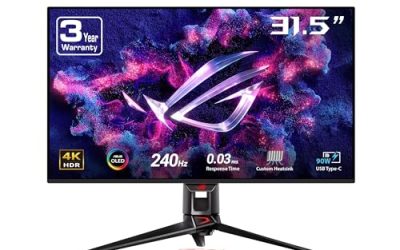
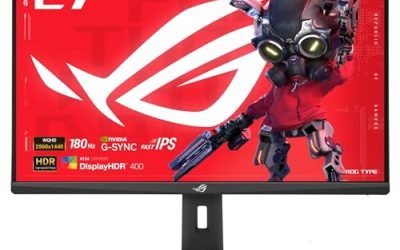
ASUS ROG Swift PG27UCDM
Spec line: 27-inch · 4K · QD-OLED · up to 240Hz · two HDMI 2.1 ports · VRR · Dolby Vision support.
Best for: Players who want the best picture quality and motion clarity in a size that suits a desk and who own both a console and a gaming PC. Both HDMI 2.1 ports accept a native 4K 120Hz signal, and the DisplayPort input handles the PC at its higher refresh rates.
Skip if: You play mostly static-HUD games for many hours a day and worry about OLED burn-in, or you need a very bright panel in a sunlit room.
- Pros: OLED contrast makes dark horror and space games look dramatically better; near-instant pixel response; two HDMI 2.1 ports.
- Cons: Highest tier of price; OLED care habits needed (screen savers, pixel refresh); peak brightness over a full white screen is lower than a good IPS.
ASUS ROG Swift PG32UCDM
Spec line: 32-inch · 4K · QD-OLED · up to 240Hz · HDMI 2.1 · VRR.
Best for: Players with a deeper desk or a couch-plus-desk setup, where a larger screen suits a longer viewing distance of about 80 to 100 centimeters.
Skip if: Your desk is shallow. At 32 inches, you must scan across the screen for corner HUD elements, and pixel density drops to about 138 pixels per inch, so text is slightly softer than on a 27-inch 4K.
- Pros: Immersive size for single-player games; same OLED motion clarity as the 27-inch version.
- Cons: Premium cost; large footprint; confirm port count before connecting two consoles.
Dell Alienware AW2725Q
Spec line: 27-inch · 4K · QD-OLED · up to 240Hz · HDMI 2.1 · DisplayPort · VRR.
Best for: A PC-first desk where a single console joins the setup and you prefer a different design or warranty from the ASUS option.
Skip if: You need two direct console connections and have not confirmed the HDMI port count for your region.
- Pros: Same panel class as the other 27-inch OLED; strong pixel density for text and menus.
- Cons: Premium cost; OLED burn-in caution; port count must be checked.
Mid-range IPS picks
LG UltraGear 27GR93U
Spec line: 27-inch · 4K · Nano IPS · up to 144Hz · two HDMI 2.1 ports · VRR · ALLM.
Best for: Console players who want wide color from a Nano IPS panel without paying for OLED. Two HDMI 2.1 ports handle a PS5 and an Xbox.
Skip if: You want deep blacks. IPS panels glow gray in a dark room, and no amount of tuning changes that.
- Pros: Two full HDMI 2.1 ports; strong color; no burn-in worry; practical price tier.
- Cons: IPS contrast limits HDR impact; stand is basic.
ASUS TUF Gaming VG27UQ1A
Spec line: 27-inch · 4K · IPS · up to 160Hz · two HDMI 2.1 ports · DisplayPort · VRR.
Best for: A shared console and PC desk on a mid-range budget. The two HDMI 2.1 ports take both consoles at 4K 120Hz without chroma subsampling, and DisplayPort lets the PC run above 120Hz.
Skip if: HDR matters to you. Panels in this class reach limited peak brightness and lack local dimming, so HDR is more of a compatibility label than a visible upgrade.
- Pros: Best mix of refresh headroom and port count in the mid-range tier; flexible for PC upgrades.
- Cons: HDR is modest; the 160Hz ceiling is wasted on consoles.
ASUS TUF Gaming VG28UQL1A
Spec line: 28-inch · 4K · Fast IPS · up to 144Hz · two HDMI 2.1 ports · VRR.
Best for: Dual-console owners who want a slightly larger panel than 27 inches without moving to a 32-inch size.
Skip if: You want the sharpest text possible. At 28 inches, pixel density is about 157 pixels per inch, slightly under the 27-inch models.
- Pros: Two HDMI 2.1 ports; Fast IPS response; good size for couch-adjacent desks.
- Cons: Typical IPS contrast; HDR is limited.
Entry-level and brand-specific picks
Dell S2725QS
Spec line: 27-inch · 4K · IPS · up to 120Hz · two HDMI 2.1 inputs · built-in speakers · VRR.
Best for: First-time 4K console players and bedroom setups where a monitor must replace a small TV and provide its own sound. A 120Hz ceiling matches the console limit exactly.
Skip if: You are sensitive to fast-motion blur. Independent measurements describe the panel as slower in fast scenes, which is typical for budget IPS. It also has no headroom for a high-refresh PC.
- Pros: Lowest cost of true 4K 120Hz with two HDMI 2.1 inputs in this guide; speakers cover casual play.
- Cons: Motion blur; no PC headroom; the built-in speakers are only fine for casual use.
Sony Inzone M9
Spec line: 27-inch · 4K · IPS · high-refresh class · HDMI 2.1 · local dimming class · PS5 feature support.
Best for: A PS5 or PS5 Pro owner who wants the monitor to behave like part of the console ecosystem, including the 4K 120Hz output the console supports.
Skip if: You mainly play on Xbox or PC. Several competitors give two HDMI 2.1 ports, which suits mixed setups better.
- Pros: Designed around PlayStation features; HDR is better handled than on plain edge-lit IPS panels.
- Cons: Premium for an IPS; port count and exact refresh figure should be confirmed on the manufacturer page.
How to choose: a fit matrix
| Your setup | Must have | Pick |
|---|---|---|
| PS5 only, small desk | 4K 120Hz, VRR, 27-inch | Dell S2725QS or Sony Inzone M9 |
| PS5 and Xbox, no PC | Two HDMI 2.1 ports | LG UltraGear 27GR93U or ASUS TUF VG28UQL1A |
| Console and gaming PC | Two HDMI 2.1 plus DisplayPort | ASUS TUF VG27UQ1A or ASUS ROG Swift PG27UCDM |
| Dark room, story games | OLED contrast | ASUS ROG Swift PG27UCDM or PG32UCDM |
| Bright room, long sessions | High brightness, no burn-in risk | Any IPS model above |
| Sound included | Built-in speakers | Dell S2725QS |
Console settings that decide whether you see 120Hz
Buying the right monitor is half the job. On a PS5, open the video output settings, turn on the 120Hz output and set the video output to automatic so the console reads the monitor’s capabilities. On an Xbox Series X, enable 4K, set the refresh rate to 120Hz, allow variable refresh rate and turn on auto low-latency mode. Use the cable that came with the console or a cable certified as Ultra High Speed. Many older cables marked “4K” only handle 60Hz, and a failing cable often shows up as sparkles, flicker or a signal that falls back to a lower mode.
Not every game offers 120Hz. Many titles give a choice between a fidelity mode at 30 or 60 frames per second and a performance mode at 120. VRR helps most in the gap between those targets, when a game runs at 90 to 110 frames per second and would otherwise tear or stutter.
Turn on the monitor’s game mode if ALLM does not trigger on its own, and disable extra processing such as sharpening or motion smoothing. Those features add latency and rarely improve a console image. Set HDR calibration in the console menu so it matches the monitor’s real brightness rather than the maximum the monitor claims.
Desk fit and sitting distance
For a 27-inch 4K monitor, a viewing distance of about 60 to 80 centimeters keeps pixels invisible and the HUD within reach. For 32 inches, move back to 80 to 100 centimeters. Players who sit on a couch two meters away usually get more from a TV than from any monitor in this guide, because a 27-inch screen at that distance fills a small part of the view and the 4K detail is wasted.
Check the stand. Height adjustment matters because a console player often leans back with a controller, and a monitor fixed too low pulls the head forward. A VESA mount solves this on a desk that cannot take a tall stand. Check the headphone jack too. If the monitor has one and the controller does not provide a clean path, a wired headset can plug into the monitor and still get game audio over HDMI.
OLED care for console players
OLED panels can show permanent image retention after hundreds of hours of the same static element. Console games with fixed HUDs, such as health bars and minimaps, are the classic cause. Practical habits keep the risk low: let the monitor run its pixel refresh cycle when it asks, avoid leaving a paused game on screen overnight, use a dark system theme, enable screen dimming after inactivity and mix in other content. If you spend most of your time in one static-HUD game, an IPS panel is the safer long-term choice.
Frequently asked questions
Do I need HDMI 2.1 for a 4K monitor on PS5 or Xbox Series X?
Yes, for 4K at 120Hz. HDMI 2.0 ports cap 4K at 60Hz, so you would lose the high-frame-rate modes that the consoles support.
Is a 240Hz monitor worth it for console play?
Only if a gaming PC shares the screen. Consoles output a maximum of 120Hz, so extra refresh rate adds cost without adding console performance.
Is OLED safe for a console that shows a static HUD?
It is safe with good habits, but the risk is real for very long daily sessions in one game. Use pixel refresh, dim the screen and vary content, or choose IPS if that is not realistic.
Can I use one monitor for both a PS5 and an Xbox?
Yes, if the monitor has two HDMI 2.1 ports. With a single HDMI 2.1 port, one console would have to use a slower port or you would swap cables.
What size is best for a console desk?
For most desks, 27 inches at 4K is the sweet spot, with sharp text at 60 to 80 centimeters. Choose 32 inches only if you sit 80 centimeters or farther from the screen.
Does a 4K monitor make a PS5 or Xbox game look better than a 1440p one?
Most console games render below native 4K and upscale, but a 4K panel avoids a second scaling step and gives cleaner menus and text. A 1440p panel can run at 120Hz with lower cost but misses the full 4K output.
Is a gaming monitor better than a TV for console play?
For a desk setup, yes: monitors have lower input latency, smaller footprints and sharper pixel density. For a couch setup at 2 meters or more, a TV with HDMI 2.1 is usually the better fit.
Do I need a special HDMI cable?
Use the console’s included cable or a certified Ultra High Speed cable. Cheap or old cables are a common cause of flicker and signals that fall back to 60Hz.
Bottom line
Match HDMI 2.1 port count to your console count, ignore refresh rates above 120Hz unless a PC is involved, and choose panel type by room and habits. For a premium desk, the ASUS ROG Swift PG27UCDM is the safe pick. For mid-range value, the LG UltraGear 27GR93U and ASUS TUF Gaming VG27UQ1A cover almost every console setup. For the lowest entry point, the Dell S2725QS delivers 4K 120Hz with sound built in.