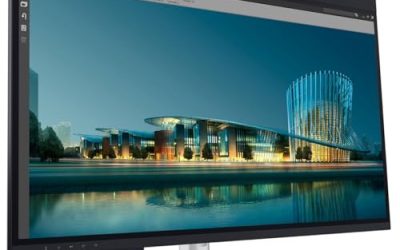
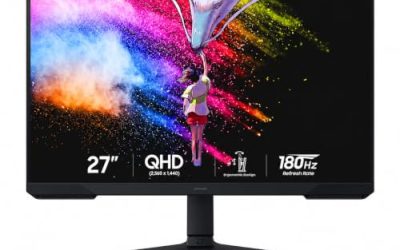
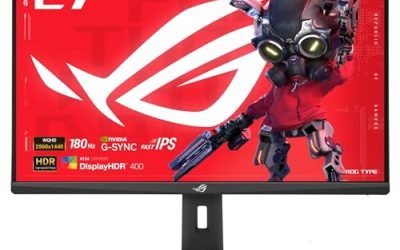
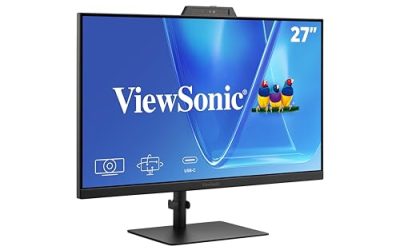
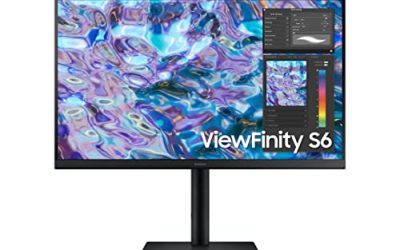
- Top Pick: Dell 27 Plus QHD USB-C Monitor – S2725DC – 27-inch QHD (2560×1440) 144Hz 1ms Display, 2 x 3W Speakers, USB-C/HDMI/DisplayPort 1.4 Connectivity, Height/Tilt/Pivot/Swivel, AMD FreeSync – Ash White
- Best Value: BenQ GW2790C 27" IPS Computer Montior 1080P FHD 144Hz Game-Ready, Home Office, USB-C, Visual Optimizer, Flicker-Free, Low Blue Light, Ultra Slim Bezel, TUV-Certified, Eye-CareU
- Premium Choice: Dell 27 Monitor S2725QC, 4K UHD IPS, 120Hz, 99% sRGB, 4ms, FreeSync Premium | 3840×2160, 163 PPI, USB-C, HDMI, DisplayPort, Anti-Glare, Eye Comfort Technology, LED Edgelight System
The best computer monitors with USB-C for gaming setups are the MSI MPG 321URX for a premium 4K OLED with 90W charging and a built-in KVM, the KTC H27P6 for the best-value 4K 160Hz IPS with the same 90W and KVM combination, and the ASUS ROG Strix OLED XG27ACDNG for players who want 1440p at 360Hz with a single-cable laptop connection. The right pick depends on three numbers: how many watts your laptop or handheld needs, which video signal the USB-C port can carry, and whether you want one keyboard and mouse to switch between a PC and a laptop.
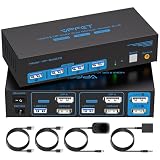
A USB-C monitor for a gaming desk does more than a standard DisplayPort monitor. One cable from a laptop, handheld PC or tablet can carry video, charge the device and connect the monitor’s USB hub, which means keyboard, mouse, headset dongle and webcam appear on the laptop without extra plugging. Add a KVM switch inside the monitor and the same peripherals can jump between a gaming desktop on DisplayPort and a laptop on USB-C with a single button. This guide ranks current models by those practical features and by how well each handles gaming, not just spreadsheet work.
As an Amazon Associate we earn from qualifying purchases at no extra cost to you.


Quick picks by buyer type
- Best premium gaming: MSI MPG 321URX, a 32-inch 4K 240Hz QD-OLED with 90W USB-C and KVM.
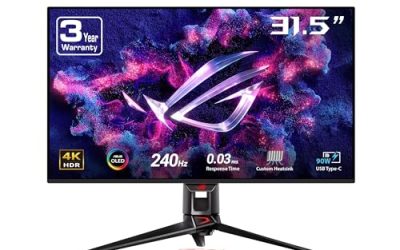
- Best for high refresh rate: ASUS ROG Strix OLED XG27ACDNG, a 27-inch 1440p 360Hz OLED with USB-C and KVM.
- Best value: KTC H27P6, a 27-inch 4K 160Hz IPS with 90W USB-C and KVM.
- Best budget 1440p: MSI PRO MAX 271QPHW E14, a 27-inch 1440p 144Hz IPS with 65W USB-C and KVM.
- Best for a laptop-first desk: LG UltraGear 32G810SA-W, a 32-inch 4K 144Hz IPS with 65W USB-C, Ethernet and a USB hub.
- Best budget 4K with KVM: Gigabyte M32U, a 32-inch 4K 144Hz IPS where KVM matters more than charging.
- Best for work plus casual gaming: Dell UltraSharp U2725QE, a 27-inch 4K 120Hz display with up to 140W charging.
- Best for creators who also game: BenQ PD3226G, a 32-inch 4K 144Hz monitor with up to 90W charging and KVM.
How we chose
This guide is research-based. We compared manufacturer specification sheets and 2026 roundups of USB-C and KVM monitors, then kept models that are current, have a real USB-C input with video and power, and have a refresh rate suited to gaming. We ranked them on the criteria below, each with a concrete threshold.
- Power Delivery wattage. 65W covers ultrabooks and handheld PCs. 90W covers most 14 to 16-inch laptops under light load. 100W and above gets closer to larger machines. Gaming laptops that draw 180W or more will not charge at full speed from any of these ports while gaming.
- Video over USB-C. The port must support DisplayPort Alt Mode or Thunderbolt. A port that only carries data and power will not show a picture.
- Refresh rate and resolution. For gaming, 144Hz is the entry point, 240Hz and above is for competitive play.
- KVM switch. Lets one keyboard and mouse control two computers connected to the monitor.
- Hub ports. USB-A downstream ports, headphone out and Ethernet turn the monitor into a docking station.
- Panel type. OLED for contrast and speed, IPS for brightness and static-content comfort.
Comparison table
| Model | Size and panel | Resolution and refresh | USB-C power | KVM |
|---|---|---|---|---|
| MSI MPG 321URX | 32-inch QD-OLED | 4K 240Hz | 90W | Yes |
| ASUS ROG Strix OLED XG27ACDNG | 27-inch OLED | 1440p 360Hz | 90W | Yes |
| KTC H27P6 | 27-inch IPS | 4K 160Hz (1080p 320Hz mode) | 90W | Yes |
| MSI PRO MAX 271QPHW E14 | 27-inch IPS | 1440p 144Hz | 65W | Yes |
| LG UltraGear 32G810SA-W | 32-inch IPS | 4K 144Hz | 65W | Check listing |
| Gigabyte M32U | 32-inch IPS | 4K 144Hz | Low (weak charging) | Yes |
| Dell UltraSharp U2725QE | 27-inch IPS Black class | 4K 120Hz | Up to 140W | Yes (separate upstream) |
| BenQ PD3226G | 32-inch IPS | 4K 144Hz | Up to 90W | Yes |
Worked example: will the USB-C port charge and drive your machine?
Two calculations decide whether a USB-C monitor works for gaming. The first is power. Suppose a gaming laptop ships with a 240W adapter. Under load, a monitor port rated at 90W supplies only 37.5 percent of that. The laptop will either charge very slowly while idle or drain the battery while gaming, and some models refuse to charge at all from low-wattage sources. A 65W handheld PC is a different story: a 65W or 90W port covers the handheld in any state, including a demanding game with the screen at full brightness.
The second calculation is bandwidth. A USB-C port that uses DisplayPort 1.4 signaling carries up to about 25.9 gigabits per second of video data after encoding. A 4K signal at 144Hz with 8-bit color needs roughly 28 gigabits per second uncompressed, so the link relies on display stream compression (DSC) to fit. A 4K signal at 60Hz needs about 12.5 gigabits per second and fits easily. A 1440p signal at 360Hz needs about 31 gigabits per second uncompressed, so it also needs compression or a monitor-side mode. Practical result: for a laptop, check that its USB-C port supports DSC and the full DisplayPort mode. If it does not, expect a 4K monitor to run at 60Hz or a lower resolution over USB-C, and keep the high refresh rate for the desktop’s DisplayPort.
Decision rule: match wattage to your device (65W for handhelds and thin laptops, 90W or more for 14 to 16-inch laptops), then confirm the device’s USB-C port supports DisplayPort Alt Mode with DSC before counting on 144Hz over the cable.
Premium picks
MSI MPG 321URX
Spec line: 32-inch · 4K · QD-OLED · 240Hz · 90W USB-C · built-in KVM · USB hub.
Best for: A single desk that mixes a gaming desktop and a work laptop. One keyboard and mouse switch between them, and the laptop charges from the monitor while it shows a 4K picture.
Skip if: You play static-HUD games for many hours a day and worry about OLED retention, or your laptop needs more than 90W to keep up under load.
- Pros: Top-tier gaming performance with docking features; large 4K picture; KVM built in.
- Cons: Premium cost; OLED care habits needed; 90W is not enough for the largest gaming laptops.
ASUS ROG Strix OLED XG27ACDNG
Spec line: 27-inch · 1440p · OLED · 360Hz · 90W USB-C · built-in KVM.
Best for: Competitive players on a desktop who also want one-cable laptop docking. 1440p at 360Hz leaves a mid-range graphics card room to hit very high frame rates.
Skip if: You want 4K sharpness for single-player games or text-heavy work. At 27 inches and 1440p, text is clear but not as fine as 4K.
- Pros: Extreme refresh rate; OLED motion clarity; docking features included.
- Cons: Lower resolution than 4K rivals; premium cost; 360Hz is only useful with a strong GPU and fast games.
Value picks
KTC H27P6
Spec line: 27-inch · 4K 160Hz IPS · 1080p 320Hz dual mode · 90W USB-C · KVM.
Best for: Players who want a 4K desk monitor for single-player and a high-refresh 1080p mode for shooters, plus dock-style laptop charging, at a mid-range price.
Skip if: You expect OLED-grade contrast or very high brightness. IPS handles bright rooms well but cannot reach OLED blacks.
- Pros: 90W charging and KVM at a price well below premium models; dual-mode gaming gives flexibility.
- Cons: Brand has a smaller track record for support than larger rivals; color and HDR are mid-tier.
MSI PRO MAX 271QPHW E14
Spec line: 27-inch · 1440p · IPS · 144Hz · 65W USB-C · KVM.
Best for: A budget desk with a PC and a thin laptop or handheld PC. 65W covers ultrabooks and handhelds, and 1440p at 144Hz suits mid-range graphics cards.
Skip if: Your laptop needs 90W or more, or you want 4K.
- Pros: Lowest entry price in this guide with both USB-C power and KVM; easy GPU requirement.
- Cons: 65W limit; 144Hz ceiling; a basic stand.
Gigabyte M32U
Spec line: 32-inch · 4K · IPS · 144Hz · KVM · weak USB-C charging.
Best for: A 4K 144Hz desk where KVM matters more than charging, such as a desktop plus a laptop that keeps its own charger.
Skip if: You want one cable to power a laptop. Charging from this model is low, so a laptop battery may drain while you play.
- Pros: Strong value for 4K 144Hz; KVM switching built in.
- Cons: Charging is too low for most laptops; basic HDR; large 32-inch footprint.
Laptop-first and creator picks
LG UltraGear 32G810SA-W
Spec line: 32-inch · 4K · IPS · 144Hz · 65W USB-C · Ethernet · USB hub.
Best for: A laptop-first desk where wired Ethernet from the monitor reduces latency over Wi-Fi, a plus for online games.
Skip if: You need more than 65W or want a KVM. The sources we used did not confirm KVM for this model, so check before buying.
- Pros: Ethernet and USB hub make it a true dock; 4K 144Hz IPS.
- Cons: 65W limit; KVM unconfirmed.
Dell UltraSharp U2725QE
Spec line: 27-inch · 4K · 120Hz · USB-C hub with up to 140W charging · 2.5Gb Ethernet · KVM with separate upstream.
Best for: A work-first desk that also plays games. Up to 140W of charging handles large laptops, and 2.5Gb Ethernet is useful for network-heavy work.
Skip if: Competitive speed is the priority. 120Hz is fine for casual play but behind true gaming panels.
- Pros: The highest charging wattage in this guide; strong dock features; sharp 4K text.
- Cons: 120Hz ceiling; premium for a non-gaming panel.
BenQ PD3226G
Spec line: 32-inch · 4K · IPS · 144Hz · Thunderbolt 4 · up to 90W charging · KVM.
Best for: Creators who edit video or design by day and game at night, and want accurate color with 144Hz.
Skip if: You want a pure gaming panel. Pricing reflects creator features that a gamer may not use.
- Pros: Thunderbolt 4 allows daisy-chaining; strong color; KVM built in.
- Cons: Premium for IPS; OLED rivals look better for games.
Fit matrix
| Your device | Wattage needed | Pick |
|---|---|---|
| Handheld gaming PC | 45 to 65W | MSI PRO MAX 271QPHW E14 or LG UltraGear 32G810SA-W |
| Ultrabook or thin laptop | 65W | MSI PRO MAX 271QPHW E14 |
| 14 to 16-inch laptop | 90W | KTC H27P6, MSI MPG 321URX or BenQ PD3226G |
| Large work laptop | 100W or more | Dell UltraSharp U2725QE |
| Gaming laptop, 180W or more | Own adapter | Any, with the original charger plugged in |
| Desktop plus laptop, one keyboard | KVM | KTC H27P6, MSI MPG 321URX or Gigabyte M32U |
What to check before buying
The laptop’s own port. Many USB-C ports on laptops are data-only. Look for the DisplayPort logo or a Thunderbolt logo next to the port. If it is missing, the laptop may not send video over USB-C at all, and the monitor’s USB-C input will not help.
The cable. Use the cable that came with the monitor or a certified USB-C cable with video support. A cheap charging cable may carry power but no video, or may limit video to 1080p at 60Hz.
KVM behavior. A monitor KVM usually ties USB inputs to video inputs. Check whether it switches automatically when a signal appears or needs a button press, and whether it keeps its settings after a sleep cycle. This affects daily comfort more than most spec lines.
Latency. Wired Ethernet through the monitor and low input lag matter in online games. A monitor that adds scaling or processing over USB-C may add a few milliseconds compared to DisplayPort. Use DisplayPort for the main gaming PC and USB-C for the laptop.
Fan noise and heat. Large OLED monitors usually have passive cooling, but some have small fans. A fan near a microphone can leak into voice chat, so check reports on fan noise before picking a model for a streaming desk.
Setup tips for a PC plus laptop desk
Connect the gaming desktop to DisplayPort and the laptop to USB-C. Plug the keyboard, mouse and headset dongle into the monitor’s USB downstream ports so the KVM can switch them. In the monitor’s menu, set the KVM to follow the active video input. If the headset dongle drops when you switch, move it to a USB port on the desktop and use the monitor’s audio output for the laptop only.
Turn off automatic input switching if you notice the monitor jumping to the laptop when it wakes. Set the USB-C input to a lower power-saving mode only if you do not need the laptop to stay awake. For handheld PCs, enable the monitor’s low-lag or game mode on the USB-C input too, since some monitors apply it per input.
Frequently asked questions
Can a USB-C monitor charge my gaming laptop?
Only partly. A 90W port will charge most 14 to 16-inch laptops, but gaming laptops that need 180W or more will charge slowly or not at all during play.
Does every USB-C port carry video?
No. Look for the DisplayPort or Thunderbolt logo on the laptop port. Data-only USB-C ports will not show a picture on the monitor.
Is 144Hz possible over USB-C?
Often yes at 1440p, and at 4K with display stream compression. If the laptop does not support compression, expect 4K at 60Hz over USB-C.
What does a built-in KVM do?
It lets one keyboard and mouse control two computers connected to the monitor. You press a button or let the monitor follow the active video input.
Is 65W enough for a handheld gaming PC?
Yes. Handheld PCs usually need 45 to 65W, so a 65W port keeps them charged even during demanding games.
Should I choose OLED or IPS for a USB-C monitor?
Choose OLED for contrast and fast motion in games, and IPS for bright rooms and long spreadsheet hours. OLED needs care to avoid image retention from static windows.
Do I need Thunderbolt?
Not for most players. Thunderbolt helps with daisy-chained monitors, fast storage and high wattage, but standard USB-C with DisplayPort Alt Mode covers a typical gaming dock.
Why does my monitor not wake the laptop?
The cause is usually a power-saving setting on the monitor or laptop. Disable deep sleep for the USB-C input and update the laptop’s firmware if the problem persists.
Bottom line
Pick the wattage first, confirm the laptop’s USB-C port supports video, then choose between OLED speed and IPS value. For a premium all-in-one desk, the MSI MPG 321URX is the strongest pick. For value, the KTC H27P6 offers 90W and KVM at a mid-range tier. For handhelds and thin laptops on a tight budget, the MSI PRO MAX 271QPHW E14 does the job.