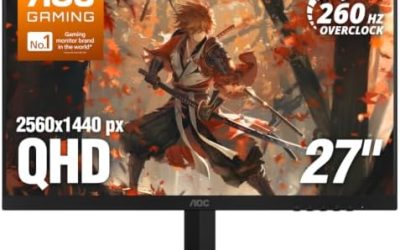
Updated November 2026 – Yes, a gaming monitor is usually good for work: a 27-inch 1440p panel at 100 to 165Hz handles spreadsheets, code and video calls well, and the built-in speakers on some models are fine for calls but weak for music or movies.
If you are asking are gaming monitors good for work, the short version is that the spec sheet that makes a monitor good for games (fast panel, adjustable stand, several inputs) also helps at a desk. The catches are text sharpness at low resolutions, eye comfort settings that differ by model, and the fact that many people assume every monitor has speakers when plenty do not. This guide covers each of those, plus what the ports on the back actually do.
Quick answer table: gaming monitor for work
| Use case | Verdict | What to look for |
|---|---|---|
| Office, email, spreadsheets | Good | 27-inch 1440p or a 24-inch 1080p panel, IPS or VA, height-adjustable stand |
| Coding and long text | Good at 1440p, acceptable at 1080p | Higher pixel density, flicker-free backlight, portrait-capable stand |
| Video calls | Depends | Built-in speakers are enough for voices; a separate webcam and headset are better |
| Photo and colour-critical work | Only some models | The maker’s stated sRGB or DCI-P3 coverage, factory calibration claims |
| Movies and streaming | Good picture, modest sound | Decent contrast, HDR support claims treated with caution, external speakers or headset |
| Laptop plus monitor setup | Good if it has USB-C | USB-C with power delivery or a built-in KVM switch |
What makes a gaming monitor good for work
A gaming monitor earns its place at a work desk through a few features that overlap with productivity needs.
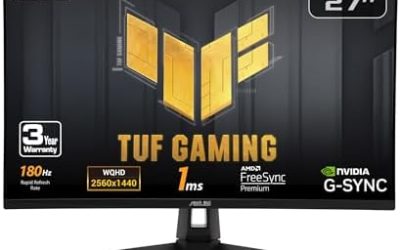
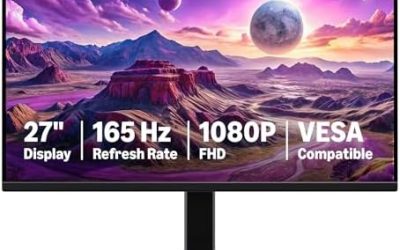
- Resolution and size. A 27-inch 1440p panel gives noticeably more usable desktop space and sharper text than a 24-inch 1080p one. Many esports monitors stay at 1080p for speed, which is fine for games but can make small text look softer.
- Refresh rate. A 100Hz or higher panel makes scrolling, cursor movement and window dragging feel smoother. It is a comfort gain, not a requirement.
- Stand adjustability. Height, tilt and sometimes swivel and pivot matter for posture. Gaming models often include a more flexible stand than basic office screens.
- Multiple inputs. Two HDMI ports and a DisplayPort let one monitor serve a desktop and a work laptop.
Panel type: IPS, VA or OLED for office text
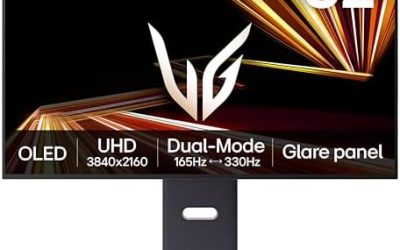
IPS panels are the common all-rounder for mixed work and play because of wide viewing angles and consistent colour. VA panels offer higher contrast, which suits movies. OLED gaming monitors give excellent contrast and motion, but reviewers commonly note that static interface elements such as taskbars and document windows are a burn-in consideration, so check the maker’s warranty terms and the screen-care features they list before using one for ten hours of spreadsheets.
Flicker-free and low blue light: eye comfort at a desk
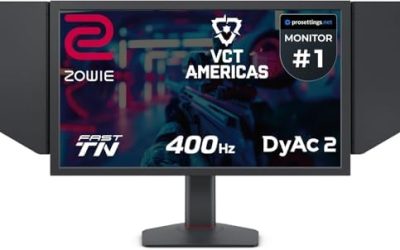
Eye comfort claims are where gaming monitors and office monitors converge. Many makers list a flicker-free backlight and a low blue light mode. BenQ’s Zowie line, for example, lists flicker-free technology and a low blue light mode on its XL2566K page. Some makers go further with third-party certification: TUV Rheinland is named in the spec sheets of several office and gaming models, and the exact rating differs between models (a generic flicker-free or low-blue-light certificate is not the same as a multi-star eye comfort rating). Read the specific certification on the maker’s own spec page.
Two practical points apply to any monitor. First, no monitor setting is a medical treatment, and these features do not prevent eye strain by themselves. Break habits, screen distance, brightness matched to the room and the 20-20-20 rule that eye-care organisations suggest matter at least as much. Second, if you have persistent eye pain, headaches or vision changes, see an optometrist rather than adjusting settings.
One trade-off to know: motion-blur reduction modes such as backlight strobing can reduce brightness and are meant for fast games, not documents. Leave them off for work.
Do all PC monitors have speakers?
No. Many monitors have no speakers at all, and this is common on esports and high-end models where makers assume players use a headset. Speakers are most often found on mainstream office and mid-range gaming monitors. If the spec sheet does not list speakers, assume there are none.
What monitors have speakers, and how do they sound?
Lists of monitors that include speakers often feature office and value gaming models from Dell, BenQ, ASUS and similar brands. Roundups report that most of these use small 2W to 3W drivers, with a few models listing up to 5W per channel. Reviewers consistently describe monitor speakers as basic: acceptable for video-call voices and system sounds, thin on bass and quiet in a noisy room.
Speakers inside a monitor depend on the audio signal reaching the screen. They work over HDMI and DisplayPort, and they usually pass through a headphone jack on the monitor if one is provided. If you connect over a video-only adapter, or if the monitor lists no audio support on that input, you will hear nothing.
Do monitors have HDMI outputs?
Almost always no: the HDMI and DisplayPort sockets on a monitor are inputs. They receive the picture from your PC or console. You cannot plug a second display into an HDMI socket on the back of the monitor to mirror it.
There are exceptions that are easy to confuse with outputs.
- DisplayPort out. Some monitors include a DisplayPort output that supports daisy-chaining a second monitor (using DisplayPort multi-stream). The maker’s manual says whether it is supported and what resolution the second screen can reach.
- USB-C video. A USB-C port can carry video in, and on some models it can charge a laptop at the same time. Whether it also carries video out depends on the model.
- Audio out. A 3.5mm headphone jack on the monitor is an audio output, fed by the video signal’s audio channel.
If you want two monitors on one PC, plan for two video outputs on the graphics card rather than expecting the first monitor to pass the signal along.
KVM, USB hubs and docking: work features on gaming monitors
Some mid-range and premium monitors include a built-in KVM switch (keyboard, video and mouse), which lets one keyboard and mouse control two computers connected to the same screen with a button press or menu setting. This is the feature that turns a gaming monitor into a proper work-from-home display: plug in a gaming desktop and a work laptop, and switch between them without swapping cables.
Look for a USB hub (a USB upstream port from the PC plus downstream ports on the monitor), USB-C power delivery wattage if you want a single cable to charge a laptop, and picture-by-picture or picture-in-picture modes that show both sources at once. Not all gaming monitors have these, and the details vary by maker, so use the manual’s input-and-USB diagram as the source of truth.
Are gaming PCs good for work?
Yes. A gaming PC is a powerful general-purpose computer, and it handles office software, development environments, video editing and virtual machines comfortably. The practical differences from an office PC are noise and power draw under load, which matter when the machine runs all day. Set a quiet fan curve in the BIOS or in the motherboard’s utility, enable the manufacturer’s recommended power plan, and the same desktop can serve both purposes. Work-issued laptops and corporate security tools may restrict which software you can install, so a personal gaming PC is best used for personal work unless your employer allows it.
Best headset to watch movies, and desk speakers for gaming
Since monitor speakers are modest, many users add something better. The right choice depends on where you sit and who else is in the room.
- Headset for movies. Look for a comfortable, closed or semi-open design, a wired 3.5mm or USB connection for no lag, and a wide, natural sound signature rather than heavy bass boost. Many gaming headsets include a microphone, which is useful for calls too. Wireless models use a USB dongle or Bluetooth; Bluetooth adds audio delay that some people notice when watching video, so check whether the maker lists a low-latency mode.
- Desk speakers for gaming. A compact 2.0 pair that sits beside the monitor is the simplest upgrade. Features worth having are a front volume knob, a headphone jack and USB or 3.5mm input. A small subwoofer is optional and helps with explosions and film scores.
- Soundbars. A short soundbar that fits under the monitor saves desk space. Check its width against the monitor stand’s footprint.
Best PC monitor for movies
For movies the screen matters more than the speakers. A VA panel (higher contrast) or an OLED panel gives the deepest blacks in a dim room, and a 27-inch or larger 1440p display shows film detail well. HDR labels differ widely in quality; a monitor listing a basic HDR input is not the same as one with strong local dimming or an OLED panel, so read reviewers’ notes on brightness and dimming rather than the badge alone. Pair it with a headset or external speakers for a better soundtrack. Also check the stand: a movie-watching tilt and a comfortable viewing distance reduce neck strain over a two-hour film.
Choosing: pick this if
| Pick this if | Then choose | Skip if |
|---|---|---|
| You mostly work and game a little | 27-inch 1440p IPS at 100-165Hz with flicker-free and speakers | You need strict colour accuracy for print |
| You code or read all day | 1440p or higher with a height and pivot stand | You are buying a 1080p 27-inch for text work |
| You switch between a laptop and a desktop | A model with USB-C and KVM | You only have one PC |
| You play competitive shooters | A 24.5-inch high-refresh esports monitor plus a headset | You need built-in speakers (many esports models have none) |
| You want movies and games | VA or OLED with a separate headset or speakers | You sit under bright office lighting all day |
Frequently Asked Questions
Are gaming monitors good for work and office tasks?
Yes, a 1440p gaming monitor is good for office work. Choose a panel with a flicker-free backlight and an adjustable stand, and avoid ultra-fast 1080p esports models if text sharpness matters to you.
Do all PC monitors have speakers?
No, many do not. Speakers appear mainly on office and mid-range gaming monitors, and esports and premium models often omit them. The product’s spec sheet is the reliable place to confirm.
Do monitors have HDMI outputs?
Normally no. HDMI and DisplayPort sockets on a monitor are inputs. A few models offer a DisplayPort output for daisy-chaining, or a USB-C port that can carry video, so follow the manual for that model.
Is a monitor’s built-in speaker good enough for movies?
Usually not for a full movie experience. Reviewers describe monitor speakers as acceptable for voices and notifications but thin on bass, so a headset or a small speaker pair is a clear upgrade.
Do flicker-free and low blue light modes prevent eye strain?
They can make long sessions more comfortable, but they are not a medical remedy. Regular breaks, sensible brightness and a proper viewing distance matter too, and persistent symptoms are a reason to see an eye-care professional.
Can one gaming monitor work with both a PC and a work laptop?
Yes, if it has enough inputs. A model with two HDMI ports and a DisplayPort works, and one with USB-C and a built-in KVM switch makes swapping a single keyboard and mouse between two computers much easier.