Your own preview looks smooth. Your game runs fine. Then chat fills with the same message: the stream keeps buffering, freezing, and dropping to a spinning wheel for the people watching. That mismatch is the clue. Viewer buffering is rarely a problem with what your PC renders — it is a problem with what your PC manages to send, and the fault can sit in one of three places along the chain between your encoder and your viewer’s screen. This guide walks that chain in order, so you fix the link that is actually failing instead of changing settings at random.
As an Amazon Associate, we earn from qualifying purchases.
Quick Answer
Viewer buffering almost always means your upload path cannot sustain your stream bitrate. Run a wired connection, check the dropped-frame counter in your streaming software, and split the drops by type: network drops point to your router, cable, or internet plan, while rendering and encoding drops point to your PC. Match your bitrate to roughly two thirds of your tested upload speed, pick the nearest ingest server, then consider hardware.
Follow the Chain: Three Places the Stream Can Break
Think of your stream as a parcel passed hand to hand. Your PC packs it, your home network carries it out the door, and your internet provider hauls it to the platform’s ingest server. Buffering starts when any one of those hands fumbles. Work through them in this order, because each stage has a test that clears it before you move on.
Stage One: Your PC Packs the Parcel
Open your streaming software’s statistics panel while you stream and look at the dropped frames breakdown. It separates drops into three causes, and that split is the single most useful diagnostic you have.
- Rendering lag means your GPU was too busy with the game to compose the stream scene. Lower in-game settings or cap your frame rate.
- Encoding lag means the encoder itself fell behind. Switch from a CPU encoder to your GPU’s hardware encoder, or ease the preset one step toward faster.
- Network drops mean the finished frames left the encoder on time but never arrived. Your PC is innocent — move to stage two.
If the counter shows rendering or encoding drops, no router or cable will help. If it shows network drops, no encoder setting will. Let the counter send you to the right stage.
Stage Two: Your Home Network Carries It Out
This is where most viewer buffering is born. The classic culprit is streaming over Wi-Fi: a wireless link that feels fast on a speed test still stutters under a sustained, hours-long upload, and every stutter becomes a freeze on the viewer’s screen. Plug the streaming PC into the router with an Ethernet cable and run one full stream before you change anything else. For a large share of streamers, that single change ends the complaints.
While you are wired, run a long upload test rather than a quick one. Short tests show bursts; streaming needs a steady rate held for hours. Set your stream bitrate to about two thirds of the upload speed your connection can hold steadily, leaving headroom for the game itself, voice chat, and everyone else in the house. A 6,000 kbps stream on a connection that wobbles between 8 and 12 Mbps of real upload will buffer every time the rate dips.
Also check who else is on the network during a stream. Cloud backups, game downloads on a console, and someone else’s video upload all drink from the same upload pipe. Most routers offer Quality of Service settings that let you prioritize the streaming PC — use them, or schedule heavy uploads outside stream hours.
Stage Three: The Path to the Platform
If the wired test at home is clean and the drops continue, the weak link is further out. Choose the ingest server nearest to you manually instead of leaving the choice on automatic; automatic selection occasionally lands on a distant or overloaded server. Some platforms offer a backup ingest or an alternate protocol — trying the second option is a legitimate test, because a bad route to one server says nothing about the other.
Run the same stream at a different time of day. Buffering that appears only in the evening, on a connection that tests fine in the morning, points to congestion in your provider’s local network — a problem no home hardware fully solves, though a steadier bitrate with more headroom makes it far less visible to viewers.
How to Choose
Fix in the order the chain runs. Start with the free changes: wire the PC, read the dropped-frame split, set bitrate against tested upload, and pick the ingest server by hand. Buy hardware only for the link that still fails after those steps.
- Choose a better router when the wired test improves things but the network still drops frames under load, or when an aging router reboots, overheats, or struggles with many connected devices. A modern Wi-Fi 6 router with solid Quality of Service also helps every wireless device in the home, even though the streaming PC itself should stay wired.
- Choose a quality Ethernet cable when your current run is an old, kinked, or unmarked cable, or when you are adding a permanent run to the streaming room. A certified Cat 6 or Cat 8 cable removes the cable itself from the list of suspects for good.
- Choose a switch when the router sits far from the desk and you need several wired devices — streaming PC, console, work machine — on one clean run back to the router.
- Choose a powerline kit when drilling or running cable is impossible and Wi-Fi keeps failing you. Powerline performance depends on your home’s wiring, so treat it as a step up from wireless rather than a match for true Ethernet.
- Choose a stronger Wi-Fi adapter only when wiring truly is not an option. A high-gain USB adapter with an external antenna base holds a steadier link than a laptop’s built-in card, but it remains the fallback, not the goal.
The Gear That Fixes the Home Leg
TP-Link Archer AX21 Wi-Fi 6 Router

The router is the traffic controller for the whole chain, and the Archer AX21 is the sensible upgrade when an older unit drops frames under load. Its Quality of Service lets you put the streaming PC first, and its wired ports deliver the steady gigabit link a stream needs.
Specs
- Standard: Wi-Fi 6 dual-band
- Wired ports: Gigabit Ethernet LAN
- Features: Quality of Service prioritization, OFDMA
DbillionDa Cat 8 Ethernet Cable

The simplest fix in this entire guide. A certified, shielded Cat 8 run between PC and router removes wireless jitter from the equation entirely and gives the stream a link that does not fluctuate with distance, walls, or neighbors’ networks.
Specs
- Category: Cat 8, shielded
- Bandwidth rating: up to 2000 MHz
- Connectors: Gold-plated RJ45
TP-Link TL-SG105 5-Port Gigabit Switch
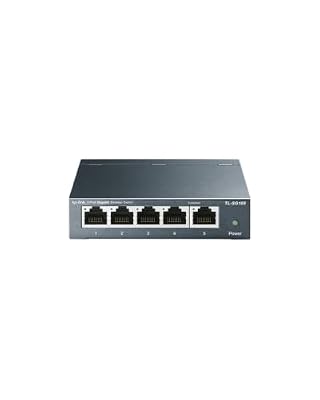
When one long cable reaches the streaming room, this unmanaged switch splits it into five clean wired ports for the PC, consoles, and accessories. It needs no configuration, runs silently in a metal case, and keeps every device on the desk off Wi-Fi.
Specs
- Ports: 5 gigabit Ethernet
- Type: Unmanaged, plug and play
- Housing: Fanless metal case
TP-Link AV1000 Powerline Adapter Kit

For rooms where a cable run is impossible, the AV1000 kit sends the network over the home’s electrical wiring. Speeds vary with the age and layout of that wiring, but the connection is typically far steadier than a weak wireless signal at the same distance.
Specs
- Standard: HomePlug AV2
- Ports: Gigabit Ethernet on each adapter
- Setup: Pair of adapters, plug and play
TP-Link TX20U Plus Wi-Fi 6 USB Adapter

The fallback for setups that genuinely cannot be wired. The dual high-gain antennas on a cabled base can be positioned for the cleanest signal, and the Wi-Fi 6 radio holds a more consistent upload than most built-in laptop adapters.
Specs
- Standard: Wi-Fi 6 dual-band USB 3.0
- Antennas: Dual high-gain external
- Base: Desktop cradle with extension cable
Who Should Skip
Skip the hardware entirely if your dropped-frame counter blames rendering or encoding — that is a settings and PC-load problem, and this guide’s stage one covers it. Skip it if you stream casually once in a while and viewers have never complained; buffering caused by a viewer’s own connection is on their end, not yours. Skip powerline if your home’s wiring crosses between separate electrical panels, where results are usually poor. And skip every purchase here until you have run one wired test stream — if the cable alone fixes it, the only gear you needed was the cable.
Frequently Asked Questions
Why does my stream buffer for viewers but look fine to me?
Your preview shows what the encoder produced, not what arrived at the platform. Frames dropped on the network never reach the ingest server, so viewers see freezes and buffering while your local preview stays smooth. The dropped-frame statistics panel shows the network losses your preview hides.
What bitrate should I use for my upload speed?
Set your bitrate to roughly two thirds of the upload speed your connection sustains in a long test, not the peak a quick test reports. That headroom absorbs dips, game traffic, and other household uploads, which is what keeps the stream steady for viewers over hours.
Is Wi-Fi really that bad for streaming?
For watching, Wi-Fi is fine. For broadcasting, the sustained upload is the hardest job you can give a wireless link, and brief rate dips that nobody notices while browsing become visible buffering for viewers. One wired test stream will tell you whether wireless is your problem.
Can a new router fix buffering on its own?
Only if the old router is the failing link — dropping frames under load, weak Quality of Service, or aging hardware that reboots mid-stream. A new router cannot raise the upload speed your provider sells you, so test wired and check your sustained upload rate before spending.
Final Verdict
Viewer buffering is an upload-chain problem, and it surrenders to method: read the dropped-frame split, wire the PC, size the bitrate to your tested upload, and pick the ingest server yourself. Most streamers solve it with a cable and honest settings. When the home leg still fails after that, the Archer AX21, a certified Ethernet run, and the TL-SG105 form the reliable core — with powerline and a stronger adapter as fallbacks for rooms a cable cannot reach.
Product and ASIN Reference
| Product | ASIN |
|---|---|
| TP-Link Archer AX21 Wi-Fi 6 Router | B08H8ZLKKK |
| DbillionDa Cat 8 Ethernet Cable | B07QLXC6QR |
| TP-Link TL-SG105 5-Port Gigabit Switch | B00A128S24 |
| TP-Link AV1000 Powerline Adapter Kit | B084CZMYNM |
| TP-Link TX20U Plus Wi-Fi 6 USB Adapter | B0B5YPK9L1 |