A game that runs smoothly on its own but hitches the moment Discord opens is not a mystery hardware failure. Discord is a Chromium-based app that renders its interface on the GPU, hooks into your game’s frames to draw its overlay, processes your voice with always-on noise suppression, and can capture your screen for streaming. Each of those jobs runs on the same CPU and GPU your game is trying to use. When the stutter starts and stops with Discord, the fix is almost never a new part. It is finding which of Discord’s background jobs is stealing frame time and switching that one job off. The steps below isolate the culprit first, then work through the settings in the order they most often cause trouble.
As an Amazon Associate, we earn from qualifying purchases.
Quick Answer
Fully quit Discord and play for five minutes. If the stutter is gone, reopen Discord and disable hardware acceleration under Settings, Advanced, then turn off the in-game overlay. Still stuttering in a voice channel? Set Noise Suppression to None and disable Quality of Service High Packet Priority. Those three changes fix most Discord-linked stutter without touching the game.
Start With the Split Test That Names the Culprit
Before changing anything, find out which part of Discord your PC is struggling with. Fully quit the app from the system tray, not just the window, and play a demanding scene for five minutes. Then relaunch Discord but stay out of voice channels and play again. Next, join a voice channel with friends talking. Finally, if you stream, start a screen share. Each stage adds exactly one new job: interface rendering, the overlay hook, voice processing, then capture encoding. Note the stage where the hitching begins. If the game stutters with Discord merely open and idle, suspect rendering and the overlay. If it only starts when people talk, voice processing is the load. If it begins with a screen share, the capture encoder is competing with your game for the GPU. This two-minute test turns a long checklist into one or two targeted fixes.
Turn Off Hardware Acceleration First
Discord renders its window, animated avatars, GIFs, and embedded videos through Chromium, and by default it does that work on your GPU. On a system where the game already saturates the graphics card, Discord’s rendering requests queue up in the same pipeline and both sides stutter. Open User Settings, scroll to Advanced, and switch off Hardware Acceleration, then let Discord restart. The interface falls back to CPU rendering, which costs a little responsiveness in the app itself but removes a constant GPU tenant while you play. Leave the setting off for a full session before judging it, because the payoff shows up in frame time consistency rather than in average frame rate. If your stutter appeared the moment Discord opened, before you joined any channel, this single change is the most likely cure.
Disable the Overlay, Per Game if Needed
The Discord overlay works by injecting itself into the game’s rendering path so it can draw notifications, voice widgets, and the user list on top of your frames. That hook is a classic source of hitching, especially in titles with aggressive anti-cheat or unusual frame pacing. Go to User Settings, then Game Overlay, and turn off Enable in-game overlay entirely for a test session. If the stutter vanishes, you can be more surgical: open Registered Games, find the affected title, and toggle the overlay off only for that game while keeping it elsewhere. Also check the overlay’s legacy mode option if your client offers it, since the older rendering path occasionally behaves better on specific engines. A game that only stutters when a notification pops is telling you the overlay draw itself is the problem, and per-game disabling keeps the rest of your library untouched.
Lighten Voice Processing and Network Priority
Voice chat is not free. Krisp noise suppression runs a machine-learning model on your microphone feed continuously, and echo cancellation, automatic gain control, and noise reduction each add CPU work on top. On a mid-range processor that the game is already pushing hard, that background processing lands in uneven bursts, which is exactly what stutter feels like. In User Settings, open Voice and Video and set Noise Suppression to Standard instead of Krisp, or to None in a quiet room with a decent microphone. Turn off Echo Cancellation if you play with headphones, since there is no speaker echo to cancel. Then scroll to the advanced section and disable Enable Quality of Service High Packet Priority. That option asks your network stack to treat Discord packets as urgent, and on some routers and drivers the prioritization itself introduces latency spikes that read as game stutter. Change one item at a time and retest in a busy channel.
Check Screen Share and Streamer Mode
If the hitching only appears while you are sharing your screen, the capture pipeline is the suspect. Discord captures your display and encodes it in real time, and when the encoder falls back to the CPU or shares the GPU’s video block with the game, both workloads suffer. In Voice and Video settings, lower the screen share resolution and frame rate one step each, and turn off the option to use advanced capture technology if it is enabled, since that experimental path misbehaves on some driver versions. Streamer Mode can also enable itself automatically when it detects streaming software, quietly changing your setup mid-session. If you use OBS or a similar tool to capture instead, close Discord’s own screen share entirely and let one program own the encoding job. Two capture pipelines fighting over the same frames will stutter no matter how strong the PC is.
Gear That Takes Pressure Off the Bottleneck
Settings solve most cases, but two hardware patterns keep Discord stutter alive on otherwise capable PCs. The first is a slow system drive: Discord constantly writes cache and log data, and a game streaming assets from the same aging drive turns both into a queue. The second is onboard audio, where game sound and voice chat share one codec and one driver. The picks below address those two pressure points.
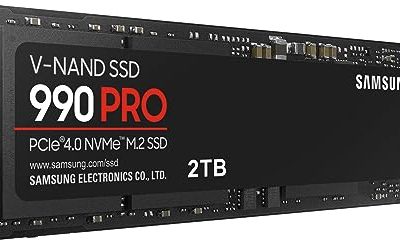
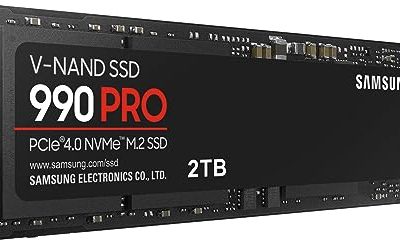
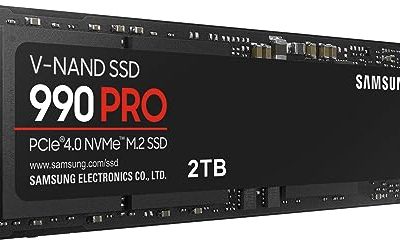
Samsung 990 PRO 2TB NVMe SSD

A fast PCIe 4.0 drive for your game library and Windows page file, so asset streaming and background cache writes stop colliding.
Specs
- PCIe Gen4 interface, sequential reads up to 7,450 MB/s, M.2 2280 form factor, 2TB capacity.
WD_BLACK SN850X 2TB NVMe SSD

Western Digital’s gaming drive pairs high sequential throughput with a Game Mode 2.0 toggle that keeps the drive in a low-latency state during play.
Specs
- PCIe Gen4 interface, sequential reads up to 7,300 MB/s, M.2 2280 form factor, 2TB capacity.
Creative Sound Blaster Play! 3

A small USB audio adapter that moves your headset off the motherboard codec, giving voice chat and game audio their own clean path.
Specs
- USB Type-A connection, 24-bit 96 kHz playback, headset and microphone jacks, plug and play on Windows.
Creative Sound Blaster Play! 4
The USB-C successor adds a physical mute switch and automatic mute detection for voice chat, handy when Discord stays open all session.
Specs
- USB-C connection, 24-bit 192 kHz playback, SmartComms Kit voice features, inline mute and volume controls.
Fosi Audio K5 Pro DAC and Headphone Amplifier

A desktop DAC and amp for players who drive demanding headphones and want voice and game audio handled entirely outside the PC’s onboard chain.
Specs
- USB, optical, and coaxial inputs, tone controls for bass and treble, RCA output for powered speakers, aluminum chassis.
How to Choose
Start from your split test result rather than from a shopping list. Stutter that begins when Discord merely opens points at rendering and the overlay, both free fixes. Stutter that begins in voice channels points at processing load, where lighter suppression settings or a USB audio device earns its place. Stutter during screen shares points at capture, where resolution steps and a single encoder matter more than raw GPU power. Consider the SSD upgrades only when the split test is clean but general hitching remains alongside slow loading, because at that point Discord was a witness, not the cause. Choose the audio gear by your headset: a simple USB adapter suits most headsets, while high-impedance headphones justify the desktop DAC. Every fix here is reversible, so work from the free settings toward hardware and stop as soon as frame times settle.
Who Should Skip This Guide
If your game stutters only in the moment after you alt-tab back into it and then smooths out, that is a focus and borderless-window issue covered by the alt-tab stutter guide, not Discord. If the hitching happens in specific maps or areas even with Discord fully closed, you are looking at shader compilation or asset streaming, and the area stutter guide is the right read. Stutter that only appears while recording gameplay belongs to the capture and encoder guides, and frame drops tied to a second monitor have their own fix path. Finally, if closing Discord changes nothing at all, skip this guide entirely and work the general stutter checklist, because your bottleneck lives somewhere else.
Frequently Asked Questions
Why does my game only stutter when Discord is open?
Discord adds GPU rendering, an overlay hook, voice processing, and sometimes screen capture on top of your game. On a PC already running near its limits, those background jobs consume frame time in bursts, which appears as stutter even though average frame rates barely change.
Should I disable hardware acceleration in Discord?
Yes, as a first test. Turning it off moves Discord’s interface rendering from the GPU to the CPU, removing a constant competitor for the same graphics pipeline your game uses. The app feels slightly less fluid, but in-game frame pacing usually improves immediately.
Does Discord overlay cause FPS drops?
It can. The overlay injects into the game’s rendering path to draw on top of frames, and some engines and anti-cheat systems handle that injection poorly. Disabling it per game under Registered Games keeps the overlay available everywhere else.
Why does the stutter get worse when friends talk in voice chat?
Talking activates the full voice processing chain, including noise suppression and echo cancellation, which runs continuously on the CPU. Lowering Noise Suppression to Standard or None, and disabling Quality of Service High Packet Priority, removes most of that uneven load.
Final Verdict
Discord-linked stutter is a scheduling problem, not a power problem. Run the split test, kill hardware acceleration and the overlay, lighten voice processing, and keep only one program capturing your screen. Most players finish there, on free settings alone. The SSD and audio picks are for the minority whose bottleneck survives the checklist, and they target the two pressure points, storage contention and shared onboard audio, that Discord exposes rather than causes.
Product and ASIN Reference
| Product | ASIN |
|---|---|
| Samsung 990 PRO 2TB NVMe SSD | B0BHJJ9Y77 |
| WD_BLACK SN850X 2TB NVMe SSD | B0B7CMZ3QH |
| Creative Sound Blaster Play! 3 | B06XBZ38ZJ |
| Creative Sound Blaster Play! 4 | B08T9LM3LM |
| Fosi Audio K5 Pro DAC and Headphone Amplifier | B0BFHFSX4C |