You set 2560 x 1440 in the menu, hit apply, and the game comes back soft, stretched, or squeezed into a smaller picture than your monitor can show. The number in the settings menu is only a request. Windows, the graphics driver, the cable, and the game itself each get a vote on the mode that finally reaches the screen, and any one of them can quietly overrule the rest.
That is why random tweaking wastes so much time on this problem. The fix depends on which layer is doing the overruling, and each layer leaves a different fingerprint on the picture. Read the symptom first, and it will point you at the right culprit almost every time.
As an Amazon Associate, we earn from qualifying purchases.
Quick Answer
A game runs at the wrong resolution when something between the game and the screen overrides the mode you picked: a render scale left low, GPU scaling stretching a smaller image, a driver profile, or a cable that hides your monitor’s best modes. Match your symptom below, apply its fix, then confirm the real mode on the monitor’s info page.
Start With the Symptom, Not the Settings Menu
Five versions of this problem show up again and again. They look similar from the couch, but each one has a different cause and a different fix, so find yours before changing anything.
Blurry, but the shapes look right
If the picture fills the screen with correct proportions yet everything looks smeared, the game is rendering below your panel’s native resolution and something is stretching that smaller image upward. Open the game’s display settings and look for a render scale or render resolution slider and set it to full. Turn off dynamic resolution scaling, which lowers the render size on the fly to hold frame rates. If the game uses an upscaling mode, switch its quality preset toward quality or native rather than performance. The menu can honestly report 2560 x 1440 as the output mode while the internal render is far smaller, and this is the single most common cause of the blur.
Stretched faces and squashed circles
When heads look wide and wheels look like eggs, the resolution itself may be right but the scaling mode is wrong. Open your GPU control panel and find the display scaling setting. If scaling is set to full-screen, the driver stretches whatever the game sends across the whole panel, ignoring aspect ratio. Change it to aspect ratio scaling, and set scaling to be performed on the GPU rather than the display. Then check the game is actually set to your monitor’s native aspect: a 16:9 mode forced onto a 21:9 screen, or the reverse, produces exactly this distortion.
Black bars on an ultrawide
Bars on the sides of an ultrawide usually mean the game is only offering 16:9 modes. Some titles hide their ultrawide modes behind a separate aspect ratio selector that must be changed before the resolution list updates, so set the aspect first, then pick the resolution. A few games need a borderless window at the desktop’s native resolution instead of exclusive fullscreen to use the full width. Also check the monitor’s own menu for a picture mode set to a fixed aspect; the panel itself can be the thing adding the bars.
Fine in a window, wrong in fullscreen
A game that behaves in windowed mode but drops to a low resolution in exclusive fullscreen is reading the list of modes your monitor reports, and that list is incomplete. The usual reason is the link: an older HDMI port or a bargain cable can hide every mode above 1080p, so the game never sees your panel’s real modes to choose from. Plug into a DisplayPort output on the graphics card rather than the motherboard, and if you run two screens set to duplicate, switch to extend or use one screen only, because duplicate mode forces both displays down to the highest mode they share.
The menu says native, the screen disagrees
Sometimes every menu insists the mode is correct and the picture still is not. Stop trusting menus and measure. Open the monitor’s on-screen display and find its information page, which shows the resolution actually arriving at the panel. In Windows, the advanced display settings show both the desktop resolution and the active signal resolution, and a mismatch between them exposes driver scaling at work. A screenshot is the third witness: if the captured image has fewer pixels than your panel, the game is rendering low no matter what its menu claims.
How to Choose the Hardware Fix
Most wrong-resolution cases are settings, and the steps above cost nothing. Hardware earns its place in two situations. The first is the mode list problem: if your monitor’s higher modes never appear anywhere, the cable or the port is the ceiling, and no setting can raise it. Choose a VESA certified DisplayPort 1.4 cable or an Ultra High Speed HDMI cable rated for the full 48 Gbps signal, and keep the run short. The second is a panel whose inputs are a generation behind its screen, where a monitor with current DisplayPort and HDMI inputs ends the negotiation problems for good. These are the five pieces worth considering.
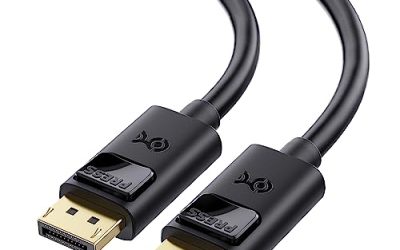
Cable Matters VESA Certified DisplayPort 1.4 Cable, 10 Foot
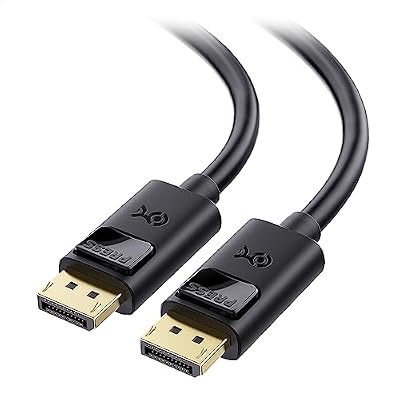
A certified cable is the cheapest way to find out whether your link has been hiding modes. This one carries the full HBR3 signal, so a 1440p high-refresh or 4K panel can report every mode it supports.
Specs
- Connector: DisplayPort 1.4, both ends
- Bandwidth: HBR3, supports up to 8K at 60 Hz and 4K at high refresh rates
- Certification: VESA certified
- Length: 10 foot
Zeskit Maya 8K Ultra High Speed HDMI Cable, 5 Foot

If your setup runs over HDMI, this is the cable that removes bandwidth from the list of suspects. It is rated for the complete HDMI 2.1 signal, which is what 4K high-refresh gaming over HDMI depends on.
Specs
- Connector: HDMI 2.1, both ends
- Bandwidth: 48 Gbps, supports 8K at 60 Hz and 4K at 120 Hz
- Certification: Ultra High Speed HDMI
- Length: 5 foot
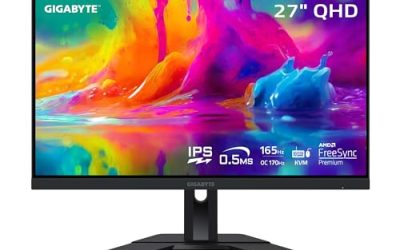
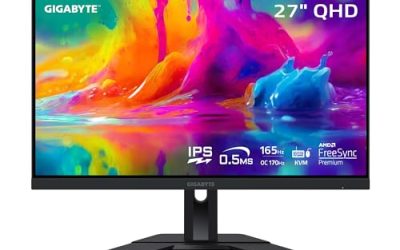
Gigabyte M27Q Gaming Monitor

The M27Q is the straightforward 1440p answer: a native 2560 x 1440 panel with DisplayPort 1.2 and HDMI inputs that report their modes cleanly, plus a KVM switch if a work laptop shares the desk.
Specs
- Size and panel: 27 inch IPS
- Native resolution: 2560 x 1440
- Refresh rate: up to 170 Hz overclocked
- Inputs: DisplayPort, HDMI, USB-C
Dell UltraSharp U2724DE

This Dell pairs the same 1440p resolution with an IPS Black panel and a Thunderbolt hub, which suits a desk where one cable should drive the display and the peripherals. Its on-screen information page makes the verification step above a ten-second job.
Specs
- Size and panel: 27 inch IPS Black
- Native resolution: 2560 x 1440
- Refresh rate: up to 120 Hz
- Inputs: DisplayPort, HDMI, Thunderbolt
ASUS ProArt PA279CRV

For anyone whose wrong-resolution frustration is really about stepping up to 4K, the PA279CRV is a 27 inch 4K panel with wide color coverage and USB-C. Feed it with one of the certified cables above so its full mode list survives the trip.
Specs
- Size and panel: 27 inch IPS
- Native resolution: 3840 x 2160
- Refresh rate: 60 Hz
- Inputs: DisplayPort, HDMI, USB-C
Who Should Skip This Guide
Skip it if your game opens on the wrong monitor entirely, or runs at the right resolution but the wrong refresh rate; both are separate problems with separate fixes. Skip it if the resolution is correct at launch but keeps changing between sessions, because that points at a config file being rewritten rather than a mode being overridden. And skip the hardware section if your monitor’s information page already shows the correct incoming resolution, since your problem then lives in the game’s render scale, not in the link.
Frequently Asked Questions
Why does my game look blurry at 1440p on a 1440p monitor?
Because the output mode and the render resolution are different numbers. Dynamic resolution scaling or a render scale slider below full makes the game draw a smaller image, and the GPU stretches it to 1440p. Set the render scale to full and disable dynamic resolution to restore sharpness.
Why is 2560 x 1440 missing from my game’s resolution list?
The game only lists modes the monitor reports through the cable. An older HDMI connection, a low-bandwidth cable, or duplicate display mode can hide every mode above 1080p. Connect with DisplayPort or a certified Ultra High Speed HDMI cable and use extend mode instead of duplicate.
Does GPU scaling or display scaling give the right picture?
For fixing a stretched or squashed image, set the control panel to aspect ratio scaling performed on the GPU. Full-screen scaling is the setting that distorts, because it stretches any input across the whole panel regardless of shape.
How can I check the resolution my monitor is really receiving?
Open the monitor’s on-screen menu and find the information page, which reports the incoming mode. Compare it with the desktop resolution and active signal resolution in the Windows advanced display settings; when those two disagree, driver scaling is active.
Final Verdict
A wrong resolution is never random. Blur means the render is smaller than the output, distortion means a scaling mode is ignoring aspect ratio, missing modes mean the link is hiding them, and a menu that swears everything is fine can be checked in seconds on the monitor’s own information page. Work from the symptom, fix the one layer responsible, and only spend money when the cable or the panel is the layer at fault.
Product and ASIN Reference
| Product | ASIN |
|---|---|
| Cable Matters VESA Certified DisplayPort 1.4 Cable, 10 Foot | B07J2PGGFX |
| Zeskit Maya 8K Ultra High Speed HDMI Cable, 5 Foot | B08TQTYCYS |
| Gigabyte M27Q Gaming Monitor | B08JWCHR5N |
| Dell UltraSharp U2724DE | B0CMXGDK5S |
| ASUS ProArt PA279CRV | B0BQPSX5CR |