You have already done the obvious checks. The resolution reads native, the render scale sits at its full mark, the menus and HUD are pin-sharp, and textures look crisp when you walk right up to them. Yet the world looks viewed through a smear of glass cleaner, worse the moment the camera moves. This is not a texture fault and not a resolution fault: the frame leaves the renderer sharp and is softened on the way to your eyes by five layers: the anti-aliasing, the upscaler, the post-processing, the handoff through Windows and the cable, and the panel. This guide follows the frame through those five stations in order.
As an Amazon Associate, we earn from qualifying purchases.
Quick Answer
When the resolution is genuinely native and the picture is still soft, the blur is added after rendering: temporal anti-aliasing smears frames together, upscalers rebuild from a smaller image, post effects paint over detail, Windows or the cable rescales the handoff, or the panel softens it. Work the five stations in order and test after each change.
First, Prove the Frame Is Really Native
Spend sixty seconds on a gate before touching a slider. Set the game to exclusive fullscreen at your panel’s native resolution, render scale at its full mark. Then take a screenshot with the game’s photo mode or your GPU overlay and open it at full size. The screenshot splits the problem in two. If the capture is soft as well, the blur is created inside the engine: stations one to three. If the capture is sharp but the screen is not, the engine is innocent and the blur lives in the handoff or the panel: stations four and five. One warning: if the HUD and menus are soft in the capture too, the frame is not truly native at all, whatever the menu claims — see Who Should Skip.
Station One: Temporal Anti-Aliasing Smears Between Frames
Temporal anti-aliasing, TAA, cures jagged edges by blending each frame with the frames before it. The price is softness: fine detail is averaged across time, foliage and hair turn waxy, and moving edges drag a faint smear behind them. The lower the frame rate, the older the history it blends, and the softer it looks. Its older cousin FXAA softens differently, blurring the finished frame in one pass.
Work it in this order. If the game offers a choice of method, try DLAA where available, since it runs the DLSS pipeline at native resolution and holds detail better than plain TAA, or MSAA in older titles. Next, raise any TAA quality setting, then find the sharpening slider many TAA games expose and add a modest amount: it exists to buy back the edge bite TAA spends. Disabling TAA entirely is the last resort, sometimes only through a configuration file, trading softness for shimmer on every fence and rooftop.
Station Two: The Upscaler Rebuilds a Smaller Picture
A Quality mode is not native rendering wearing a badge. DLSS, FSR and XeSS in their Quality modes render at roughly two thirds of each axis and reconstruct the rest, and reconstruction is estimation: very good, but thin geometry, distant signage and chain-link fences come back slightly waxy, because the information was never rendered.
The fix is to climb toward native. Most modern upscalers offer a native-resolution mode, labelled DLAA, Native AA or Ultra Quality: take it when performance allows, because it keeps the anti-aliasing and drops the guesswork. If that costs too many frames, step up one quality tier instead. Then use the upscaler’s sharpening control, which FSR calls RCAS, set by eye on a detailed scene. Finally, switch dynamic resolution off for testing: it lowers the internal resolution exactly when action peaks.
Station Three: Post-Processing Paints Over the Detail
The last engine layer is a stack of artistic filters, and several soften by design. Film grain lays animated noise over the image, which temporal anti-aliasing then smears into a permanent grit. Chromatic aberration bends the colour channels apart at the edges of the frame, so anything off-centre loses its outline. Motion blur streaks the world while the camera turns. Depth of field throws backgrounds out of focus on purpose.
Disable them one at a time, in that order, returning to the same viewpoint after each change. Grain and chromatic aberration most often explain a picture that feels soft everywhere at once. Some games bury these switches under a single post-processing quality tier: dropping it one notch often disables grain and aberration while keeping the lighting you actually want.
Station Four: The Handoff Rescales What the Game Drew
A sharp frame can still be stretched between the game and the glass. The quietest culprit is Windows display scaling: when the desktop runs above its unscaled setting, games that are not DPI-aware render at the scaled size and are stretched by Windows, while their menus go on reporting native resolution. Fix it per game in the executable’s properties: compatibility tab, high DPI settings, override set so scaling is performed by the application. In the driver panel, confirm scaling is handled in one place only, GPU or display.
The cable gets a vote as well. When bandwidth runs short, at high resolution and refresh over an older HDMI lead, the signal can fall back to a chroma-subsampled format such as YCbCr 4:2:2. Colour information is shared between neighbouring pixels, which barely shows in scenery but turns coloured edges and fine detail to mush. Set the output colour format to RGB with a full dynamic range in the driver panel; if the option is missing at your resolution and refresh rate, the link is the limit, and a DisplayPort connection or full-bandwidth HDMI cable restores it. Driver sharpening, from NVIDIA or AMD, can counter mild residual softness here, but treat it as seasoning: too much carves halos around every edge.
Station Five: The Panel Has the Final Say
The monitor processes the image last, and it has a sharpness control of its own. Set below its neutral point it softens everything, games and desktop alike; set above it, it carves bright halos that read as false detail. If your desktop text looks soft too, return the setting to the manufacturer’s default before changing anything else. Also confirm the panel is fed its true native signal: some monitors accept a higher-resolution input and quietly downscale it.
Then there is the honest limit: pixel density is physics. A 1080p picture spread across a 27-inch panel has visibly larger pixels than at 1440p, and no slider adds detail the grid does not have. If every station checks out, the remaining fix is a denser panel.
How to Choose Your First Station
Let the symptom pick the station. Soft only in motion, sharp standing still: stations one and three. Soft everywhere with a gritty overlay: station three, grain first. Coloured edges and fine detail mushy while large shapes stay clean: station four, the pixel format. Screenshot sharp but screen soft: stations four and five. Screenshot soft as well: stations one to three. Work one change at a time, in the same scene, and stop when the picture clears; stacking fixes leaves you not knowing which one mattered.
Gear That Answers the Panel and Cable Legs
Settings clear most cases. Two legs remain where hardware answers: the panel, where a denser native grid adds real detail, and the cable, where full bandwidth keeps the signal in RGB.
Gigabyte M27Q Gaming Monitor

The pixel-density step up for 1080p desks: a native 1440p grid packs more detail into the same 27 inches.
Specs
- Panel: 27-inch Super Speed IPS
- Resolution: 2560 x 1440 native
- Refresh rate: 170 Hz overclocked
- Features: FreeSync Premium, built-in KVM
Dell UltraSharp U2724DE

The same 1440p density with a contrast advantage: IPS Black roughly doubles typical IPS contrast, keeping dark detail separated.
Specs
- Panel: 27-inch IPS Black
- Resolution: 2560 x 1440 native
- Refresh rate: 120 Hz
- Features: Thunderbolt 4 hub, USB-C power delivery
ASUS ProArt PA279CRV

The native 4K option for rigs that can feed it: at 3840 x 2160 the grid is fine enough that scaling artefacts have almost nowhere to hide.
Specs
- Panel: 27-inch IPS
- Resolution: 3840 x 2160 native
- Refresh rate: 60 Hz
- Features: USB-C with 96W power delivery
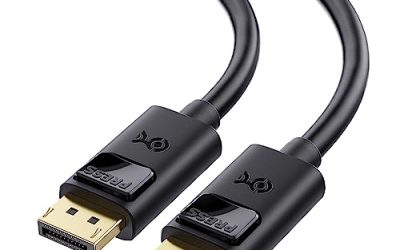
Cable Matters DisplayPort 1.4 Cable, 10 ft
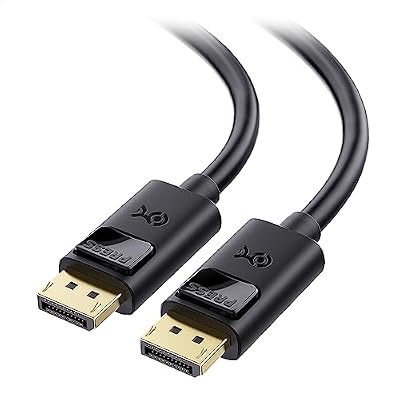
The full-bandwidth route for high-refresh desks: DisplayPort 1.4 carries native 1440p at high refresh, or 4K, in full RGB, never subsampled colour.
Specs
- Standard: DisplayPort 1.4, HBR3
- Bandwidth: 32.4 Gbps
- Length: 10 feet
Zeskit Maya 8K Ultra High Speed HDMI Cable, 5 ft

The HDMI equivalent: an Ultra High Speed cable carries the full 48 Gbps of HDMI 2.1, keeping 4K at high refresh in RGB.
Specs
- Standard: Ultra High Speed HDMI, version 2.1
- Bandwidth: 48 Gbps
- Length: 5 feet
Who Should Skip This Guide
Skip it if surfaces stay blurry while you stand still in front of them, the ground smears at a shallow angle and the HUD stays crisp: that is texture filtering and VRAM rationing, covered by this site’s blurry textures guide. Skip it if your menus and HUD are soft and a render scale or dynamic resolution setting is active, because then the frame really is below native and raising it is the whole fix. Skip it if the picture turned grey and washed out when you enabled HDR: a tone-mapping fault with its own guides here. Skip it if moving objects trail dark smears or bright coronas you can also see on the desktop: panel response behaviour, not pipeline softness. And skip it if the blur only exists in a streamed or cloud game, where the network owns the picture.
Final Verdict
Native resolution is the beginning of a sharp picture, not the guarantee of one. Between the renderer and your eyes sit five layers that can each spend the detail native rendering bought: temporal anti-aliasing, the upscaler, post-processing, the Windows and cable handoff, and the panel. The screenshot test tells you which half of the chain to search; the symptom tells you which station. Most players find their blur in the first three stations and fix it for free; panel and cable are the only legs where spending is the answer, and only after the tests indict them.
Frequently Asked Questions
Why does my game look blurry even at native resolution?
Because native resolution only sets the size of the rendered frame. Softness is added afterwards: temporal anti-aliasing blending frames, an upscaler reconstructing from a smaller image, post-processing filters, Windows or the cable rescaling the output, or the monitor’s own processing. Find the responsible layer with the screenshot test.
Is DLSS Quality mode the same as native resolution?
No. Quality renders internally below native, at roughly two thirds of each axis, and reconstructs the difference, leaving fine detail slightly waxy. For a true native picture with strong anti-aliasing, use the native mode, labelled DLAA or Native AA, or step up a tier.
Can a cable really make my games look softer?
Yes. When the link lacks bandwidth for your resolution and refresh rate, the signal can fall back to chroma subsampling such as YCbCr 4:2:2, which shares colour information between pixels and softens coloured edges. RGB output in the driver, over DisplayPort or a full-bandwidth HDMI cable, removes the fallback.
Why is the blur worse when I move the camera?
Because temporal methods lean on previous frames. TAA, upscaler reconstruction and motion blur all use that history, and fast camera movement makes it stale, so edges smear until you stop and the image settles. If your blur lives in motion, start at stations one and three.
Product and ASIN Reference
| Product | ASIN |
|---|---|
| Gigabyte M27Q 27-Inch Gaming Monitor | B08JWCHR5N |
| Dell UltraSharp U2724DE 27-Inch Monitor | B0CMXGDK5S |
| ASUS ProArt PA279CRV 27-Inch 4K Monitor | B0BQPSX5CR |
| Cable Matters DisplayPort 1.4 Cable, 10 ft | B07J2PGGFX |
| Zeskit Maya 8K Ultra High Speed HDMI Cable, 5 ft | B08TQTYCYS |